Login
Quoth: A Local AI Speech to Text Tool for Linux That Picks Your Hardware
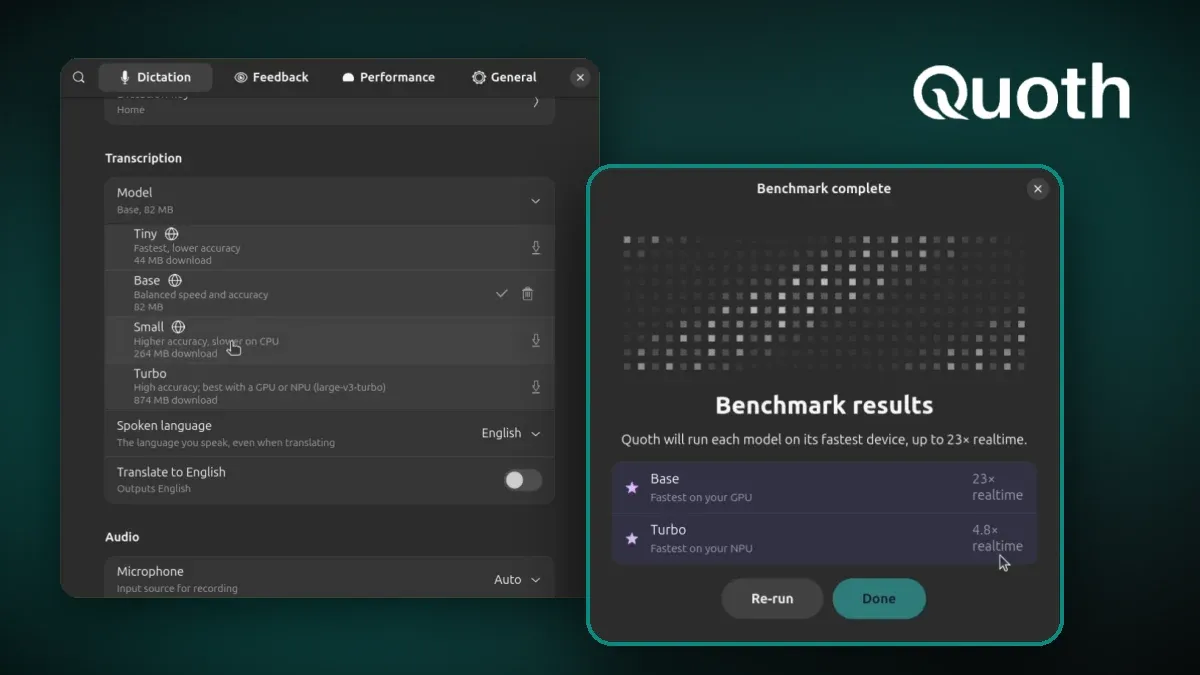
I keep testing voice typing tools on Linux, and most of them do the job. The annoying part is figuring out which model your computer can actually handle, and whether it should run on the CPU, the GPU or the NPU.
Quoth does that part for you. It's a new voice dictation app made exclsuively for Linux. It runs Whisper models locally, and it benchmarks your hardware to decide what runs where.
I tried it on my Ubuntu with GNOME and I am sharing my experience in this article. I have also recorded it in video format, but there is construction work going on in the neighborhood, so the voiceover recording is postponed. Hopefully, I will share the video in a few days. For now, read and enjoy 😄
What is Quoth?
Quoth is a local AI, speech to text tool. You press a key, you speak, and your words get typed wherever your mouse cursor is. That could be a text editor, a browser, a chat app or even the terminal (although command typing is more miss than hit).
Everything is transcribed on your own machine with whisper.cpp. There's no need and scope for account creation. You can choose to share crash reports with dev, if you want to. It's disabled by default. Quoth says the reports never contain your audio or dictated text.
Here's a quick summary of what Quoth offers:
- Four Whisper models: Tiny, Base, Small and Turbo (large-v3-turbo)
- Hardware acceleration on Vulkan GPUs (AMD, Intel and NVIDIA) and Intel NPUs through OpenVINO
- A built-in benchmark that picks the fastest device (CPU, GPU or NPU) for each model
- Tap to talk or hold to talk modes
- Translation from 10+ languages into English (except with Turbo)
- Addition themes like Nord, Catppuccin and Dracula
It's free and open source under the GPL-3.0 license, and it's built by a single developer, Samuel Bullard. Samuel gave me an early access to the tool for trying out. It is available to public now.
For now, you need Wayland, as X11 is not supported. And you need a 64-bit x86 machine, as there are no ARM builds yet.
Installing Quoth
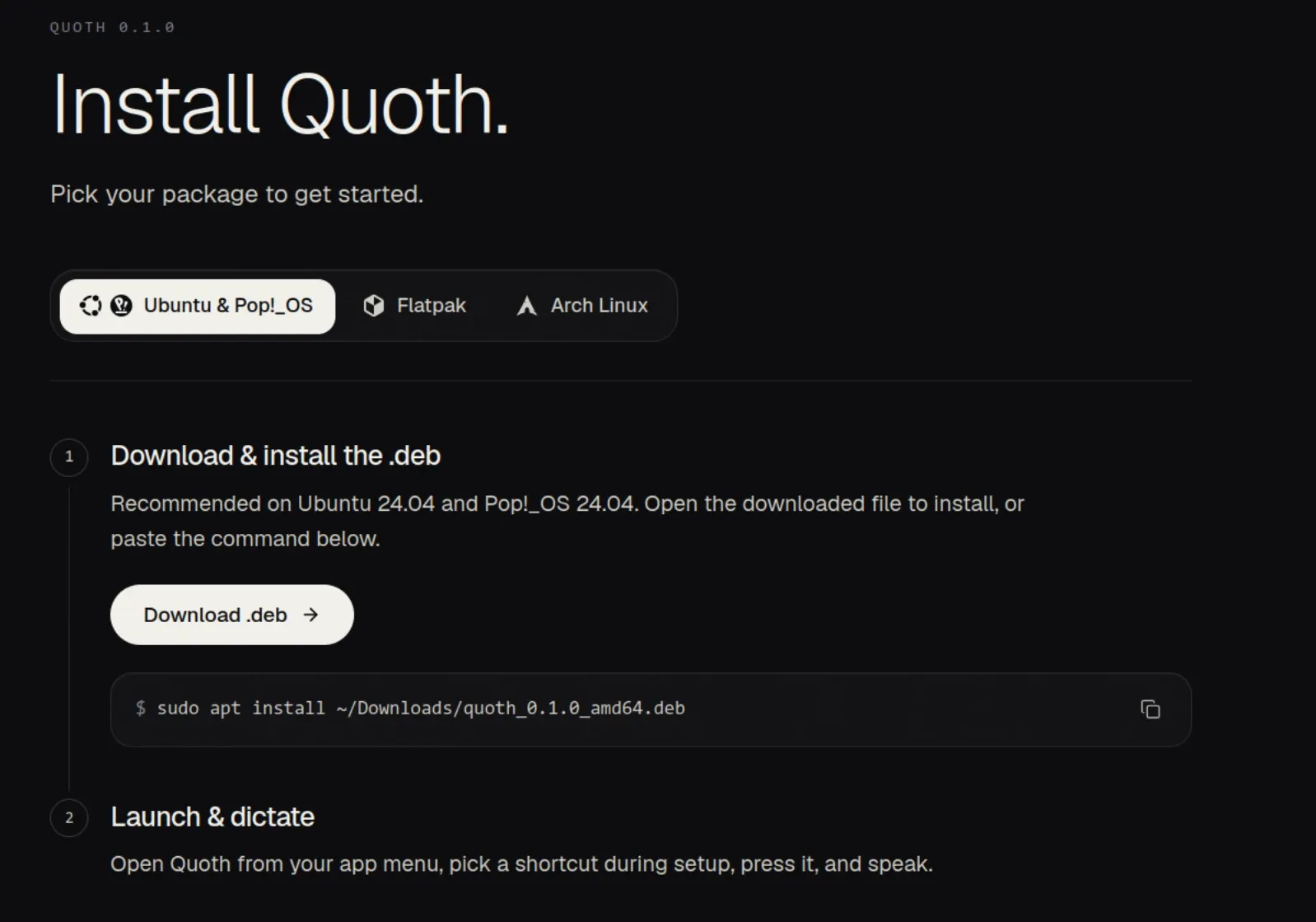
Quoth offers a deb package (recommended for Ubuntu 24.04 and Pop!_OS 24.04), an APT repository if you want automatic updates, and a Flatpak bundle. Arch users can build it with the PKGBUILD in the repository. It's not on Flathub or the AUR yet.
The install page on the Quoth website has the exact commands for each method. I used the deb package on Ubuntu.
One thing for GNOME users: Quoth lives in the top panel as a tray icon, so you need an AppIndicator extension. Ubuntu ships one by default. On vanilla GNOME, you'll have to install it yourself.
First run and setup
On the first run, Quoth downloads the Base model. It's only 82 MB, so this takes a few seconds or minutes, depending on the internet connection. Then it asks you to try your voice.
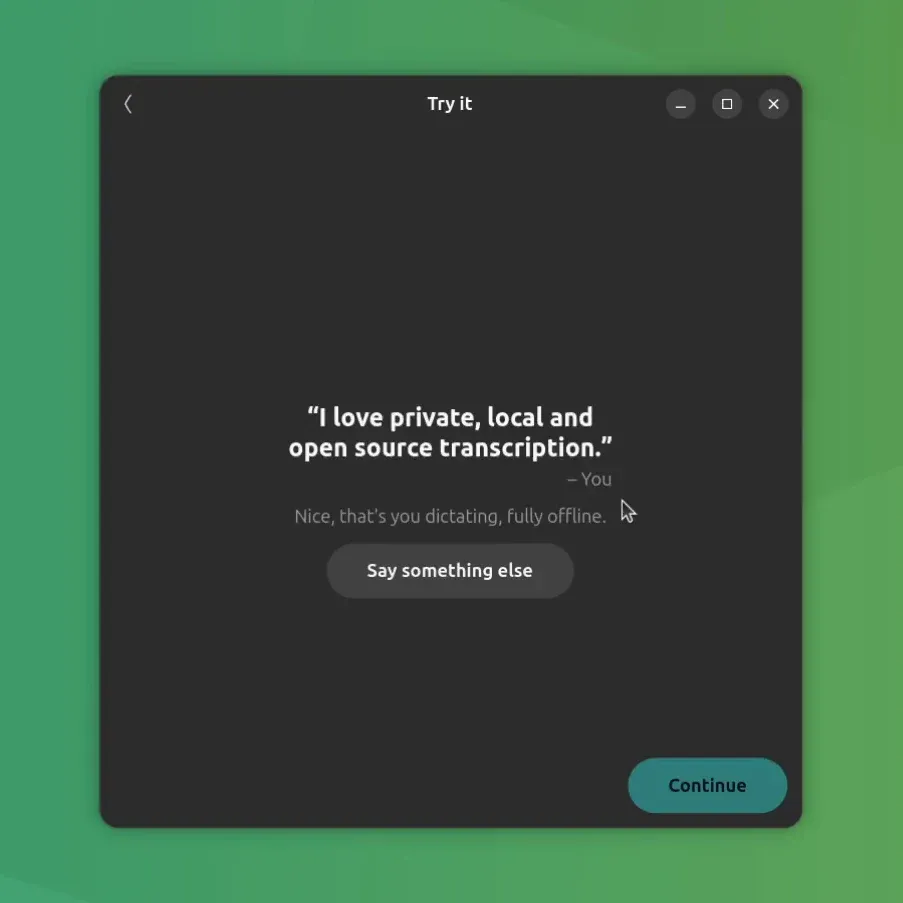
I said "I love private, local and open source transcription" and it got every word right. Then I tried something it was less likely to know: "Everyone should subscribe to It's FOSS YouTube channel." It got itsfoss.com correct, but It's FOSS became "its Forest". That's acceptable for such a small model, I think.
The benchmark is the best part
This is perhaps the most unique feature. Quoth offers to benchmark the model on your NPU, GPU and CPU. After that, its automatic mode picks the fastest device on its own.
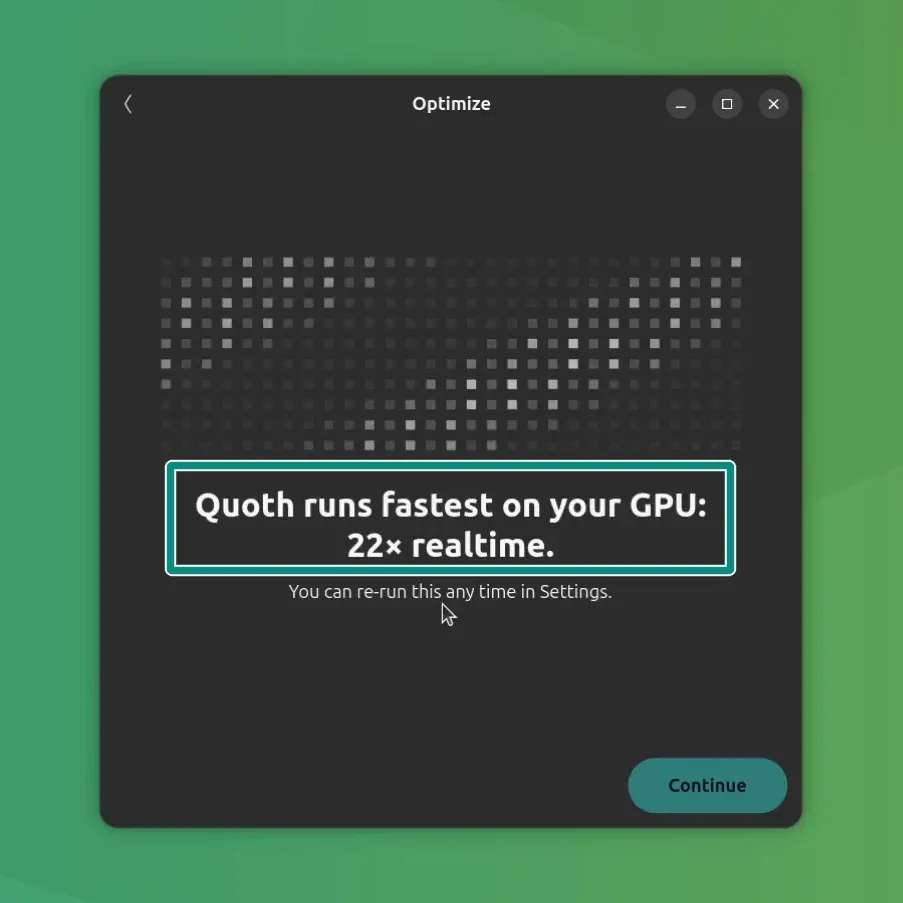
On my laptop, Asus Zenbook, the GPU came out on top at 22 times real time. That means it can transcribe 22 seconds of speech in one second. I didn't have to guess anything, and that's what I like most about Quoth.
First hiccup: one key shortcut only
Quoth then asks you to choose a dictation key. The default is Pause, and I wanted something else, like Ctrl+Alt+Space.
That didn't work. When I pressed the combination, Quoth only registered the Control key. You can set a single key, not a combination.
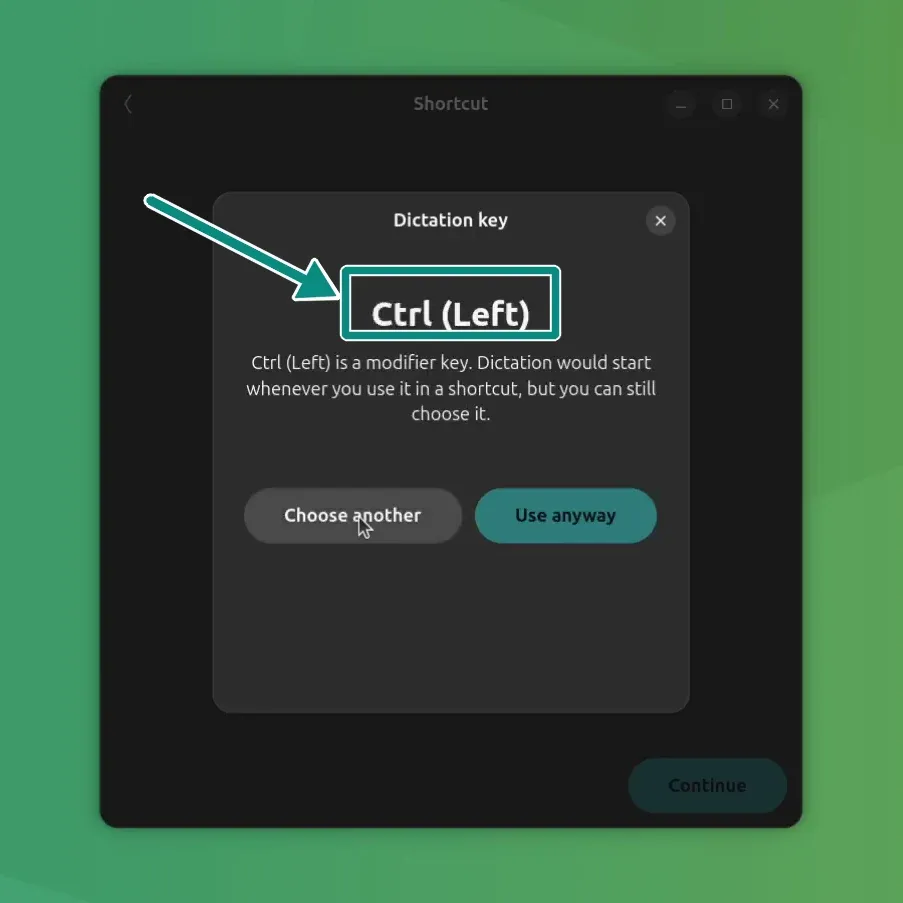
Quoth does warn you that Ctrl is a modifier key, so dictation would start every time you use it in a shortcut. I went with the Home key instead, because I use it less than other keys. But a single key is never ideal, because that key still does its normal job in other apps.
Dictating with Quoth in everyday apps
Once set up, Quoth sits in the top panel. The icon turns red/orange while it's recording. Unlike Ubuntu's Myna, it doesn't show a pill or some other visual feedback that recording is in progress. It does have a small audio feedback when dictation starts.
In a text editor
I opened Gedit text editor, pressed Home, spoke, and pressed Home again. The text appeared at my cursor.
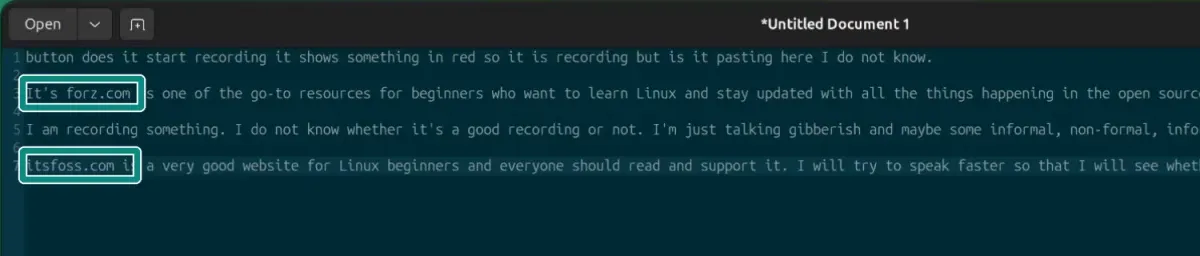
The Base model wrote "It's forz.com" this time. But the rest of the sentence was correct, even with my accent. Later, I tried the same kind of sentence with the Turbo model, and it got "itsfoss.com" right (the last line in the screenshot above).
In the terminal
Quoth does paste in the terminal. But "sudo apt update" became "sudo app update", twice.
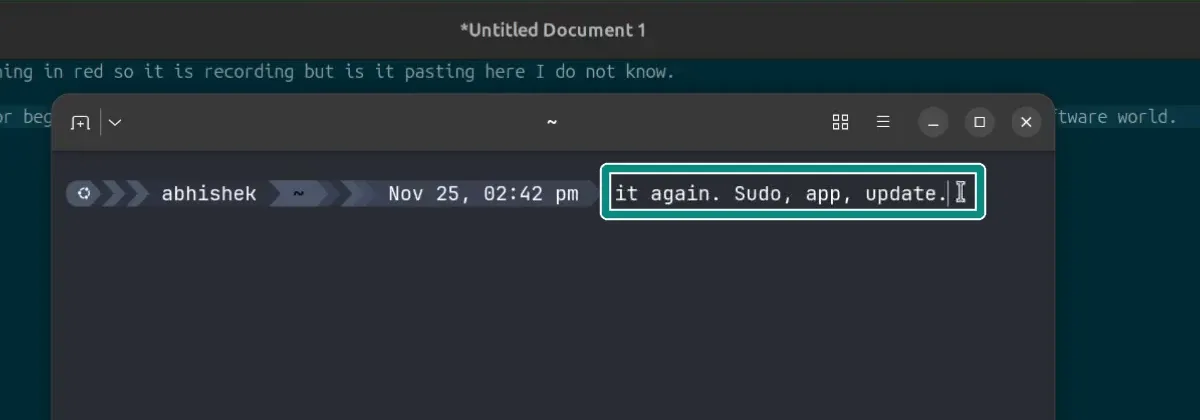
So I wouldn't use it for commands. To be fair, that's true for every dictation tool I've tried. Commands are short, and typing them is faster anyway, and safer too.
In chat and AI prompts
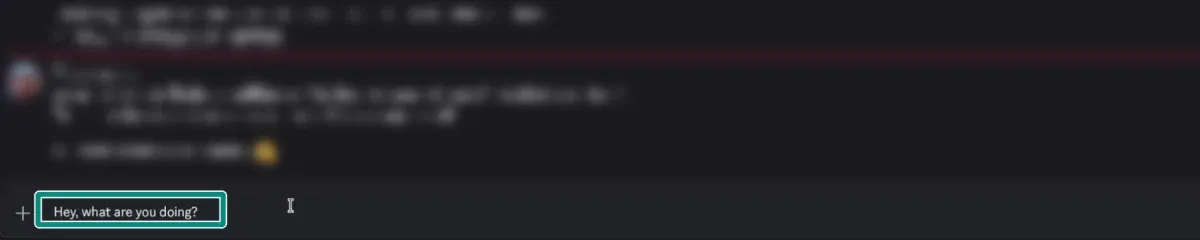
For casual chat on Discord, it works well as hort sentences come out right. I think chats are one of the best places to use the speech to text tools.
Another place where I find dictation most useful is for creating long prompts for AI tools. I asked Lumo AI from Proton to go through my Proton Mail inbox (connected via Proton Bridge) and find software coverage requests in the past 24 hours. Quoth misheard Proton as "Praton" (did I speak that badly?), but Lumo understood the request anyway and correctly listed six requests.
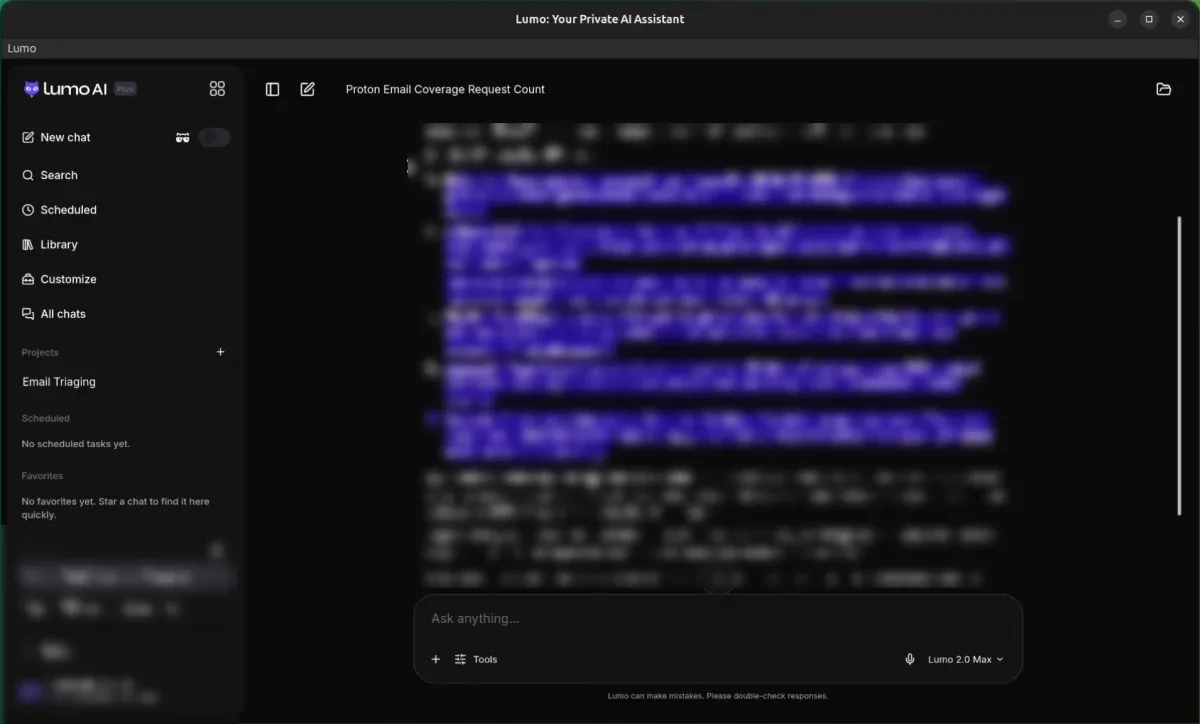
Speaking a long prompt is much faster than typing it, and small errors don't matter much because the AI model works around them.
Second hiccup: the panel menu
Click the Quoth icon in the top panel and you get a small menu. It has Language and Model options, along with Copy last dictation, Settings, About and Quit.
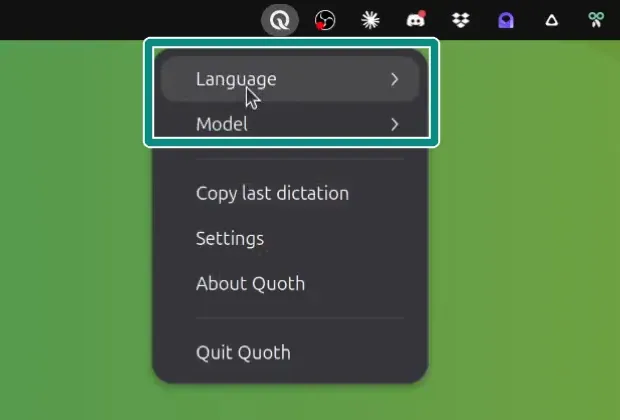
Clicking on Language and Model could not open a submenu. I had to go to Settings to change either of them. This is a bug and I have notified Samuel about it. Hopefully he will take care of it in the next update.
Exploring the settings
Quoth interface is clean, uses libadwaita, and blends well with GNOME.
In the Dictation tab, you can switch between tap to start and stop, or hold while you talk. You also pick your model here.
| Model | Download size | Translation to English |
|---|---|---|
| Tiny | 44 MB | Yes |
| Base | 82 MB | Yes |
| Small | 264 MB | Yes |
| Turbo | 874 MB | No |
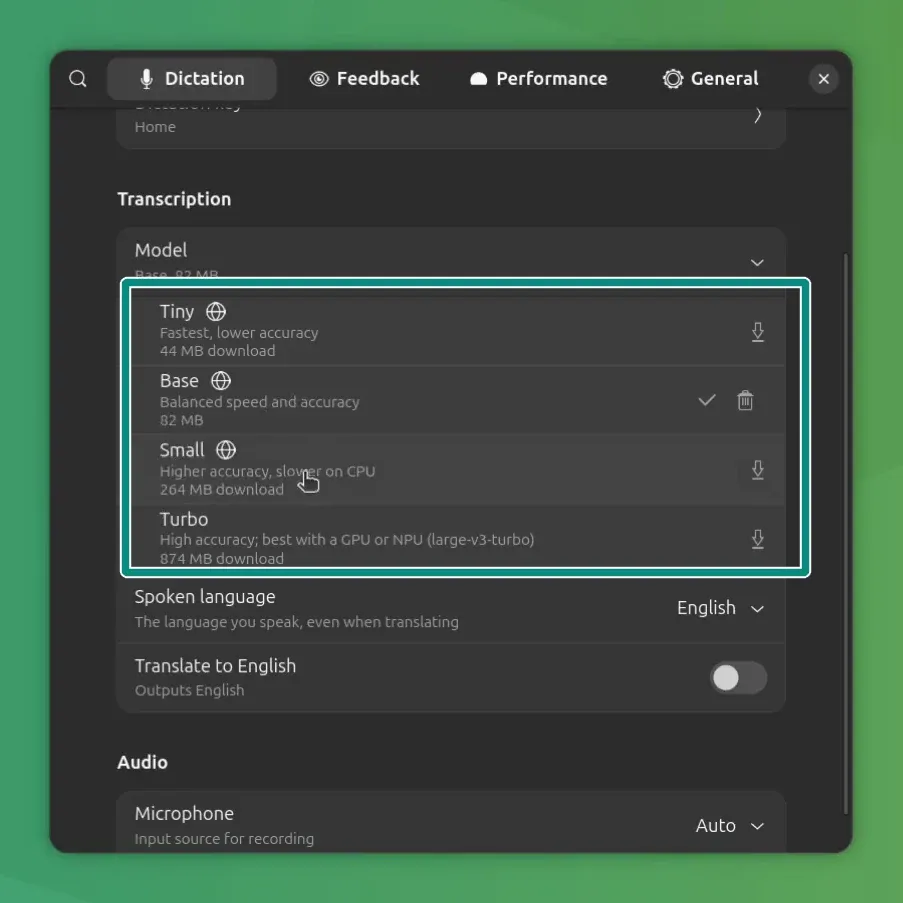
Even the largest model is under 1 GB. That's small compared to what other tools offer. Keep in mind that if you use the NPU, Quoth downloads an extra encoder for it. When I downloaded Turbo, the download was 1.3 GB (because of the encoder), and the NPU cache took 1.4 GB on disk afterwards.
You can also set the language you speak and turn on translation to English. The Feedback tab has recording sounds, the volume for them, and notifications while recording.
The Performance tab lets you force the NPU, GPU or CPU if you don't like the automatic choice, or run the benchmark again.
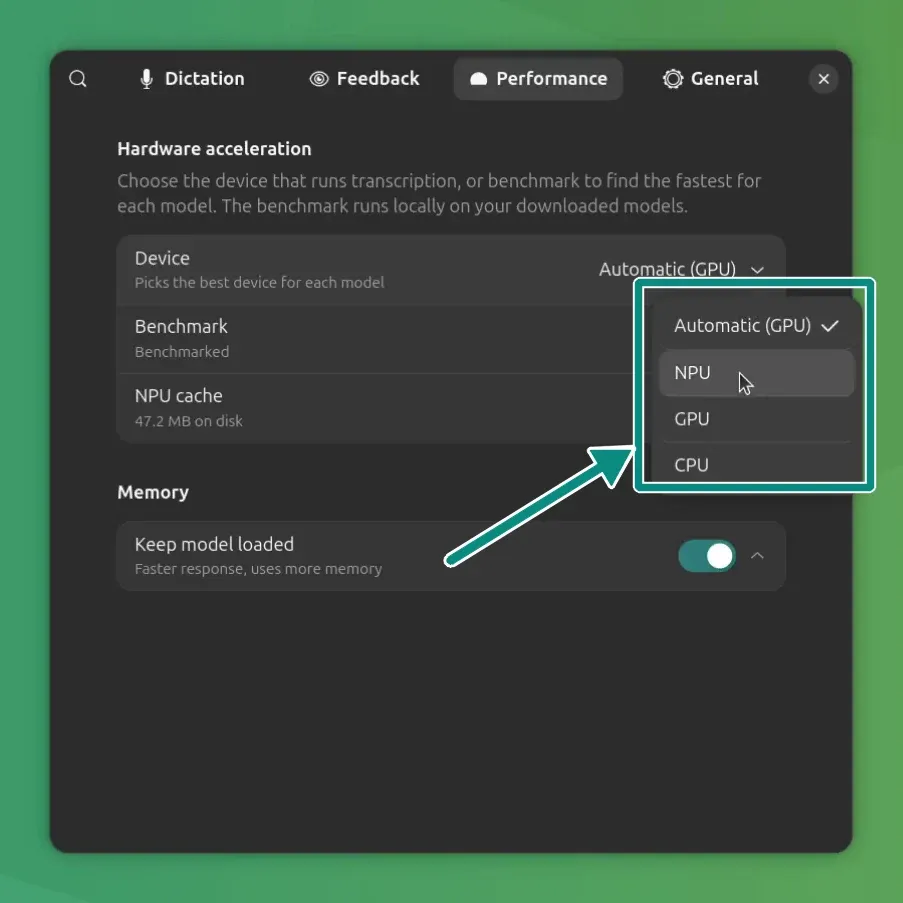
There's also an option to keep the model loaded in memory. By default, it stays loaded for 300 seconds after your last dictation. That uses more RAM, but you get a faster response.
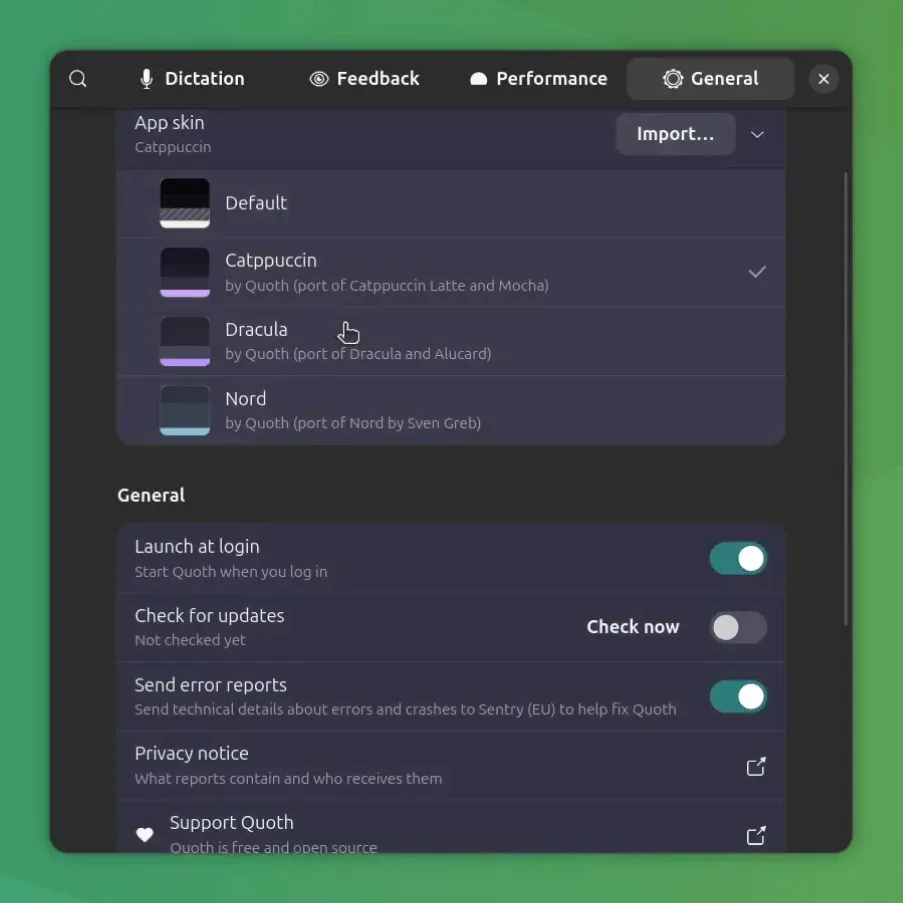
In the General tab, you can change the app skin. The themes change the colors of the settings window, and I quite like the Catppuccin one.
Running the full benchmark
After downloading Turbo, I ran the benchmark again from settings. This time it tested both models.
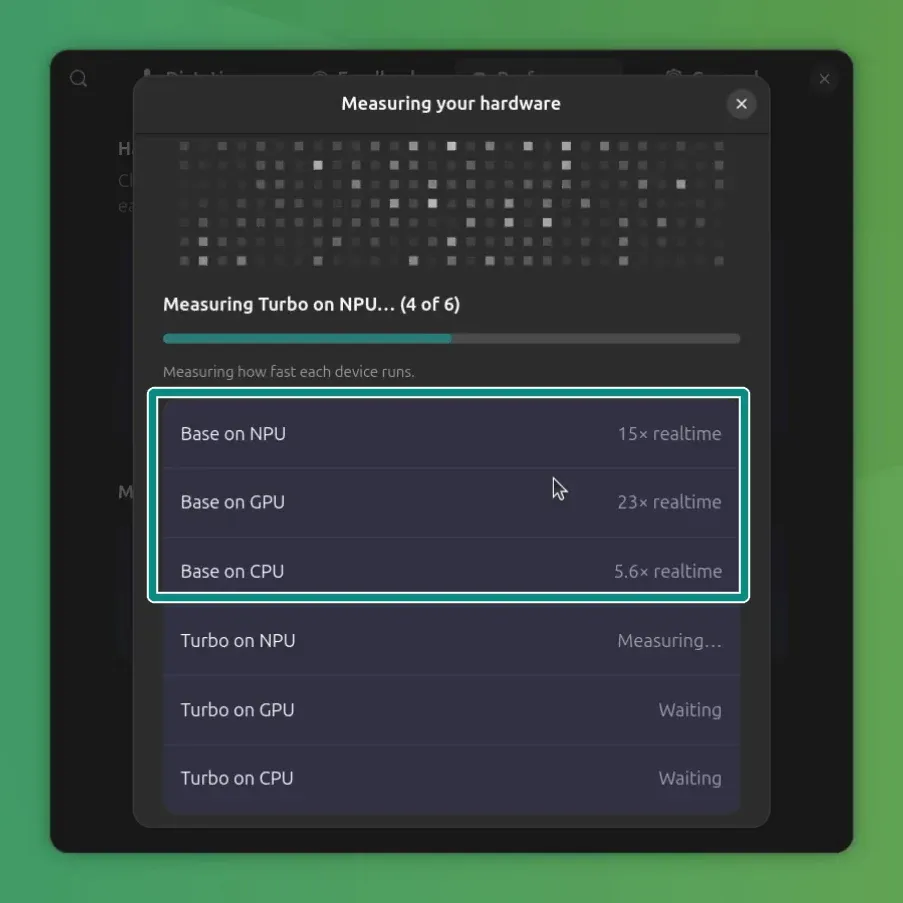
For the Base model, my laptop managed 15 times real time on the NPU, 23 on the GPU and 5.6 on the CPU. Turbo took much longer to test.
The final results surprised me. Base is fastest on the GPU at 23 times real time. But Turbo is fastest on the NPU, at 4.8 times real time.
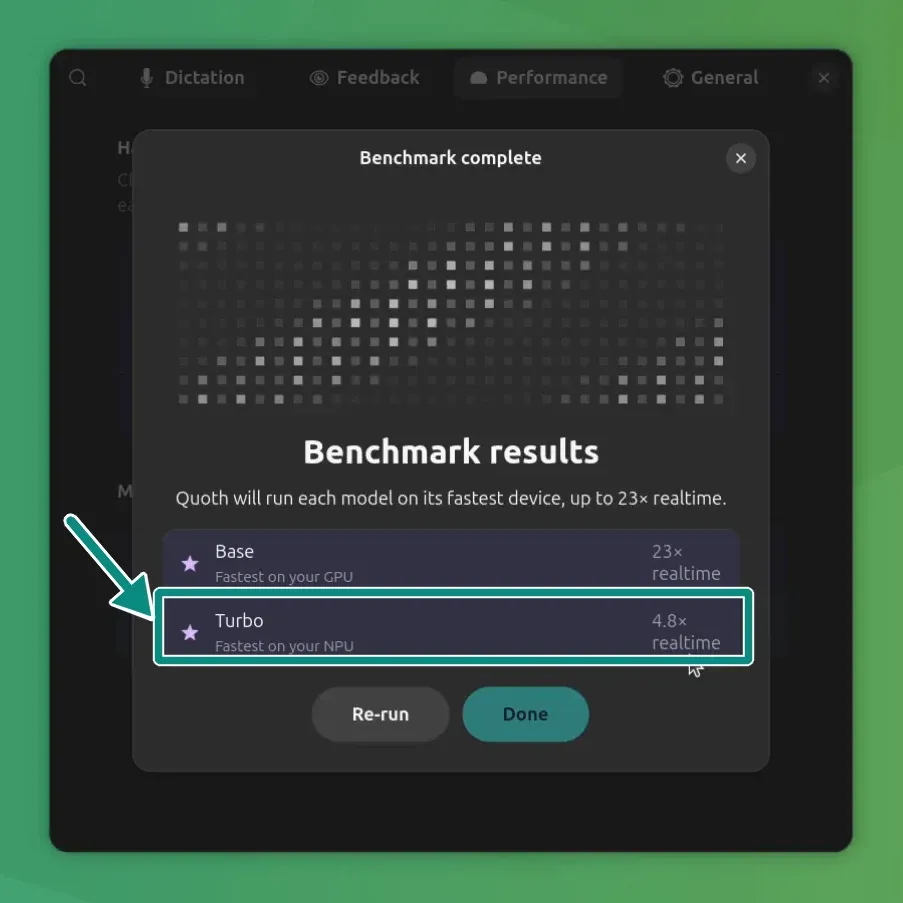
I wouldn't have guessed that. And when I switched to Turbo, the automatic mode moved to the NPU on its own. This is exactly the kind of decision most of us would not make on our own.
Testing Turbo model
With Turbo selected, I switched to hold while you talk mode. It feels nicer for short dictations, because you don't have to remember to press the key a second time.
Turbo got every word I said, with proper punctuation. In the second test, I fumbled and repeated myself, and it cleaned that up too. It also wrote "itsfoss.com" correctly, which the Base model had missed.
I would say that if your hardware can run Turbo at a decent speed, use it. The accuracy difference is noticeable.
Translation is hit and miss
Quoth can translate what you say into English. The toggle is greyed out with Turbo, because Turbo can't translate. Tiny, Base and Small can.
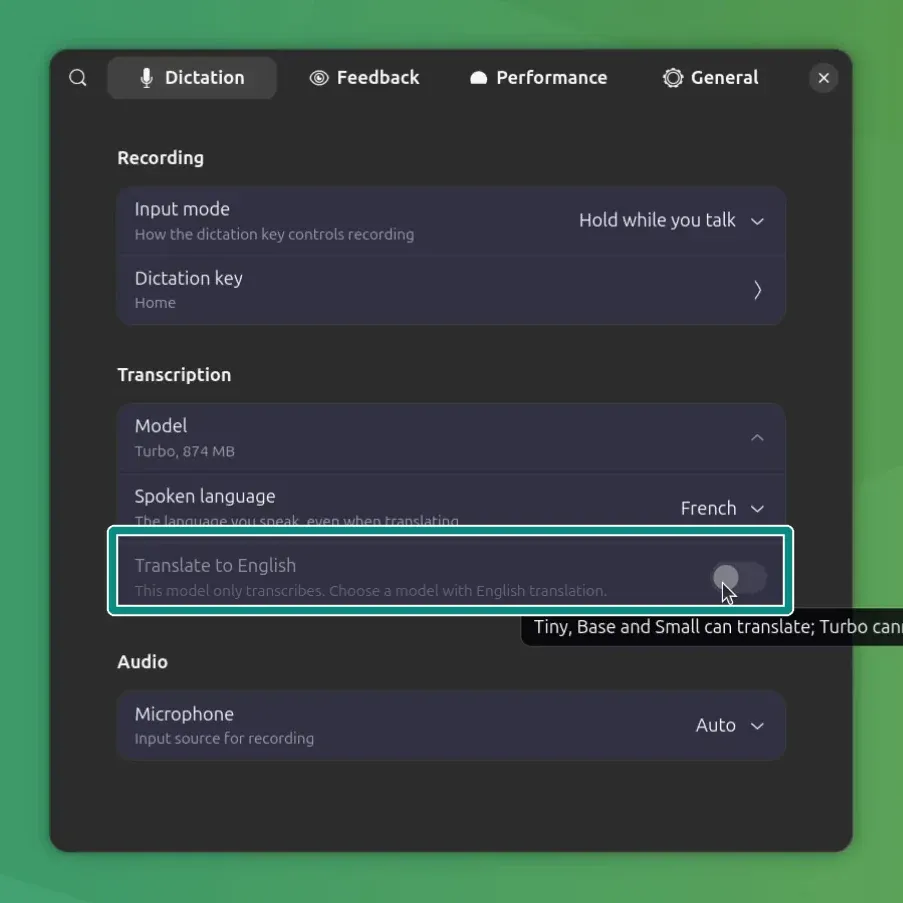
So I switched to Base, turned translation on, and tried three languages.
My French produced "Bonjo, Jean-Marc Alabichek, Azordry..." which is not a translation of anything. I'll blame my French accent here.
My Italian did better. It got my introduction right.

Then I tested my mother tongue Hindi. I said that I'm demonstrating an AI tool. Quoth translated it as "I am a artificial intelligence tool". Close, but wrong in an amusing way.
This is the Base model, so I didn't expect much. Small might do better but I am not going to use the translation feature for serious work.
What's missing
There's no dictation history in Quoth. You can only copy the last dictation from the panel menu. Hex keeps a history of your dictations for 7 days, which is handy when a paste goes to the wrong window.
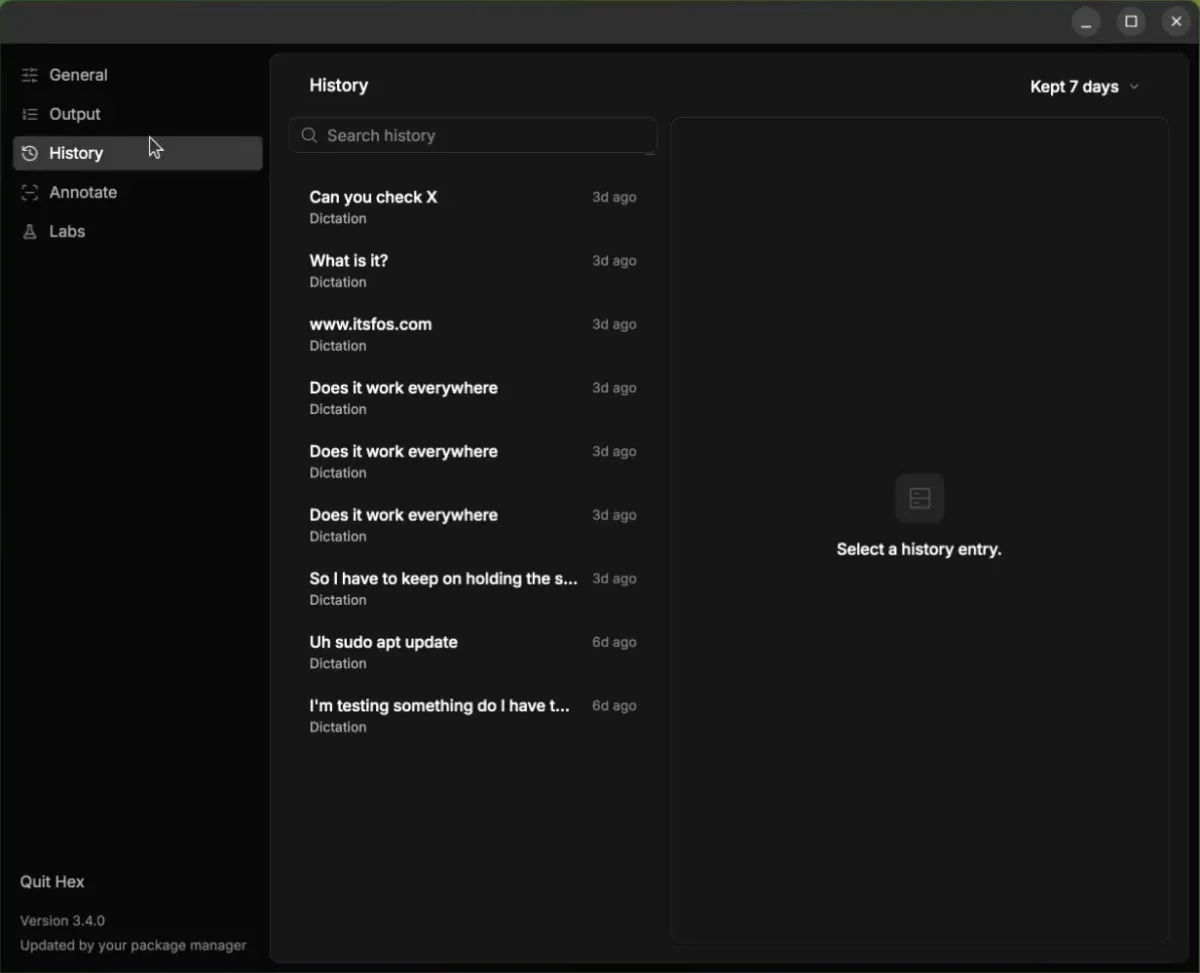
To be fair, Ubuntu's Myna doesn't keep a history either, so Hex is the exception here.
The other gaps are the ones I already mentioned: single-key shortcuts, the broken panel menu items, and no floating indicator on GNOME.
Final thoughts
Text to speech is perhaps the simplest way to explore local AI on your system. And Quoth is a pretty decent tool for this tasl.
It's local, it's open source, the models are small, and it looks modern on GNOME. It automatically chooses between CPU, GPU and NPU.
It's version 0.1.0, so there are rough edges. The shortcut needs to accept key combinations, and the Language and Model options in the panel menu need fixing. But the dictation itself works well, and it's not every day that we get a polished app made only for Linux.
If you find it useful, consider supporting the developer. You can get Quoth from its website and find the source code on GitHub.
Which voice typing tool do you use on Linux? Let me know in the comments.