Reading view

There are new articles available, click to refresh the page.

High-severity vulnerability in Linux caused by a single faulty character

Researchers have analyzed a high-severity vulnerability in Linux that’s able to escalate untrusted users to root by exploiting a bug you don't often see: a single errant character inside the kernel.

The vulnerability, tracked as CVE-2026-23111, is located in nf_tables, a subsystem of the Linux kernel that provides packet filtering capabilities. It’s used to manage firewall rules and replaces older subsystems such as iptables, ip6tables, arptables, and ebtables.

!!!WTF!!!

The presence of a single mis-issued exclamation point in code implementing nf_tables introduced a use-after-free, a class of vulnerability that corrupts memory by placing malicious code at memory addresses that haven’t been properly freed of their previous contents. CVE-2026-23111 can be exploited by an unprivileged user or process to elevate system rights to root.

Read full article

Comments

© Getty Images

Linux bitten by second severe vulnerability in as many weeks

Linux users have been bitten by yet another vulnerability that gives containers and untrusted users the ability to gain root access, marking the second time in as many weeks that a severe threat has caught defenders off guard.

The threat, known as Dirty Frag, allows low-privilege users, including those using virtual machines, to gain root control of servers. Attacks are particularly suitable in shared environments, where a server is used by multiple parties. Hackers can also gain root as long as they have access to a separate exploit that gives a toehold into a machine. Exploit code was leaked online three days ago and works reliably across virtually all Linux distributions. Microsoft has said it has spotted signs that hackers are experimenting with Dirty Frag in the wild.

Immediate and significant threat

The leaked exploit is deterministic, meaning it works precisely the same way each time it’s run and across different Linux distributions. It causes no crashes, making it stealthy to run. A vulnerability known as Copy Fail, disclosed last week with no patches available to end users, possesses the same characteristics.

Read full article

Comments

© Getty Images

AMD is adding HDMI 2.1 support for Linux. That's good news for the Steam Machine.

Last year, we noted how the long-standing vagaries of HDMI licensing and open source AMD driver development combined to prevent the upcoming Steam Machine from receiving official support for the HDMI 2.1 display standard. Now, though, it seems that AMD is making real progress on adding full HDMI 2.1 compliance to its Linux amdgpu driver in the near future.

In patch series notes for an amdgpu driver update posted on Friday (and noticed by Phoronix), AMD's Harry Wentland says that the company is finally adding HDMI FRL (Fixed Rate Link) support to the popular Linux display driver. That's the feature that allows for higher bandwidth on compatible HDMI cables compared to the TMDS standard found on HDMI 2.0 and earlier. That in turn enables direct support for higher resolutions, dynamic HDR, and features like Variable Refresh Rate that aren't supported in HDMI 2.0.

Wentland notes that this update is still just "a representative subset of HDMI compliance," in part because it is missing the code to support the Display Stream Compression (DSC) that allows for even higher resolutions and frame rates up to 10K at 100 Hz. But Wentland adds that DSC support "is still being tested and will be sent out later," and that "a full compliance run" for HDMI 2.1 is "in the works." An AMD driver developer with the handle agd5f also commented on Phoronix, noting that "a full implementation [of HDMI 2.1] will ultimately be available once the patches are ready and have completed compliance testing."

Read full article

Comments

© Valve

USB Connection Information

A Proper Look at What Your USB Ports Are Really Doing

USB has quietly become one of the most confusing parts of modern computing. On paper, everything looks fast, powerful, and universal. In reality, performance varies wildly depending on cables, ports, hubs, power negotiation, and even which side of a USB-C connector you plug in.

If you have ever wondered why an external drive feels slow, why a dock behaves differently on another Mac, or why a device refuses to charge at full speed, you are not alone. This is exactly where USB Connection Information earns its place on your system.

For Apple users in particular, this app fits perfectly into the Apple Geek mindset. It exposes useful technical detail without forcing you into terminal commands or obscure system menus.

What USB Connection Information Actually Does

At its core, USB Connection Information gives you visibility. It shows how your USB devices are connected, what speed they are running at, and how much power is being negotiated between your Mac or Linux machine and the device.

This matters more than most people realise. Two identical looking cables can behave very differently. A port on one side of a MacBook can negotiate a faster connection than the other. A hub can quietly downgrade everything attached to it.

USB Connection Information surfaces these details immediately, which makes troubleshooting fast and surprisingly satisfying.

macOS: Menu Bar Insight the Apple Way

On macOS, USB Connection Information lives in the menu bar, which already tells you a lot about the app’s design philosophy. It is always there when you need it, and invisible when you do not.

When you connect a USB device, the app shows:

  • How fast the device is actually connected, not what the box claimed

  • Which USB generation the connection negotiated

  • The identity of the device and its manufacturer

  • Whether the connection is capable of higher performance

  • Power related information that hints at charging and delivery behaviour

This is especially useful on modern Apple hardware where USB-C, Thunderbolt, and power delivery are all bundled into the same physical port. Apple’s built-in System Information tool contains similar data, but it is buried several clicks deep and not designed for frequent checking.

USB Connection Information turns this into something you can glance at in seconds.

For anyone running external SSDs, multi-port hubs, capture devices, or audio interfaces, this quickly becomes a daily reference tool

A Perfect Fit for Apple Geek Users

If you enjoy understanding how your Apple hardware actually behaves, this app feels right at home. It does not attempt to oversimplify or hide technical detail, but it also does not overwhelm you.

It gives just enough information to answer questions like:

  • Why is this drive slower on my Mac mini than on my MacBook

  • Is this cable limiting my data speed

  • Is this dock negotiating proper power delivery

  • Is my device falling back to an older USB mode

These are real questions Apple users run into, especially as setups become more modular and accessory-driven.

Linux Support and Open Source Roots

One of the most refreshing things about USB Connection Information is that it does not stop at macOS. There is also a Linux version built around the same idea, delivered as an open source system tray application.

On Linux, USB diagnostics have traditionally lived in the terminal. Tools like lsusb and usb-devices are powerful, but they are not exactly friendly or convenient. The Linux version of USB Connection Information takes that raw system data and presents it in a desktop-friendly way.

You get a tray icon that updates as devices are plugged in or removed, along with clear summaries of:

  • Device identity and vendor information

  • Connection speed and USB version

  • Power characteristics

  • Port and bus relationships

Because it is open source, Linux users can inspect how it works, adapt it to their desktop environment, or extend it for niche use cases. That makes it particularly appealing to developers, sysadmins, and hardware tinkerers.

It also makes this tool genuinely cross-platform in spirit, not just in marketing.

Real World Scenarios Where This App Shines

This is not an app you install just to admire numbers. It solves real problems.

If you are diagnosing a slow external drive, USB Connection Information can immediately confirm whether it is running at USB 2 speeds instead of USB 3. If you are testing cables, you can see which ones negotiate higher bandwidth. If a dock behaves inconsistently, you can compare how it connects across machines.

For developers working with USB peripherals, it becomes a lightweight sanity check. For home users, it removes a lot of guesswork and frustration.

It is especially useful on Apple silicon Macs, where everything is fast enough that bottlenecks are not always obvious until you look closely.

Privacy and Local First Design

Another point worth highlighting is privacy. USB Connection Information operates entirely on your local machine. It does not send device data anywhere, does not phone home with analytics, and does not require cloud access.

That is very much in line with the Apple Geek philosophy of understanding and controlling your own hardware.

Final Thoughts

USB Connection Information is one of those rare utilities that feels small but punches well above its weight. It does not try to be flashy, and it does not pretend USB is simple. Instead, it gives you honest, immediate insight into what is happening under the hood.

For macOS users, it is a natural menu bar companion. For Linux users, it is a welcome bridge between powerful system data and usable desktop tools.

If you care about performance, reliability, and actually knowing what your setup is doing, this app deserves a spot in your toolkit.

Sometimes being a geek is not about having more tools. It is about having the right one.

Ubuntu on MacBook Pro - Magic Mouse / TrackPad Settings

If you’ve ever installed Ubuntu or another Linux distro on your MacBook, MacBook Pro, or iMac, you’ve probably run into one persistent frustration: the Apple Magic Mouse and Trackpad just don’t behave like they do when running macOS, but normal ‘Windows” mice work fine.

After pairing via Bluetooth, you might notice that the right-click (secondary click) doesn’t work, the left-click only registers on the far edge, and scrolling or gestures are unreliable at best, if not have a complete mind of their own!

For devices that feel magical on macOS, they can seem downright clunky on Linux. But don’t worry there s a clean, open source solution that fixes everything, its called ‘Magic Mouse HID driver for Linux’ by Ricardo Rodrigues. This lightweight driver re-enables full Apple-style functionality for both the Magic Mouse and the Magic Trackpad under Ubuntu all in under ten minutes.

The Problem: Apple Magic Mouse on Ubuntu

When you connect your Magic Mouse or Trackpad to Ubuntu, it’s recognized as a generic HID (Human Interface Device). The Linux kernel includes a basic driver (hid_magicmouse), but it lacks the full Apple-specific support you’re used to, as you’ll know from using a Windows mouse with macOS there is something different about these magic mice and that’s why they don’t work like they should. It’s frustrating because the Magic Mouse hardware itself is excellent it just needs the right software layer.

Typical issues include:

  • Right-click not working (or only works occasionally)

  • Left-click zones inconsistent, requiring firm presses on the far left side

  • No smooth scrolling or gestures

  • Battery percentage not reported correctly

  • Overall lag or stutter when using Bluetooth

The Solution: magicmouse-hid Driver

That’s where the Linux-Magic-Trackpad-2-Driver project comes in. Developer Ricardo E. P. Rodrigues created a modern replacement for the kernel’s built-in driver. His project, hosted on GitHub as Linux-Magic-Trackpad-2-Driver, adds proper gesture handling, right-click recognition, and full multitouch support for:

  • Apple Magic Mouse (1st & 2nd Gen)

  • Apple Magic Trackpad (1st & 2nd Gen)

The driver is distributed as a DKMS module (Dynamic Kernel Module Support), which means it automatically rebuilds itself whenever Ubuntu updates your kernel no need to reinstall it every time you upgrade.

How to Install the Magic Mouse / Trackpad Driver on Ubuntu

The process is simple and safe. It doesn’t modify your kernel permanently and can be uninstalled easily.

Step-by-Step Guide

Open your terminal and run the following commands one by one:

# 1. Install DKMS and Git
sudo apt install dkms git -y

# 2. Clone the repository
git clone https://github.com/RicardoEPRodrigues/Linux-Magic-Trackpad-2-Driver.git

# 3. Move into the folder
cd Linux-Magic-Trackpad-2-Driver

# 4. Make the installer executable
chmod u+x install.sh

# 5. Install the driver
sudo ./install.sh

When the installer completes, reboot your machine or reload the module manually:

sudo modprobe hid_magicmouse

What Gets Fixed

Feature Before After Installing Driver
Right-Click Broken or inconsistent Works perfectly
Left-Click Only far left edge Works across full surface
Scrolling Jerky, slow Smooth, natural
Gestures Limited or none Supported (depending on model)
Battery Not shown Reported accurately in system settings

How to Uninstall

If you ever want to remove the driver, it’s easy:

cd Linux-Magic-Trackpad-2-Driver
./uninstall.sh

When I first paired my Apple Magic Mouse with Ubuntu on a MacBook Pro, it was nearly unusable. Right-click didn’t work, scrolling was jerky, and simple navigation felt broken.

After discovering Ricardo Rodrigues’s magicmouse-hid driver, the difference was night and day. It’s one of those small tweaks that completely changes your Linux experience on Apple hardware, we’re slowly getting to the point everything just works the way it should. (Shame the graphics card couldn’t hey!!), We’re also getting updates and security patches running modern Linux which includes a modern browser too.

If you’re running Ubuntu (or any Linux distro) on a Mac, this is an essential setup step. With just a few terminal commands, your Magic Mouse and Trackpad regain their “magic.”

Make sure you read the full page https://github.com/RicardoEPRodrigues/magicmouse-hid?tab=readme-ov-file which includes bug fixes for bluetooth issues or your mouse not reconnecting after a reboot.

Bringing Back the macOS Cursor “Shake to Find” on Ubuntu. Meet Wiggle & Jiggle

As part of my never-ending mission to give my Ubuntu-powered MacBook Pro just a little more of that macOS polish without losing the Linux soul underneath I recently realised I was missing something very small but very useful: the “shake to find the cursor” feature.

If you’ve used macOS for any amount of time, you know the one. Lose your cursor across multiple screens? Give the mouse or trackpad a quick wiggle and the pointer grows dramatically, making it unmissable.

It turns out… I use that gesture a lot. And after moving my MacBook Pro fully onto Ubuntu (complete with one or two external monitors), I kept instinctively shaking the cursor only for nothing to happen. Not very Apple Geek friendly.

But good news: Linux has caught up.

Two GNOME extensions now bring the macOS cursor-jiggle behaviour straight to Ubuntu:

  • Jiggle → For older Ubuntu releases

  • Wiggle → For Ubuntu 24.04 LTS and newer

And honestly? They work brilliantly.

Why This Matters (Especially on Multi-Monitor Setups)

  1. Lose your cursor on a dual-monitor desk setup?

  2. Big hi-res display?

  3. Dark wallpapers or themes?

It happens a lot more than you think.

On macOS, shaking the cursor to enlarge it is second nature you barely think about it. Using Ubuntu daily made me realise how ingrained that small UX delight had become. Re-adding it makes Ubuntu feel instantly more fluid and familiar on Mac hardware.

Wiggle vs Jiggle, Which One Do You Need?

Wiggle

For Ubuntu 24.04 LTS / GNOME 45+
👉 https://extensions.gnome.org/extension/6784/wiggle/

This is the modern, smooth, actively-supported version. It simply magnifies the cursor when you shake it just like macOS.

Jiggle

For Ubuntu 20.04 / 22.04 LTS on older GNOME versions
Offers several effects (cursor scaling, spotlight, even fireworks). Fun, but not as clean.

Installing Wiggle (Ubuntu 24.04 LTS)

Before you install any GNOME extension through the browser, you need the connector package:

sudo apt install chrome-gnome-shell

Then:

  1. Open the extension page here:
    Wiggle → https://extensions.gnome.org/extension/6784/wiggle/

  2. Switch the toggle to ON

  3. Approve the installation

  4. Open Extensions (or GNOME Tweaks) to enable/configure it

Now give your trackpad or mouse a shake… and enjoy that familiar macOS moment.


This tiny tweak genuinely improves daily workflow especially when your MacBook running Ubuntu is hooked up to multiple external displays. It’s one of those micro-interactions you didn’t realise you’d miss until it’s gone.

If you’re aiming to blend the best bits of macOS with the power and flexibility of Linux (like I do here on The Apple Geek), Wiggle is an absolute must-install.

Old Tech Shouldn’t Die

So, I’m jumping the gun and getting my 2026 New Year’s resolutions out early in public, before December 2025 is even over.

Long-time readers of The Apple Geek will know I love Apple products and their operating systems. You’ll also know I can’t resist rolling out a Linux-based solution wherever I can and that Windows and I have never really seen eye to eye.

What you might not know is that I’ve kept another side of me separate: I’m a bit of a petrolhead. I’ve got a soft spot for older, retro cars 80s, 90s, and early 00s Volkswagens, plus a few German icons from BMW and Porsche. I absolutely cannot stand electric vehicles, and while I appreciate some aspects of modern car tech (Apple CarPlay being the obvious example), most of the new stuff just doesn’t do it for me. That said, retrofitting CarPlay into a 90s VW? Not impossible, just a fun weekend project.

So yes I love both new and old tech. MiniDisc players are my guilty pleasure (and my kryptonite). I adore new Apple hardware, but I’m also conscious of the waste all those perfectly good old machines and gadgets sitting unused, gathering dust, or worse, heading for landfill.

The 2026 Resolution

For 2026, I’m making myself a promise: if a piece of tech can be repaired, renewed, or reused without buying a new one, I’m doing it.

I want this to be a year of learning, problem-solving, and tinkering a proper hands-on year of reviving forgotten hardware and keeping it useful. To ease myself into it, I’ve already lined up two projects.

Project 1 The Doomed iMac 27”

The 2011 iMac 27” was a problem child from the start. Its internal design traps heat right around the GPU an AMD 6770M with 1 GB of VRAM flanked by a 1 TB spinning hard drive on one side and an optical drive directly below. Add in some warm air from the cooling fans, and you’ve got the perfect recipe for a GPU meltdown.

Mine’s had five lives so far. Originally owned by a graphics and sign company, it’s been passed through a few owners, doing everything from professional design work to family homework and YouTube duty. I’ve now given it a sixth chance.

I’ve upgraded the RAM from 4 GB to 32 GB, swapped the mechanical HDD for a 500 GB SSD, and replaced the optical drive with a caddy holding another 500 GB SSD for storage. The result? Cooler internals and snappier performance but the GPU finally gave up, as they all do.

Yes, you can “bake” the GPU literally stick it in an oven at Gas Mark 9 for nine minutes to reflow the solder and get it working again. I’ve done this four times already, just long enough to fire the iMac up, grab data, and order a proper replacement from iMacGfx on eBay.

Part 1 of this project is to install that replacement GPU.
Part 2 is to use OpenCore Legacy Patcher to bring the iMac up to a modern macOS maybe Ventura or later.

Alternatively, I might leave macOS High Sierra in place and dual-boot Linux. Either way, it’s staying alive.

Project 2 The iPod Video (5th Generation)

Back to the 90s again. My Mk2 Golf is a proper throwback complete with a 2000-era Kenwood MiniDisc head unit. It even has an adapter that mimics a CD changer and lets me connect an iPod.

Enter my 5th Gen iPod Video. I remember buying it from Argos the month it came out and it’s still in mint condition. The only problem? The hard drive occasionally clicks, and the battery has become moody.

The plan is simple: upgrade the hard drive using an iFlash SD Card adapter with a fast 32 GB card, and replace the battery with a 2000 mAh one. The Golf’s iPod connection powers the device anyway, but while I’m inside, I may as well future-proof it.

I’m keeping this iPod original no wild mods. But if it goes well, I might pick up another 5th Gen and go all out: 3000 mAh battery, massive storage, and maybe a clear or yellow front shell for that early-2000s look.

Old Tech Shouldn’t Sit in a Drawer

Circling back to the title old tech shouldn’t just sit broken in a drawer or end up in landfill. It’s worth fixing, learning from, and breathing new life into.

There’s a simple joy in listening to an album on an iPod with no notifications, no messages, no distractions. The 5th Gen iPod Video has one of the best DACs Apple ever shipped, giving that warmer, richer sound modern devices can’t quite match.

Once these two projects are up and running, I’ll be hunting for more Apple ecosystem gear to revive maybe finding clever ways to integrate older devices into a smart home setup.

Let’s keep old tech alive, one project at a time.

LocalSend

AirDrop is the gold standard for sharing files or media between your own devices or Apple users on your local network, Snapdrop filled the void between Apple and Windows / Android devices but its become a little flakey recently which lead me to use Pairdrop.

Pairdrop between non apple to apple of devices it does a lot of stuff right but just like Snapdrop its relying on the browser to do the heavy lifting. But then there is LocalSend.

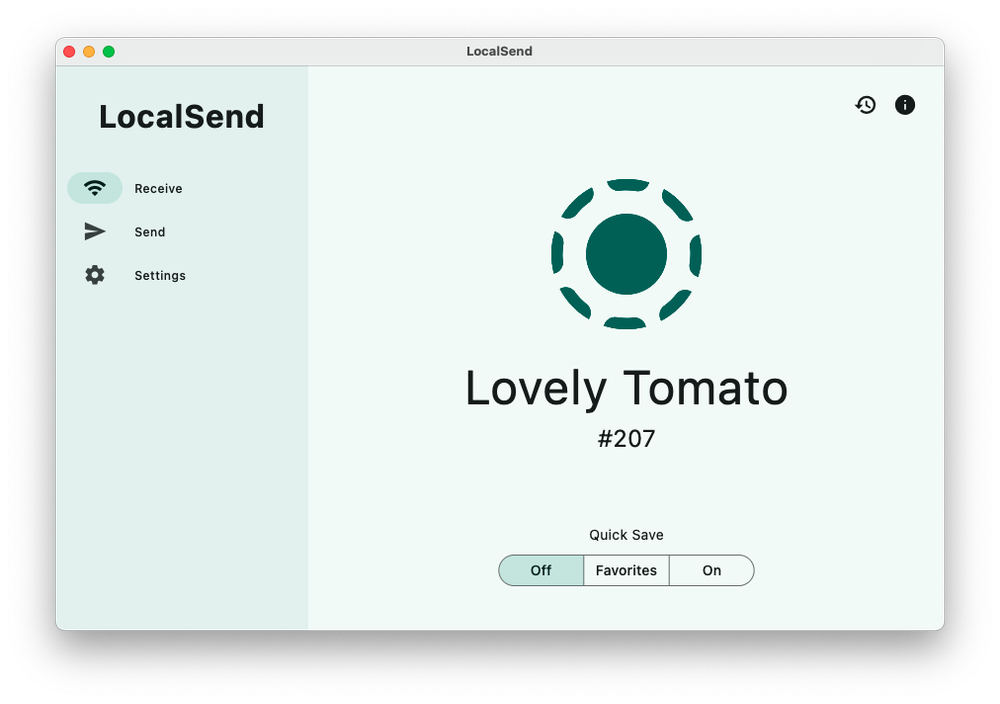
LocalSend Receive mode, each device gets a local unique identifier

On a quest to bring my now Ubuntu powered MacBook Pro, back in to the ecosystem somewhat I discovered LocalSend its an opensource (which you know I love) application that does the same job as AirDrop on an Apple device.

Its available on

I can be installed via Homebrew, local DMG binaries or via the App Store on Mac. Every base is covered for you.. Linux you have the same choice of binaries options, a snap installer or via FlatHub. The user interface is simple clean and consistent across operating systems, allowing you to support new users and adopters of this program.

Items you want to send are loaded in to App, and when the nearby device comes available you select it and it sends. I find the text function great for sending code or links between devices on different operating systems. The transfers are snappy due to the nature of app to app communication with both acting like server to send and receive, staying away from the bottleneck of modern browsers.

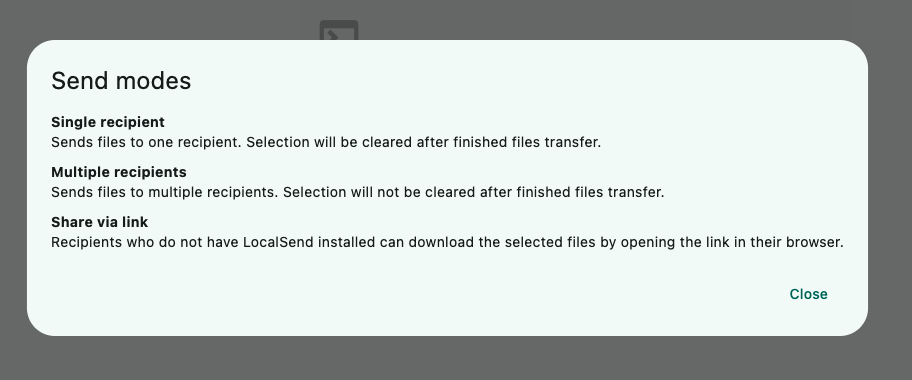
You can build a list of favourites, and give them a more recognisable name for easy identification. There’s also numerous ways of sending the either single send, multiple recipients or via link.

If you like to tweak settings, the settings window has you covered - allowing you to choose a theme, changing the default device name, display language, saving actions on received files, its pretty much covers all you need.

Great app, in constant use at home and work.

Preview Files on Linux

Preview Files Instantly on Linux with GNOME Sushi

If you’ve ever wished macOS-style Quick Look worked on Linux, there’s a neat little tool called GNOME Sushi that makes it possible. It’s fast, simple, and integrates seamlessly with the GNOME desktop.

What It Does

GNOME Sushi lets you preview files without opening them. Highlight a file in Files (Nautilus) and press Space just like Quick Look on a Mac. Images, PDFs, videos, and even text files pop up instantly in a floating window. No extra clicks, no heavy apps just speed.

Installing GNOME Sushi

Installation is ridiculously easy. Open a terminal and type:

sudo apt install gnome-sushi

It’ll pull in the package and all the dependencies. Once installed, just highlight a file in Nautilus and press Space. Boom preview mode activated.

Why It’s Handy

  • Fast previews: No waiting for apps to load.

  • Supports many file types: From PDFs and images to videos and plain text.

  • Lightweight: Doesn’t hog resources like full applications.

Extra Tips

One thing I love about GNOME Sushi is how it handles video and image files. Hover over a video, hit Space, and you get a mini player without opening VLC or any other media app. Images zoom smoothly, and PDFs scroll instantly perfect for when you’re skimming through documents.

It’s also a real workflow booster. Need to check ten files quickly? Highlight, Space, glance, close, repeat. That’s it. No bouncing between apps, no accidental edits just pure preview bliss. For anyone switching from macOS or just wanting more efficiency on Linux, GNOME Sushi is one of those small tweaks that makes daily file management feel a little more magical.

Learn More

You can check out the source code or contribute to the project on GNOME’s official GitLab repository here: https://gitlab.gnome.org/GNOME/sushi.

5 Years of The Apple Geek

Five years ago, The Apple Geek was born out of a simple idea: to share the knowledge I’d acquired over 20+ years of using Apple products. At that time, I was tinkering with old Macs, exploring Linux alternatives, and discovering ways to extend the life of hardware that most people would have discarded.

The first posts were raw, hands-on tutorials sometimes a little rough around the edges but they reflected a genuine love for technology. Early readers were few, but passionate. The joy of seeing someone successfully breathe new life into their old Mac or fix a stubborn software issue made every late-night post worth it.

Over time, The Apple Geek grew from these humble beginnings. We started to explore deeper topics: macOS tweaks, Linux installations, open-source software, and practical guides for tech enthusiasts of all levels. Thank you for being part of a journey that started with a single idea: “Somewhere to document everything I’ve learnt or hacked about with to make work.”

In the past five years, it’s not all been about jotting down what I’ve remembered I’ve ventured down some deep rabbit holes, fully learning more about aspects of the Apple ecosystem I’d previously only scratched the surface of. Each experiment, fix, and project has been a step forward in understanding how Apple technology, Linux, and open-source tools can coexist and complement one another.

Here’s to the next five years of repairs, hacks, open-source discoveries, and geeky adventures. Together, we’ll keep pushing the boundaries of what’s possible one Mac, one Linux install, and one repair guide at a time

Getting Started with Basic Terminal Commands on macOS and Linux

MacOS and Linux share something in common that many new users overlook: the Terminal. The Terminal is the command-line interface (CLI) that allows you to communicate directly with your operating system. For many newcomers, it can look intimidating a black screen filled with text, seemingly expecting you to know secret codes. But once you start using it, you’ll quickly see that it’s one of the most powerful tools in your toolkit.

I’ve said it countless times, and I’ll say it again: learning to navigate and function in the Terminal is an essential skill for anyone using macOS or Linux. Even a little familiarity can save you hours of frustration when troubleshooting or performing tasks that would otherwise require several clicks in the GUI.

Before we dive into the commands, here’s a cardinal rule of Terminal usage: *

Never copy and paste commands from the internet without understanding them.*

While there are many tutorials online offering magical one-liners, blindly running commands can break your system or expose you to security risks. Instead, take the time to type out commands manually, paying attention to spaces, dashes, and syntax. This is how you learn. Trust me, those tiny details matter more than you think.

With that said, let’s explore some basic and safe Terminal commands that every MacOS or Linux user should know.

1. pwd Print Working Directory

The pwd command stands for Print Working Directory. This command shows you your current location within the filesystem.

Example:

pwd

Output might look like:

/Users/Craig/Desktop

This tells you that you are currently in the Desktop folder. Knowing where you are is crucial before performing any other operations—especially when moving or deleting files.

2. cd Change Directory

The cd command allows you to navigate between directories (folders) in the filesystem.

Examples:

cd /Desktop

This moves you into the Desktop directory.

cd ..

This moves you up one level in the directory hierarchy.

cd ~

This brings you back to your home directory.

A quick tip: pressing Tab while typing a folder name will autocomplete it if the folder exists. This is a real time-saver.

3. ls List Directory Contents

ls stands for list, and it displays the contents of your current directory.

Example:

ls

Output might look like:

Documents Downloads Music Pictures

You can also add options for more detail:

ls -l

Shows files with permissions, ownership, size, and date modified.

ls -a

Shows hidden files (files beginning with a .), which are usually configuration files in Unix-based systems.

4. mkdir Make Directory

mkdir creates a new folder.

Example:

mkdir MyNewFolder

Now you have a folder called MyNewFolder in your current directory. Combine it with cd to immediately enter the new folder:

cd MyNewFolder

5. touch Create Empty Files

The touch command creates a new empty file.

Example:

touch notes.txt

This will create a blank file called notes.txt in your current directory. It’s a handy way to quickly create test files or placeholders.

6. cp Copy Files and Directories

cp is used to copy files or directories.

Example:

cp notes.txt backup_notes.txt

This copies notes.txt into a new file called backup_notes.txt.

For directories, use the -r flag to copy recursively:

cp -r MyNewFolder MyNewFolderCopy

7. mv Move or Rename Files

mv can move a file to another directory or rename it.

Examples:

mv notes.txt Documents/

Moves notes.txt into the Documents folder.

mv notes.txt todo.txt

Renames notes.txt to todo.txt.

8. rm Remove Files and Directories (With Caution!)

rm deletes files or directories. Be careful—deleted files don’t go to the Trash.

Example:

rm todo.txt

Deletes the todo.txt file.

For directories:

rm -r MyNewFolder

This recursively deletes the folder and all its contents. Triple check before running this command.

9. man Manual Pages

man shows the manual page for any command. Think of it as the built-in help system.

Example:

man ls

This opens the manual for the ls command, showing all options and usage examples.

10. echo Display Text

echo prints text to the Terminal. It’s simple, but very useful.

Example:

echo "Hello, world!"

Output:

Hello, world!

It can also be used to append text to a file:

echo "My first line" >> notes.txt

This adds a line to notes.txt.

11. cat Display File Contents

cat reads a file and prints its contents to the Terminal.

Example:

cat notes.txt

It’s perfect for quick checks without opening a text editor.

12. clear Clear the Terminal

clear wipes the Terminal screen, giving you a clean workspace.

Example:

clear

13. Combining Commands with Pipes and Redirects

Once you’re comfortable with basic commands, you can combine them for more powerful operations:

  • Pipe |: Sends output from one command as input to another.
ls -l | grep "Documents"

Finds the word “Documents” in your directory listing.

  • Redirect >: Saves output to a file.
echo "Hello" > hello.txt

Creates a file called hello.txt with the text “Hello”.

Final Tips for Terminal Newbies

  1. Practice typing commands instead of copy-pasting. It’s how you truly learn.
  2. Start small don’t try to master everything at once.
  3. Use man often it’s your best friend.
  4. Be careful with sudo it gives commands administrative powers, which can break your system if misused.
  5. Experiment in a safe environment create test folders and files to play around.

Learning the Terminal may feel old-school, but it’s an invaluable skill for anyone serious about macOS or Linux. It gives you control, speed, and a deeper understanding of your computer. Even if you only use a handful of commands, you’ll be far better prepared for troubleshooting, automation, and advanced computing tasks.

Ubuntu on MacBook: Making Linux Feel Like macOS

If you’ve ever tried running Ubuntu on a MacBook, you’ll know the keyboard just feels… wrong. Command keys don’t do what you expect, Option keys aren’t Alt, and all those macOS shortcuts you love are suddenly broken. Add in the trackpad quirks and F-key frustrations, and you quickly realize Linux doesn’t magically turn your MacBook into a perfect clone of macOS at least, not out of the box.

But here’s the good news: with a few small tweaks, you can have all the macOS behaviors you expect, while keeping the full power and customizability of Ubuntu. This post is your ultimate guide.

Keyboard: Command, Option, Control Fixed

By default, Ubuntu treats the MacBook keyboard like any other PC. That means:

  • ⌘ (Command) acts as Super (used for GNOME shortcuts, but not Ctrl-like shortcuts)
  • ⌥ (Option) acts as Alt, which is okay
  • Ctrl stays where it is, but your muscle memory wants Command

We fix this with GNOME Tweaks or a simple command-line setup.

Step 1: Install GNOME Tweaks

sudo apt install gnome-tweaks

Open Tweaks, go to Keyboard & Mouse → Additional Layout Options.

  • Swap Ctrl and Win: Makes ⌘ behave like Ctrl
  • Alt/Win swap (optional): Makes ⌥ behave as Alt

Step 2: Apply via CLI (Wayland-safe)

gsettings set org.gnome.desktop.input-sources xkb-options "['ctrl:swap_lwin_lctl','altwin:swap_lalt_lwin']"

Check with:

gsettings get org.gnome.desktop.input-sources xkb-options

Step 3: Make ⌘+Space Spotlight-style

gsettings set org.gnome.settings-daemon.plugins.media-keys search "['space']"

Press ⌘+Space instant search.

Step 4: Optional: ⌘ alone → Activities Overview

gsettings set org.gnome.mutter overlay-key 'Super_L'

Now pressing Command alone opens Activities, just like pressing Mission Control on macOS.

Trackpad Tweaks

MacBook trackpads are amazing hardware, but Linux doesn’t always get it right out of the box. Here’s how to fix it:

  1. Natural Scrolling: Settings → Mouse & Touchpad → Enable Natural Scrolling
  2. Tap-to-Click: Settings → Mouse & Touchpad → Tap to click
  3. Gestures (optional): Install touchegg for multi-finger gestures:
    sudo apt install touchegg
    touchegg &
    
    Map three-finger swipe to workspace switch, pinch to zoom, etc.

F-Key and System Controls

MacBook function keys control brightness, volume, and media. Out of the box, Linux may require fn to trigger them.

  • Brightness keys: Usually just work; if not, install brightnessctl
    sudo apt install brightnessctl
    
  • Volume keys: Check GNOME Settings → Keyboard Shortcuts → Sound
  • Media keys: Install playerctl for multimedia key mapping

System Polish

Want your Ubuntu to look like macOS too? A few aesthetic tweaks:

  • Fonts: San Francisco / SF Mono (Mac-like fonts)
  • Apple’s San Francisco font isn’t bundled with Linux, but you can get it from Apple’s official developer site:

  1. Go to Apple Developer Fonts and log in with your Apple ID.
  2. Download SF Pro or SF Mono.
  3. Extract the .zip file.
  4. Copy the .otf files to your local fonts directory:
    mkdir -p ~/.local/share/fonts/SF-Pro
    cp ~/Downloads/SF-Pro/*.otf ~/.local/share/fonts/SF-Pro/
    
  5. Refresh the font cache:
    fc-cache -f -v
    
  6. Select San Francisco (SF Pro) or SF Mono in GNOME Tweaks, Terminal, or apps.

SF Mono is perfect for terminals GNOME Terminal → Preferences → Profile → Text → Custom Font → SF Mono.

  • Window Buttons: GNOME Tweaks → Themes → Adjust buttons to left
  • Dock: Use Dash to Dock or Dash to Panel for a macOS-style dock
  • Backgrounds: Match macOS default wallpaper for familiarity
  • One-Line Setup Script

    #!/bin/bash
    # MacBook keyboard remap for Ubuntu
    gsettings set org.gnome.desktop.input-sources xkb-options "['ctrl:swap_lwin_lctl','altwin:swap_lalt_lwin']"
    gsettings set org.gnome.settings-daemon.plugins.media-keys search "['space']"
    gsettings set org.gnome.mutter overlay-key 'Super_L'
    echo "MacBook keyboard remap applied!"
    

    Save as macbook-ubuntu-tweaks.sh, make executable:

    chmod +x macbook-ubuntu-tweaks.sh
    ./macbook-ubuntu-tweaks.sh
    
    Run it once remaps persist across reboots.

    Wrapping Up

    With these tweaks, Ubuntu feels so much more like macOS on your MacBook. Shortcuts behave as expected, trackpad gestures are natural, F-keys work without fighting, and the system even looks familiar.

    It’s a blend of the power and flexibility of Linux with the polish and muscle memory of macOS. For anyone using a MacBook as their main Linux machine, these tweaks are essential and the best part? They’re fully reversible if you want to experiment.

    Getting Started with rsync: The Ultimate Guide for Mac and Linux Users

    Rsync is one of those tools that every Mac and Linux user should have in their toolkit. If you’re familiar with Windows, think of rsync as the Unix equivalent of Robocopy a fast, reliable, command-line-based utility for copying or syncing files and folders. Whether you’re backing up your MacBook, moving files between servers, or just organizing your digital life, rsync is a tool that scales from simple tasks to advanced workflows.

    In this guide, we’ll cover everything you need to know to get started with rsync, including basic commands, practical examples, and tips for avoiding common pitfalls. By the end, you’ll be confidently moving files around your system like a true Apple Geek.

    What is rsync?

    Rsync, short for Remote Sync, is a command-line utility primarily used on Unix-based systems, including macOS and Linux. Unlike basic copy commands, rsync is smart: it only transfers the differences between files, saving bandwidth and time.

    Some key features:

    • Incremental syncing: Only new or changed files are transferred.
    • Versatility: Works locally, over SSH, or even with remote servers.
    • Speed: Efficiently handles large directories and files.
    • Cross-platform: Available on Linux, macOS, and even Windows via tools like Cygwin.

    On macOS, rsync comes pre-installed. On Linux distributions like Ubuntu, rsync is often installed by default, but if it’s missing, you can easily install it via your package manager:

    sudo apt update
    sudo apt install rsync

    Basic Syntax

    The simplest rsync command looks like this:

    rsync [options] source destination

    Where:

    • source is the file or folder you want to copy.
    • destination is the target location.
    • [options] are switches that modify rsync’s behavior.

    For example:

    rsync -rv ~/Desktop/Folder1/ ~/Documents/Folder2/

    Here’s what the switches do:

    • -r Recurse into directories, so subfolders are included.
    • -v Verbose mode, which shows you what’s happening.

    Switches can be stacked, making commands cleaner: -avz is a common combination:

    • -a Archive mode (preserves permissions, timestamps, symbolic links).
    • -v Verbose output.
    • -z Compress files during transfer for faster syncing, especially useful over networks.

    rsync Help and Documentation

    Before diving into advanced features, it’s a good idea to familiarize yourself with rsync’s built-in help. In the terminal, type:

    rsync --help

    You’ll see a list of all options, switches, and examples. Spend some time reading through this rsync is powerful, but a small typo can lead to unexpected results.

    Your First rsync Command

    The best way to learn rsync is hands-on. Let’s create a simple experiment:

    1. Create a folder on your Desktop, e.g., TestSource.
    2. Create a folder in Documents, e.g., TestDestination.
    3. Place a few files in TestSource.

    Now open Terminal and type:

    rsync -av ~/Desktop/TestSource/ ~/Documents/TestDestination/

    You should see the files being copied with verbose output. Congratulations you’ve just run your first rsync command!

    > Tip for macOS users:> To quickly get file paths, drag a file into the Terminal window. macOS will automatically fill in the full path.

    > Tip for Linux users (Ubuntu, Fedora, etc.):> Drag-and-drop works too, but remove extra quotes that sometimes appear around paths.

    Practical Examples

    1. Backing Up Your Desktop

    rsync -av --delete ~/Desktop/ ~/Backup/DesktopBackup/
    • --delete removes files from the destination that no longer exist in the source.
    • Perfect for maintaining an exact mirror of your folders.

    2. Syncing Files Between Computers Over SSH

    rsync -avz ~/Documents/ user@remotehost:/home/user/DocumentsBackup/
    • -z compresses data during transfer.
    • Replace user@remotehost with your remote server login.
    • Useful for syncing files to another Mac or Linux server.

    3. Excluding Certain Files

    Sometimes you don’t want to copy every file. Use --exclude:

    rsync -av --exclude '*.tmp' ~/Projects/ ~/Backup/Projects/
    • This ignores all .tmp files.
    • You can chain multiple --exclude switches.

    4. Dry Run Mode

    Before committing to a big sync, use --dry-run to see what will happen:

    rsync -av --dry-run ~/Desktop/ ~/Documents/FolderTest/
    • No files are copied, but output shows which files would be synced.
    • Always a good safety net.

    Advanced Tips for Apple Geeks

    1. Automate with Cron Jobs
    • On Linux/macOS, schedule rsync tasks with cron or launchd.

    • Example: sync Documents every night at 2 am:

      0 2 * * * rsync -av ~/Documents/ ~/Backup/Documents/

    1. Using rsync with Time Machine
    • While Time Machine is macOS native, rsync can complement it, especially for offsite backups.
    1. Syncing External Drives
    • Mount an external drive and use rsync to mirror files:

      rsync -av /Volumes/MyDrive/ ~/Backup/MyDrive/

    1. Bandwidth Control
    • For network syncing, limit bandwidth to avoid saturating your connection:

      rsync -av --bwlimit=1000 ~/Documents/ user@remotehost:/backup/

    1. Preserve Permissions
    • Use -a (archive) to maintain file permissions, ownership, and symbolic links.

    rsync on Older macOS Versions

    Apple includes rsync by default, but older versions may have a slightly outdated release. If you need a more recent version:

    brew install rsync
    • Homebrew is the easiest way to manage updated software on macOS.
    • This ensures compatibility with advanced options like --info=progress2 for better progress reporting.

    Debugging Common rsync Issues

    • Permission Denied: Use sudo for system directories or adjust ownership.
    • Path Errors: Always check your source and destination paths. Trailing slashes matter:
      • ~/Desktop/TestSource/ copies contents inside TestSource.
      • ~/Desktop/TestSource copies the folder itself.
    • Network Errors: Use -P for partial transfers and progress display.

    Why Every Apple Geek Should Know rsync

    • Reliable Backups: Incremental syncing saves time and bandwidth.
    • Cross-Platform Power: Works on Linux, macOS, and even Windows with Cygwin.
    • Automation Friendly: Cron jobs and scripts make scheduled syncing trivial.
    • Transparency: You see exactly what’s being copied.

    Whether you’re restoring a MacBook after a hard drive failure, syncing projects between Linux servers, or tinkering with old hardware, rsync is an indispensable tool for Apple enthusiasts who love control, efficiency, and reliability.

    Wrapping Up

    Rsync may seem intimidating at first, especially if you’re used to GUI-based file management, but once you start using it, it becomes an essential part of your workflow. Its speed, flexibility, and reliability make it perfect for everyday file management, backups, and more.

    Start small, experiment with simple file movements, and gradually explore advanced options like remote syncing, exclusions, and automation. In no time, you’ll be an rsync pro the true Apple Geek way.

    Next Steps for Apple Geeks:

    • Experiment with --exclude and --delete to create smart backup strategies.
    • Automate your backups using cron (Linux) or launchd (macOS).
    • Combine rsync with SSH for secure offsite syncing.

    With rsync in your toolkit, your Mac and Linux systems are faster, safer, and more organized than ever. Welcome to the geek side!

    MacBook Pro: External Display on Ubuntu Without the dGPU

    Reviving the 2011 MacBook Pro: External Display on Ubuntu Without the dGPU

    If you’ve read my previous post on repairing the 2011 MacBook Pro GPU failure, you’ll know the story all too well the infamous AMD Radeon dGPU failure that left thousands of otherwise perfect machines effectively useless.

    I’d already disabled the faulty AMD GPU at the firmware level and forced Ubuntu to use the integrated Intel HD 3000 graphics. That works brilliantly for most things until you need an external monitor.

    The mini DisplayPort on these models is wired only to the discrete GPU, which means once the AMD chip is disabled, the port goes dead. No amount of software trickery will bring it back to life the connection simply doesn’t exist anymore.

    But that’s not the end of the road. Thanks to a simple USB DisplayLink adapter and a bit of Linux know-how, we can get full dual-monitor functionality again no soldering, no GPU reflowing, and no magic smoke.

    The Problem

    • MacBook Pro model: 2011 15-inch (MacBookPro8,2)

    • Issue: Discrete AMD GPU failure

    • Workaround: Disable AMD GPU, use Intel graphics only

    • Result: No working mini DisplayPort

    For years, that meant living with just the internal display. But when I installed Ubuntu 24.04 LTS, I discovered a new path forward DisplayLink.

    The Solution: DisplayLink USB Graphics

    DisplayLink adapters work by compressing the display output over USB and decoding it on the adapter’s built-in chip, then sending it to your monitor via HDMI, DVI, or DisplayPort.

    I used the StarTech USB32HDPRO, though almost any DisplayLink-based USB 3.0 adapter should work just as well.

    What makes DisplayLink perfect for this situation is that it doesn’t depend on the GPU hardware routes inside the MacBook. It just needs a USB port and those are still alive and well.

    Installing the DisplayLink Driver on Ubuntu 24.04

    Plugging in the adapter won’t immediately do anything. You’ll need to install the official DisplayLink Linux driver.

    Step 1Download the Driver

    Go to DisplayLink’s official driver page and grab the latest .zip package for Ubuntu.

    Extract it, then in your terminal run:

    cd ~/Downloads/DisplayLink* sudo ./displaylink-installer.sh install 

    When it finishes, reboot your MacBook:

    sudo reboot 

    Step 2 Plug In the Adapter

    After rebooting, plug your DisplayLink adapter into a USB 3.0 port and connect your external display.

    If everything’s gone well, your external monitor should come to life but it’ll probably mirror your internal screen by default. Let’s fix that.

    Step 3 Automatically Extend the Display

    To make Ubuntu automatically detect and extend your DisplayLink screen every time it’s plugged in (or when you log in), we can use a small shell script.

    Create a new file:

    sudo nano /usr/local/bin/displaylink-autosetup.sh 

    Paste this inside:

    #!/bin/bash # displaylink-autosetup.sh — Automatically extend desktop when DisplayLink screen is detected sleep 8 # Wait a few seconds for the DisplayLink driver to load MAIN_DISPLAY=$(xrandr --query | grep " connected" | grep -v "HDMI-" | awk '{ print $1 }' | head -n 1) DL_DISPLAY=$(xrandr --query | grep " connected" | grep "HDMI-" | awk '{ print $1 }' | head -n 1) if [ -n "$DL_DISPLAY" ] && [ -n "$MAIN_DISPLAY" ]; then xrandr --output "$DL_DISPLAY" --auto --right-of "$MAIN_DISPLAY" echo "DisplayLink screen ($DL_DISPLAY) extended to the right of $MAIN_DISPLAY" else echo "No DisplayLink display detected or main display missing." fi 

    Save and exit (Ctrl + O, Enter, Ctrl + X), then make it executable:

    sudo chmod +x /usr/local/bin/displaylink-autosetup.sh 

    Step 4 Run It Automatically on Startup

    Ubuntu’s “Startup Applications” tool can handle this easily.

    If it’s not already installed:

    sudo apt install gnome-startup-applications 

    Then launch it:

    gnome-session-properties 

    Click Add
    Name: DisplayLink Auto Setup
    Command: /usr/local/bin/displaylink-autosetup.sh
    Comment: Automatically extend DisplayLink screen

    Step 5 Run It After Sleep/Wake (Optional)

    If you often close your lid or suspend the MacBook, add this small script so it re-applies after waking:

    sudo nano /lib/systemd/system-sleep/displaylink-resume.sh 

    Paste this in:

    #!/bin/bash case $1 in post) export DISPLAY=:0 export XAUTHORITY=/home/$USER/.Xauthority /usr/local/bin/displaylink-autosetup.sh ;; esac 

    Then:

    sudo chmod +x /lib/systemd/system-sleep/displaylink-resume.sh 

    Now whenever your MacBook wakes up, it’ll re-detect the DisplayLink monitor and extend it automatically.

    The Result

    After this setup:

    • Ubuntu boots using the Intel integrated GPU only

    • The DisplayLink adapter provides a second monitor via USB

    • The display layout automatically restores at login or wake

    • No reliance on the failed AMD dGPU

    Performance is perfectly usable for web, office work, and even lightweight development. You won’t be gaming or editing 4K video on it but for daily use, it’s an elegant fix that keeps these old machines alive and productive.

    Final Thoughts

    This 2011 MacBook Pro might have been written off years ago by Apple, but with Ubuntu and a little Linux ingenuity, it’s still a fully functional laptop in 2025 complete with dual monitors.

    In true Apple Geek fashion, this is about more than saving an old Mac it’s about understanding and adapting the hardware to keep it useful long after the official support has ended.

    If you’re following this series, next time I’ll show how to fine-tune power management and cooling on these Intel-only 2011 models to make them run cooler and quieter under Linux.

    Minimizing DNS Propagation Issues With a Reverse Proxy

    Migrating servers is a complex process that involves many moving parts. One of the most challenging aspects of server migration is dealing with DNS propagation. When you update your DNS records to point to a new server, it can take several hours for the changes to propagate globally. During this time, some users may still be directed to the old server, which can lead to issues with data consistency, ordering, and revenue loss.

    A reverse proxy can help mitigate these issues by allowing you to control the exact moment when the new server starts serving all requests to your domain. In this article, we’ll explore how to set up a reverse proxy using Nginx or Apache, and discuss some additional considerations and alternatives.

    What is a Reverse Proxy?

    A reverse proxy is a server that receives requests from the internet, obtains the requested resource from the server it’s acting as a proxy for, and then returns that resource to the requester. This is different from a forward proxy, which is typically used to cache frequently requested resources or hide internal IP addresses.

    You may have already used a reverse proxy in your setup, for example, by installing Nginx in front of Apache to take advantage of Nginx’s speed and caching capabilities.

    How Can a Reverse Proxy Help with DNS Propagation?

    A reverse proxy can’t speed up DNS propagation, but it can help mitigate the issues associated with waiting for it to happen. When you’re migrating a server, you can set up the old server as a reverse proxy for the new server. This way, even though some users may still be directed to the old server, the reverse proxy will ensure that all requests are served by the new server.

    For example, suppose you’re moving a client’s eCommerce site from an old server to a new server at a different provider. You’ve set up everything on the new server and are ready to switch over the DNS. However, you realize that some users may still be directed to the old server until their local DNS cache is updated. By setting up the old server as a reverse proxy for the new server, you can ensure that all requests are served by the new server, even if some users are still being directed to the old server.

    Proactively Shortening DNS Time-to-Live

    While a reverse proxy mitigates the problem, you can proactively minimize the duration of the propagation window by adjusting your DNS Time-to-Live (TTL) settings.

    The TTL is a value (usually measured in seconds) that tells recursive DNS servers and client machines how long to cache your domain’s IP address before requesting an update. Common TTL values range from 3600 seconds (1 hour) to 86400 seconds (24 hours).

    To prepare for a migration:

    1. Reduce the TTL: At least 24 hours before the migration, log into your DNS registrar or host and reduce the TTL for your A records to a very short value, such as 300 seconds or even 60 seconds.
    2. Wait for the Old TTL to Expire: You must wait for your original, longer TTL to expire (e.g., if your old TTL was 24 hours, wait 24 hours) to ensure the low value has been cached everywhere.
    3. Perform the Migration: Once the TTL is low, any DNS change you make will propagate and take effect much faster, minimizing the overlap time where users might be hitting the old server.
    4. Restore the TTL: After the migration is complete and you are confident all traffic is hitting the new server, you can restore the TTL to a longer, more typical value (like 3600 seconds) to reduce load on your authoritative DNS servers.

    By reducing the TTL, you drastically reduce the period during which a reverse proxy is necessary, making your migration cleaner and faster.

    Check Your Host’s Recommendations

    Your hosting provider may have specific recommendations and policies regarding reverse proxies. WP Engine, for example, generally doesn’t recommend using reverse proxies. There are certain situations where they support it, but it requires some additional configuration.

    WP Engine already utilizes reverse proxy technology in their server setup, with Nginx serving as a traffic director and CDN services distributing static files globally. If you still need to use a reverse proxy, WP Engine recommends forwarding real IP addresses to ensure accurate identification of users and prevent potential security issues.

    WP Engine allows two primary proxy configurations: hosting only a subdirectory and hosting both a subdirectory and top-level domain. Each of these has specific configuration instructions.

    In addition to your host’s recommendations, there are some other things you should consider before going down this route. Using a reverse proxy can introduce additional latency and resource usage. Make sure to monitor your server’s performance and adjust your configuration accordingly. In addition, the reverse proxy will not proxy database connections, so you’ll need to update your database connection settings to point to the new server.

    Using a reverse proxy introduces several security risks. It can become a single point of failure, and if not properly configured, it can expose vulnerabilities. Reverse proxies can store sensitive information like IP addresses and passwords, which can be problematic if managed by a malicious party. Additionally, they are susceptible to HTTP request smuggling attacks and can disrupt operations if they fail. Proper setup and ongoing management are crucial to mitigate these risks effectively.

    Configuration and Security Planning

    Before modifying any server configurations, it’s vital to address potential security and conflict issues that arise when using a reverse proxy.

    • Prevent Configuration Conflicts: On the old server (the proxy), ensure your new proxy rules don’t conflict with existing virtual hosts or default server blocks. You may need to disable the original virtual host that was serving the website files. If you’re using Nginx, this often means removing or renaming the site’s configuration file from /etc/nginx/sites-enabled/. In Apache, you’ll use sudo a2dissite mydomain.com.conf. This guarantees that the server processes traffic using only the new proxy configuration.

    • Secure Sensitive Files: The configuration steps require placing your SSL certificate and private key files on the old server (the proxy). While necessary for HTTPS traffic, ensure these files are stored outside of any publicly accessible web directory and protected with strict file permissions (e.g., owned by root, read-only by the web server user) to prevent unauthorized access.

    • Avoid Caching Issues: If the old server (proxy) uses any form of server-side caching (like Varnish or a built-in Nginx/Apache cache), you must ensure these caches are disabled or bypassed for the proxy traffic. If the proxy serves a cached page instead of forwarding the request to the new server, your efforts to ensure data consistency will fail.

    Addressing these issues ensures that your migration is not only seamless for the user but also secure and stable during the entire DNS propagation window.

    Setting up the Reverse Proxy

    The original version of this article only included instructions for setting up a reverse proxy with Apache. We’ve updated those instructions, and added the process for using Nginx. You can skip to the Apache process here.

    Setting up a Reverse Proxy Using Nginx

    Create a new file in the /etc/nginx/conf.d/ directory, such as my-proxy.conf. This file will contain the configuration for your reverse proxy.

    sudo nano /etc/nginx/conf.d/my-proxy
    

    In the my-proxy file, add the following configuration for both HTTP and HTTPS traffic:

    server {
        listen 80;
        server_name mydomain.com www.mydomain.com;
    
        error_log /var/log/nginx/proxy-error.log crit;
        access_log /var/log/nginx/proxy-access.log combined;
    
        location / {
            proxy_pass http://new-server-ip-address:8080;
            proxy_set_header Host $host;
            proxy_set_header X-Real-IP $remote_addr;
            proxy_set_header X-Forwarded-For $remote_addr;
        }
    }
    
    server {
        listen 443 ssl;
        server_name mydomain.com www.mydomain.com;
    
        error_log /var/log/nginx/proxy-error.log crit;
        access_log /var/log/nginx/proxy-access.log combined;
    
        ssl_certificate /path/to/your/certificate.crt;
        ssl_certificate_key /path/to/your/private.key;
    
        location / {
            proxy_pass https://new-server-ip-address:8080;
            proxy_set_header Host $host;
            proxy_set_header X-Real-IP $remote_addr;
            proxy_set_header X-Forwarded-For $remote_addr;
        }
    }
    

    Replace mydomain.com with your site’s domain name, new-server-ip-address with the IP address of your new server, and update the paths to your SSL certificate and private key files. Finally, restart Nginx to apply the new configuration:

    sudo service nginx restart
    

    Nginx Considerations

    There are a couple of things you should keep in mind when setting up a reverse proxy with Nginx:

    • Proxy Caching: Nginx has built-in support for proxy caching, which can help reduce the load on your origin server. You can enable proxy caching by adding the proxy_cache directive to your configuration.

    • Buffering: Nginx can buffer responses from the origin server, which can help improve performance. You can enable buffering by adding the proxy_buffering directive to your configuration.

    Setting up a Reverse Proxy Using Apache

    To set up a reverse proxy using Apache, you’ll need to enable the proxy_http and ssl modules, and create a new virtual host configuration file. Here’s an example of how to do this on Ubuntu 22.04:

    sudo a2enmod proxy proxy_http ssl
    sudo nano /etc/apache2/sites-available/my-proxy.conf
    

    In the my-proxy.conf file, add the following configuration:

    <VirtualHost *:443>
        ServerName mydomain.com
        ServerAlias www.mydomain.com
        ErrorLog ${APACHE_LOG_DIR}/proxy-error.log
        CustomLog ${APACHE_LOG_DIR}/proxy-access.log combined
    
        SSLEngine on
        SSLCertificateFile /path/to/your/certificate.crt
        SSLCertificateKeyFile /path/to/your/private.key
    
        ProxyRequests Off
        ProxyPass / https://new-server-ip-address:8080/
        ProxyPassReverse / https://new-server-ip-address:8080/
        ProxySet Header Host $host
        ProxySet Header X-Real-IP $remote_addr
        ProxySet Header X-Forwarded-For $remote_addr
    </VirtualHost>
    

    Replace mydomain.com with your site’s domain name, new-server-ip-address with the IP address of your new server, and update the paths to your SSL certificate and private key files.

    To enable the new configuration, run the following command:

    sudo a2ensite my-proxy
    

    Finally, restart Apache to apply the new configuration:

    sudo service apache2 restart
    

    Apache Considerations

    There are a few things you should keep in mind when setting up a reverse proxy with Apache:

    • SSL Configuration: Make sure to update the SSLCertificateFile and SSLCertificateKeyFile directives to match the paths to your SSL certificate and private key files.
    • Server Aliases: Update the ServerName and ServerAlias directives to match your site’s domain name.
    • Proxy Settings: Consider using a more secure way to store your SSL certificate and private key files, such as using a password-protected file or a secure keyring.

    Configuring WordPress to Recognize the Real IP

    While your reverse proxy is now configured to correctly forward the client’s real IP address using the X-Real-IP or X-Forwarded-For headers, WordPress does not automatically recognize these. By default, WordPress only reads the REMOTE_ADDR server variable, which now contains the IP address of the old server.

    To ensure WordPress properly logs, analyzes, and enforces security rules based on the true client IP, you must add a small snippet to your wp-config.php file on the new server.

    Place the following code snippet above the line that says /* That's all, stop editing!

    <?php
    // Set the client's real IP address when behind a reverse proxy
    if (isset($_SERVER['HTTP_X_REAL_IP'])) {
        $_SERVER['REMOTE_ADDR'] = $_SERVER['HTTP_X_REAL_IP'];
    } elseif (isset($_SERVER['HTTP_X_FORWARDED_FOR'])) {
        $ips = explode(',', $_SERVER['HTTP_X_FORWARDED_FOR']);
        // The first IP is the actual client IP
        $_SERVER['REMOTE_ADDR'] = trim($ips[0]);
    }
    ?>
    

    Wrapping Up

    Using a reverse proxy can be a useful tool for mitigating the issues associated with DNS propagation, but it requires careful planning and configuration to ensure that it is implemented correctly. Make sure to look into your host’s recommendations before you begin, and be aware that there are security risks that come with implementing a reverse proxy.

    A reverse proxy can be an incredibly powerful tool for routing traffic around and through tough situations, but there’s always more than one way to do it. What are your best tips for migrating servers or creative uses of the reverse proxy? Let us know in the comments!

    The post Minimizing DNS Propagation Issues With a Reverse Proxy appeared first on Delicious Brains.

    ❌