Login
Mysterium VPN on Linux is Strictly for Terminal Junkies

Using a VPN, or Virtual Private Network, on your computer hides your real IP address from websites and encrypts your traffic before it leaves your device, while your ISP remains clueless about your online activities.
It helps the most on networks you don't control, like public Wi-Fi at a cafe or an airport.
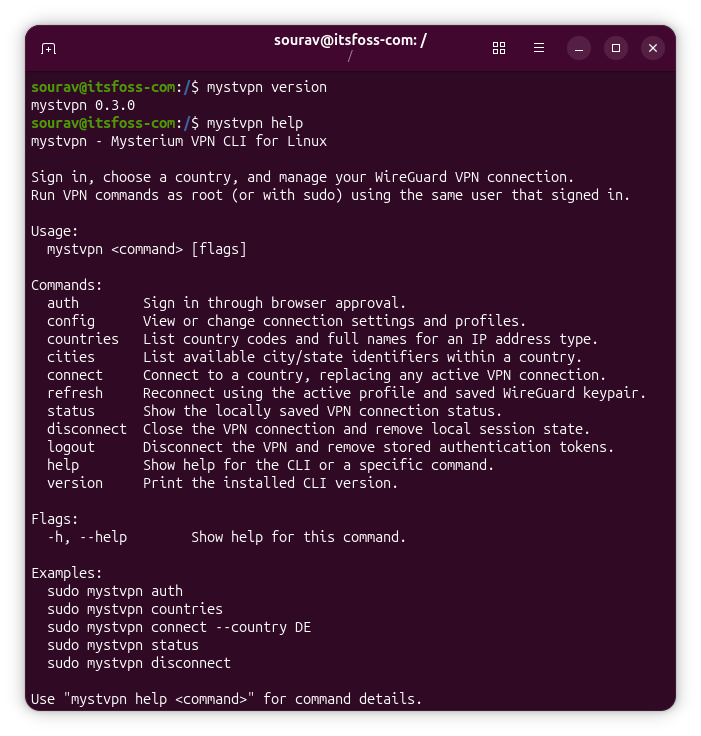
There are several VPN services that provide Linux clients. Mysterium VPN is one more name to consider, but its Linux client is a command-line tool, and there's no graphical app. But that's still fine for a seasoned Linux user, I guess. This also means that you can use the VPN on your headless server.
Mysterium VPN: Overview ⭐
Mysterium VPN is the work of MN Intelligence, a Vilnius-based company that specializes in consumer VPN services and home network tools. Mysterium VPN runs on a decentralized network where residential IPs come from independent node operators.
Those operators explicitly agree to share their home internet connections, and using Mysterium VPN never makes your own device part of the network.
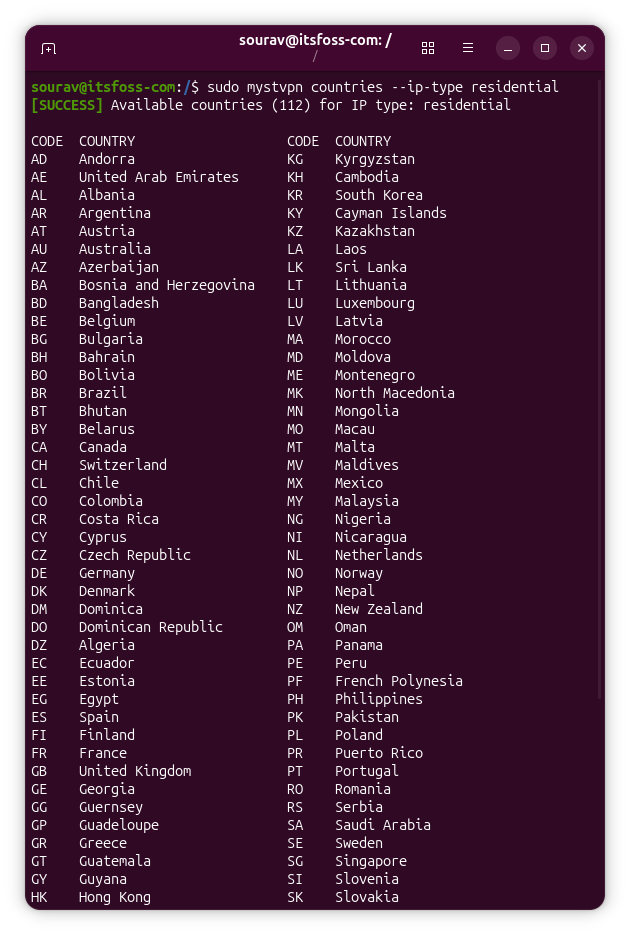
The service also offers neat features like WireGuard support, hosting IPs, and a pool of 7,500+ residential IPs across 100+ countries. You also get city-level choices and residential IPs that are limited to the Plus and Pro plans.
Whichever plan you pick, the privacy policy pledges not to store your IP address, session data, or browsing history. Though I couldn't find an independent audit to back these claims.
The policy also lists session timestamps and bandwidth usage as data processed to run the service.
Using Mysterium VPN on Ubuntu
I tested v0.3.0 of the Linux CLI on Ubuntu 26.04 LTS using a Pro plan that Mysterium VPN provided me with access to.
Signing in starts with the sudo mystvpn auth command (I had messed up not using sudo on the first run). It prints a limited-time link that you open in your browser. 👇
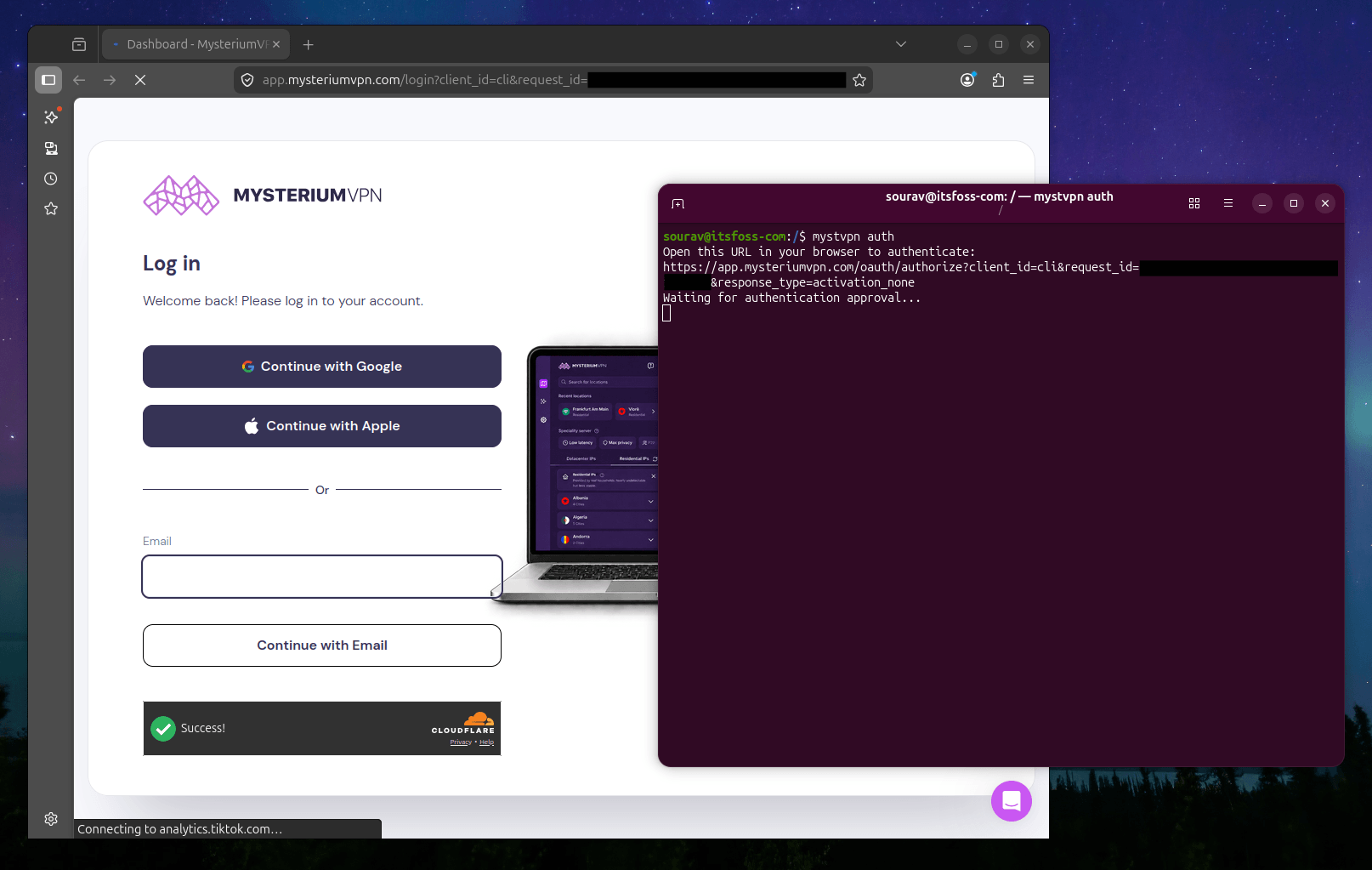
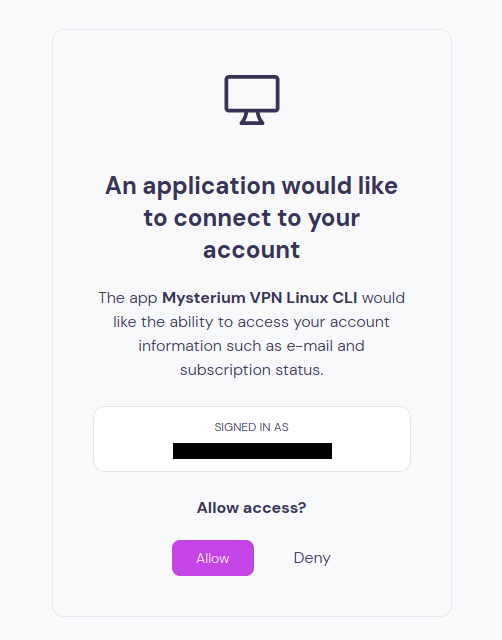
Once you log in, the page asks whether to allow the Mysterium VPN Linux CLI access to your email address and subscription status.
When that was done, connecting to a server did not work at first. The client kept telling me to run the auth command again, asked for sudo repeatedly, and failed to save my sign-in state.
With sudo, the connect command ended in a permission denied error from wg-quick on one of the client's config files.
I contacted the developers, and they quickly sent me a set of commands to run. Together they add read access for the client's config folder to the AppArmor profile that wg-quick uses.
Creating the missing file:
sudo tee /etc/apparmor.d/local/wg-quick > /dev/null <<'EOF' /root/.config/mystvpn/wireguard/configs/ r, /root/.config/mystvpn/wireguard/configs/*.conf r, EOFReloading AppArmor:
sudo apparmor_parser -r /etc/apparmor.d/wg-quickVerifying the file exists:
sudo cat /etc/apparmor.d/local/wg-quickAfter that, the client connected without trouble and has kept me signed in across reboots.
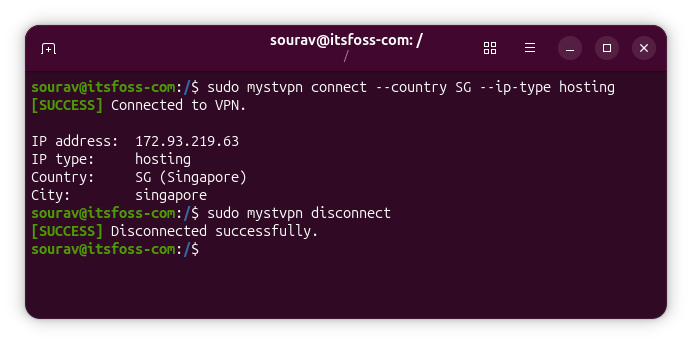
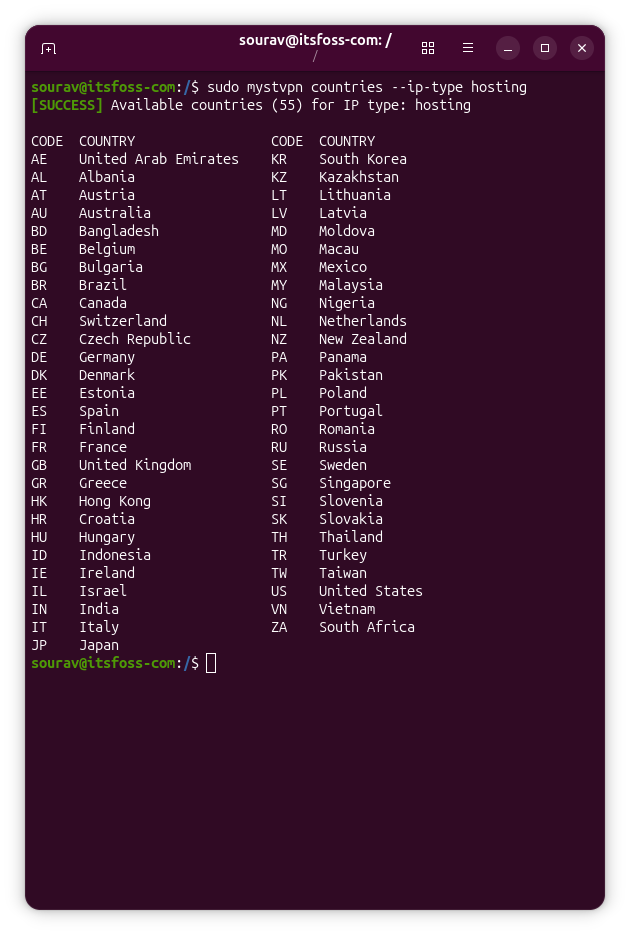
Signing in, connecting, and disconnecting all need sudo, while listing countries works without it. Disconnecting takes sudo mystvpn disconnect, and running mystvpn on its own lists every available command.
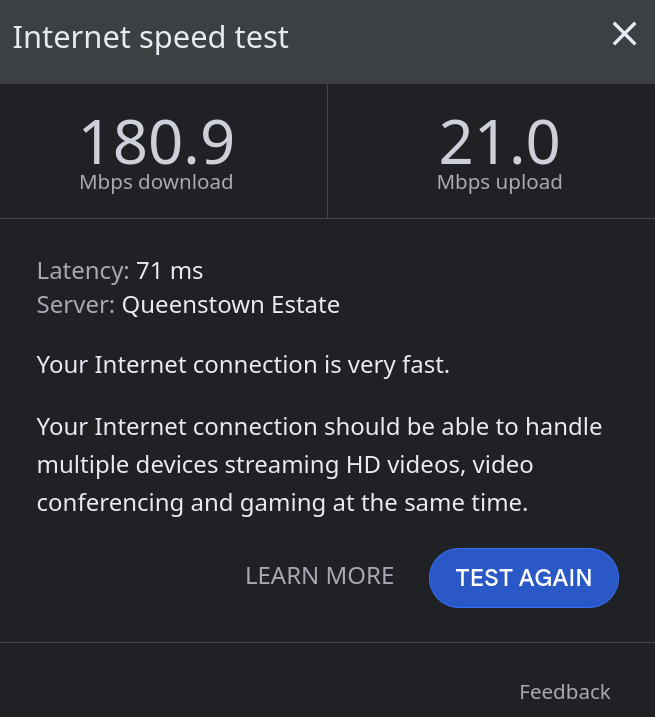
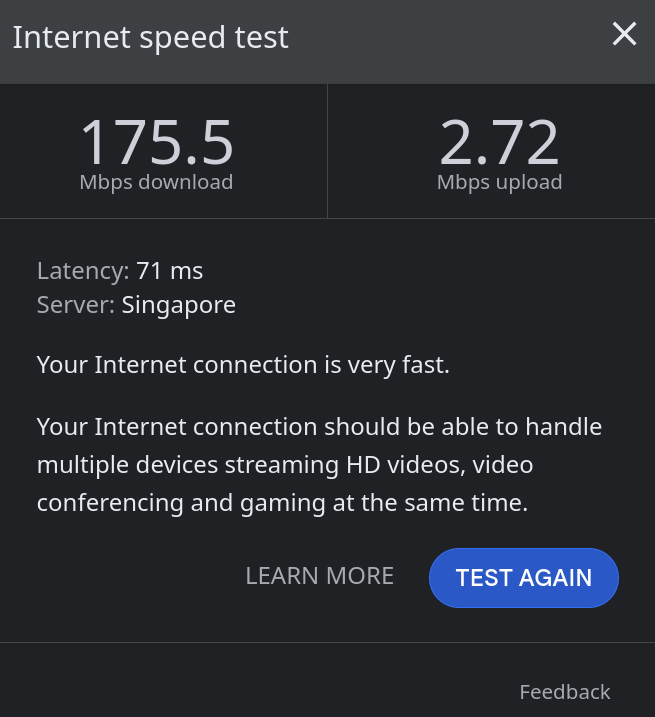
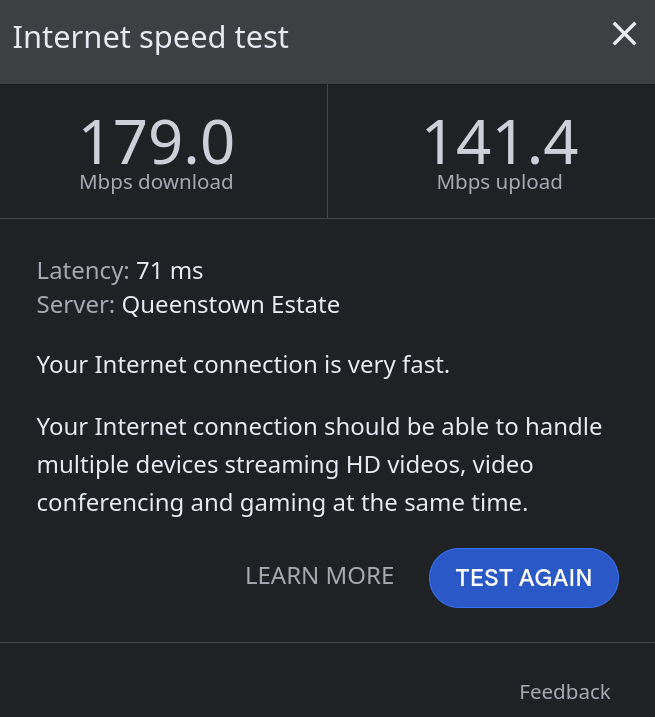
For the speed tests, I picked Singapore since it is close to me but not the country I live in, and I ran Google's Internet Speed Test on a 200 Mbps Wi-Fi connection.
I started with a hosting IP. These come from data centers instead of home connections, and the client lists 55 countries for them. I connected with sudo mystvpn connect --country SG --ip-type hosting.
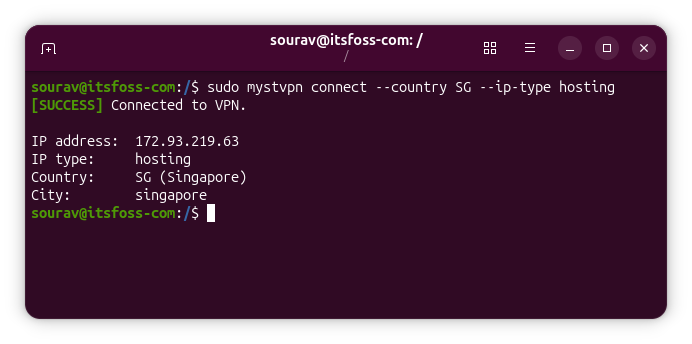
Download speeds stayed between 175.5 and 180.9 Mbps across three tests, while upload ranged from 2.72 to 141.4 Mbps, while some other attempts failed to complete. There was also some variation in which server I was being routed to, so that's something to keep in mind.
Next came a residential IP. These come from home internet connections, and the client lists over 100 countries for them. I connected with sudo mystvpn connect --country SG --ip-type residential.
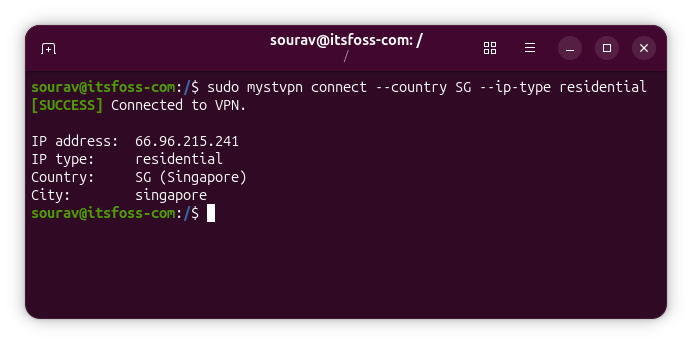
Download speeds ranged from 17.8 to 79.6 Mbps across three tests, while upload sat between 0.08 and 19.3 Mbps. You can see that upload speeds swung widely on both IP types, and hosting gave the higher download speeds.
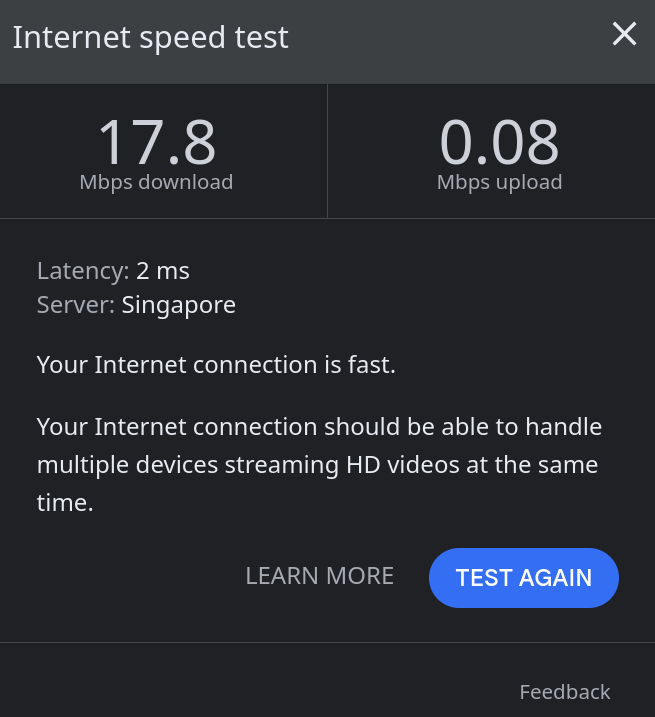
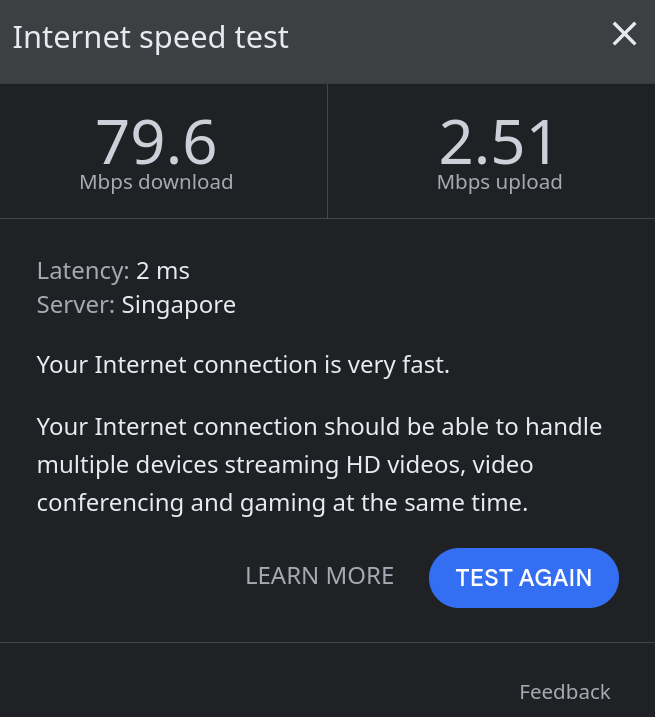
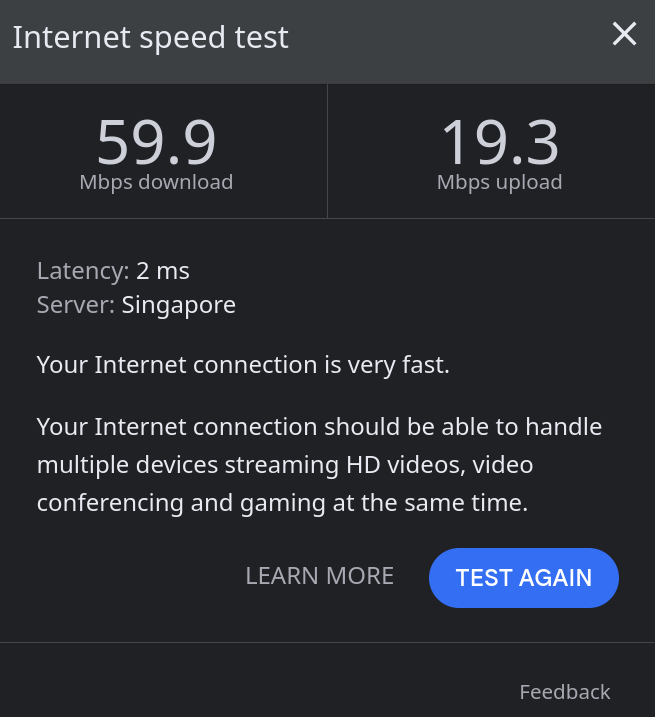
The gap was expected because data center connections are usually faster, and more consistent than a home connection. A residential IP makes more sense if a site blocks known VPN server addresses.
Normal browsing sessions were effortless, and I could access most popular websites with the usual CAPTCHA gates popping up accusing me of not being a human.
Configuring Mysterium VPN
First, ensure that you have all the dependencies required by the client. Then you can get the CLI installed on your Debian or Ubuntu system by using the following command:
curl -fsSL https://github.com/mysteriumnetwork/mysteriumvpncli/releases/latest/download/install.sh | bashThere are also GUI apps for Windows, Android, iOS, and macOS, as well as a browser extension for Chromium-based browsers that can be downloaded from the official website.
Ensure that you have an active paid plan before you configure Mysterium VPN on your system. Plans range from $2.99 for a Basic monthly plan to $93.36 for a two-year Pro plan. That's the Black Friday discount offer; otherwise, these numbers are more than double on usual days.