❌

Reading view

There are new articles available, click to refresh the page.

Craft 6 Beta Released

Craft 6 Beta

Craft 6 is now in beta!

Six months ago we tagged the first Craft 6 alpha, marking the completion of Craft’s port to Laravel. Craft 6 has now been more than two years in the making, and the result is the biggest Craft release we’ve ever shipped.

With the beta, Craft 6 is (mostly) feature-complete for 6.0. We expect the beta to last about four months, with the stable release planned for March. In the meantime, we’ll be focused on fixing bugs, polishing the control panel, and writing docs.

A Refreshed Control Panel

The control panel has been rebuilt as a Vue and Inertia app, and every screen has a fresh coat of paint, from buttons and form inputs to chips, status badges, and Matrix blocks.

  • Dark mode. A new Theme preference offers Light, Dark, and System options.
  • Cover cards. Thumbnails can now fill the whole card, with the title and details laid over the image.
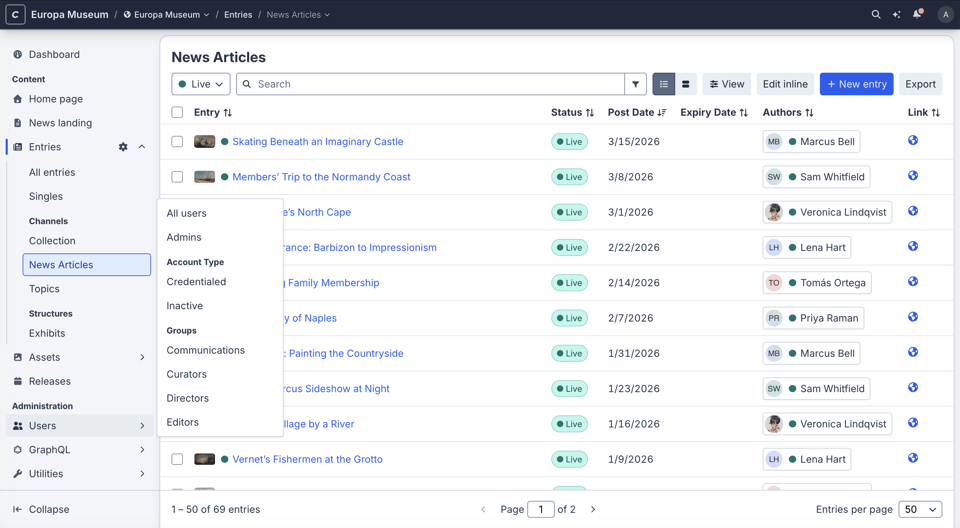
  • Flyout navigation. Sections in the global nav open flyout menus, so you can jump to a sub-page from anywhere.
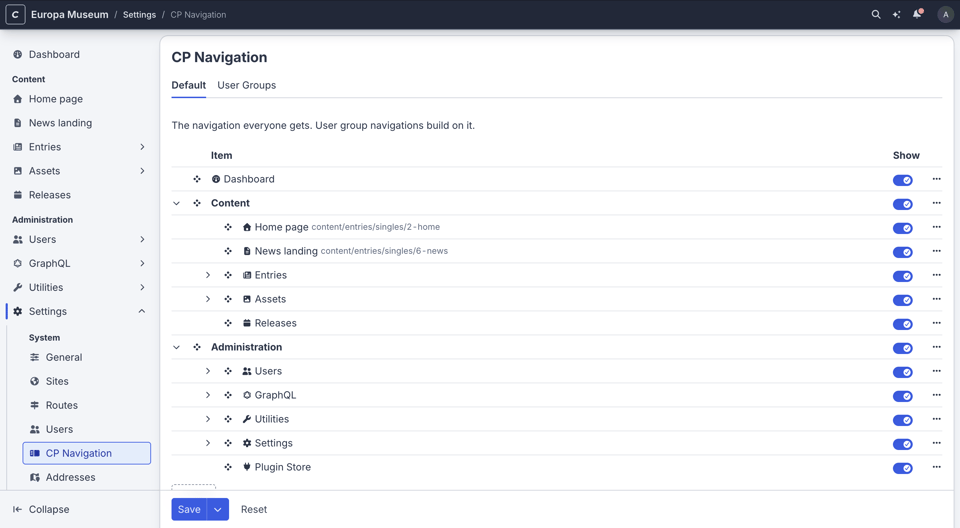
  • Customizable navigation. Administrators can reorder, rename, and regroup nav items from Settings → CP Navigation, and give each user group its own navigation.
  • Small touches everywhere, including resizable slideouts and modals, a notification center, stackable messages, and loading placeholders shaped like the results they’re waiting for.
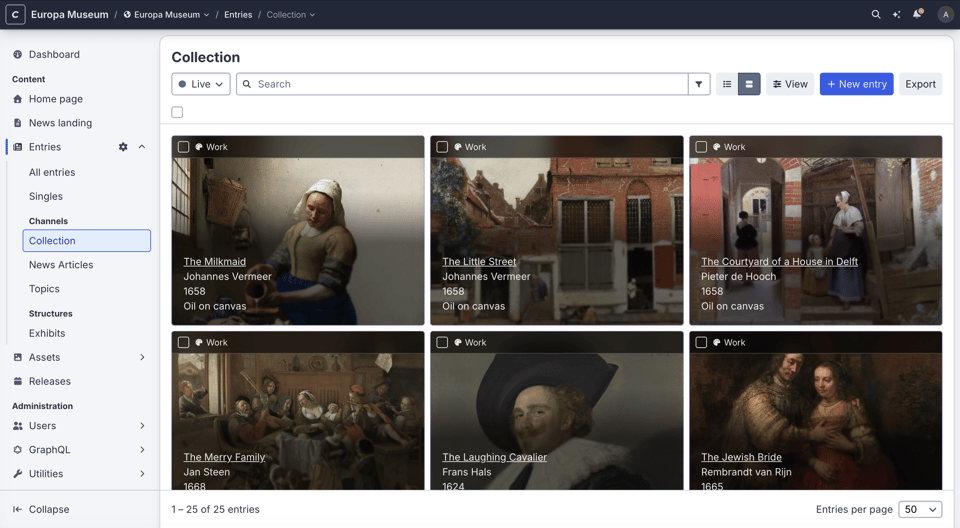
Craft 6 element index with cover cards

Cover cards, with thumbnails filling each card.
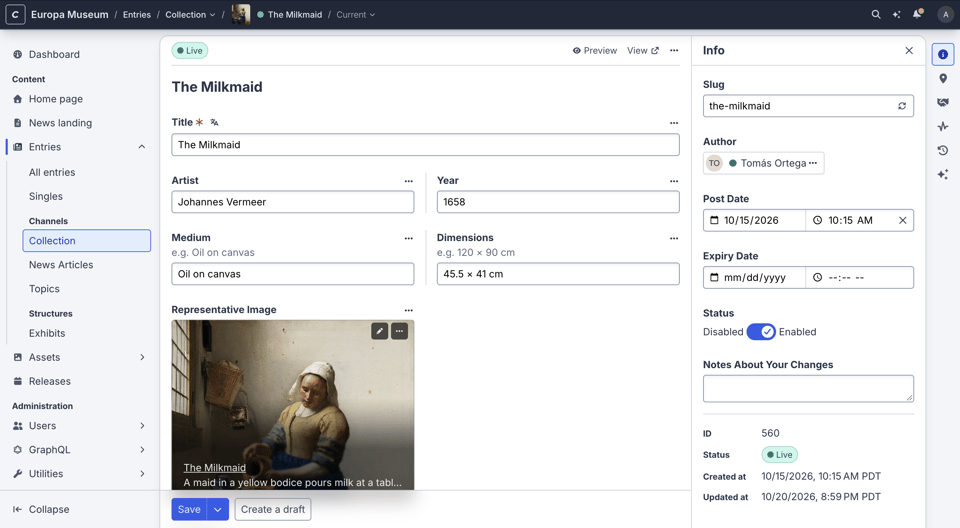
Craft 6 entry editor

The redesigned entry editor.

Craft 6 navigation flyout menu

Flyout menus in the global nav.

Customizing the control panel navigation in Settings → CP Navigation

Reorder, rename, and regroup nav items in Settings → CP Navigation.

Mobile-friendly

The control panel’s layout has been reworked for small screens, so you can review and edit content from a phone or tablet. Relations can be reordered on touch devices, and the Compare screen stacks each field’s two versions on narrow screens.
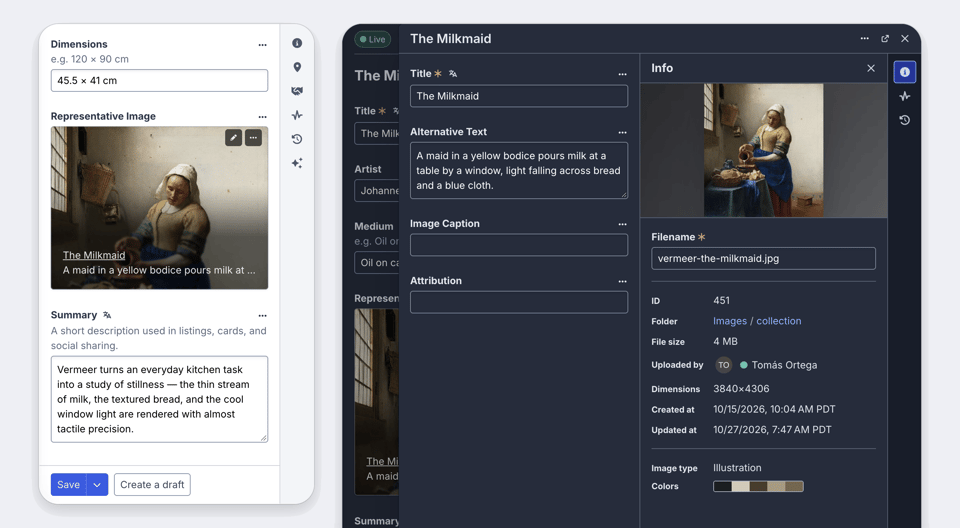
The entry editor on a phone and a tablet

The entry editor on a phone and a tablet.

Command Palette

Press ⌘K from any page to open the new command palette. It finds entries, assets, users, settings, and control panel pages, as well as fields, tabs, and Matrix blocks on the page you’re on. It searches the Craft documentation, too.

The palette can run actions as well, like creating entries, publishing releases, clearing caches, and changing your preferences, with the same permission checks as the screens they stand in for. And before you’ve typed anything, it lists the pages you visited recently.
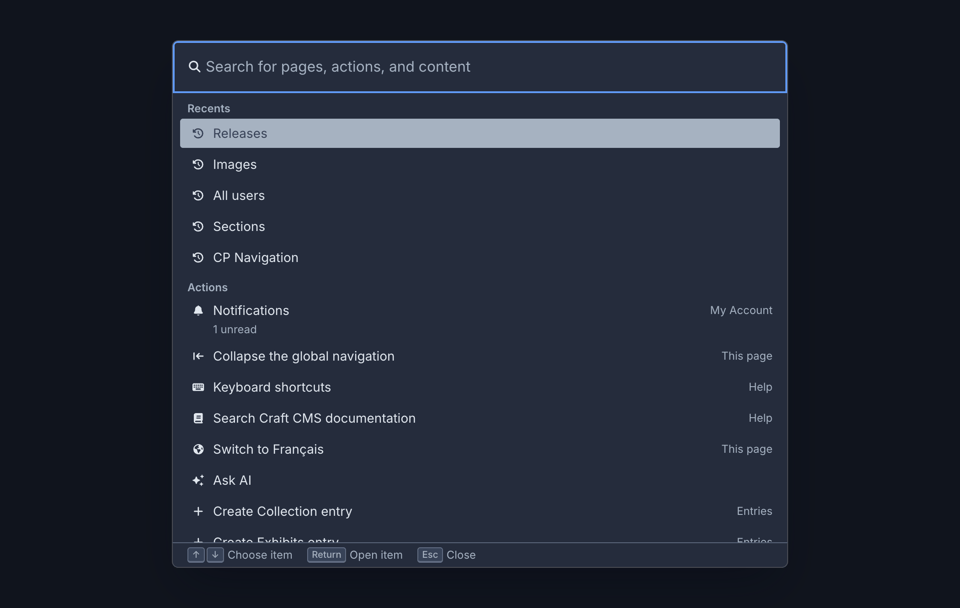
Command palette listing recently visited pages

Pages you’ve visited recently, before you’ve typed anything.
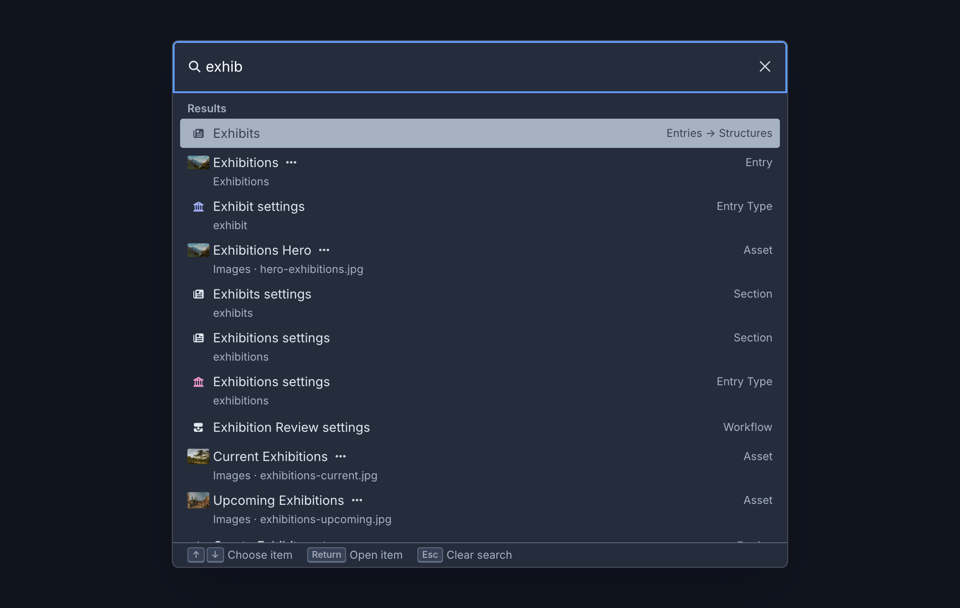
Command palette search results for “exhib”

Search entries, assets, settings, and more from anywhere.
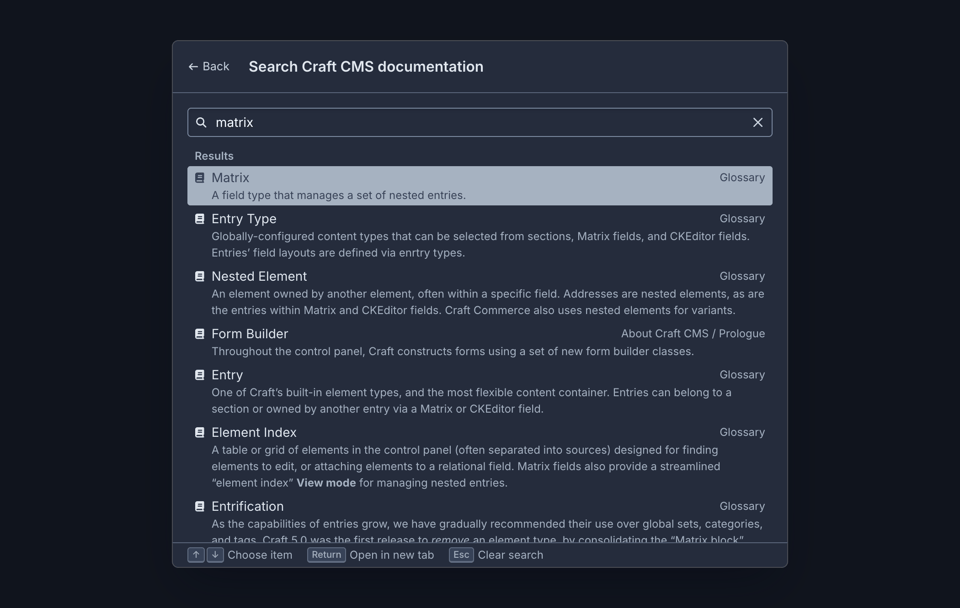
Command palette searching the Craft documentation

Search the Craft documentation without leaving the control panel.

Ask AI

Ask AI is a new assistant that sits beside every screen in the control panel. Open it from the sparkles button in the header, or with ⌘I.

It works through Craft’s MCP tools as the signed-in user, so it can only see and do what you can. Ask it about your content, and it’ll answer with the actual elements. Ask it to make changes, and it’ll propose them for you to review and apply to the form. Nothing is saved until you say so, and any tool that would change something needs your approval first.

You can give it context by adding fields, entries, and other items to a message, or by mentioning them with @. Administrators can also write guidance and skills that the assistant follows when it works with your content.
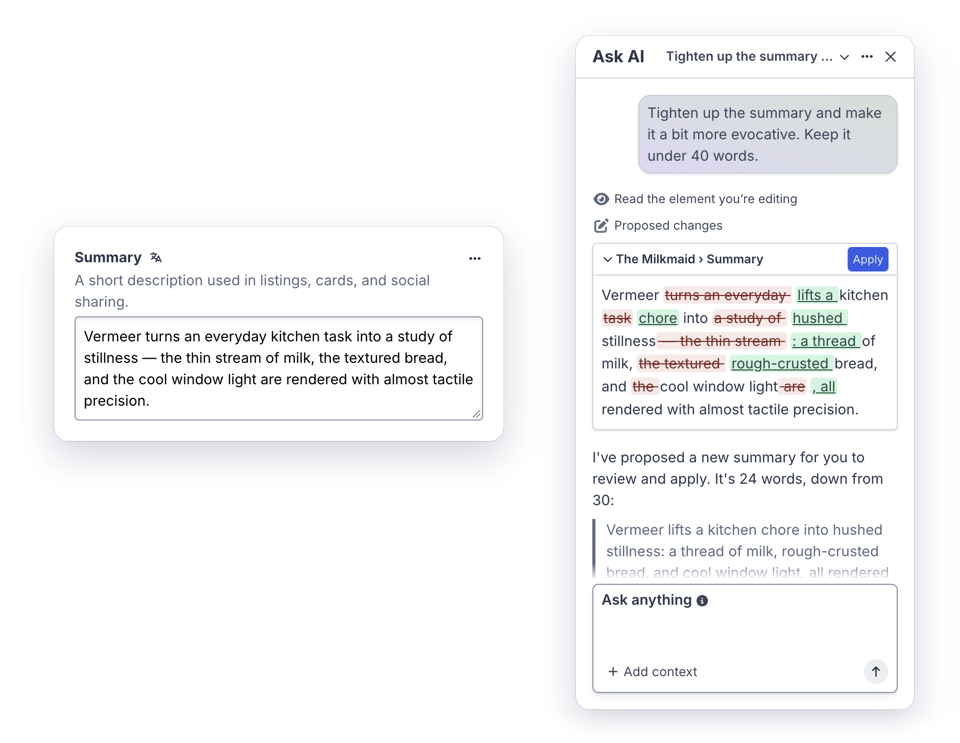
Ask AI proposing a tighter summary for an entry

Ask AI proposes changes for you to review.
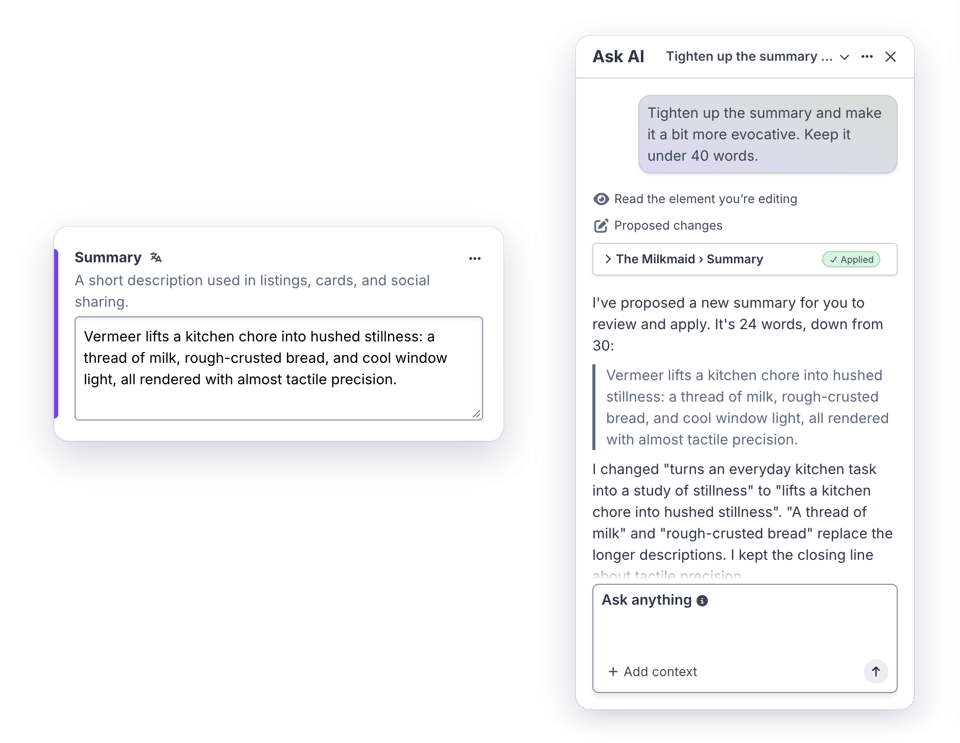
Ask AI’s proposed summary applied to the entry

Apply them to the form, then save when you’re ready.
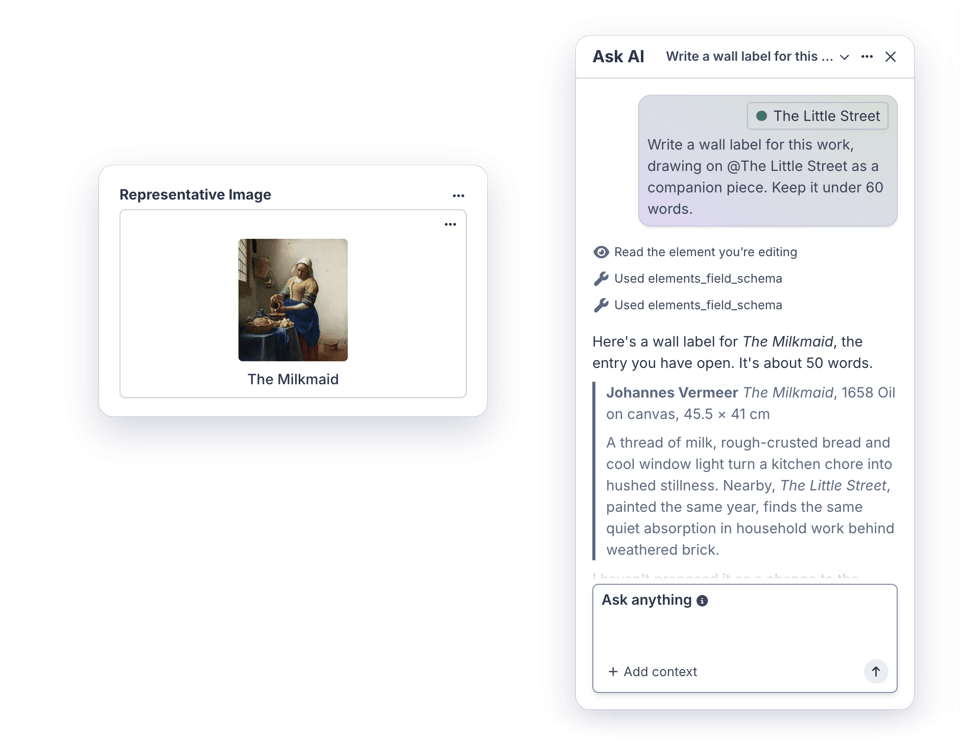
Ask AI writing a wall label, with another entry @mentioned for context

@mention other entries to give it more context.

AI features stay off until an administrator chooses a provider and model from Settings → Connections.

Publishing Workflows and Releases

Craft Pro and Enterprise now support publishing workflows, which require drafts to be reviewed and approved before they can be applied. A workflow is made up of stages, such as a curatorial review followed by leadership sign-off, and each stage can require approvals from specific user groups. Reviewers approve drafts or request changes from the draft’s new Workflow tab, and everyone involved gets notified along the way.

Releases group drafts of entries and other elements together, so they can be scheduled and published all at once. You can step through a release’s drafts in a Live Preview-style view, and see exactly which drafts are still holding it up.
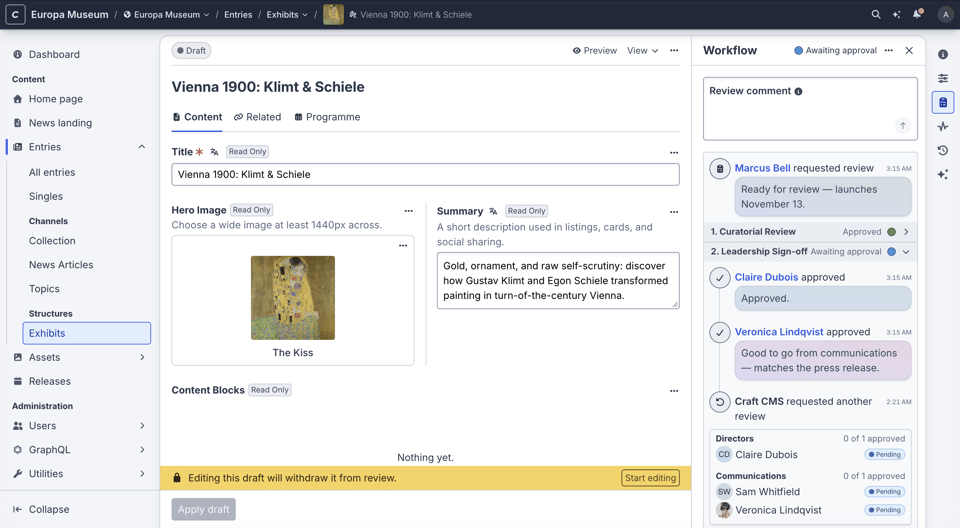
A draft awaiting approval in its Workflow panel

A draft awaiting sign-off from its Workflow tab.
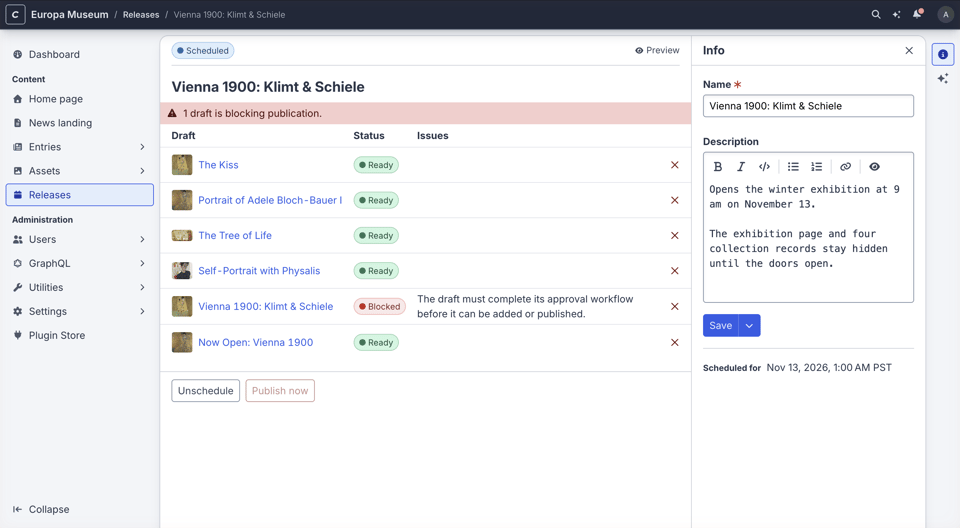
A scheduled release with its drafts

A release, with its drafts scheduled to publish together.
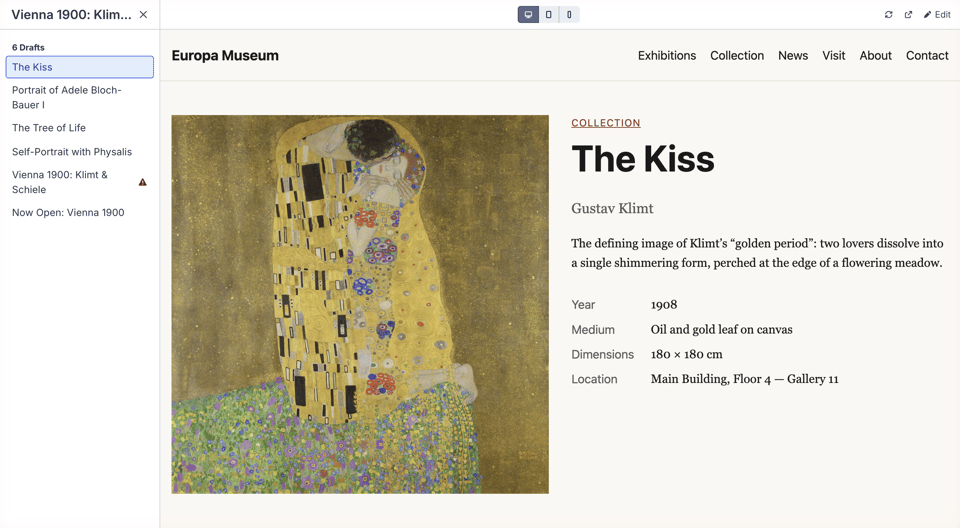
Previewing a release’s drafts on the front end

Previewing a release’s drafts on the front end.
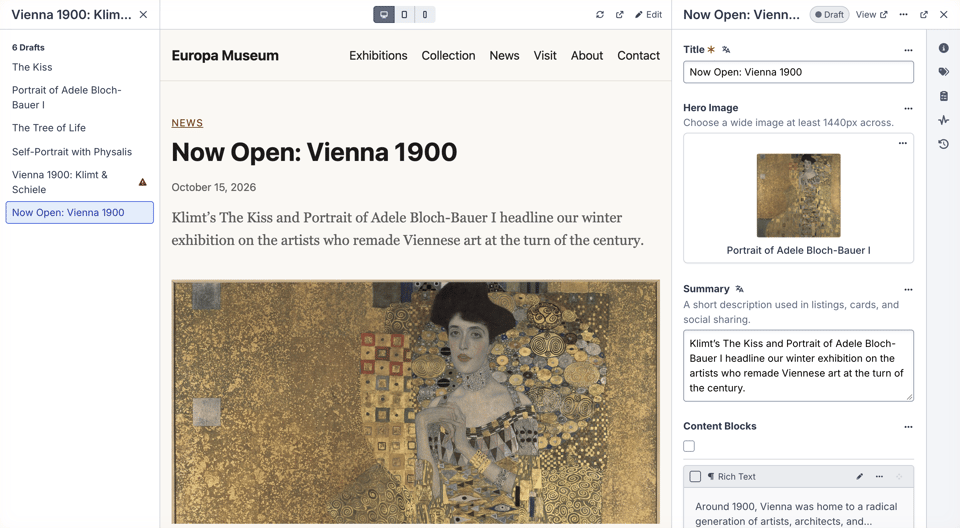
Editing a draft from within a release preview

Open any draft’s editor right from the release preview.

Compare

Entries and assets now have a Compare screen, which shows two versions side by side, with changed fields highlighted. Compare a draft with the current entry, two revisions, your unsaved changes with the last saved version, or an entry’s content in two sites.

You can even compare two separate entries: select them in an element index and choose Compare. Then copy a field’s value from one side to the other with a click.
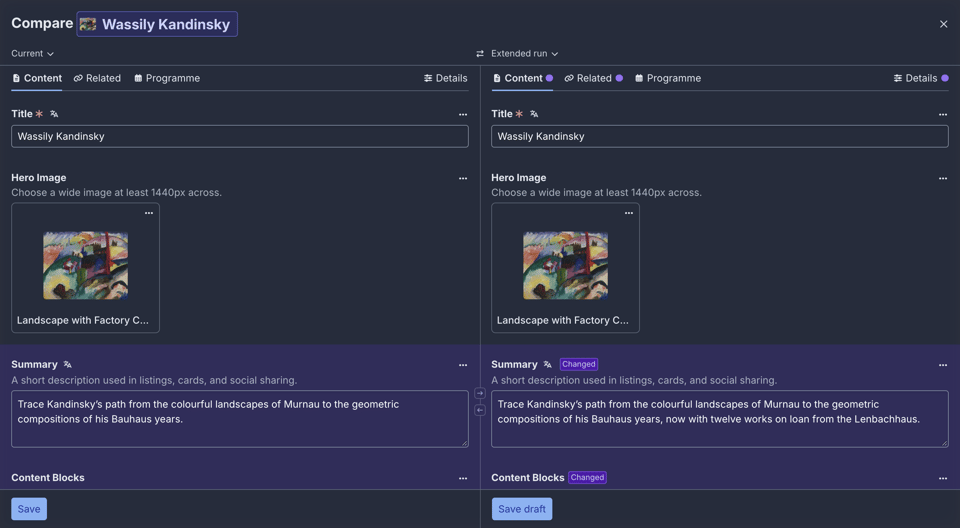
Comparing a draft with the current entry

Compare a draft with the current entry, with its changes highlighted.
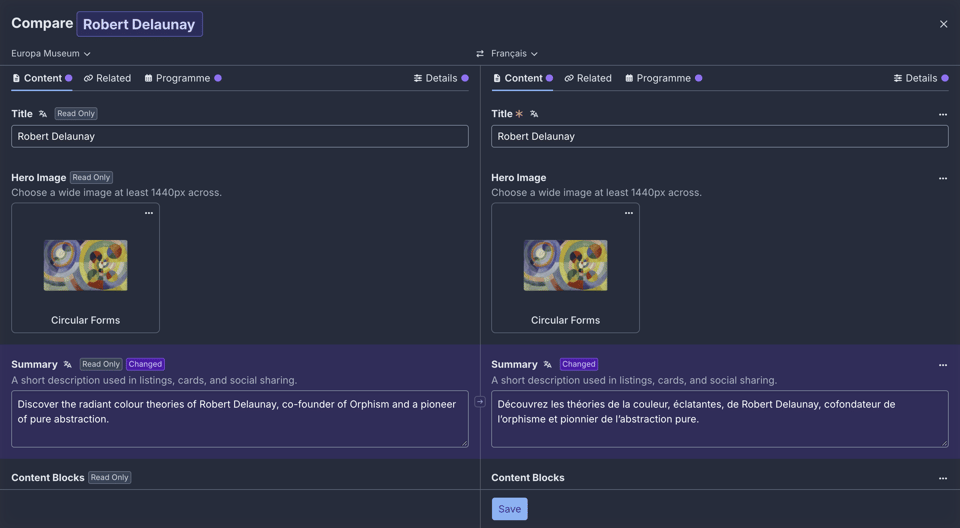
Comparing an entry in two sites

Compare an entry’s content in two sites, such as a translation.
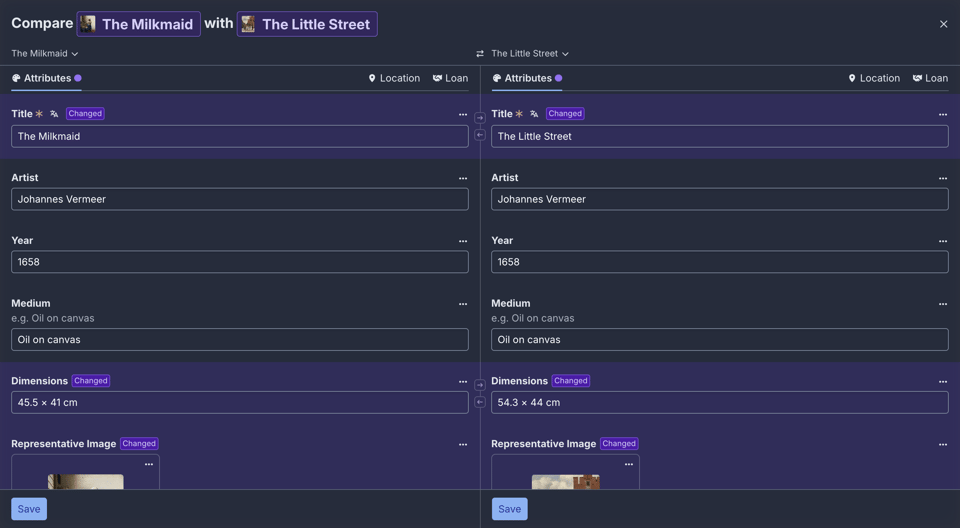
Comparing two entries side by side

Compare two entries side by side.

Copy and Paste

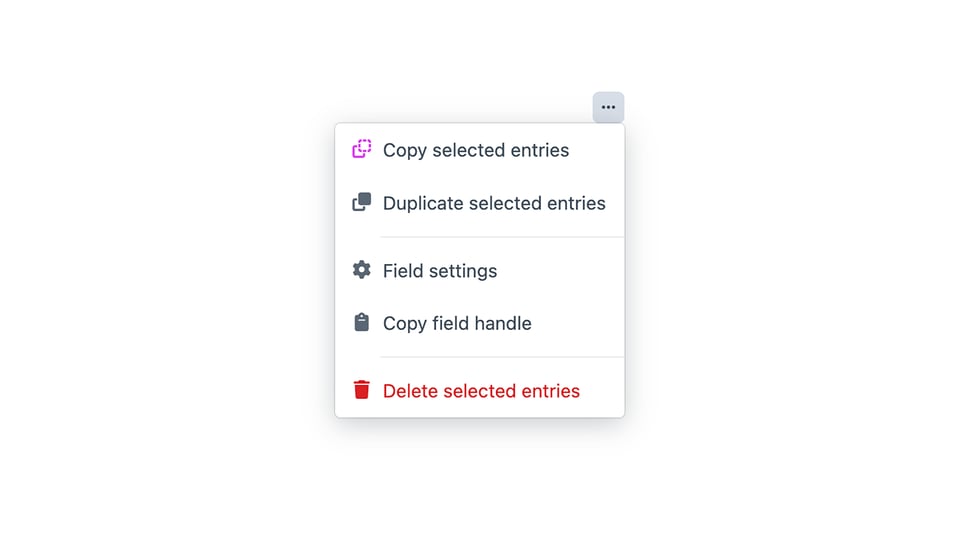
Field values can be copied and pasted anywhere the field appears. Choose Copy value from a field’s action menu, then Paste value on any field that can take it, or just press ⌘V. Copied values are put on your system clipboard as well, so they’re ready to paste into other apps: relations as their titles and links, tables as rows a spreadsheet can split, and links as their URLs.
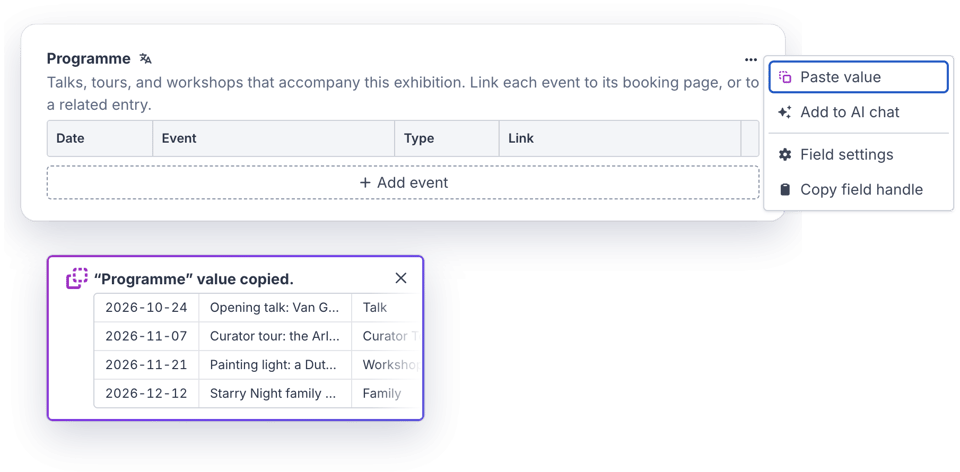
The Paste value action, with a preview of the copied table

Paste a copied value into any field that can take it, with a preview of what you copied.

Comments and Activity

Elements now have an activity timeline, showing who changed what, and when. Leave comments on it with Markdown formatting, mention teammates to notify them, and include syntax-highlighted code blocks when you need to.
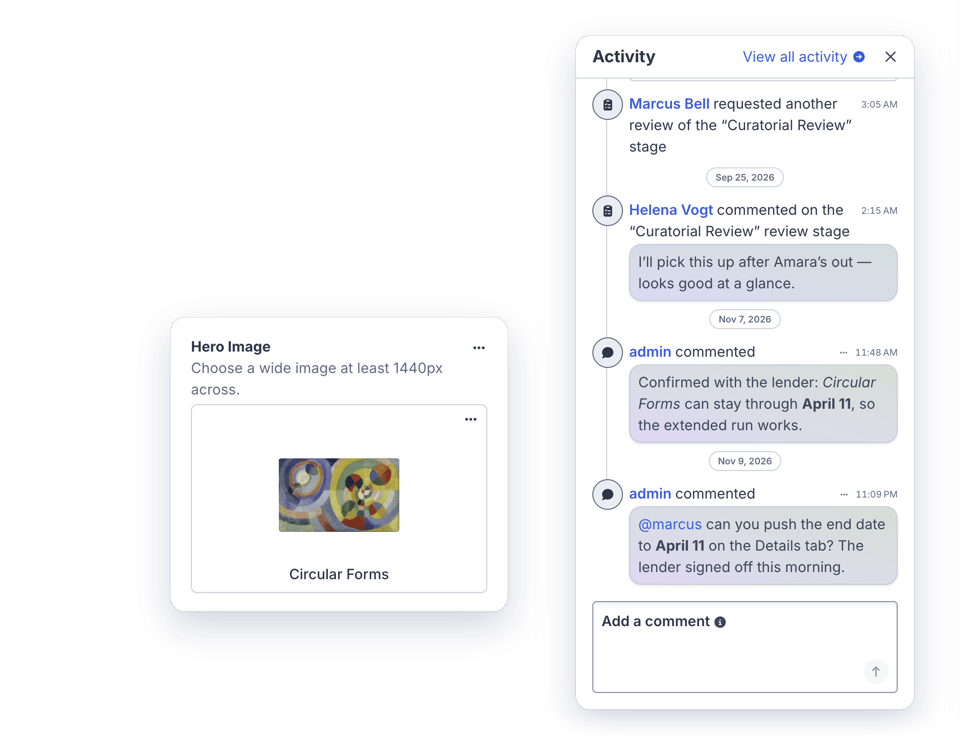
An entry’s activity timeline with comments and an @mention

Review history and comments, side by side with the entry.

Live Preview

Live Preview’s editor is now docked on the right, with the element’s details panels right there. Previews update more smoothly, so it all feels snappier and less finicky.

Element editor slideouts have a Preview button of their own now, too.
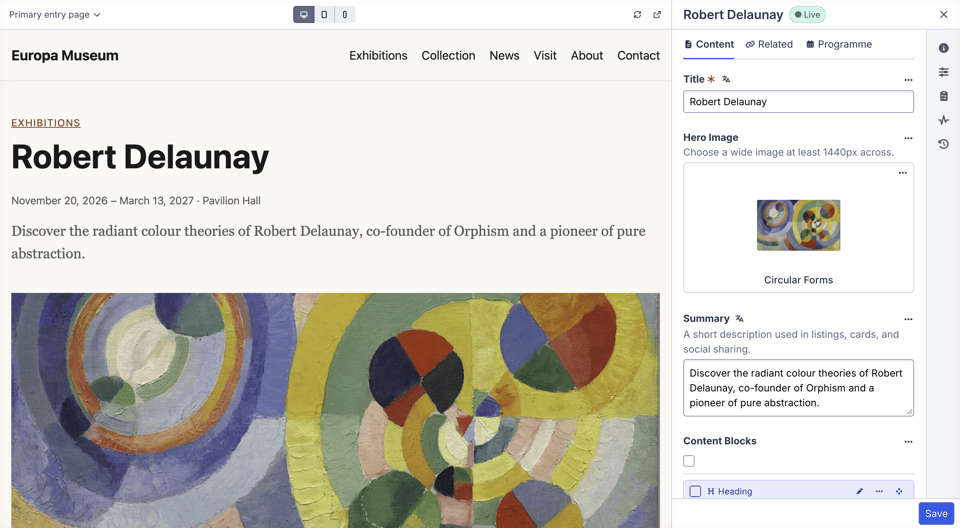
Live Preview with the editor docked to the right

Live Preview, with the editor docked to the right.
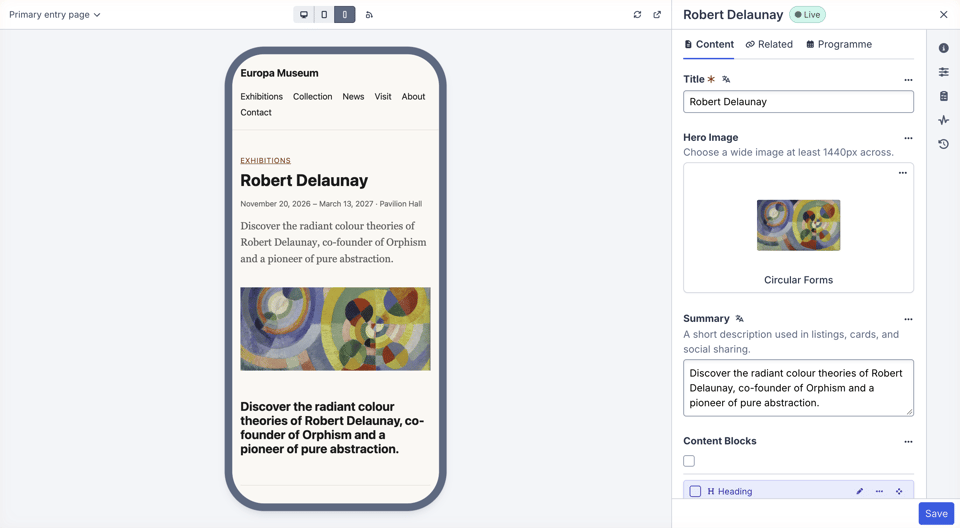
Live Preview in the phone view

Check how the page looks on a phone or tablet.

Assets

Assets got a lot of attention in Craft 6.

  • Background uploads. Uploads from the Assets index continue in the background as you move around the control panel, with progress, retries, and cancellation.
  • Duplicate detection. Images that look like copies of ones you’ve already uploaded, even resized or recompressed, are flagged before they’re saved.
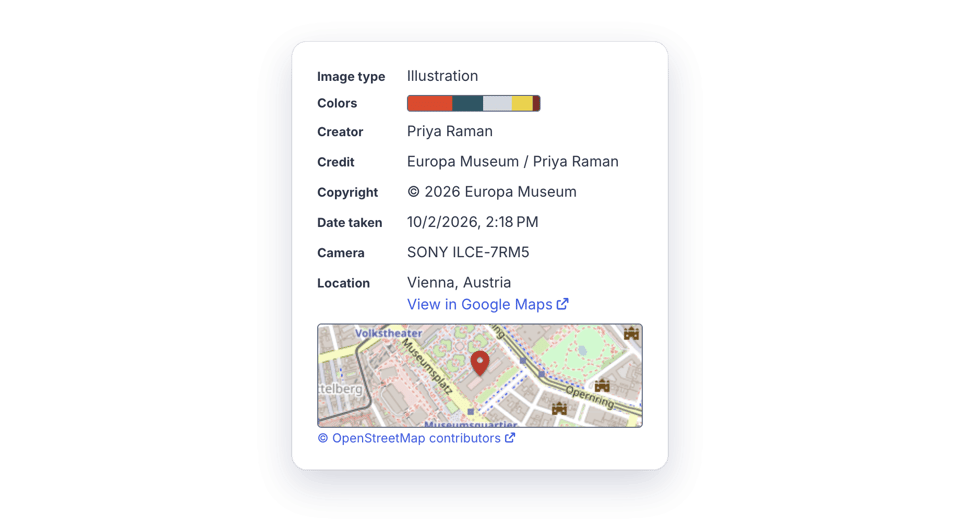
  • Embedded metadata. Images keep the metadata embedded in their files, such as their title, description, alt text, creator, copyright notice, camera, and location. Asset edit pages show it alongside a map of where the photo was taken, and indexes can show it in columns along with each image’s colors.
  • AI image analysis. With an AI provider set up, Craft can generate alt text and titles for images, tag and classify them, and detect their focal points.
  • Bigger thumbnails. Asset indexes have a new Thumb Size setting, and images show a blurred placeholder while they load.
  • Image editor improvements. The image editor has undo, redo, and a Revert to original button.
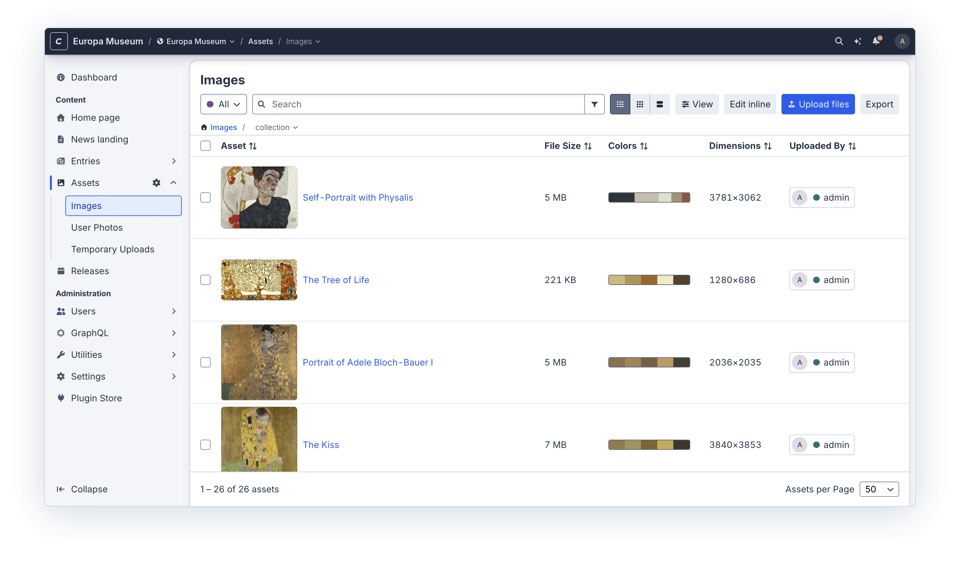
Asset index with large thumbnails, colors, and dimensions

Larger thumbnails, with image colors and dimensions in the index.
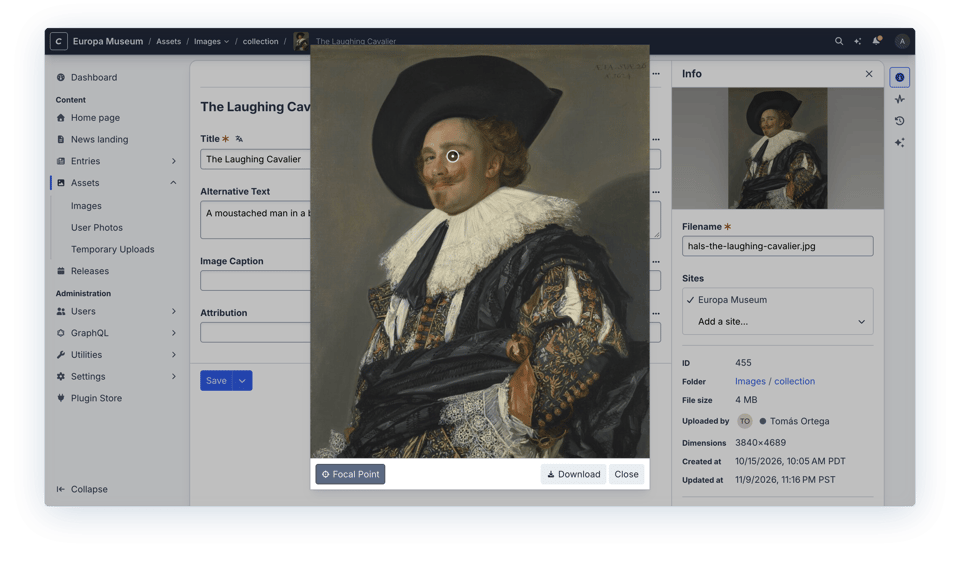
Image preview showing an AI-detected focal point

A focal point, detected by AI.

An image’s analysis data and embedded metadata, with a map of where it was taken

Image analysis and embedded metadata, including where the photo was taken.

Fields and Field Layouts

  • Sidebar tabs. Field layouts can have tabs that live in the element editor’s details sidebar, and any tab can have an icon.
  • Markdown field. There’s a new core Markdown field type.
  • Table fields can have Link columns and default row values, and their column settings open in a slideout.
  • Per-site Matrix entries. Matrix entries can be disabled for individual sites.
  • Default tips and warnings can be set on custom fields, and instructions, tips, and warnings support Markdown.
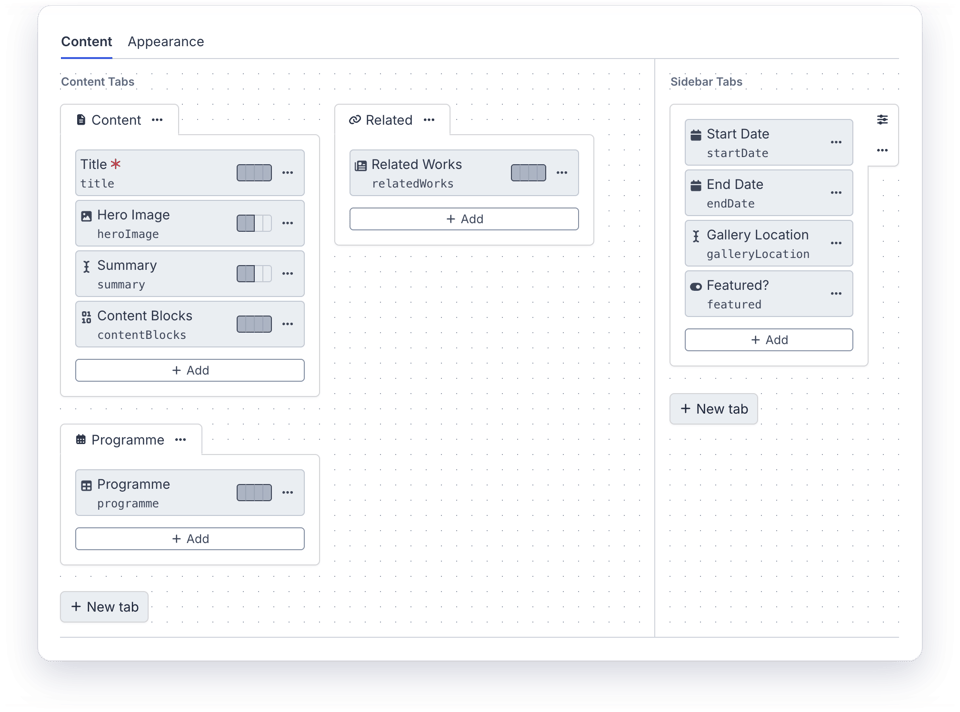
Field layout designer with content and sidebar tabs

Sidebar tabs in the field layout designer.
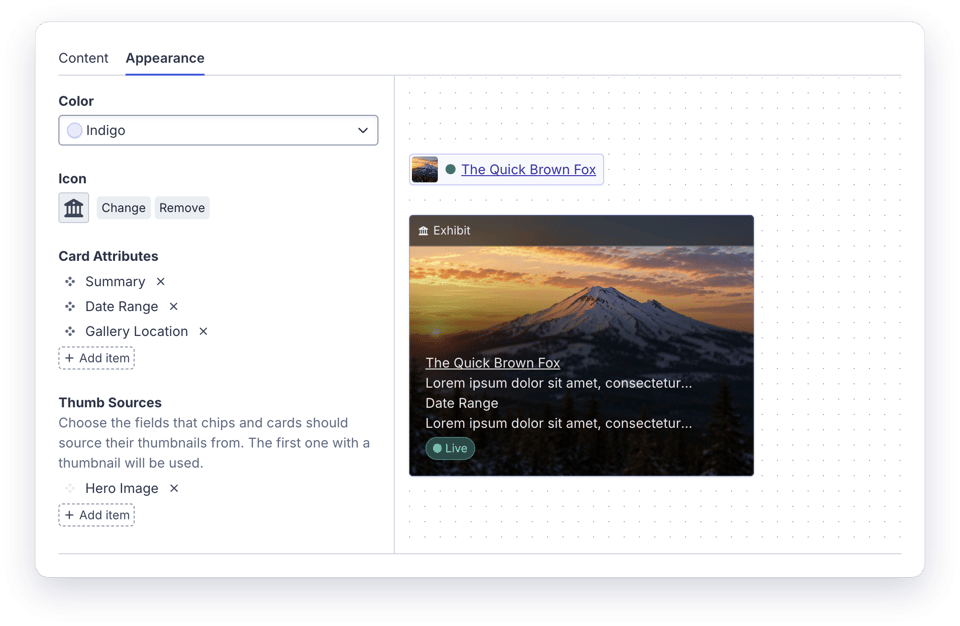
Field layout designer’s Appearance tab with a card preview

The new Appearance tab, with a live card preview.

Accessibility

We’ve continued working toward WCAG 2.2 AA conformance throughout the rebuilt control panel, including element indexes, element editors, and the login page. See our accessibility page for our reports and quarterly updates.

Built on Laravel

Craft 6 is a Laravel application. Routing, authentication, sessions, mail, migrations, and maintenance mode all go through Laravel now, so Craft projects can tap into the whole Laravel ecosystem.

  • Blade. Blade views can be loaded from Twig templates, and Craft registers Blade directives that bring them close to feature parity with Twig.
  • Laravel Debugbar gets Elements and Deprecations panels.
  • Eloquent elements. Apps can manage their own Eloquent models as elements in the control panel, with indexes, editors, permissions, search, and relation fields, while the models and tables stay just as they are.
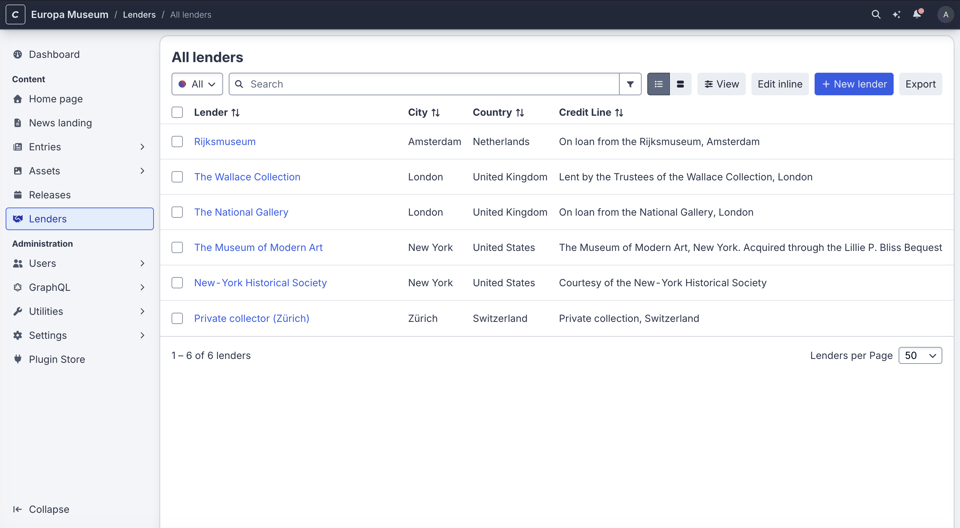
An Eloquent model’s element index

An app’s Lender model, managed as elements.
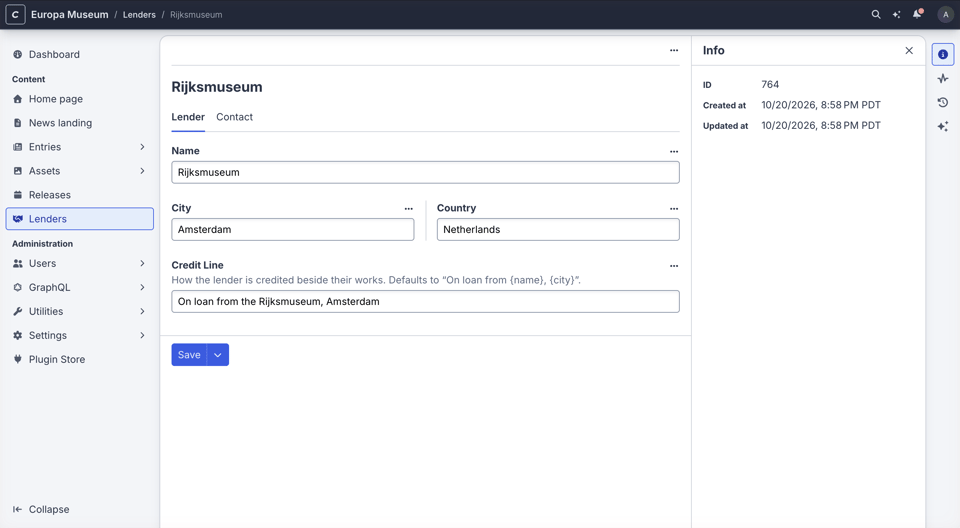
Editing an Eloquent element

Editing a Lender in the element editor.
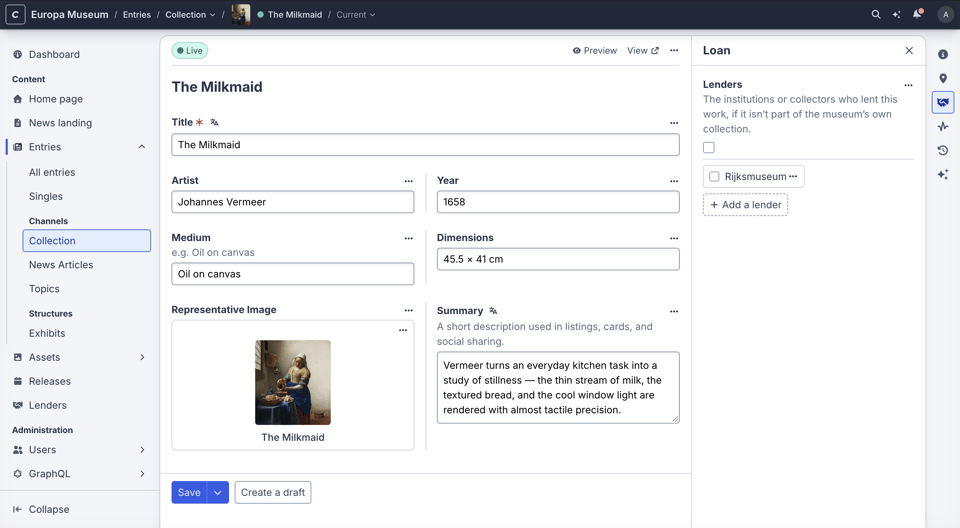
Eloquent elements related to an entry

Lenders related to an entry through a relation field.

So Much More

That’s just scratching the surface. With over 250 new features and enhancements, Craft 6 is the biggest Craft CMS release ever, and there’s something in it for everyone. Authors get a faster, friendlier control panel that helps them do their best work, and developers get the whole Laravel ecosystem at their fingertips. Dig into the 6.0.0-beta.1 release on GitHub for the full list of changes.

Try It Out

Craft 6 is ready for you to take for a spin. Follow the installation instructions to start a new project, or the upgrade guide to bring over an existing Craft 5 site.

We’ve put a lot of work into making that upgrade as simple as possible, starting with craft6-revamp, a tool that automates much of the work of preparing a Craft 5 project for Craft 6.

Then there’s the Yii2 adapter, which means you don’t have to rewrite everything at once. It’s an optional package that keeps Craft 5’s Yii-based APIs working on Craft 6, so the plugins, modules, and configuration you already have keep running while you update them at your own pace.

craft6-revamp adds the adapter to your project automatically, and the Plugin Store flags plugins that need it and installs it for you along with them.

Keeping Yii2 and Craft 5 around indefinitely isn’t ideal, of course, so the adapter will even help you remove itself. It comes with a new Yii2 Loose Ends utility, which keeps track of everything in your project that still depends on the adapter. The utility can fix some issues on the spot, update plugins that no longer need the adapter, and suggest AI prompts for the rest.
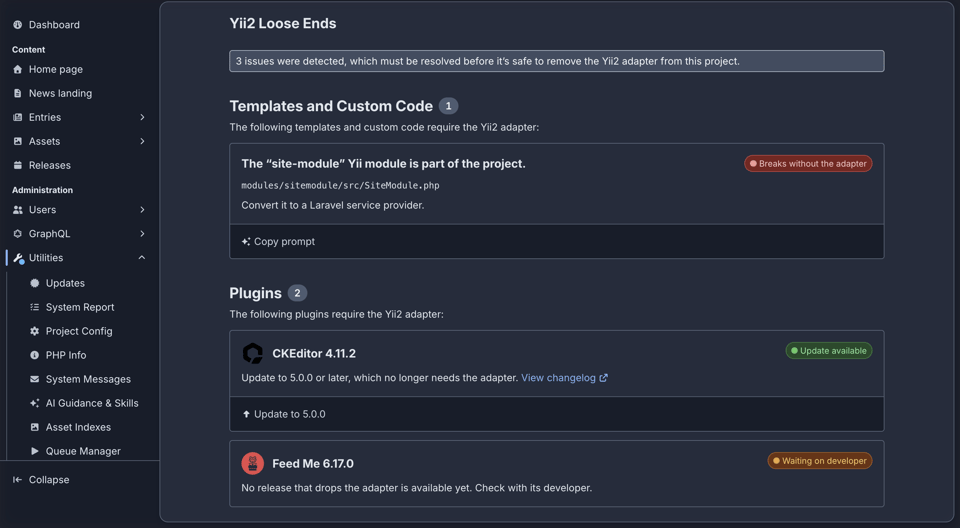
The Yii2 Loose Ends utility

The Yii2 Loose Ends utility lists everything that still depends on the adapter, with a way to resolve each item.

Most of our first-party plugins have already been updated to support Craft 5 and 6 simultaneously in their current versions, thanks to the adapter. Fully ported, Craft 6-exclusive major versions will follow. The goal is that you can get up and running on Craft 6 with minimal plugin updates, and get around to updating your plugins as a follow-up task, whenever you’re ready.

If you maintain plugins, see our plugin development resources.

Craft 5 Long-Term Support

There’s no rush to upgrade, either. Craft 5 will continue receiving security updates for five years after Craft 6 is released, until March 2032.

Find a bug? Let us know on GitHub. And to stay in the loop as we head toward a stable release, subscribe to our newsletter.

Craft 5.12 Released

Craft 5 12 mcp

We’re excited to announce that Craft 5.12 is here! This release makes it possible for AI agents work with your Craft install through new built-in MCP servers, opens up the GraphQL API to authenticated users, and brings other authoring and development improvements across the board.

MCP Servers

Craft 5.12 adds built-in Model Context Protocol (MCP) servers, so AI agents and tools like Claude, ChatGPT, and Cursor can connect directly to your Craft install.

Authenticated MCP server. Connect your agents to Craft by authorizing with our new OAuth service. MCP clients can then act on behalf of that user, within their existing permissions and a specific access level granted during authorization.

Public MCP server. You can also expose a public MCP server, which doesn’t require signing in. It only exposes the capabilities and content you’ve explicitly approved, so you decide exactly what agents can find out about your site.

Both servers are disabled by default, but can be enabled and configured from the new Settings → MCP screen.

There’s also a new mcp/serve command, which runs a local authenticated MCP server. Agents running on your machine can connect to that, acting as a given user, and use it to make content changes, or even safely make project config changes without needing to edit the YAML directly!

Plugins can register their own MCP capabilities too, so they can expose their own content and capabilities to agents.

Authenticated GraphQL

Craft’s GraphQL API has historically been schema-based: you define “schemas” that grant access to specific queries and mutations, API requests specify which schema to use via a token, and the requests have full access to all the queries and mutations included in that schema.

That works great if the client is an application with gated access to the API, or if everything in the schema is safe for public consumption. But it’s not great for querying/updating user-specific data, like account details or entry drafts.

Craft 5.12 changes that. GraphQL requests can now be authenticated as an actual user, and get a schema built on the fly based on that user’s permissions. They can query and mutate anything the user is allowed to, and nothing more.

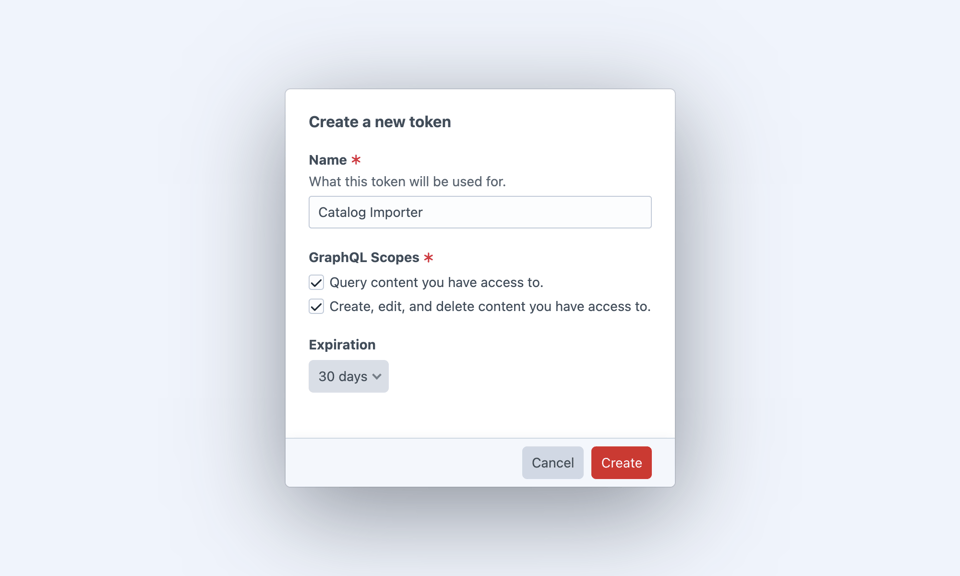
Like the authenticated MCP server, the authenticated GraphQL API is built on an OAuth application authorization flow. We’ve also added support for personal tokens, which can access the authenticated GraphQL API, or other plugin-defined scopes.

Tokens

Other Highlights

Craft 5.12 is packed with smaller improvements across the system. A few highlights:

  • Files can be uploaded to Assets fields by pasting them from the clipboard.
  • Markdown files can be uploaded and previewed with syntax highlighting.
  • Element edit screens get a new “Sites” pane, for toggling per-site statuses and navigating between sites.
  • Icon fields, entry types, and option fields can now include custom icon sets.
  • Color fields now support translucent colors.

See the release on GitHub for the full release notes.

Happy developing!

Craft Cloud and php2shell

Cloud php2shell

Yesterday, PHP announced that two critical vulnerabilities had been discovered, and would be fully disclosed and patched today at 14:00 UTC: CVE-2026-109618 and CVE-2026-109619—collectively referred to as php2shell.

The announcement has caused a stir in the web community, with several websites being taken completely offline while waiting for the release to become available.

While there is evidence that the vulnerabilities were being exploited even before the PHP updates were released, sites protected by Cloudflare’s firewalls were protected. OpenAI, who discovered the vulnerabilities, coordinated with Cloudflare in preparation, and Cloudflare deployed emergency firewall rules across their entire network prior to the disclosure, mitigating potential attacks. We’ve confirmed that those rules have effectively protected Craft Cloud-hosted sites, with no known successful attacks.

Immediately after the PHP updates were released, Matthieu Napoli began building new images for Bref, the PHP runtime that powers Craft Cloud. Those images became available just over an hour later, at which point we pulled them into the Craft Cloud infrastructure and began rolling them out to all Cloud projects.

Save for a small handful of sites with preexisting build issues, at this point all Cloud environments have now been updated to the new images, and are fully protected.

We’d like to thank the PHP Foundation, Cloudflare, and Matthieu for their proactive work to keep the PHP community secure, and Craft Cloud customers for trusting us with their projects.

Why Craft is Publishing More Security Advisories

Security growth

If you follow Craft’s release notes or security advisories, you’ve probably noticed a significant increase in security-related updates over the past year.

It’s reasonable to wonder what that means. Has Craft suddenly become less secure? Are newer versions introducing more vulnerabilities? Should site owners be worried?

The short answer is the way vulnerabilities are discovered has changed dramatically.

Artificial intelligence has made it much faster and cheaper for security researchers to analyze large codebases, explore unusual code paths, and test potential exploits. Work that once took days or weeks of specialized human effort can increasingly be done by AI-assisted tools running around the clock.

The result is a surge in vulnerability reports across the entire software industry. The Linux kernel, Google, Microsoft, and countless open source projects are all seeing the same thing.

The thing to keep in mind is that it isn’t how many vulnerabilities are being reported. It’s how quickly legitimate issues can be validated, fixed, released, and, most importantly, installed on the sites that depend on the software.

More advisories don’t necessarily mean less secure software

A security advisory is evidence that a vulnerability was found, fixed, and disclosed. By itself, it isn’t a measure of how secure a piece of software is.

A project with many published advisories may have a large attack surface, but it may also have active researchers, responsive maintainers, and a mature disclosure process. A project with very few advisories might genuinely have fewer vulnerabilities, or it might simply be getting less scrutiny.

Why don’t we disclose vulnerabilities immediately?

When we fix a vulnerability, we ship the patched release first and publish the full advisory later.

Our standard disclosure window is 30 days from the patched release. During that time, site owners can update before the GitHub Security Advisory and any associated CVEs are made public.

That window isn’t a guarantee of secrecy, though. Once a patch is public, a motivated researcher (or an automated agent) can compare the old and new code to determine what was fixed. AI is making that kind of analysis faster and easier, too.

That makes timely updates more important than ever.

What should Craft site owners do?

The two most important changes we recommend are:

  • Make sure you’re on a supported version of Craft.
  • Make updates routine, not exceptional.

A site that’s updated regularly is usually straightforward to patch when an important security release arrives. A site that has fallen six or twelve months behind may first need unrelated dependency, plugin, or application work before the security fix can be safely deployed.

Higher-risk sites, such as those handling commerce, personal information, financial data, or other sensitive material, should aim to apply security releases even faster.

Craft publishes several ways to stay informed, including a Critical Releases feed, security announcements, GitHub advisories, changelogs, and notices directly within the Craft control panel.

Where does this go from here?

We don’t expect the pace of security research to return to what it was a few years ago. The tools will keep improving, researchers will keep finding vulnerabilities faster, and attackers will have access to many of the same capabilities.

That puts real pressure on software maintainers and site owners alike.

But there’s an upside. Many of the vulnerabilities being uncovered today are the product of years of accumulated assumptions and technical debt across the industry. Finding and fixing them is painful work, but it leaves actively maintained software stronger.

For Craft site owners, stay on a supported version, keep them updated, and have a plan to apply security fixes promptly when they’re released.

Accessibility Updates for Q2 2026

20 Accessibility

5.x image improvements

Simon Leadbetter, from the digital accessibility consultancy Kindera, reached out to us as part of the #AltAtSource campaign. The campaign seeks to improve digital accessibility by reducing friction around populating alt text by harnessing alt text and descriptions stored in XMP/IPTC metadata fields.

The campaign centers around encouraging:

  1. Hardware vendors to embed image descriptions — either human- and AI-generated — in an image’s metadata
  2. Image libraries to generate alt text automatically, and allow editors to edit and validate these descriptions
  3. CMS providers to automatically populate alt text embedded in the image metadata upon upload

We implemented the feature request in 5.10. Now, when an image is uploaded to Craft with alt text in the embedded metadata, it’s automatically used to populate the native alt text field.

Here’s a video that demonstrates how powerful this feature is.

Craft 6

We’re still hard at work on the Craft 6 design system. One of the biggest initiatives this quarter was introducing a contrast-based color palette.

We started building out the UI using Tailwind colors. While Tailwind provides a nice assortment of colors, we found that each color had inconsistent contrast ratios at the same color stop.

For example, on a white background:

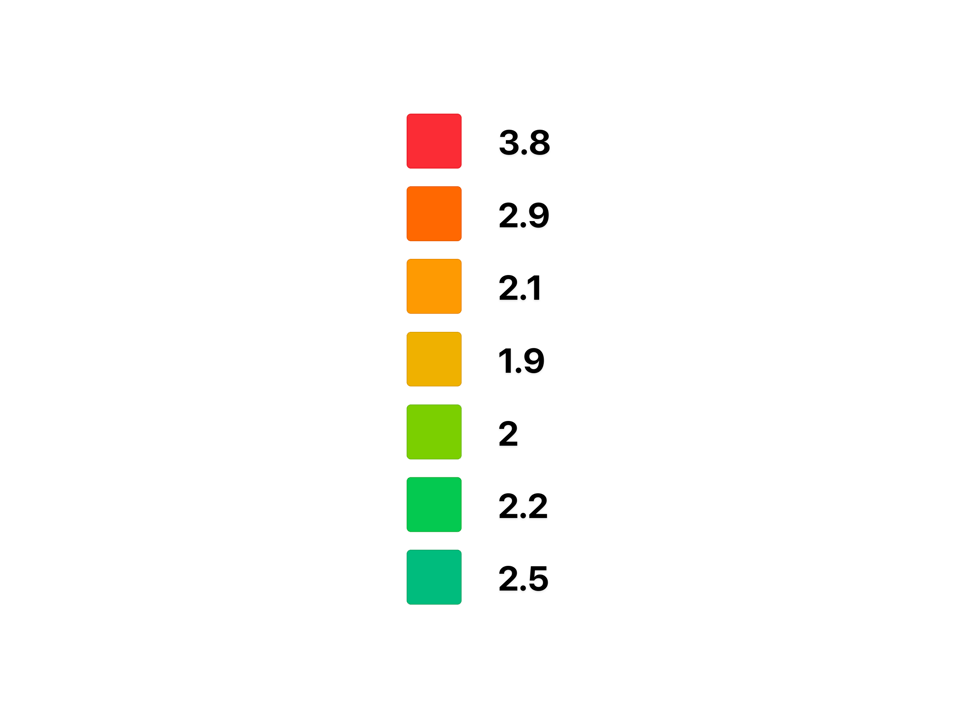
  • Yellow 500 has a contrast ratio of 1.9:1. It could be used as a decorative pop of color or background, but couldn’t be used for text or UI components.
  • Indigo 500 has a contrast ratio of 4.6:1. It could be used for any text or UI components under the WCAG 2.2 AA guidelines.
A selection of Tailwind colors at the 500 color stop showing a range of color contrast ratios against a white background, ranging from 1.9 to 3.8.

At the same color stop — 500 in this example — each color had very different contrast ratios against a white background.

With no real consistency, choosing the correct color stop for components was becoming burdensome, since each color had to be tested in both light and dark modes to ensure it met contrast requirements.

And changing a single color in the UI meant everything had to be tested again.

So we were excited to discover that Adobe built an amazing solution to build color palettes based on color contrast ratios — Leonardo.

The Leonardo API takes several inputs, including:

  1. The colors in your palette
  2. Desired contrast ratios
  3. Background color lightness

The result is a set of color tokens with a consistent contrast ratio against the given background at each color stop.

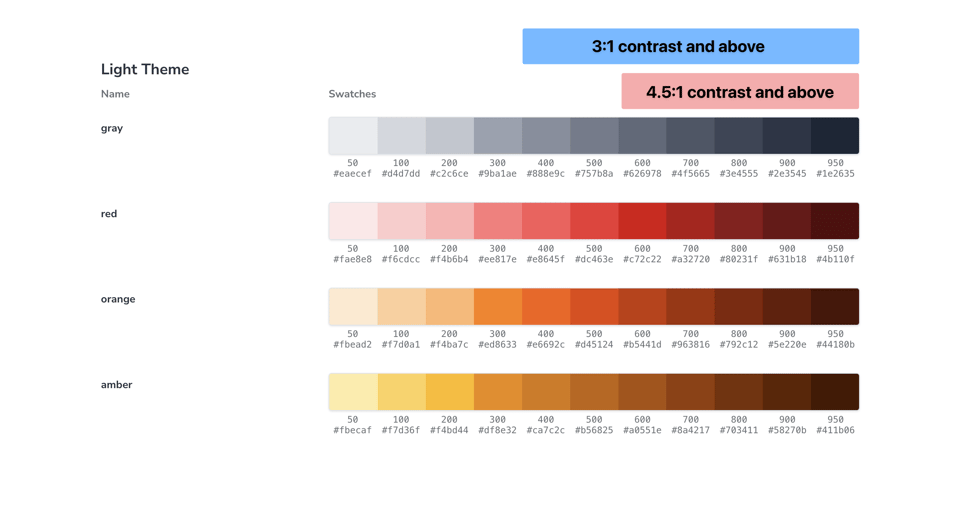
Here’s part of our light color theme as an example:

Four light theme colors with 11 color stops each. The color stops from 400 to 950 meet 3:1 contrast minimums, while the ones from 600 to 950 meet 4.5:1 contrast minimums.

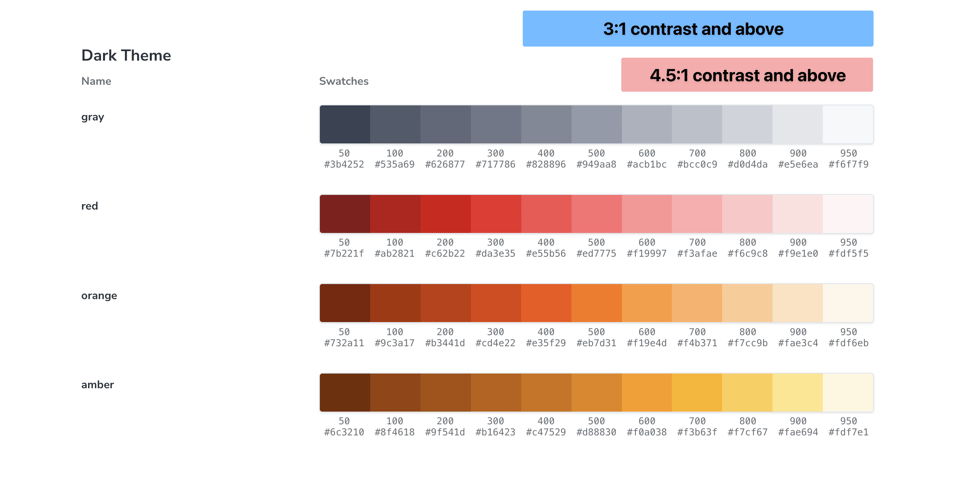
The API also makes it straightforward to make this palette adaptive by adjusting the background lightness input to generate a new set of colors.

As a result, while building our design system components, we can generally set our component colors in a single color mode and not worry about contrast when switching between light and dark modes.

Four dark theme colors with 11 color stops each. The color stops from 400 to 950 meet 3:1 contrast minimums against the dark mode background, while the ones from 600 to 950 meet 4.5:1 contrast minimums.

Similar to Adobe Spectrum’s color system, we’ll have two color palettes:

  1. An adaptive color palette that will update colors based on light and dark modes. These color tokens will be used in instances where maintaining contrast is essential — such as body text over the control panel background or input borders.
  2. A static color palette that will not change between light and dark modes. This palette will be used when maintaining color consistency across modes is important.

We’re optimistic that using Leonardo will make color selection much more intuitive and accessible moving forward.

If you have any questions or suggestions, please reach out to us at accessibility@craftcms.com.

Craft 6 Sessions at Dot One 2026 Events

Dot One 2026

We’re excited to announce that this year’s Dot One events will be all about Craft 6, with a series of talks from the Craft CMS team.

Each event will kick off with a State of Craft keynote from Brandon, followed by a selection of talks presented by members of the Craft CMS team, including:

  • Laravel for Craft CMS developers
  • Upgrading custom modules and plugins for Craft 6
  • UI components in Craft 6
  • Apps love content: Enriching your existing Laravel app with Craft CMS
  • An MCP server for Craft

There will also be Q&A sessions where you’ll have the opportunity to get answers from the team behind the product.

Dot One is coming to the following cities:

Each event will also include a series of lightning talks given by members of the Craft CMS team and the community, including: Ongoing accessibility testing with Craft’s lead accessibility engineer Lupe Camacho, and Making and taking images in Craft with our own in-house web developer Kenneth Ormandy.

Dot One events are a great opportunity to interact directly with the Craft CMS and meet members of the local Craft Community. Tickets are limited so we encourage you to purchase yours today, and we hope to see you there!

Craft 5.10 Released

Craft 5 10

We’re excited to announce that Craft 5.10 is here! This release features an improved element deletion workflow, and new development features.

Element Deletion Blockers

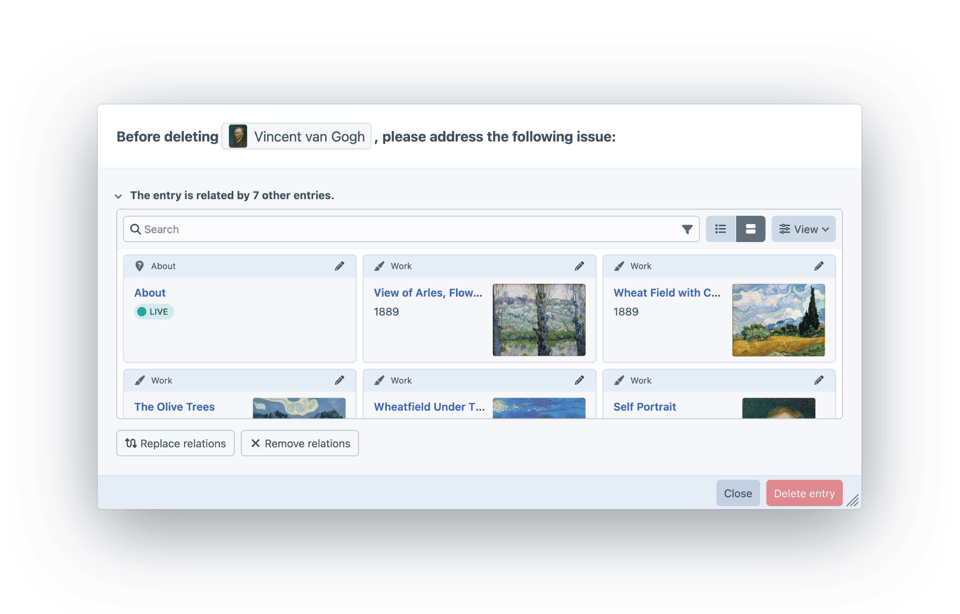
When deleting elements in the control panel, users may now be presented with a modal window showing various blockers that need to be acted on before going through with the deletion.

For example, if the element is related to any other entries, those entries will be displayed, with options to replace the relations with a different element, or remove them.

Element deletion modal white 2

Once the blockers have been resolved, the user can proceed with the deletion.

Our CKEditor plugin has also been updated to register a deletion blocker for any elements that are referenced within CKEditor fields, and Craft Commerce 5.7 will register deletion blockers for users with existing orders or subscriptions.

Other Highlights

Craft 5.10 is packed with smaller improvements across the system. A few highlights:

Authoring

  • Nicer preview text for collapsed Matrix blocks. (#18484)
  • “Paste above” actions in Matrix and Addresses fields. (#17406)
  • Entry post dates are no longer automatically set until the entry is first saved as enabled. (#18642)
  • “Save as a new draft” actions. (#18722)
  • Element editor slideouts now automatically refresh themselves when the same element is edited in another tab. (#18625)
  • Time Zone user preference. (#8518)
  • Automatic asset alt text population, for images uploaded with alt text embedded in their metadata. (#18744)

Administration & Development

  • It’s now possible to replace the custom field used for existing field layout elements. (#18814)
  • Twig 3.24 adds support for null-safe operators.
  • New heading() and h1()…h6() Twig functions. (#18524)
  • Support for element hard deletion via GraphQL. (#18511)
  • Opt-in support for origin verification on requests (a more modern alternative to CSRF protection). (#18641)

See the release on GitHub for the full release notes.

If you’re running the Craft 6 Alpha, Craft 6.0.0-alpha.2 is also out with all of the improvements in 5.10.

Happy developing!

Craft 6 Alpha Released

Craft laravel

Our Craft 6 journey just hit a major milestone: the codebase is now completely ported to Laravel.

To mark the occasion, we just tagged version 6.0.0-alpha.1, marking the beginning of the Craft 6 Alpha.

This concludes a massive, year-long effort, and now we’re excited to move onto feature development.

If you’d like to get involved in the Alpha, you can find installation instructions and upgrade instructions in the docs, as well as several plugin development resources.

Pardon Our Dust

Craft 6 is under active development, so expect to run into bugs and many rough edges, particularly in the control panel UI, which is in the early stages of being rebuilt as a Vue/Inertia app. We’ll be releasing weekly updates as we continue working on the UI and planned new features.

Find a bug? You can report it on GitHub issues.

New Yii-Inspired Laravel Packages

We found ourselves missing a few cool Yii features in Laravel, so we released three new packages that make them available to all Laravel applications:

Craft 6 also includes the yiisoft/arrays, yiisoft/html, and yiisoft/translator packages, implemented directly. Thanks to the Yii team for all their work on these Yii 3 component packages!

To stay in the loop on Craft 6’s progress, you can sign up for email updates at craftcms.com/laravel.

Accessibility Updates for Q1 2026

20 Accessibility

Craft 5.x

In 5.9.0, we improved the accessibility of user permission lists and GraphQL schema component lists. Previously, “Select All” buttons to select all checkboxes in the list were only accessible via pointer devices. They have been updated to use semantic buttons and provide additional descriptive information via aria-describedby.

In 5.9.18, we fixed a bug that prevented keyboard focus from returning to the modal trigger after closing certain modals, like the Passkey Setup modal.

Craft 6

In our Craft 6 announcement post, we announced that Craft 6 will feature a new UI. Some of the key considerations we’ve been focused on include:

  • Building a design system that is centered around — and clearly explains — accessibility considerations
  • Expanding our testing coverage to prevent accessibility regressions

In all, we’re still deep in the weeds at this stage of the redesign, but we have a solid grasp of the problems we’re trying to solve and a clear plan for getting us there.

Here are some of the things we’re focused on right now.

Starting with accessible components

One decision we made during the UI redesign was to leverage existing component libraries (or parts thereof) as much as possible. There are many component libraries, but we wanted to make sure we focused on one that clearly prioritizes accessibility.

Some of the questions we asked ourselves during the research phase were:

  1. Can these components be used out-of-the-box? If not, can we extend them to suit our needs?
  2. How solid is their documentation, accessibility-related and otherwise?
  3. How responsive are the maintainers to accessibility issues?

Pretty quickly, we narrowed it down to using Lion web components as the foundation of our design system for the following reasons:

  1. Accessibility is a core concern, and every part of Lion is built with accessibility in mind.
  2. The components are white label, so only functional styles are provided out-of-the-box. Because we don’t have to override existing styles, we can theme everything to work inside the control panel.

There may be instances when we need to pull in components from other libraries—or roll our own—to fill gaps. But choosing a solid foundation gives us a great starting point.

Auditing from the ground up

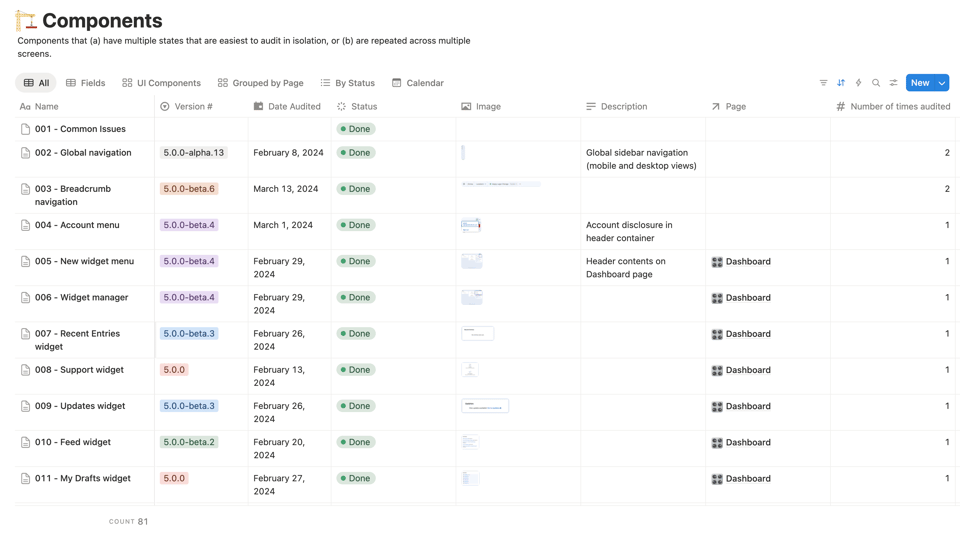
In our Craft 6 announcement post, we mentioned that each component will be tested against WCAG 2.2 AA standards. While it’s true that WCAG conformance can only be assessed at the page level rather than the component level, we’ve found it helpful to audit components in isolation before moving on to full-page auditing.

A Notion database tracking every component identified in Craft CMS, what version/date it was audited, the audit status, a screenshot, etc.

For every major version accessibility audit since Craft 4, we've tracked the audit status of every component in our representative sample.

While the redesign is in progress, we’re using the same tracking method to ensure every component is thoroughly assessed for accessibility.

Building out our design system

One of the benefits of having a design system is that it allows us to thoroughly document our components, explain their properties, and outline their accessibility implications.

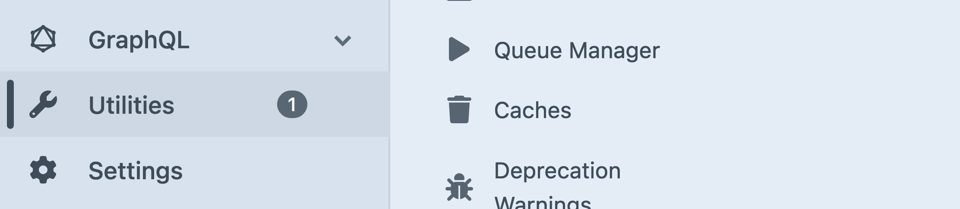
Take the example of a badge indicator. You might see this in the Craft CMS control panel when there are notifications or alerts on a page linked from the global navigation, or in the “What’s New” disclosure menu in the top bar when there are unread messages.

A close-up screenshot of the global navigation, where the Utilities link has a badge indicator with the number one inside of it.

An example of a badge indicator in the context of the global navigation.

Some common accessibility issues we’ve seen with things like badges in the past are:

  • The use of color to convey different types of meaning
  • A lack of alternative text, so assistive technology users aren’t alerted to the presence of the badge
  • If there’s an implied context, that it’s also communicated to assistive technology

To prevent developers from using different badge colors to mean different things, we are adopting only a few color options that work for both light and dark backgrounds.

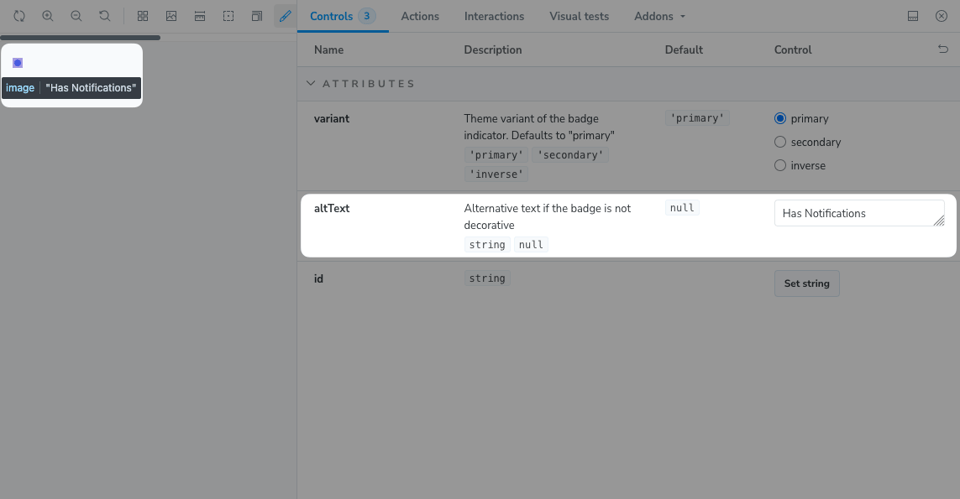
Next, we wanted to ensure we’re providing properties that might be needed to make our badge accessible to assistive technologies. If the badge contributes to the accessible name or description of a link, we want to ensure it has alternative text. Adding an altText property to our component helps us accomplish just that:

The default badge indicator story, where an altText attribute influences the role and alternative text of the badge dot.

Passing altText to the badge component gives the badge indicator an image role and alternative text.

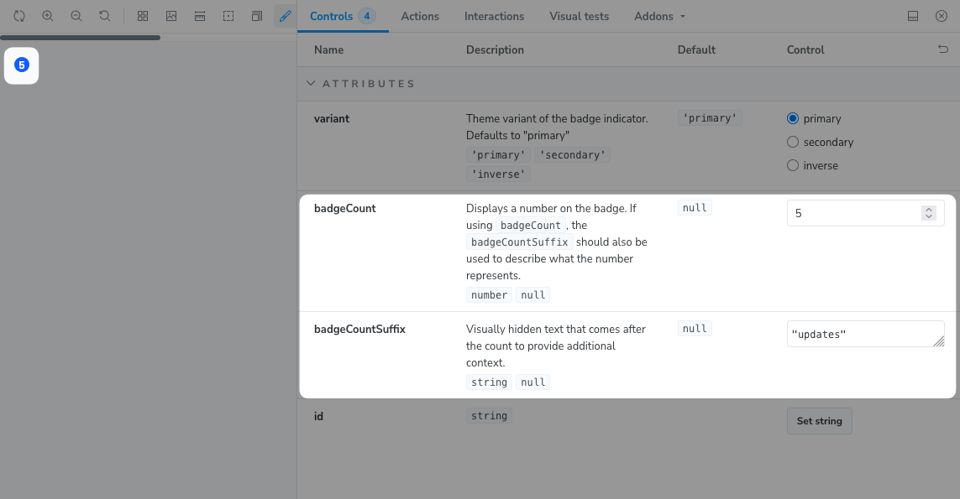
And what about numbered badges? A numbered badge can have a different meaning depending on whether it’s layered on top of a “Shopping Cart” button or a “Utilities” link. In the first example, it might indicate “5 items in cart,” whereas in the latter, it might mean “5 notifications.”

A numbered badge indicator with badgeCount and badgeCountSuffix attributes documented.

The Numbered Badge story explains the component props relevant to this use case, including those for the number itself and visually-hidden text.

This is just one of many existing UI elements we’ve been componentizing for our design system, and we’re excited to finally document all these accessibility considerations in one place.

Preventing violations

Preventing regressions with automated testing

Storybook’s a11y addon provides a tool for running automated accessibility tests on our components. With the addon configured, our Storybook includes an Accessibility tab that highlights any axe-core violations, passes, or inconclusive results.

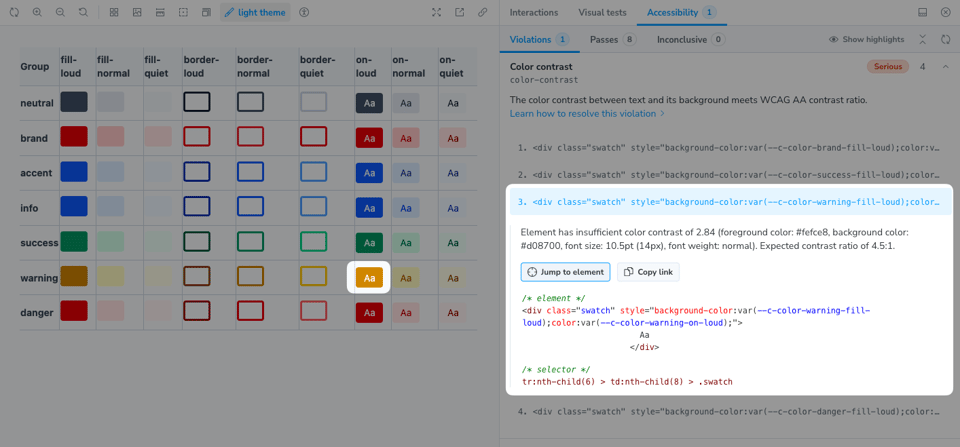
For example, any color updates that result in text falling under the minimum contrast ratio will trigger warnings in the Accessibility tab:

A Storybook story featuring a grid of semantic colors combined with text colors, which shows 4 violations in the Accessibility tab for not meeting minimum contrast.

Storybook’s interaction tests also enable us to run functional component tests. So in addition to automated tests, we can layer in some things that can only be verified via manual testing, like:

  • Making sure components have appropriate roles, accessible names, etc.
  • Verifying keyboard focus is managed appropriately; for example, that keyboard focus moves back to the trigger element when closing a modal.

And once the test runner is configured, we can run the entire test suite from the terminal or in CI. In combination, these testing features make it difficult to introduce regressions without sounding the alarm bells.

UI feedback during development

We’re using Lion as a base for building out our Button component, but we’re also experimenting with adding functionality to make accessibility violations more visible.

For example, around 7% of all issues identified in our first comprehensive audit were related to UI elements lacking accessible names. And more than a handful of those issues were specifically due to buttons lacking accessible names.

One thing we're experimenting with in extending the base component is providing visual feedback in the control panel when a button lacks an accessible name. In a recent PR, we customized our button component to display a visual error when a button lacks an accessible name.

Two buttons in the control panel with red outlines and an adjacent warning indicator.

Buttons without accessible names are visually indicated with a warning outline.

This may be a feature we only end up using when devMode is turned on, but it’s a benefit because it makes it easy to spot violations quickly during development, before even running tests.

Future work

This is only a fraction of the work we’re doing to make Craft CMS more accessible and usable for everyone, and to improve the experience for plugin developers and anyone else extending Craft.

While there’s a lot of work ahead, we have a wealth of data and insight gathered from our years of ongoing accessibility work to guide us. We look forward to hearing any suggestions or feedback along the way!

CKEditor 5 Released

CKEditor 5

We’re excited to announce that version 5.0 of our CKEditor plugin is here! The update introduces several new authoring features, and makes it easier to extend with custom CKEditor plugins.

Fullscreen mode. Edit your content in a distraction-free fullscreen editor.

New Link modal. The Link modal has been updated to reflect Craft’s Link fields, complete with optional advanced fields like “Title text”.

Drag-and-drop uploading. Authors can now drag-and-drop images into CKEditor fields, to be uploaded and included in the field content.

Quick nested image entry creation. CKEditor fields can now be configured to insert images as nested entries rather than <img> tags.

Simpler field configuration. Each CKEditor field now defines its own toolbar and configuration options, straight from the field settings.

Module-based plugins. CKEditor.js and CKEditor plugins are now built using the new module-based method, making it much easier to extend.

If you’re extending CKEditor with custom plugins, see #363 for instructions on updating them to modules.

For the full list of changes, see the release notes on GitHub.

Happy updating!

Accessibility Updates for Q4 2025

20 Accessibility

For the last few months, the CMS team has been focused on building out the design system for Craft 6. Every single component is being designed with accessibility in mind, and we’ll be able to address some of the trickier issues that we couldn’t address in a 5.x release.

In addition, we closed the year with many accessibility improvements to this website and our Documentation site. Among the more visible changes are the global updates to site colors to improve color contrast and readability.

Happy reading!

Control Panel

General

In 5.8.19, we fixed the accessible names of the Matrix field “New entry” buttons. In cases where there was only a single type of entry that you could add, the visible button name did not match the button’s accessible name. As of the update, the visible label now matches the control’s accessible name.

Keyboard navigation

In 5.8.19, we fixed a bug where focus rings within selected table rows had insufficient contrast.

We also resolved a bug where focusing on a scrolling element index container triggered a focus outline on all of the checkboxes inside of it.

In 5.9.0, we updated more drag-and-drop actions to be keyboard-accessible. This includes:

  • Reordering default table columns in the Customize Sources modal
  • Reordering widgets on the Dashboard page
  • Reordering sites inside a site group

Screen reader accessibility

In version 5.5.4, we added additional accessibility information to the My Account navigation. Previously, the active page in the My Account set was visually marked with an inverse background color. With this release, the active page link is also specified with an aria-current="page" attribute.

In 5.8.19, we added alternative text to the QR code displayed during setup of an authenticator app.

In 5.8.21, we marked many CSS font icons in the control panel as decorative. In many cases, the icons were redundant, as accessible text or roles conveyed the same meaning. This also resolved issues caused by CSS content not being translated for non-English languages. (See PRs #18078 and #18075)

Dragging motion

The drag-and-drop updates described in the “Keyboard navigation” section are also accessible to a single pointer without requiring a dragging motion.

Craft 5.9 Released

Craft 5 9

Craft 5.9 is here, bringing new ways to organize your content, and a slew of improvements to authoring, accessibility, development, performance, and security.

Custom entry index pages. It’s now possible to divide entry sources into multiple index pages, each with their own unique name and icon.

5 9 sidebar 3

Grouped ​“Add” button menus for Matrix fields. Matrix fields with multiple entry type groups now show a group of buttons for new entry creation, where each entry type group gets its own menu button.

Bulk actions for Matrix fields. Both Cards and Blocks views now have “Duplicate” and “Delete” field-level actions, when one or more nested entries are selected.

5 9 bulk actions for matrix fields 2

“Inline list” view mode for relation fields. Relational fields now have an “Inline list” view mode, which displays selected entries side-by-side, like Tags fields.

5 9 inline list 1

Custom UI labels for entries in the control panel. It’s now possible to customize how entries are labelled within the control panel, independent of their title.

Multi-line entry titles. Entry types now have an “Allow line breaks in titles” setting, which enables authors to create multi-line titles.

Element-based editability conditions. Field layout tabs and custom fields can now be made editable/static based on the element being edited.

Better Content Block support. Fields nested within Content Block fields can now be included in element cards and element index table views.

Better generated field support. Generated fields can now be included in element index table views, and element indexes can now be sorted by them.

New export options. You can now export elements as XLSX and YAML files from index pages.

Sandboxed template rendering. System messages can now be rendered in a sandboxed Twig environment, limiting the damage that any malicious Twig code could cause.

Better Composer support. Automated changes to composer.json requirements now include the caret operator (e.g. ^1.2.3), making it easier to keep Craft CMS and plugins up-to-date with composer update.

So much more.

Read the full release notes on GitHub to see the full list of changes.

2025 in Review

2025

2025 is a wrap!

Outward-facing, this felt like a relatively typical year: we released a few exciting software updates, made some website improvements, and hosted our big Dot All developer conference.

Behind the scenes, the year was anything but. We completely rebuilt our Partner Network, from signup to listings. Craft Cloud has matured significantly as its adoption has grown. We’re taking steps to grow up a bit as a company, including pursuing SOC 2 and ISO 27001 compliance. And we’re in the process of rearchitecting Craft CMS as a Laravel application—a massive feat that we’re incredibly excited about.

Craft CMS

This year saw the releases of Craft CMS 5.6, 5.7, and 5.8, bringing tons of exciting authoring improvements, like cross-site field copying, element copy/paste support, Content Block fields, inline search for relation fields, and so much more.

Craft 5.9 is right around the corner. Most notably, this release adds the ability to split your Entries index into multiple pages. That’s useful if you want to convert existing category groups and tag groups into entries, but want to keep the management of that content separate from the rest of your entries.

As of 5.9, categories and tags will be officially deprecated, per our “entrification plan.” That doesn’t mean you have to switch everything over to entries right away though. In fact, we’ve made it possible to keep categories and tags around in Craft 6 with an optional package, so you can switch over to entries whenever it makes the most sense for your projects.

Of course, the big news with Craft is the switch to Laravel coming in Craft 6. This isn’t just a port; we’ve rearchitected how Craft works in relationship to its framework, so Craft can be run as part of a Laravel application, alongside other code. That shift is going to enable Craft to be used in a whole new way: as a CMS component that can be added onto existing applications, rather than something that needs to be maintained independently.

Craft Commerce

Craft Commerce also saw three big updates this year: 5.3, 5.4, and 5.5. These releases brought several store management improvements, like the ability to customize product and variant cards and more powerful product and variant indexes. We’ve also added powerful new administration tools, like new conditions and condition rules throughout the system, new config settings, and new events.

Commerce 6 is underway, which will bring two highly anticipated features: authentication-based GraphQL queries, drastically improving Commerce’s headless support; and reports, giving store admistrators great insight into their store’s metrics.

Craft Cloud

This was Craft Cloud’s first full year in business, and it grew quite a bit in that time. We’ve added several highly-requested features, like support for redirects, CDN URL rewrites, improved logging, custom asset domains, edge-side include tags, and more.

We’ve also made several performance and stability improvements behind the scenes:

  • We added new database clusters in the EU and US.
  • We made even more parts of the system regional, ensuring data and network traffic stay as close to home as possible.
  • We deployed a new database backup infrastructure that is faster, more reliable, and produces smaller backups.
  • We deployed a new builder and CLI command infrastructure that is consistently faster and more reliable, regardless of overall system load.
  • We added rate limiting for overly-agressive bots.
  • We improved application-level caching for all projects.

The service has grown to host nearly 200 projects, many of which are extremely high traffic sites. By the numbers, this year Cloud has served 7.5 billion requests, prevented 200 million malicious requests, and mitigated eight significant DDoS attacks.

We’re going to keep up the pace in 2026, with several planned improvements to the infrastructure and project management within Craft Console, like exposing traffic metrics, improved VCS integrations, environment cloning and syncing, improved scheduled commands, and more.

Accessibility

We made some pretty huge strides on the accessibility front this year. Craft CMS has continued its journey toward WCAG conformance, and we’ve also started improving the accessibility of craftcms.com, the documentation, the starter projects, and Craft Console. Lupe has started posting accessibility updates to the blog, to keep track of it all. (And don’t miss her awesome lightning talk from Dot All about improving the accessibility of Craft’s Image Editor!)

Resources

This year we introduced The Glossary, a complete list of terms and explanations for all things Craft. And we released starters for two new front-end frameworks: Next.js and Astro.

We also launched the What’s New page, which shows off all the author-facing features we’re adding to Craft—a great place to point your clients when discussing upgrades.

All told, it’s been a pretty big year for Craft. We’re proud of what we accomplished, and even more excited about what the future has in store!

Accessibility Updates for Q3 2025

20 Accessibility

General

In 5.8.13, we updated the element index search to ensure the “Filter” and “Clear search” buttons have adequate spacing when there’s text in the input. (#17692)

We also have several Image Editor improvements ready for release in 5.9.0.

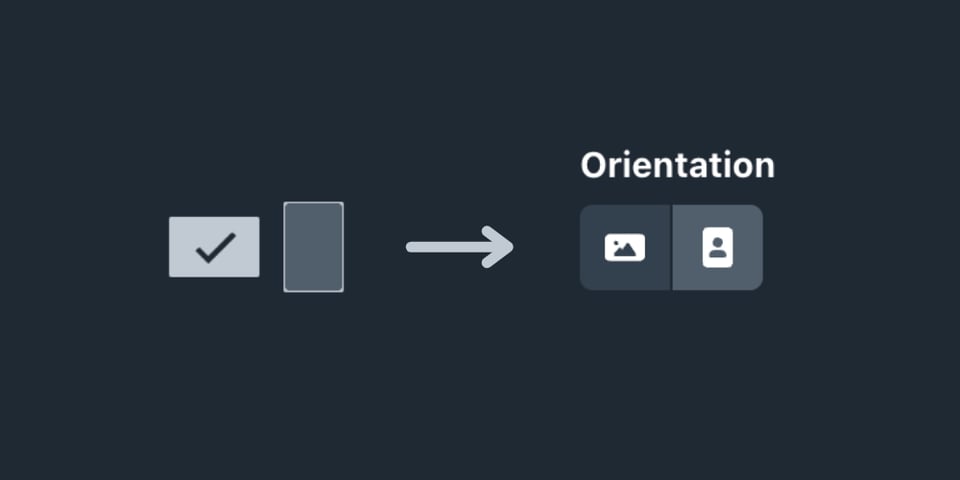
First, we’ve updated the Orientation field to use the exclusive button group pattern (#17690). This update makes the field easier to understand by introducing a visible label and more easily recognizable icons.

Before and after view of the orientation field. Before, the fields were represented by horizontal and vertical rectangles and no label. Now, the field features an exclusive button group with clear icons and a text label above the field.

In 5.8, we started making updates to ensure the cropping functions inside the Image Editor were fully accessible to screen reader and keyboard users. We’re finalizing these updates in 5.9 by ensuring the focal point editor is also keyboard-accessible. (#17880)

Learn more about how we’ve made the Image Editor accessible to screen readers and keyboard users from Lupe’s Dot All 2025 talk: Accessible Image Editing: Developing a Pattern for Keyboard and Screen Reader Accessibility.

Keyboard Navigation

Bypass Blocks

In 5.8.18, we fixed a bug with one of the global skip links. When the right sidebar was collapsed, the “Skip to right sidebar” skip link did not behave as expected, and keyboard focus was dropped. The skip link will now target the sidebar toggle wrapper when the right sidebar is collapsed. (#17847)

Focus Traps

In 5.8.13, we fixed a bug that caused the Image Editor focus trap to fail if a user clicked anywhere inside the modal. (#17455)

Focus Management

We fixed several issues where focus was dropped after performing various actions. These included:

  • After saving an address (#17736)
  • When closing the “Copy value from site” modal (#17846)
  • After deleting a passkey (#17853)

Screen Reader Accessibility

Settings Navigation

In 5.8.7, we updated the Settings page to improve screen reader accessibility. (#17610)

First, all settings link lists are wrapped in labeled <nav> elements so their grouping is more apparent. Also, their accessible names include visually-hidden “Settings” text. For example, the link to Assets settings has the accessible name “Entries - Settings”.

This update will help distinguish certain links as going to the Settings page versus an index page when viewed out of context.

Document Titles

In 5.8.9, we updated document titles to provide additional context previously only available via contextual clues in the UI. (#17626)

For example, after an element index finishes loading, the document title is updated to include the source name and pagination information.

A mockup of a browser tab with the document title 'Images, 1-100 of 414 assets - Assets - English - Demo Site'

Globally, document titles now include the site name.

Support widget

In 5.8.14, we updated the Support widget to support screen reader users (#17718). When you start typing in the text area to report an issue, GitHub search results appear before the Submit button. These results are now announced via a live region.

In addition, we modified heading levels slightly to reflect the document structure more accurately.

Bugfixes

In 5.8.13, we fixed a bug where the Alternative Text for error icons did not use translations. (#17691)

Introducing the Glossary

Glossary thumbnail

We just took the wraps off a new learning resource: the Glossary! It’s packed with over 170 terms, and we’re adding more every week.

What was once an internal Notion database for tracking blind spots in our learning materials is now a deep pool of Craft and Craft-adjacent concepts. You can browse the glossary alphabetically, or discover nearby terms via dedicated search (as well as the global search modal, which has received some updates).

Each term has a concise, thoroughly interlinked definition, explicit connections to pages in the documentation, and a list of related knowledge base articles.

If we’ve missed a term, please request it!

Next Steps (and an API!)

In the coming weeks, you’ll start seeing special links throughout craftcms.com (like this one, powered by {entry:glossary/reference-tag:linkPluralLower}), the documentation, and (eventually!) the Craft control panel itself.

These tooltips are powered by a simple JSON API:

fetch('https://craftcms.com/api/glossary/entry-type')
  .then(r => r.json())
  .then(console.log);

// -> { "id": 1234, "title": "Entry Type", ... }

Prepend any term’s public URI with /api to grab plain-text and HTML summaries, or fetch everything at once:

https://craftcms.com/api/glossary

The bulk endpoint also supports a ?query=... param to filter and rank terms by search keywords. Here’s the full schema for an individual term:

{
    "id": 916372,
    "title": "Entry Type",
    "url": "https://craftcms.com/glossary/entry-type",
    "uri": "glossary/entry-type",
    "slug": "entry-type",
    "type": "Term",
    "apiUrl": "https://craftcms.com/api/glossary/entry-type",
    "summaryPlain": "Globally-configured content types that can be selected from sections, Matrix fields, and CKEditor fields. Entries’ field layouts are defined via enrtry types.",
    "summaryHtml": "<p>Globally-configured content types that can be selected from <a href=\"https://craftcms.com/glossary/section\">sections</a>, <a href=\"https://craftcms.com/glossary/matrix\">Matrix</a> fields, and <a href=\"https://craftcms.com/glossary/ckeditor\">CKEditor</a> fields. <a href=\"https://craftcms.com/glossary/entry\">Entries</a>’ <a href=\"https://craftcms.com/glossary/field-layout\">field layouts</a> are defined via enrtry types.</p>",
    "docsLinks": [
        {
            "title": "Entries",
            "url": "https://craftcms.com/docs/5.x/reference/element-types/entries"
        }
    ]
}

Let us know if you’d like to integrate the glossary into your own tooling!

Craft’s Going Laravel

Brandon at Dot All 2025

Last week we hosted Dot All 2025 in beautiful Lisbon, Portugal, where we announced our plans for Craft 6.

The big news: we’re switching to Laravel.

That’s not a decision we made lightly, but we’re confident it’s the right choice. Laravel is by far the most familiar PHP framework among Craft developers, and it comes with a massive ecosystem of Laravel-optimized packages and services Craft will be able to tap into.

We’ve been through a major framework transition before, when we updated to Yii 2 for Craft 3. Yii 2 was a complete rewrite, and we took the opportunity to rewrite and refactor most of Craft’s code as well.

The end result was an update that took several years too long, required plugins to be rewritten for a completely new underlying codebase, and worst of all, didn’t have any compelling new author-facing features. Tough sell.

We’ve learned our lesson. To ensure this transition goes a little smoother than the last one, there are a few things we’re doing differently this time around.

First, this is (mostly) a strict port to Laravel. We’re very happy with the current state of Craft’s architecture, and will not be refactoring much code in the process. Extending Craft 6 will feel very familiar for existing Craft developers.

Second, we’re building a Yii 2 adapter package, which provides a compatibility layer for plugins and modules written for Craft 5, keeping breaking changes to an absolute minimum. Simply include it in your plugin or project, and keep it around as long as you need it. In most cases, the plugin will continue to work without making a single change.

And third, we’re planning several exciting author-facing features for Craft 6:

  • Content releases – publish multiple new entries/drafts at once, either manually or at a scheduled time.
  • Scheduled drafts – schedule a single draft to be published at a certain time.
  • Content importing – import your content using a built-in importer tool.
  • Content approval workflows – create content governance workflows that control how entries get published.
  • Edit page commenting – provide feedback for other authors within an entry’s edit page.
  • Element activity logs – see a timeline of changes to the entry you’re editing.

Craft 6 will also sport a new UI, with dark mode support and a first-class mobile experience. We’re building it with the Lion web component framework, and we’ll be making it available to plugin developers as a decoupled component library, complete with a Storybook-based style guide. And of course, each of its components are being tested to ensure they’re WCAG 2.2-conformant.

As for timing, we expect to ship Craft 6 Beta in Q3 of 2026, with a GA release following in Q4.

Finally, we’re excited to announce that Craft 5 is now an LTS (Long-Term Support) release, which means we’re going to continue supporting it and maintaining it for five years after Craft 6 is fully released. That should give everyone plenty of time to make the transition on their own terms.

The future is bright!

Craft Cloud Updates

Cloud: Rewrites in Config File

Today we’re announcing our biggest update to Craft Cloud since its launch in August of 2024.

This update checks off some of the most popular feature requests we have received since launch, including:

Redirects

Cloud now supports redirects without ever touching Craft. These are great for enforcing www. domains, normalizing trailing slashes, or preserving legacy URLs… and they complement Craft's native redirects.

→ Examples and documentation

CDN Rewrites

You can also define rewrites that serve assets and artifacts as though they were on the local filesystem. As a result, moving projects to Craft Cloud becomes even easier: references to static images, stylesheets, and scripts can be preserved with a single rewrite rule, instead of using cloud.artifactUrl.

It also means you can serve CDN assets through a dedicated domain, like cdn.mydomain.com or assets.mydomain.com.

→ Examples and documentation

Builder 2.0

We’ve rebuilt the builder!

What to expect:

  • Faster and much more consistent deployments;
  • Better log output and error messaging;
  • Access to Node.js build artifacts from PHP (making it possible to include generated SVGs or CSS in your templates);
  • Improved reliability and speed of CLI commands;

All new projects will use the new builder by default, and existing projects will be transitioned in the coming weeks. If you would like your project migrated before then, contact us with your project’s UUID.

Lots more…

Check out the Recently Shipped section of our roadmap or the Craft Cloud changelog for a comprehensive list of all added features and improvements.

Thank you to all our beta testers—we’re thrilled to finally make these features available to everyone!

Accessibility Updates for Q2 2025

20 Accessibility

Image Editor updates

In 5.8, we’ve added full keyboard and screen reader support for image cropping.

How it works

To crop an image with the keyboard, you must be inside the Crop tab panel in the Image Editor.

Image Editor with an arrow pointing toward the Crop tab button in the sidebar

Use the Tab key to navigate through the interface. When you tab past the constraints radio group, you will be able to tab through the cropping controls.

A visible focus outline is present over the top-left crop handle in the Image Editor

Press Space or Enter to pick up either the entire cropping rectangle or a single handle.

Picking up the cropping rectangle allows you to move the crop placement. Alternatively, picking up a handle allows you to resize the cropping rectangle.

Use the directional keys to move or resize the cropping rectangle.

Press Space or Enter—or tab to the next item—to drop the item in place.

Accessibility considerations

HTML <canvas> elements are notoriously tricky when it comes to accessibility. Canvases allow you to draw 2D content to your heart’s content. But to make canvas contents accessible, you have to be intentional about providing fallback content.

For more information about making canvas contents accessible, see Paul J. Adam’s page on HTML canvas Accessibility

Before this update, the only way to crop an image was to hover a “grab” point on the cropping rectangle and hold the mouse down to drag it across the canvas.

This worked well for most mouse users. But to make it accessible to keyboard and screen reader users, we had to consider:

  1. How to make the interaction possible for keyboard users
  2. How to convey the related information (instructions, positioning, etc.) to assistive technology users

Visible focus

The cropping rectangle and handles need visible focus outlines to be keyboard-accessible. Using native HTML elements as a fallback to canvas content helps us with that.

First, we explored the Salesforce drag-and-drop pattern for interacting with a canvas. This pattern lets keyboard users move items around a 2D space by activating “handles.” The handles use native buttons, and activating one lets you move an item using the keyboard only.

By using buttons to interact with the canvas, we can also harness their built-in focus and blur events.

When focus lands on one of the buttons, we update the canvas with a corresponding focus outline. When a button loses focus, we clear the outline from the canvas and draw the next one in the sequence.

Buttons have other semantics that we can harness for a more accessible experience. That brings us to…

Accessible name and state

Assistive technology users — like screen reader users — benefit from accessible names and states.

Here’s a simplified look at the button markup:

<button type="button" aria-pressed="false" data-crop-editor="rectangle">
  Cropping Rectangle
</button>
<button type="button" aria-pressed="false" data-crop-editor="tl">
  Top-Left Handle
</button>
<button type="button" aria-pressed="false" data-crop-editor="t">
  Top Handle
</button>
...

Using native buttons allowed us to include:

  1. Accessible names. Each button has inner text that specifies the item it controls.
  2. State information. We also added the aria-pressed attribute to clarify which handle was active.

Instructions and status messages

When a user activates a handle, we announce the item’s position and instructions for moving it:

Cropping Rectangle picked up. Centered at X axis: 50%, Y axis: 50%. Use the arrow keys to change position, Tab or Spacebar to drop.

We update the live region with the modified position while the user is making edits. And when the user deactivates the handle, we announce that the item has been dropped.

What’s next

This is a huge improvement for keyboard and screen reader users, but we still need to make it conform to WCAG 2.2 AA.

In future updates, we’ll ensure crop editing via a pointer device doesn’t rely on dragging movements. This will help the Image Editor conform with SC 2.5.7: Dragging Movements (Level AA).

We’re also working on implementing the keyboard drag-and-drop for the focal point tool.

Other updates

General

In 5.8 we added user preferences to update the on-screen position of Notifications and Slideouts. These new preferences allow you to customize which corner the Notification toasts appear in and whether Slideouts show on the left or right side of the screen.

You can find this setting in My Account → Preferences → Accessibility.

Notification Position and Slideout Position fields in User Preferences

When we updated Lightswitch fields to better meet minimum contrast requirements, we inadvertently made it harder for some users to differentiate between the “On” and “Off” states.

To fix this issue, we made some color adjustments and added a checkmark icon to the lightswitch handle to make the “On” state more apparent (#17492).

Side-by-side comparison of a disabled and enabled lightswitch. The disabled lightswitch has dark gray outlines for the outline and handle. The enabled lightswitch has a green background and white handle with a large checkmark inside the handle.

Screen reader accessibility

In 5.7.11, we fixed a bug where autosuggest inputs weren’t getting correct aria-describedby and aria-labelledby values (#17413).

We also fixed a bug where checkbox accessible names on element index screens didn’t match the visible label provided by the entry title (#17399).

Craft Cloud Updates

Cloud: Rewrites in Config File

Today we’re announcing our biggest update to Craft Cloud since its launch in August of 2024.

This update checks off some of the most popular feature requests we have received since launch, including:

Redirects

Cloud now supports redirects without ever touching Craft. These are great for enforcing www. domains, normalizing trailing slashes, or preserving legacy URLs… and they complement Craft's native redirects.

→ Examples and documentation

CDN Rewrites

You can also define rewrites that serve assets and artifacts as though they were on the local filesystem. As a result, moving projects to Craft Cloud becomes even easier: references to static images, stylesheets, and scripts can be preserved with a single rewrite rule, instead of using cloud.artifactUrl.

It also means you can serve CDN assets through a dedicated domain, like cdn.mydomain.com or assets.mydomain.com.

→ Examples and documentation

Builder 2.0

We’ve rebuilt the builder!

What to expect:

  • Faster and much more consistent deployments;
  • Better log output and error messaging;
  • Access to Node.js build artifacts from PHP (making it possible to include generated SVGs or CSS in your templates);
  • Improved reliability and speed of CLI commands;

All new projects will use the new builder by default, and existing projects will be transitioned in the coming weeks. If you would like your project migrated before then, contact us with your project’s UUID.

Lots more…

Check out the Recently Shipped section of our roadmap or the Craft Cloud changelog for a comprehensive list of all added features and improvements.

Thank you to all our beta testers—we’re thrilled to finally make these features available to everyone!

❌