❌

Reading view

There are new articles available, click to refresh the page.

Mysterium VPN on Linux is Strictly for Terminal Junkies
mysterium vpn penguin-themed banner

Using a VPN, or Virtual Private Network, on your computer hides your real IP address from websites and encrypts your traffic before it leaves your device, while your ISP remains clueless about your online activities.

It helps the most on networks you don't control, like public Wi-Fi at a cafe or an airport.

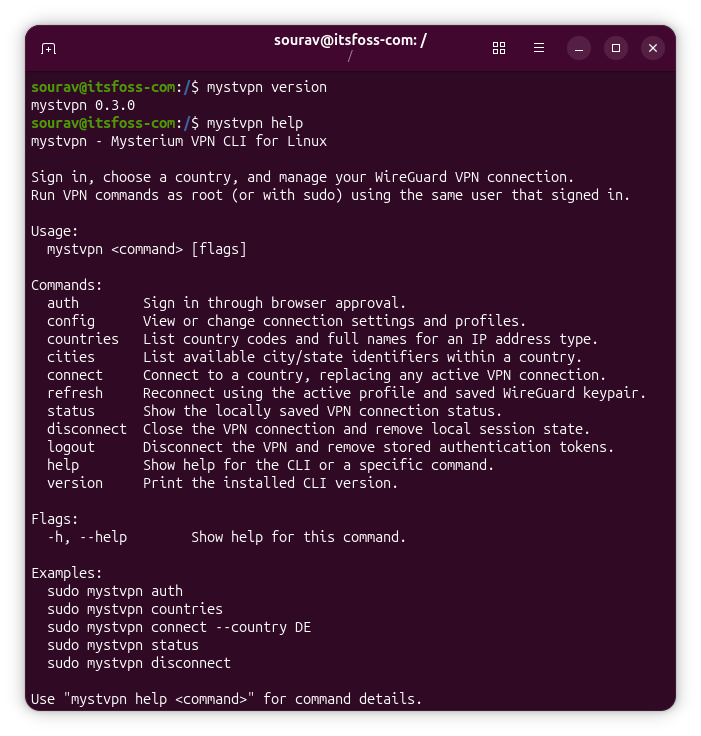
There are several VPN services that provide Linux clients. Mysterium VPN is one more name to consider, but its Linux client is a command-line tool, and there's no graphical app. But that's still fine for a seasoned Linux user, I guess. This also means that you can use the VPN on your headless server.

Mysterium VPN: Overview ⭐
mysterium vpn linux cli

Mysterium VPN is the work of MN Intelligence, a Vilnius-based company that specializes in consumer VPN services and home network tools. Mysterium VPN runs on a decentralized network where residential IPs come from independent node operators.

Those operators explicitly agree to share their home internet connections, and using Mysterium VPN never makes your own device part of the network.

The service also offers neat features like WireGuard support, hosting IPs, and a pool of 7,500+ residential IPs across 100+ countries. You also get city-level choices and residential IPs that are limited to the Plus and Pro plans.

Whichever plan you pick, the privacy policy pledges not to store your IP address, session data, or browsing history. Though I couldn't find an independent audit to back these claims.

The policy also lists session timestamps and bandwidth usage as data processed to run the service.

Using Mysterium VPN on Ubuntu

I tested v0.3.0 of the Linux CLI on Ubuntu 26.04 LTS using a Pro plan that Mysterium VPN provided me with access to.

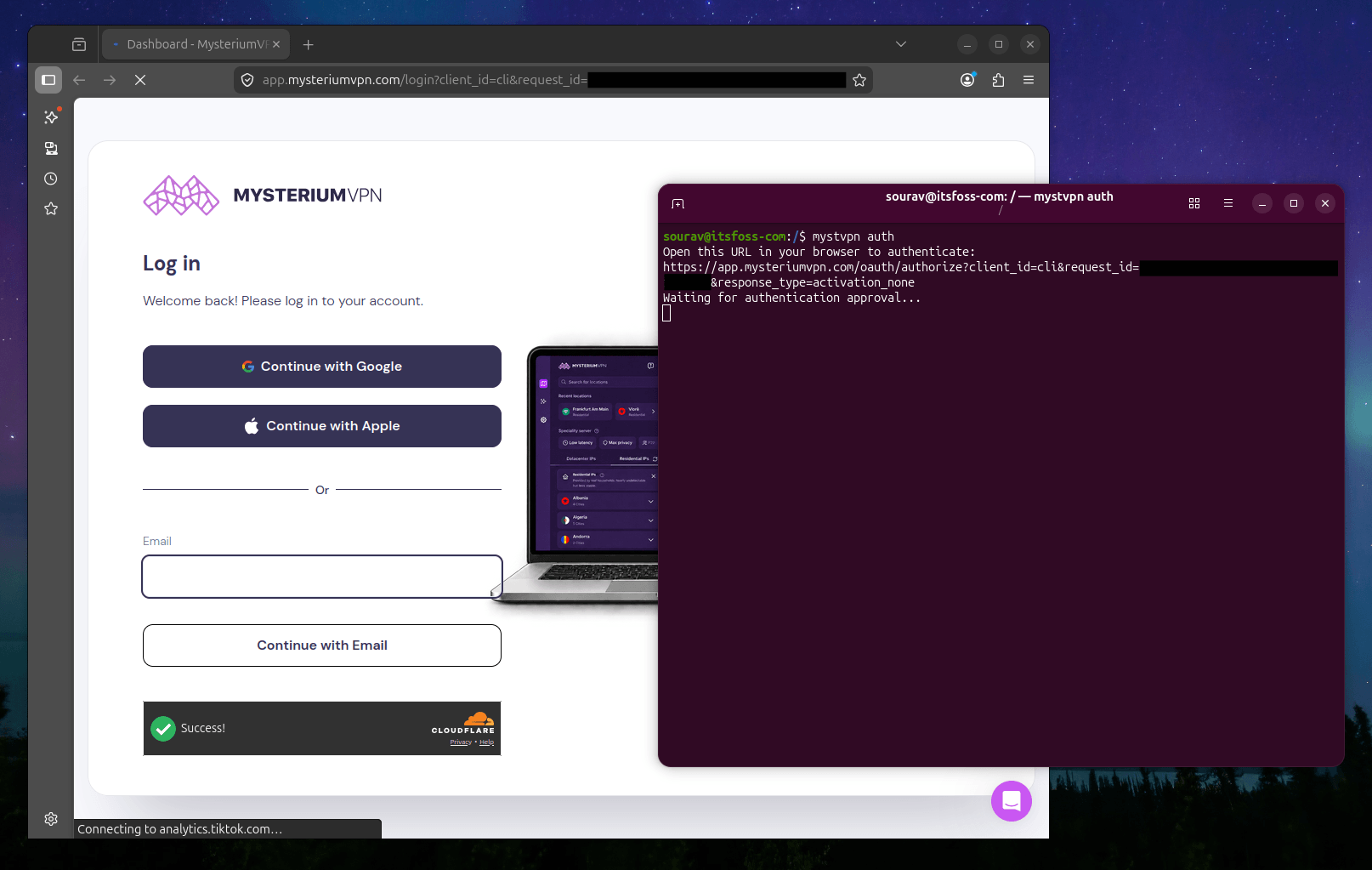
Signing in starts with the sudo mystvpn auth command (I had messed up not using sudo on the first run). It prints a limited-time link that you open in your browser. πŸ‘‡

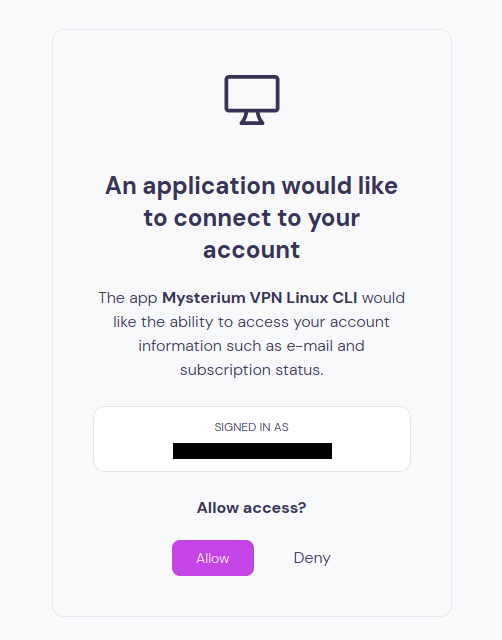
Once you log in, the page asks whether to allow the Mysterium VPN Linux CLI access to your email address and subscription status.

When that was done, connecting to a server did not work at first. The client kept telling me to run the auth command again, asked for sudo repeatedly, and failed to save my sign-in state.

With sudo, the connect command ended in a permission denied error from wg-quick on one of the client's config files.

I contacted the developers, and they quickly sent me a set of commands to run. Together they add read access for the client's config folder to the AppArmor profile that wg-quick uses.

Creating the missing file:

sudo tee /etc/apparmor.d/local/wg-quick > /dev/null <<'EOF' /root/.config/mystvpn/wireguard/configs/ r, /root/.config/mystvpn/wireguard/configs/*.conf r, EOF

Reloading AppArmor:

sudo apparmor_parser -r /etc/apparmor.d/wg-quick

Verifying the file exists:

sudo cat /etc/apparmor.d/local/wg-quick

After that, the client connected without trouble and has kept me signed in across reboots.
mysterium vpn linux cli disconnection

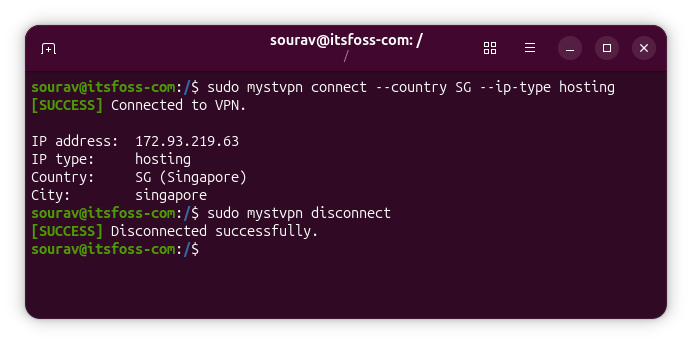
Signing in, connecting, and disconnecting all need sudo, while listing countries works without it. Disconnecting takes sudo mystvpn disconnect, and running⁣ mystvpn on its own lists every available command.

For the speed tests, I picked Singapore since it is close to me but not the country I live in, and I ran Google's Internet Speed Test on a 200 Mbps Wi-Fi connection.

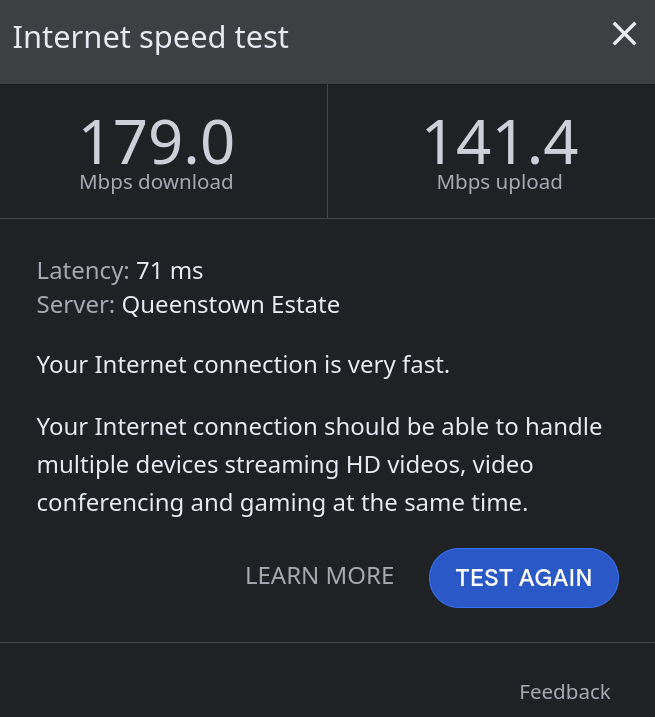
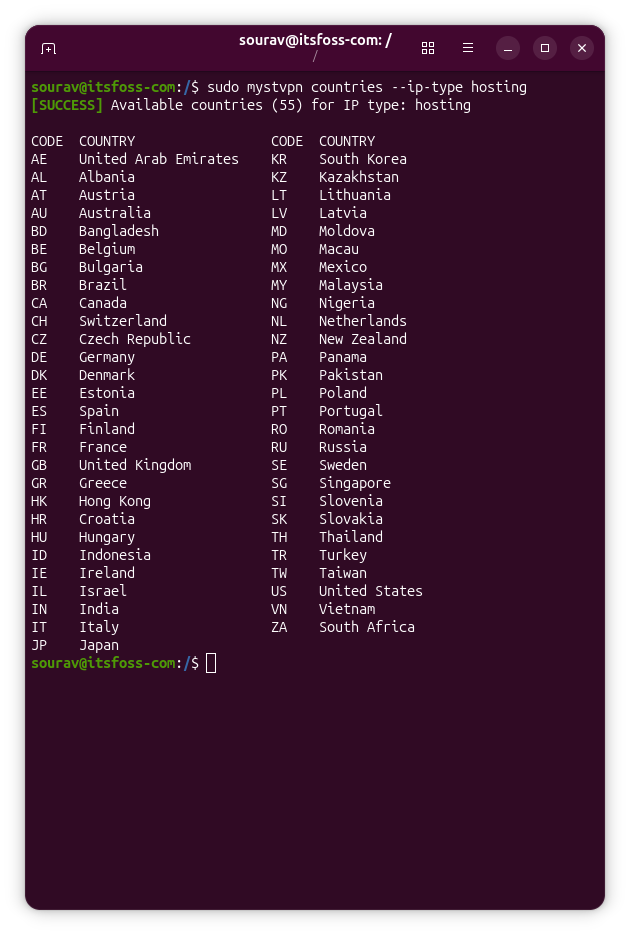
I started with a hosting IP. These come from data centers instead of home connections, and the client lists 55 countries for them. I connected with sudo mystvpn connect --country SG --ip-type hosting.
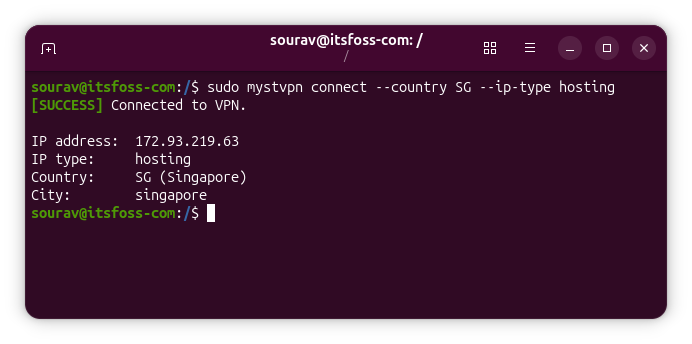
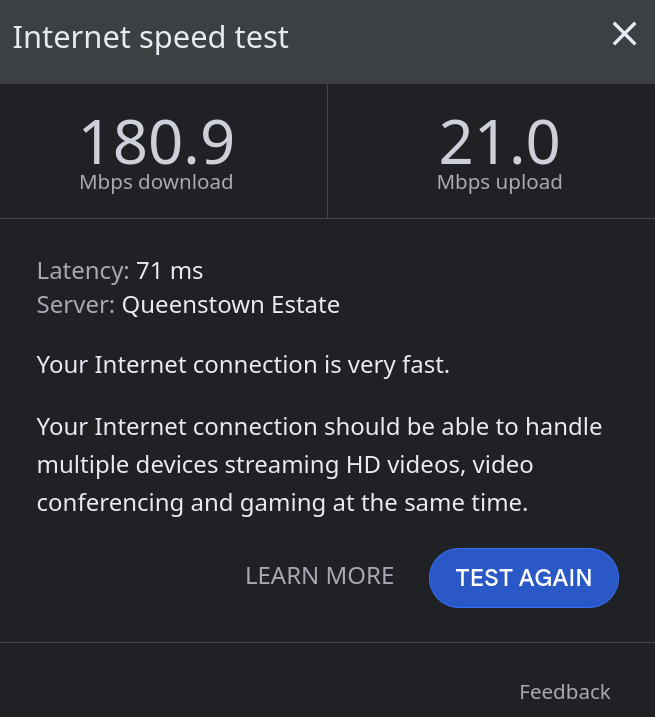
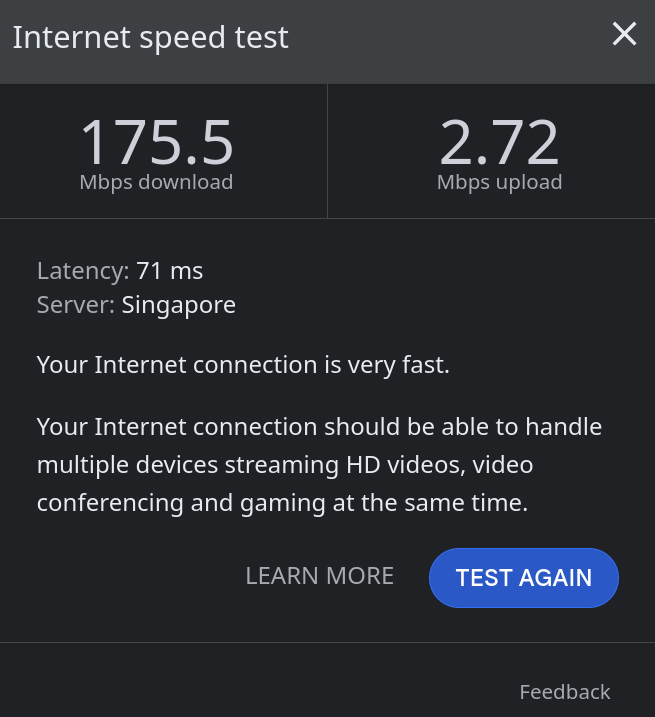
Download speeds stayed between 175.5 and 180.9 Mbps across three tests, while upload ranged from 2.72 to 141.4 Mbps, while some other attempts failed to complete. There was also some variation in which server I was being routed to, so that's something to keep in mind.
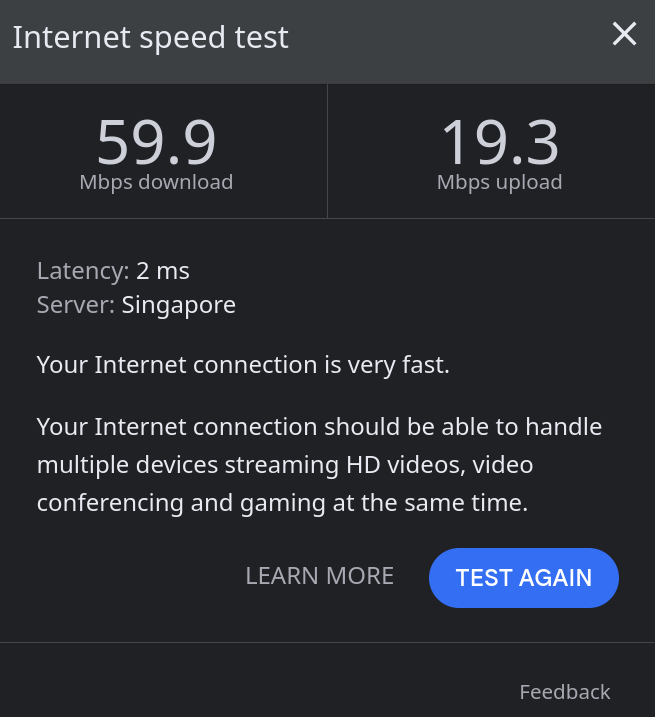
Next came a residential IP. These come from home internet connections, and the client lists over 100 countries for them. I connected with sudo mystvpn connect --country SG --ip-type residential.
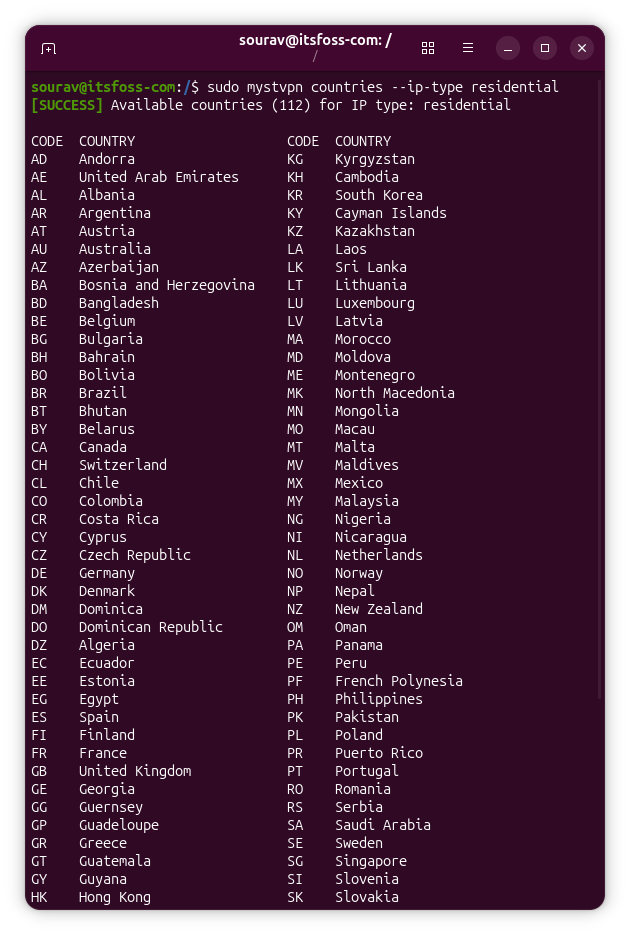
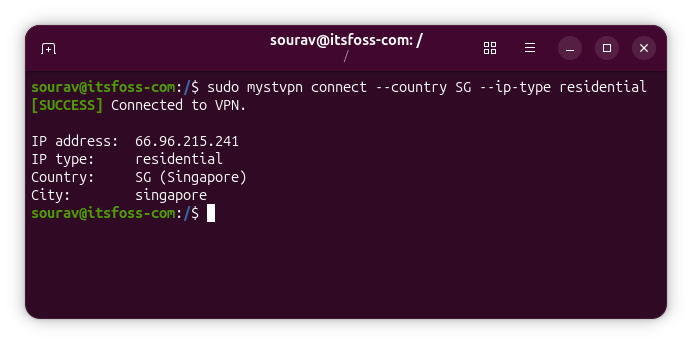
Download speeds ranged from 17.8 to 79.6 Mbps across three tests, while upload sat between 0.08 and 19.3 Mbps. You can see that upload speeds swung widely on both IP types, and hosting gave the higher download speeds.
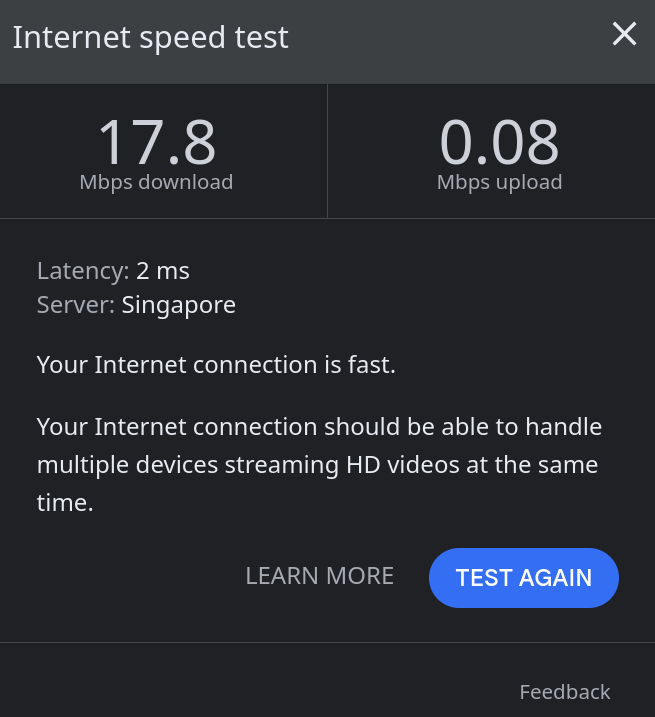
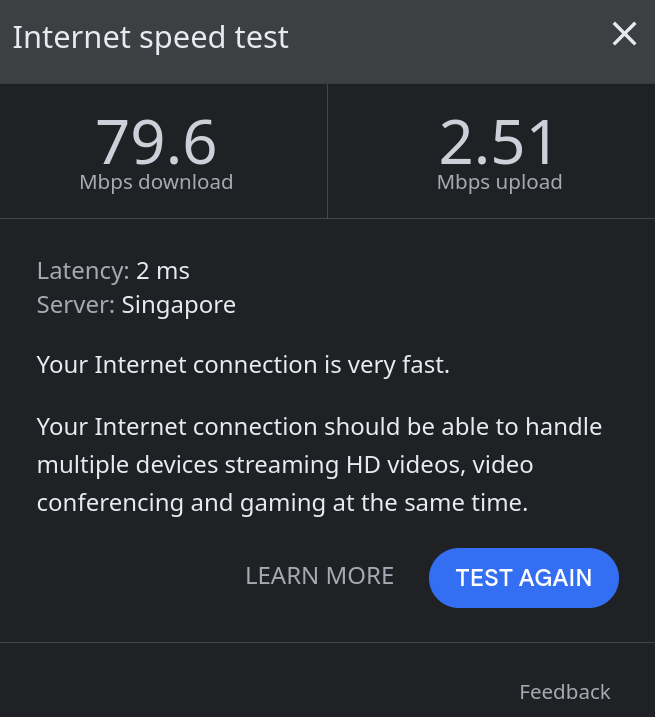
The gap was expected because data center connections are usually faster, and more consistent than a home connection. A residential IP makes more sense if a site blocks known VPN server addresses.

Normal browsing sessions were effortless, and I could access most popular websites with the usual CAPTCHA gates popping up accusing me of not being a human.

Configuring Mysterium VPN

First, ensure that you have all the dependencies required by the client. Then you can get the CLI installed on your Debian or Ubuntu system by using the following command:

curl -fsSL https://github.com/mysteriumnetwork/mysteriumvpncli/releases/latest/download/install.sh | bash

There are also GUI apps for Windows, Android, iOS, and macOS, as well as a browser extension for Chromium-based browsers that can be downloaded from the official website.

Ensure that you have an active paid plan before you configure Mysterium VPN on your system. Plans range from $2.99 for a Basic monthly plan to $93.36 for a two-year Pro plan. That's the Black Friday discount offer; otherwise, these numbers are more than double on usual days.

Proton's Lumo is Finally Useful and Gives Us Hope for a Real Private AI

the lumo desktop app banner with the lumo cat mascot in it

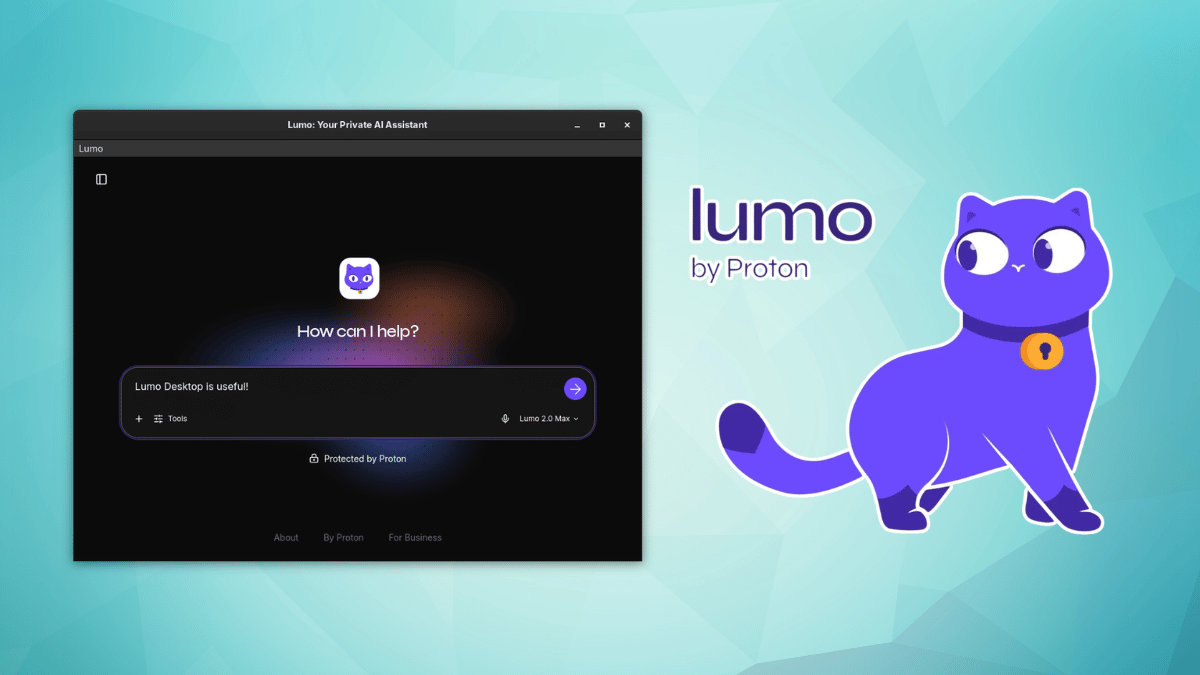
Lumo is, as you know, Proton's cat-themed AI assistant that positions itself as a private alternative to the likes of Gemini, ChatGPT, and Claude.

You can already use it on the web and through the Android and iOS apps. But now, Proton has launched a cross-platform desktop app for Lumo that covers most popular desktop platforms.

The app is not a from-scratch affair, as it takes the Lumo web app, puts it inside a Tauri window, and bolts on the parts that interact with your computer. Proton has put the wrapper on GitHub under the GPL-3.0, while the web app sits in a repository of its own.

Anyhow, I took it for a test run to see how it performed on a Linux system, specifically, my Fedora Workstation daily driver.

A late, but welcome arrival

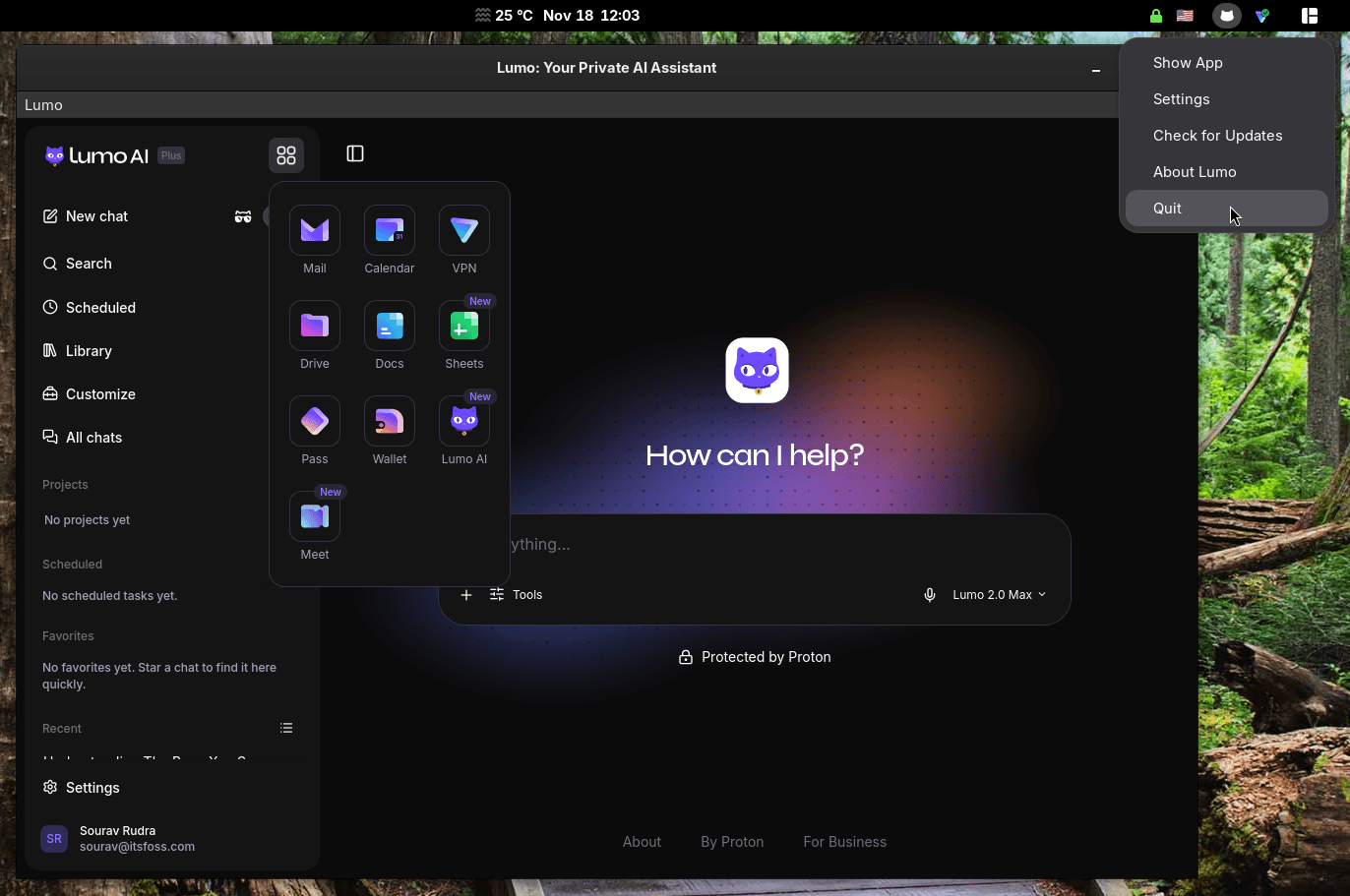
Opening the app for the first time feels like using the web version (partner link). It has a tray icon, a few new settings, and a familiar square-shaped button that gives quick access to the other proton services like Mail, Drive, Calendar, Docs, and Sheets.

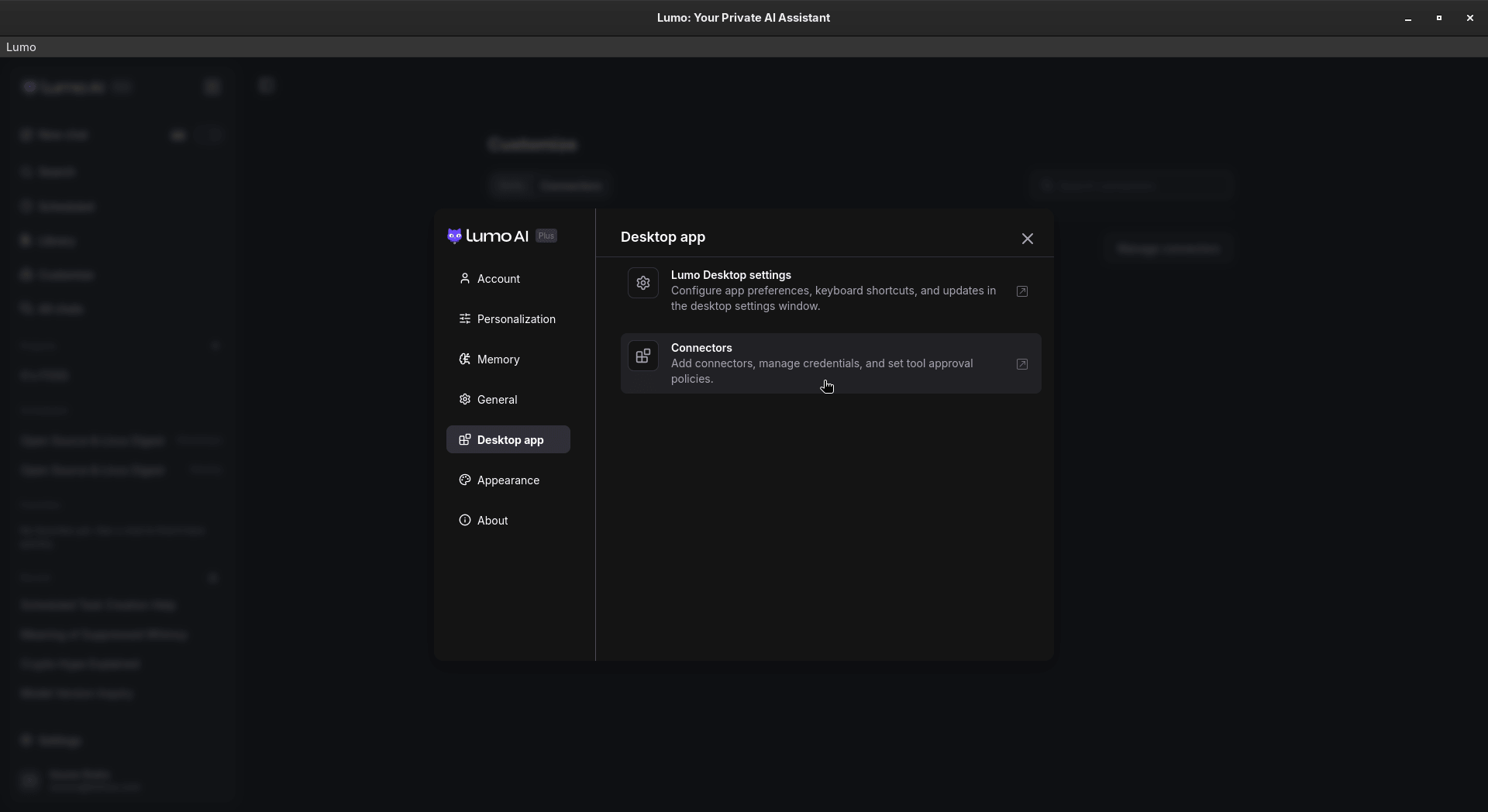
The desktop app gains many neat features, like Connectors, where Lumo can access your files and shell, along with apps such as Google Drive and Jira.

With Skills, you can store instructions and supporting files for Lumo to use in later chats, and existing Custom Lumos carry over to them automatically, and with Scheduled Tasks, you can have Lumo take care of a recurring job at set times.

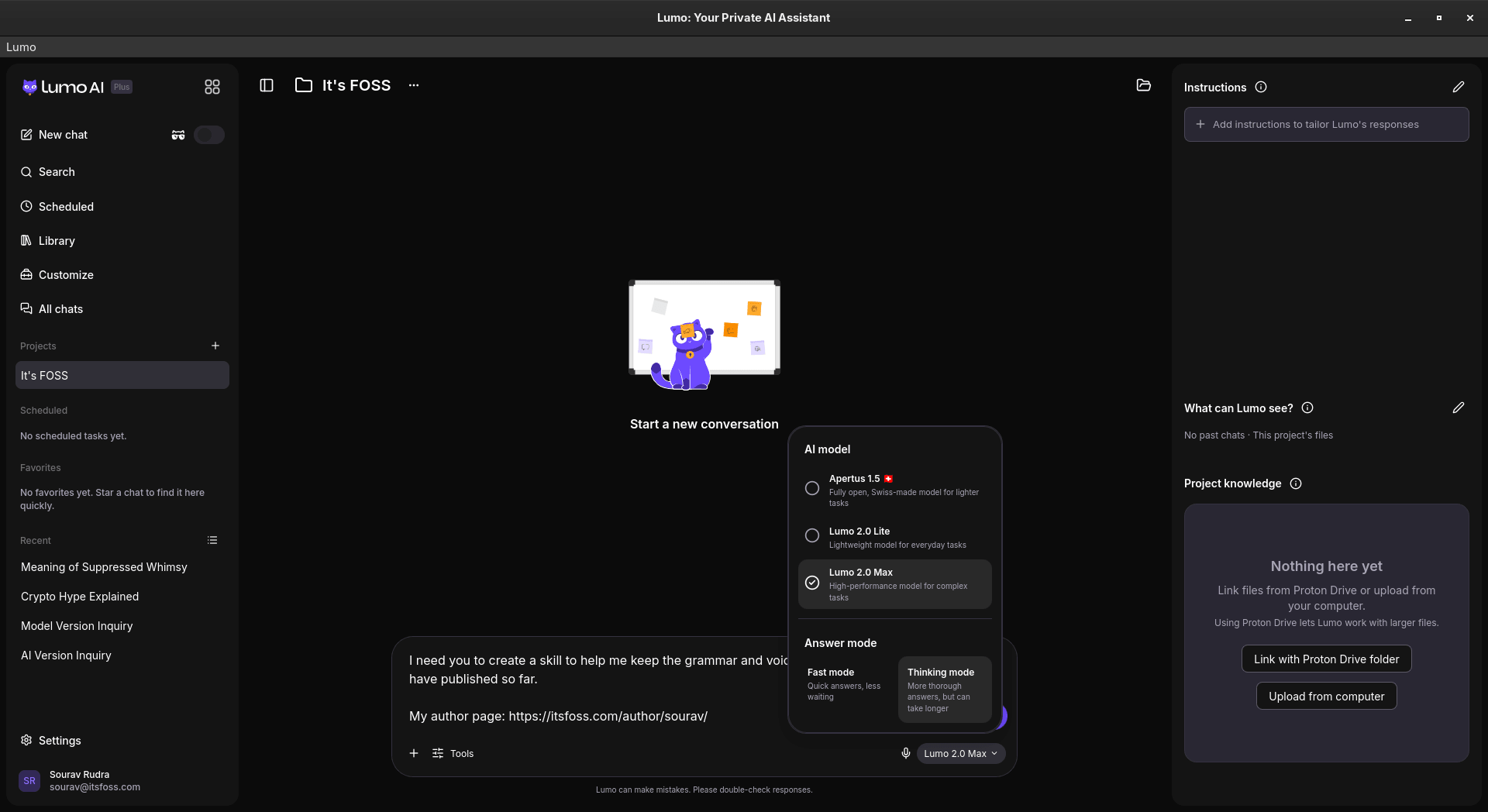
There's also MCP server support that lets you hook up your own local/remote tools to Lumo. For all my tests below, I used the Lumo 2.0 Max model with "Thinking" mode on.

Scheduling some tasks

Going into the "Scheduled" tab gives you an overview of what kind of tasks Lumo can handle for you. Clicking the "New task" button lets you set one up manually or have Lumo create it; I went with the second option.

I asked it to fetch news from the Open Source, Linux, and a few related categories on certain days, and Lumo walked me through the details with a few multiple-choice questions.

Tweaking the parameters was a friction-free affair too! βœ…

I then asked it to run on weekdays only and keep the excerpts short, which gave me a second task. Lumo said it had replaced the old one, but both were still active on the Scheduled page.

Though carrying out a test run worked remarkably well, as Lumo came up with some useful leads. I asked it where the digests would arrive; it said they show up as chats. When I asked if the news was stale, it said a couple of items dated back to late October.

Connecting to Proton Mail

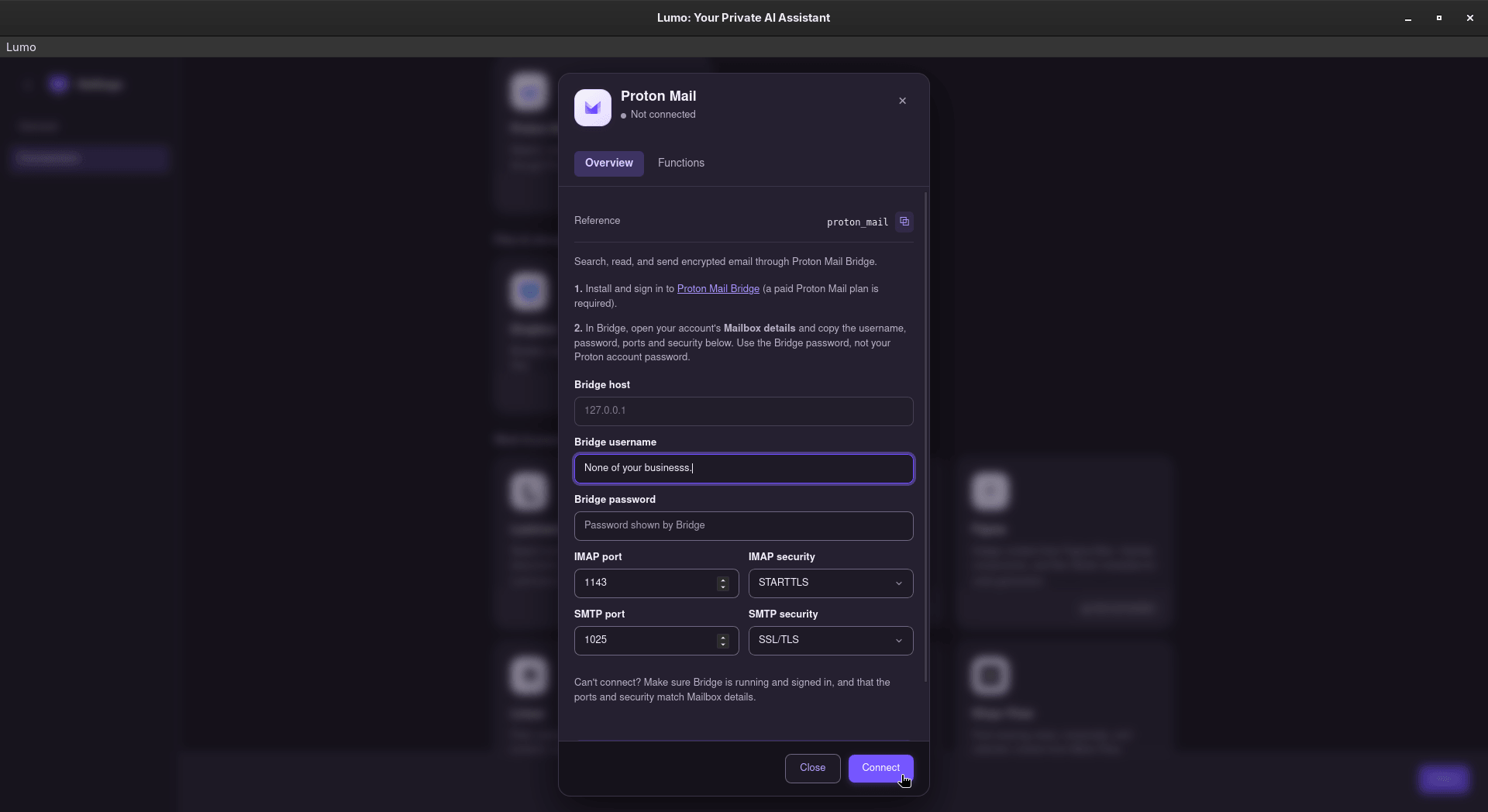
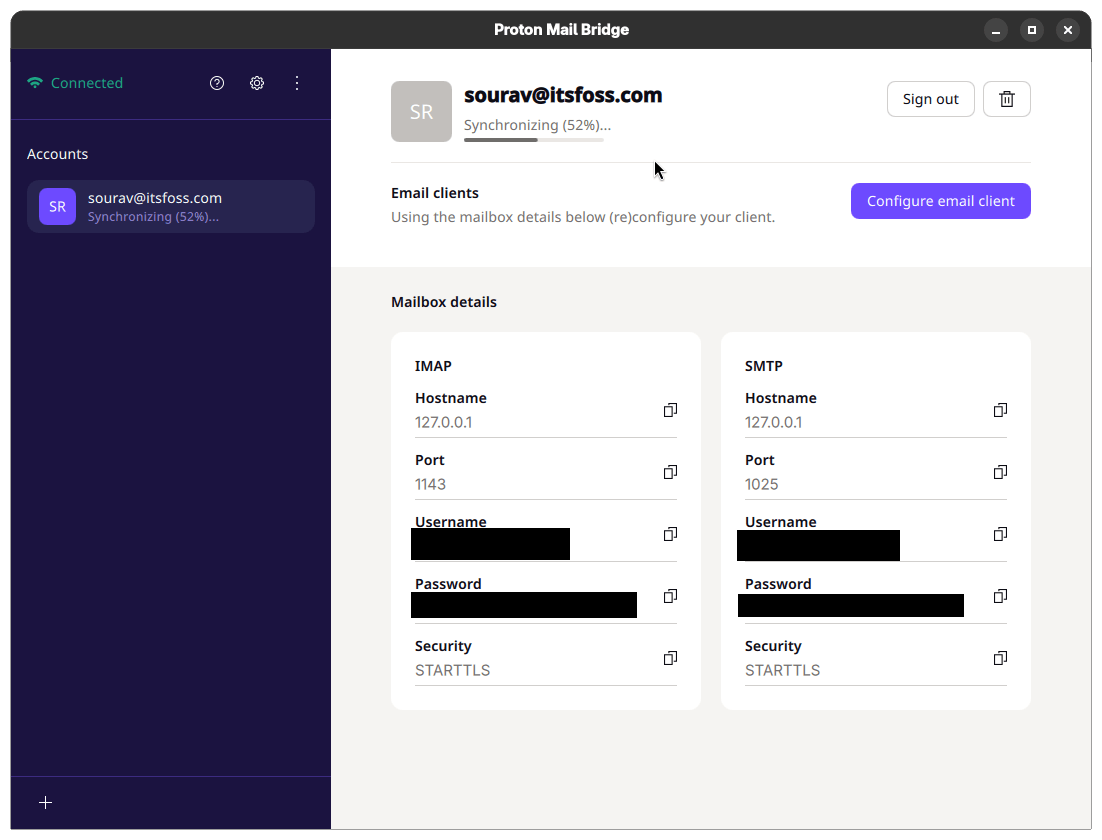
Next, I connected Proton Mail so that Lumo could go through my inbox. Doing that meant setting up the paywalled Proton Mail Bridge first, and as I have a paid Proton Mail plan, I went on to install it, sign in, and copy its mailbox details into the connector.

Bridge took a long while to sync my mail, and I had to wait for it to finish.

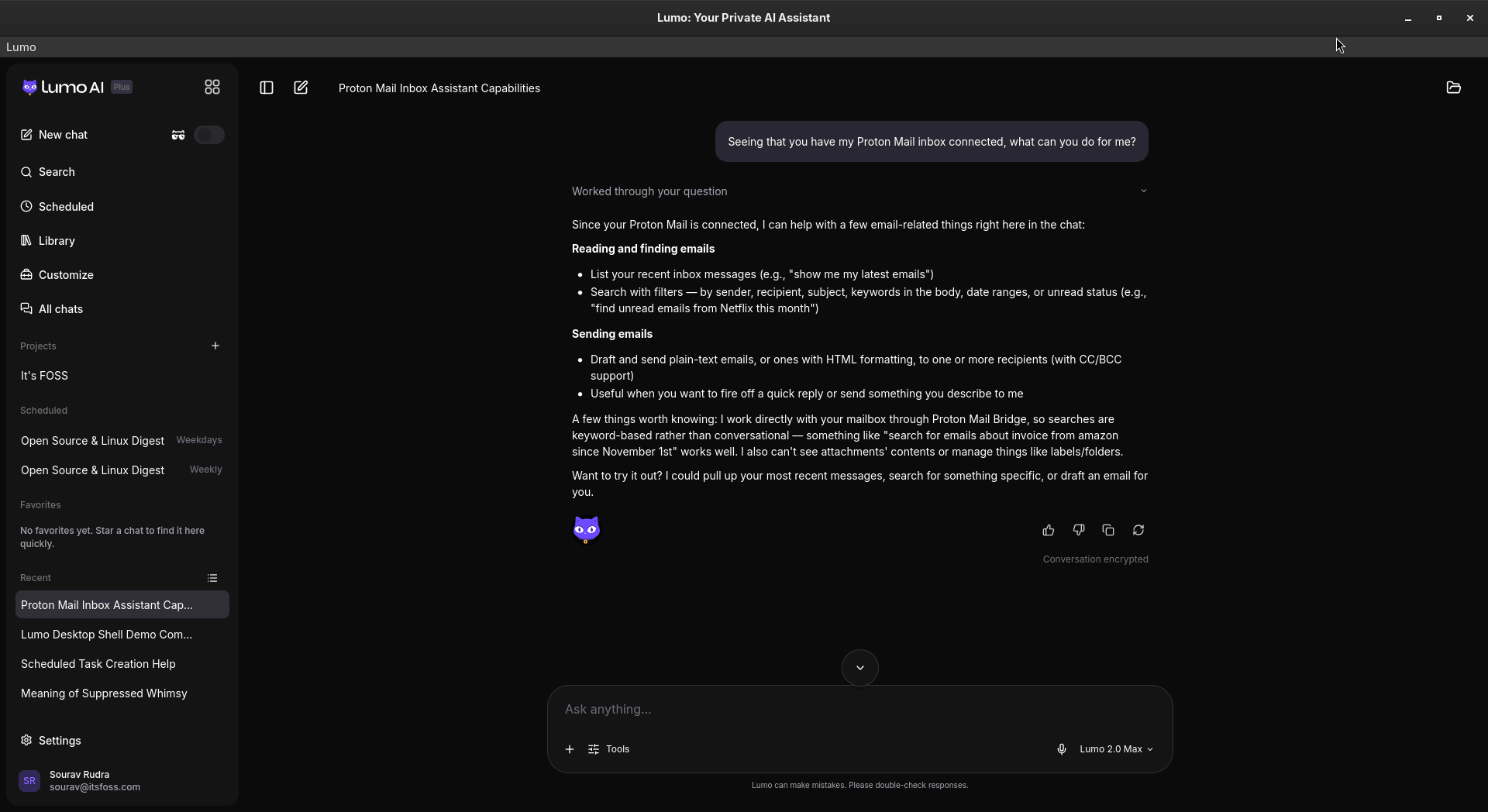
Once connected, I asked Lumo what it could do with my inbox. It said it can list and search emails, draft and send them, but cannot read attachments or manage labels and folders.

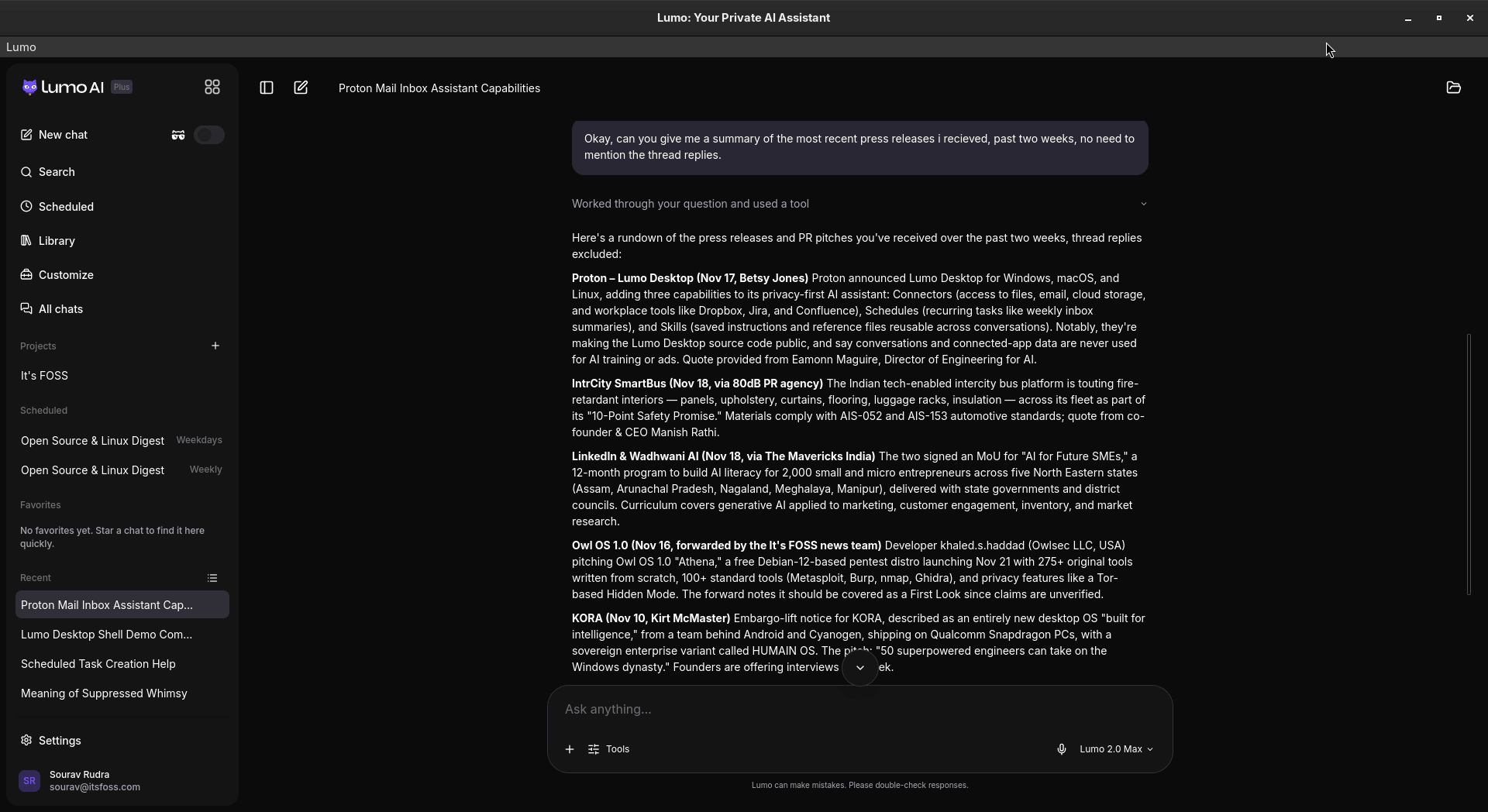
I then asked it to summarize the press releases I had received over the past two weeks, skipping thread replies. It took a while, but the rundown was good and included two pieces I had not read yet.

Setting it up

As mentioned earlier, the desktop app for Lumo is available for Linux, Windows, and macOS. If you are on Linux, then you get to choose between the .deb and .rpm packages.

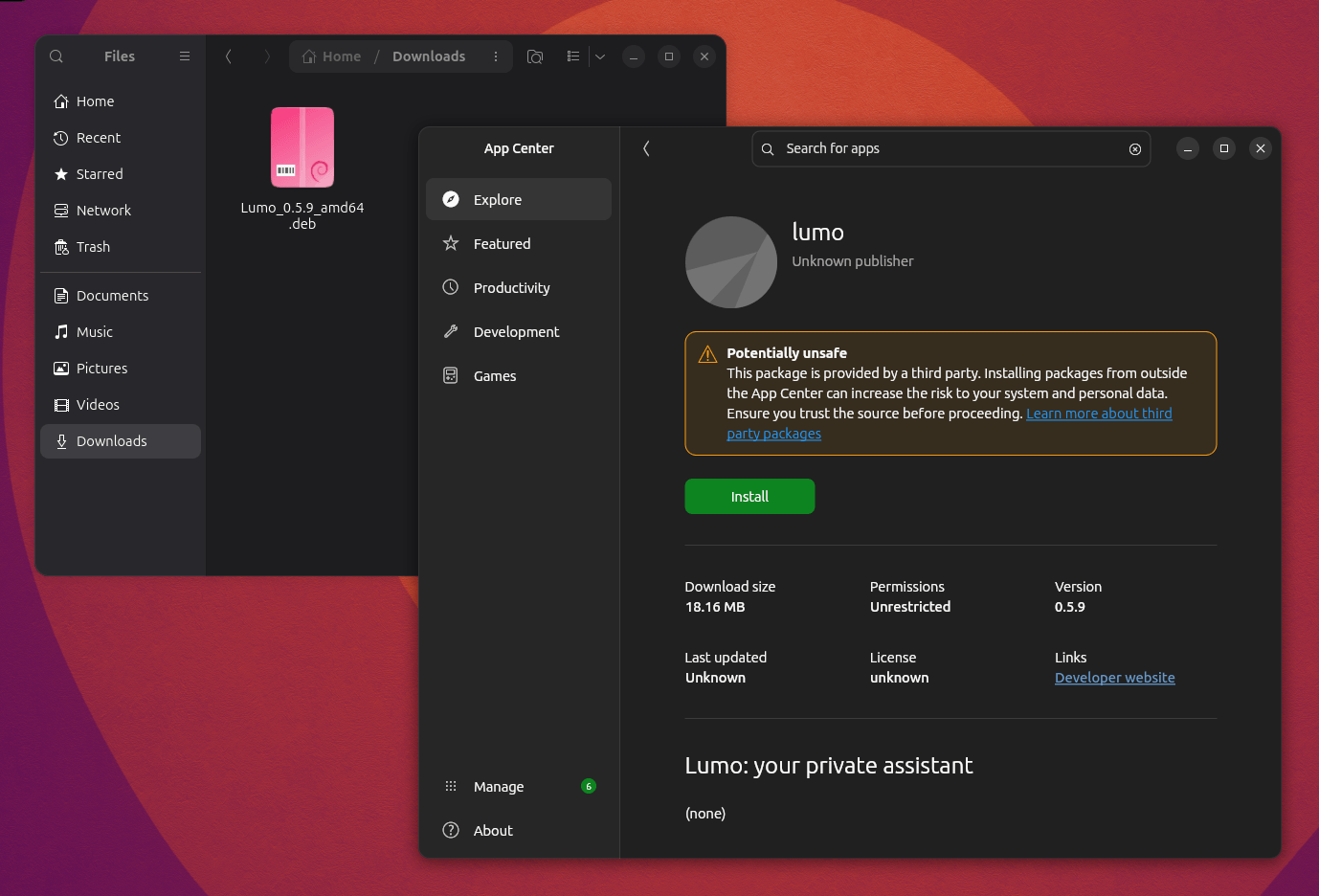
On Ubuntu, installation consists of these steps:

  • Download the DEB package.
  • Right-click on it and execute it via the App Center.
  • Then install it using the big green button and enter your account password.

Ubuntu (left) and Fedora (right) installation.

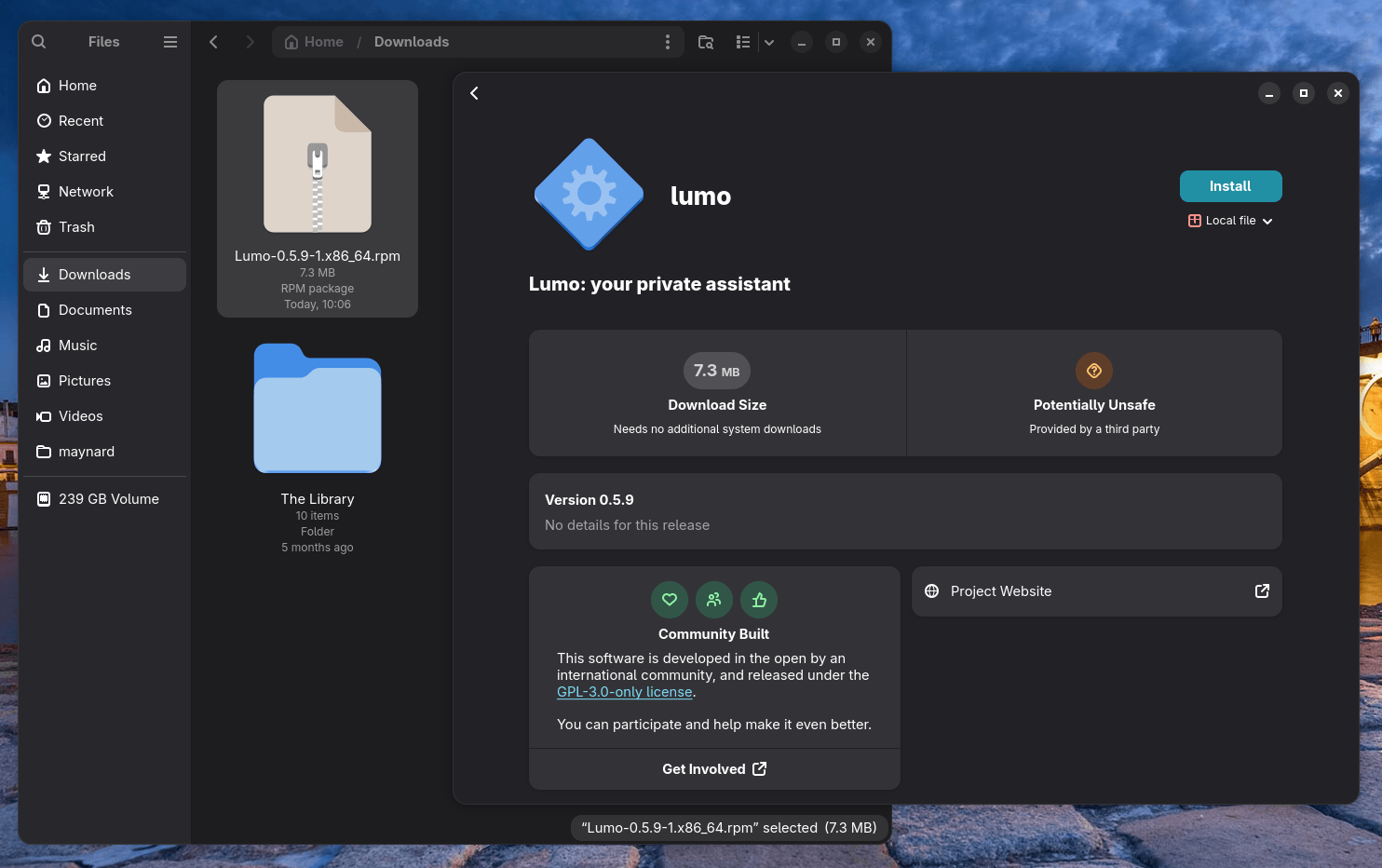
On Fedora, installation consists of these steps:

  • Download the RPM package.
  • Right-click on it and execute it via the Software Install.
  • Then get it installed by clicking on the "Install" button after verifying the details and entering your account password.
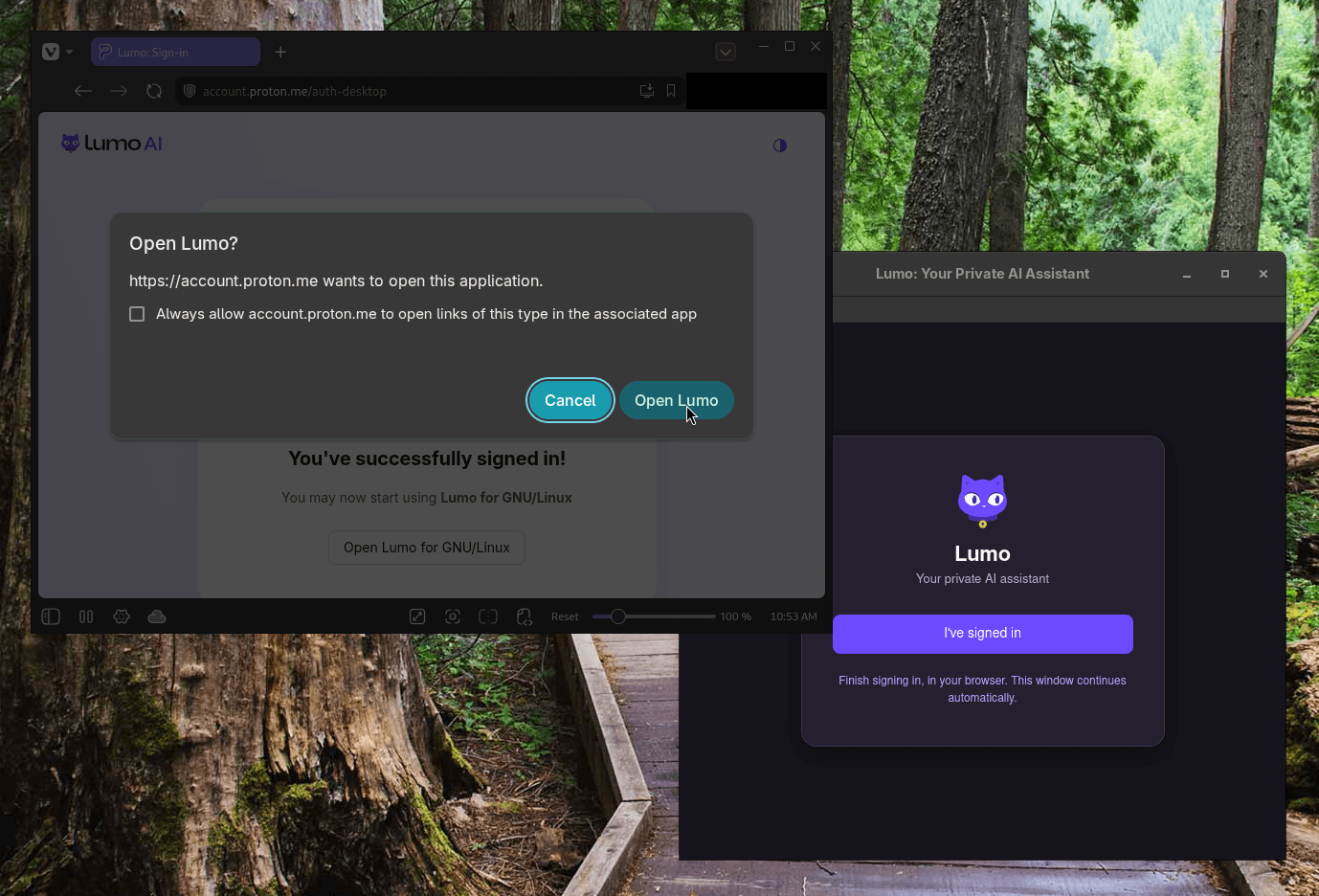
the browser-based login flow for the lumo desktop app

Though, keep in mind that you will need to be signed-in to your Proton account on your default web browser as authentication is carried out via that. Also, ensure that you complete the verification in time, or else the link will expire.

One Open-Source Repo to Replace Adobe, Microsoft, and Salesforce

Everything from Puter

Adobe charges $60 a month. Microsoft 365 keeps raising its price. Salesforce will take $150 per user without blinking. These are not tools you own. They are subscriptions that expire the moment you stop paying, often taking your files and workflows with them.

The Puter team thinks that is worth fixing. Remember Puter? The folks behind the PuterOS that gives you a workable operating system in a web browser.

Their new project, called everything, is a single GitHub repository with one specific goal and that is to rebuild the world's software from scratch, free and open source.

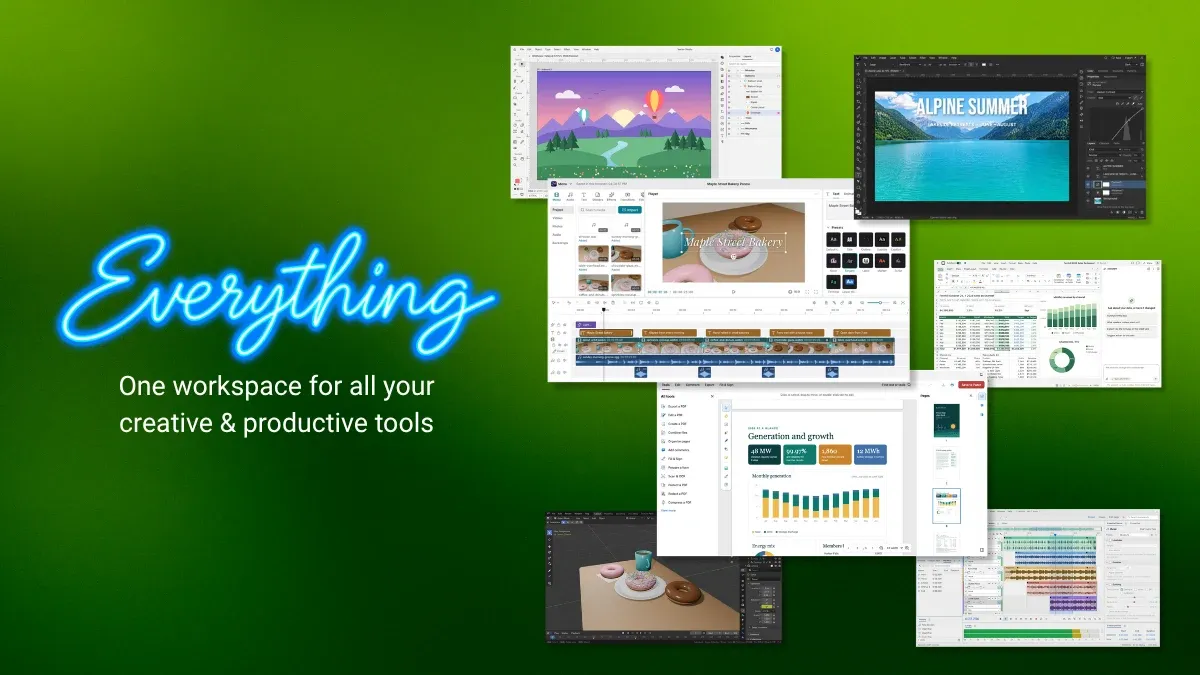
This is what they are aiming for. Over 50 web-based applications spanning nine categories, including a photo studio, full office suite, CRM, CAD tools, video editor, and circuit design app. Every one of them is open source under the MIT-license. And they can be self-hosted, too.

Basically, it targets all the major Software as a Service (SaaS) companies.

Tapping Into Everything

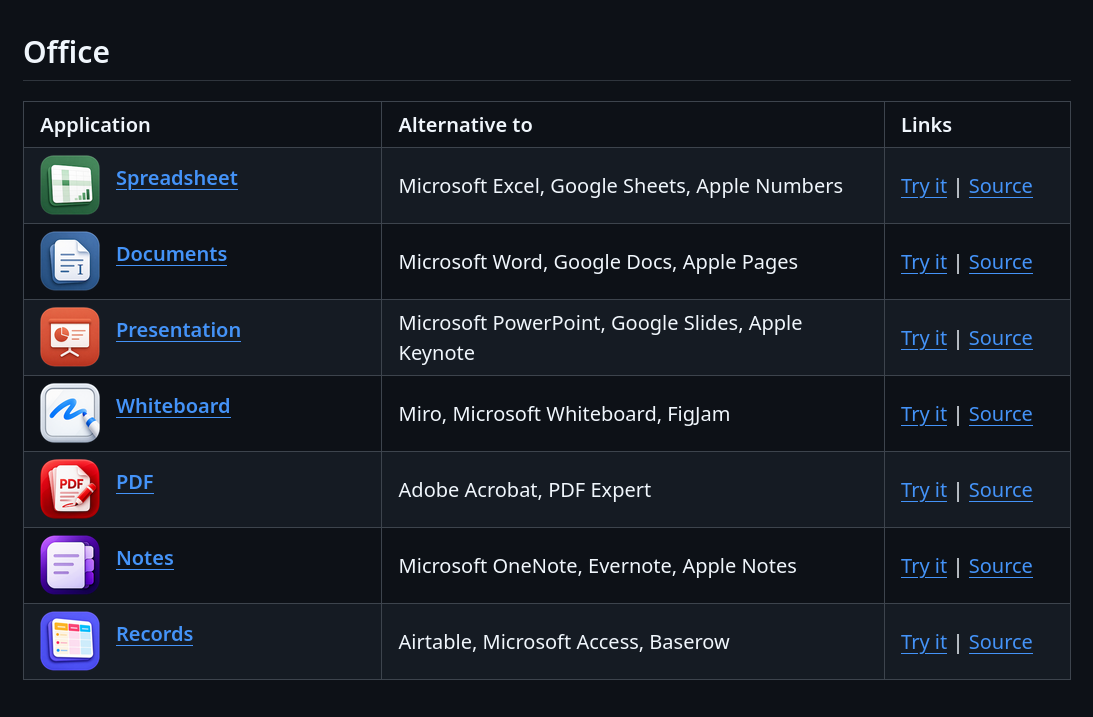
The applications are all listed on the official GitHub page, they're all in a table, and very helpfully, the cell next to the application name states what popular software it is an alternative to. For example, "Notes" is an alternative to Microsoft OneNote, Evernote, Apple Notes. It is all put in well organized categories.

Apps listed on GitHub page

The apps are all hosted online, and can be opened by pressing the "Try it" link. They're completely usable, however, and in case you have a slow system that can't handle some heavy duty tasks such as video editing, this is genuinely a better option. Nevertheless, you have to remember that you'll be uploading your data to this service, and if that is a privacy concern then you may have to reconsider.

πŸ“‹
Several features are only available to you if you make a Puter account and sign in. These include several AI features, such as auto-generation of captions in the video editor, but some applications require a sign-in straight away to use them in the first place, such as the Notes app.

Local Hosting

On the other hand, you can also host the applications locally, the instructions for which are given on the GitHub page, again.

For example, here I am running the Video Studio locally:

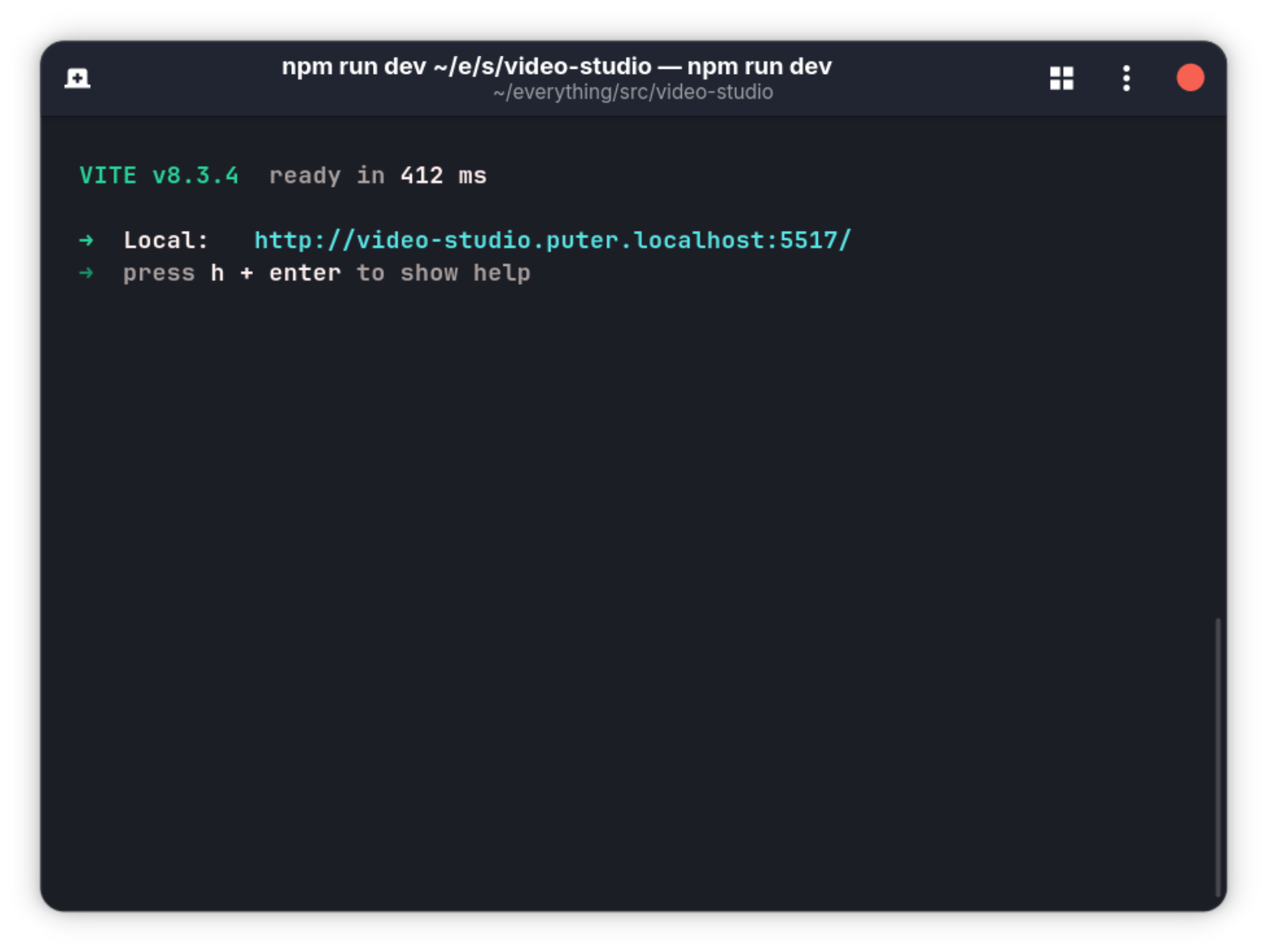
cd everything/src/video-studio/
npm install
npm run dev

This returns a link you can open up in your browser and use the application.

Locally hosting an app

Storage

πŸ“‹
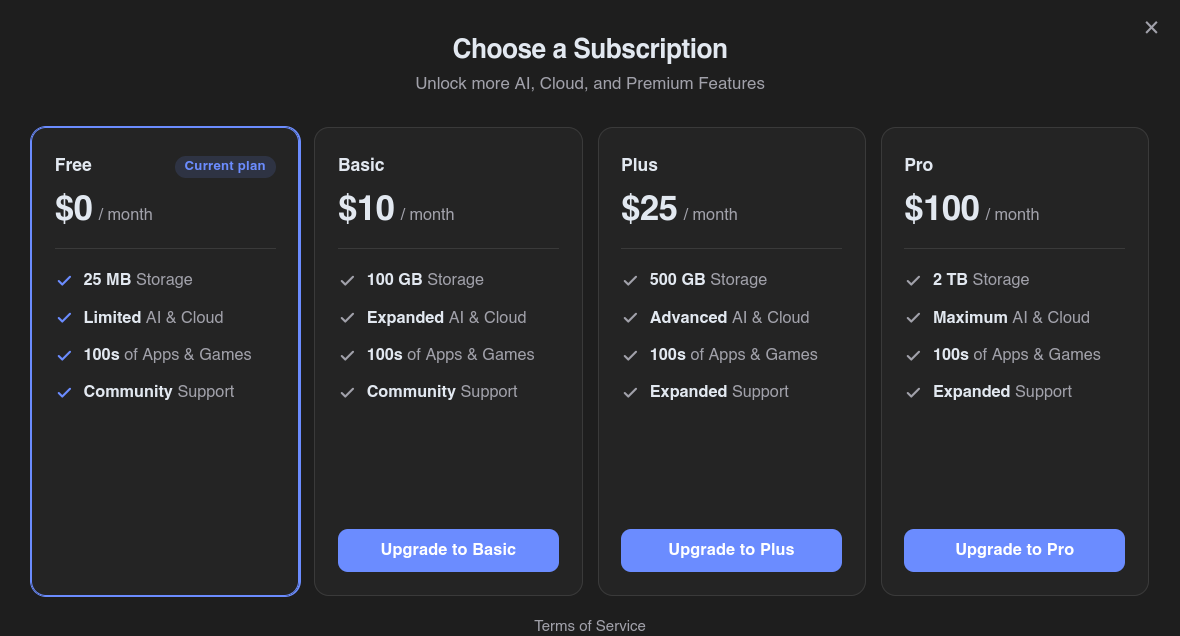
Another important issue is that the free tier of the Puter account only gives you 25MB storage on the cloud, making it tough to work on larger projects, especially when it comes to video editing. To resolve this, you can buy a subscription, starting at $10/month for 100GB.
Puter subscription tiers
πŸ’‘
The storage limitation kicks in only when you've logged into a Puter account and using the cloud storage. However, if you are not logged in, meaning you are only using local storage, it works with however large file you want.

Background

HeyPuter launched Puter in 2024 as a self-hostable internet computer: a full desktop environment running in a browser, with cloud storage, apps, and developer tools baked in. It was well received by the community.

With Everything, rather than building one great alternative to one piece of software, the project takes on the entire proprietary stack at once.

The logic is that the vendor lock-in does not come from a single app. It comes from an ecosystem. Adobe keeps you because Lightroom talks to Premiere talks to Acrobat. Microsoft keeps you because Word talks to Excel talks to Teams. Breaking one link does not free you. Everything is trying to break all of them.

The MIT license matters here. Unlike the GPL, MIT places almost no restrictions on use. You can take these apps, modify them, and run them anywhere without obligation. For businesses and developers worried about compliance, that removes the last excuse to keep paying for proprietary software.

Experiencing the Everything apps

I've tested some of the apps to check the quality of the production, and pretty much to see if the job gets done.

🚧
A major observation I made was that progress on projects can only be saved if you've logged in with a Puter account. If not, you have to get it all done in one go. Exporting is fine, either way.

PDF Editor

The PDF editor has great options, adding texts or links, images, stitching PDFs together and so on.

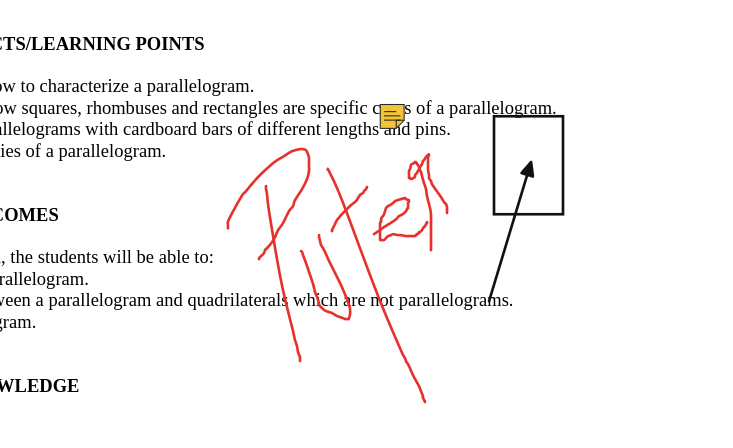
You can even draw diagrams to add to the PDF in the app itself. You can also add sticky notes, highlight text etc. These are quite basic features on a PDF editing menu, but they work seamlessly here, which is great to see.

Annotations on the PDF Editor

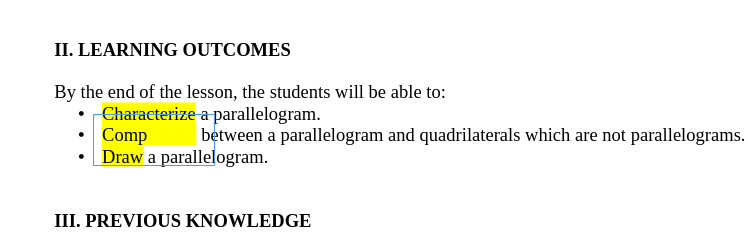
Since the software is in early stages, there are some bugs. Like when I tried editing the preexisting text in a PDF file, it was not entirely accurate. The text doesn't always get detected in proper blocks, and the formatting gets all over the place as a result of that.

Highlighted text block doesn't get detected well on the PDF Editor

Video Studio

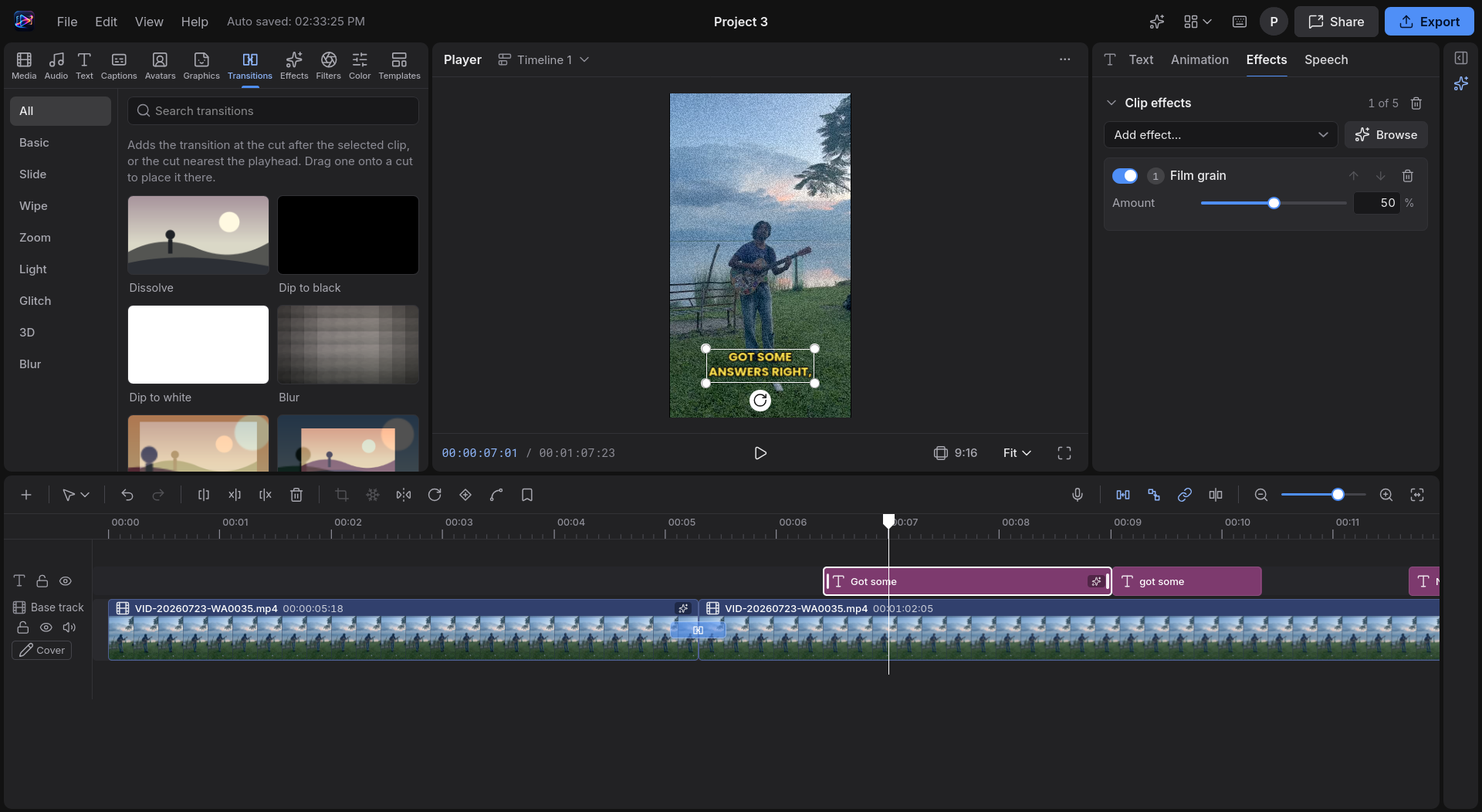
I tried some of the features, such as the AI caption generation, and the film grain effect, with transitions in between clips and it worked quite well.

It also generated captions and allowed me to edit them if a word was incorrect.

Interface of the Video Studio

The export menu showed options to separately export the audio in a WAV file and captions in an SRT file, which is great.

I had an issue with one of my video clips where it said my browser couldn't decode the video file, but then there was no further information on how to fix it, which essentially rendered the video file uneditable.

Music Studio

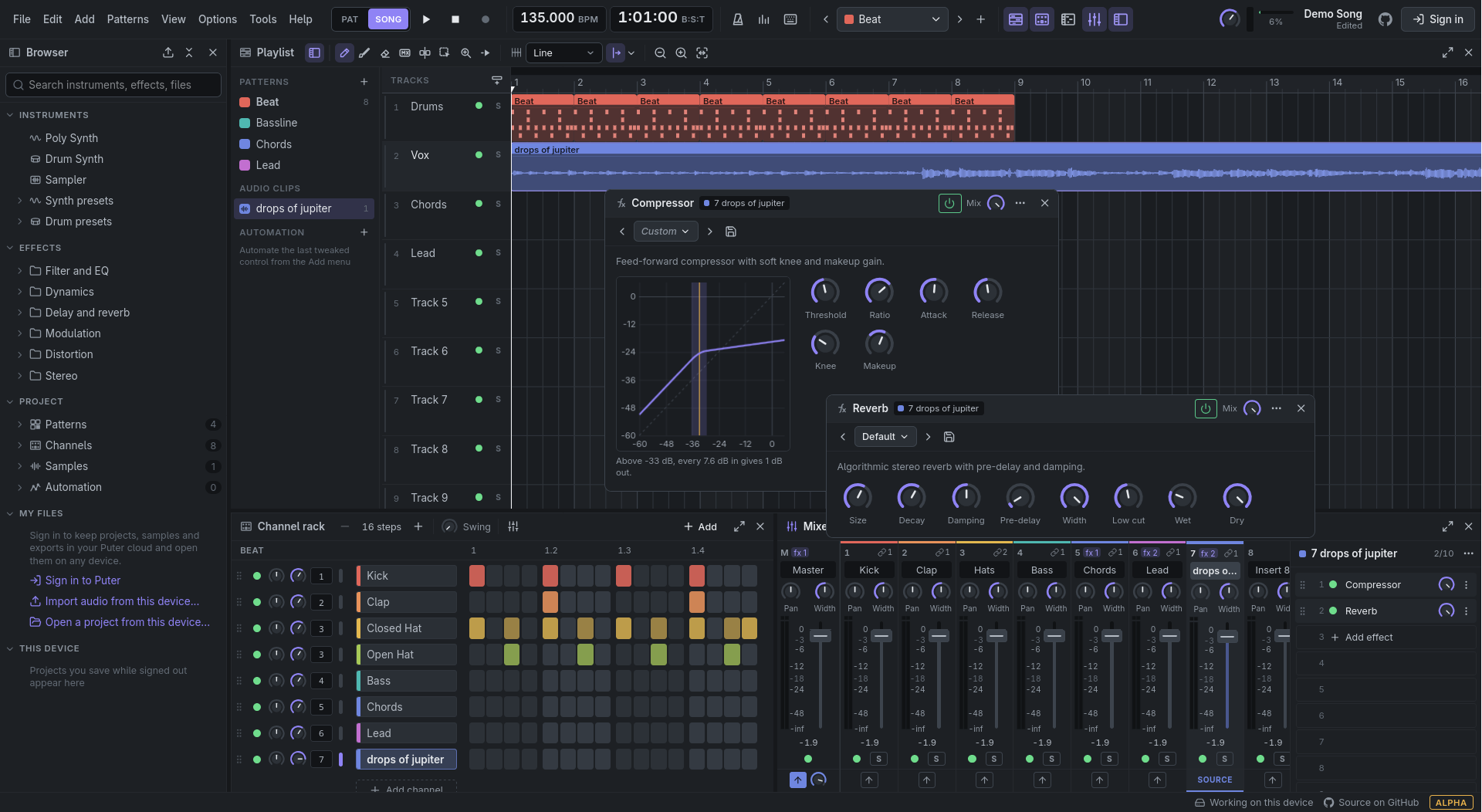
Being used to Ableton myself, the interface was different here for me. Don't get me wrong, the app itself is pretty intuitive to navigate through, the major actions are all laid out in a great way.

It has all the effects you might need, such as compression, reverb, delay, parametric EQ, stereo and so on. They work quite well, and the options for each are ample.

Nothing too technical, but just as much as you need.

Interface of the Music Studio

Even the export showed options to export the stems as well as MIDI files separately, which is a great feature to have. Out of all the three that I tested, the music studio worked most to my satisfaction.

Conclusion

There is a new trend in the developer world these days to reverse engineer everything with AI. Puter's new project is part of the same trend.

The apps on The Everything Projects have their ups and downs but on the larger scale, they work incredibly well for the most part, giving features that almost match the professional level. At least for beginning professionals everywhere, who cannot afford expensive software, these apps are a great way to get things done.

It requires an account to access the AI features and to save the progress on projects unless you have an account, where you will probably need a Puter subscription because 25MB is too small a storage to actually get anything done.

That actually is understandable to avoid the service abuse but the 25 MB could have been 250 MB at least. In any case, self-hosting option is always there.

What do you think about this wave of reverse engineering apps and open sourcing them? Let us know in the comments. Cheers!

I Came for This New Linux Distro’s Aesthetic Looks and Stayed for its Window Tiling

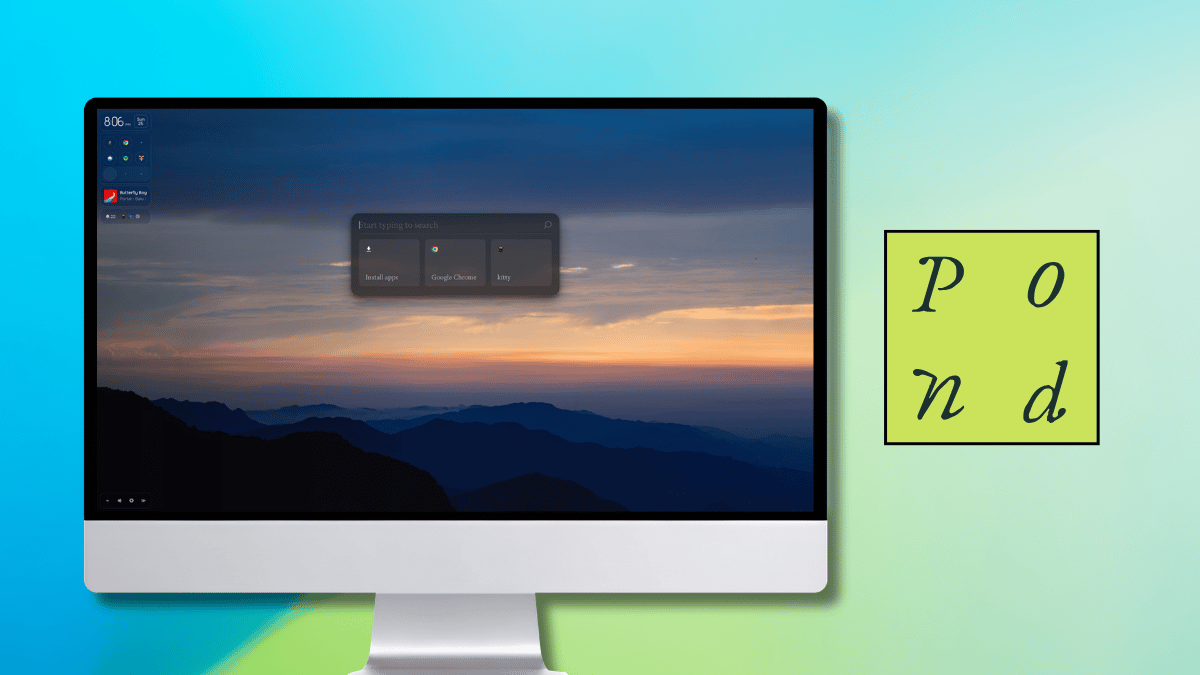
pond arch-based linux distro monitor-themed banner

Yet another new Linux distribution has landed on Arch Linux as its foundation of choice. This one is called Pond, and it is Butterfly Interaction Inc.'s vision of how a desktop should look and behave.

For its desktop interface, it uses Niri, a very popular Wayland compositor that is known for its scrollable tiling, where app windows sit in columns along an endless strip that gradually grows as new items are added.

Pond is labeled an Early Preview, and this First Look piece covers what it offers, my time using it, and the ways you can install it.

Pond: The details ✨

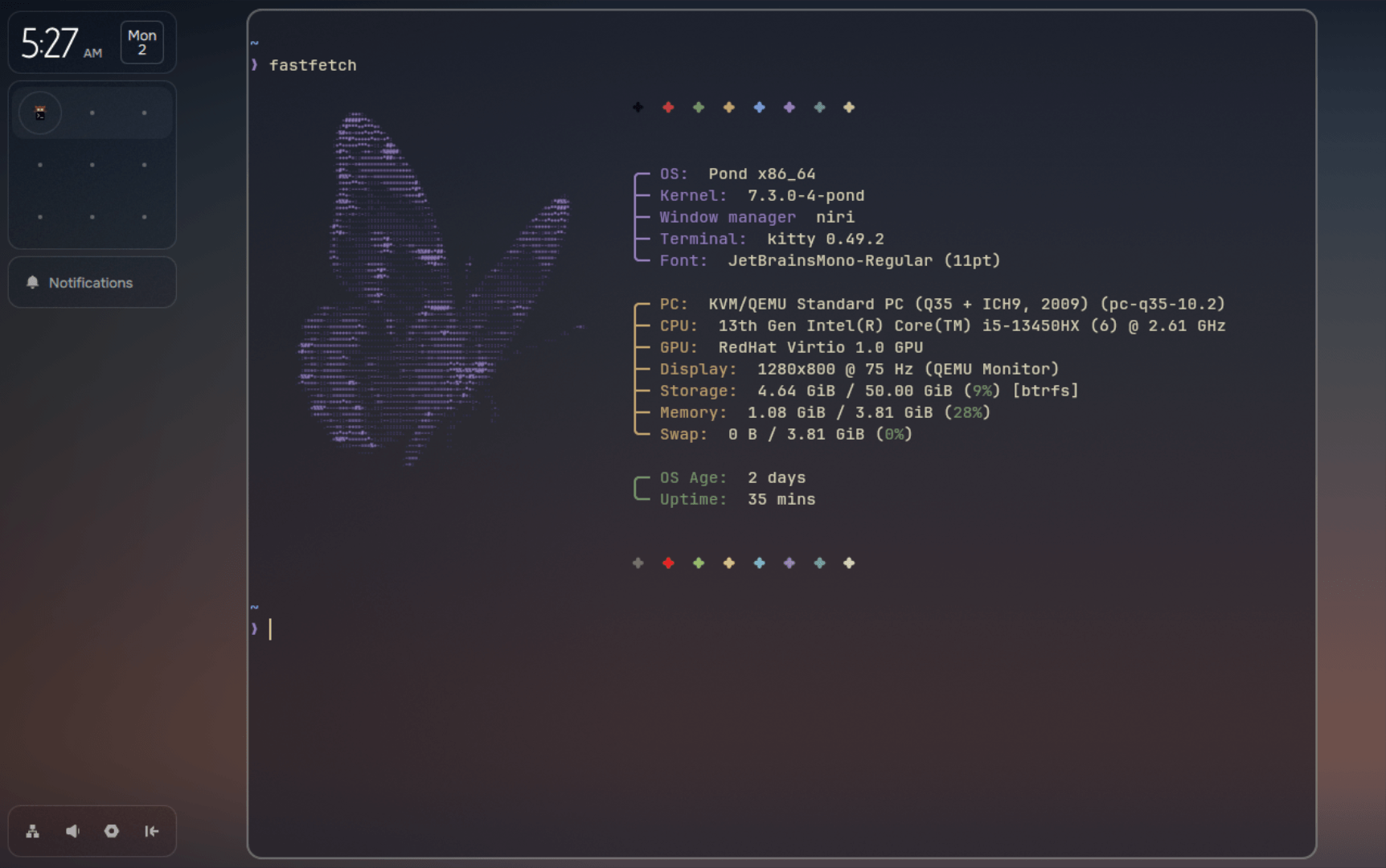
fastfetch output of pond

Butterfly says Pond mixes new ideas with desktop habits people already know, and the goal is for a computer to feel more natural to use.

It builds that around four ideas. Windows are arranged spatially and can be rearranged, components come in different sizes to fit the space available, useful information stays in one uniform place, and content only shows up when it is relevant.

They also point out that each component was planned with the whole desktop in mind, from its proportions to where it sits and how it behaves.

As I pointed out earlier, Pond is a rolling-release distro based on Arch Linux with Niri as its compositor. Package duties are handled by a package manager that picks a default source for each app across Pacman, Nix, and Flatpak. More on that later.

Getting it to run

I tested Pond inside a QEMU virtual machine with 4 GB of RAM and a 50 GB disk, making a few tweaks to the machine settings before I could get it to boot.

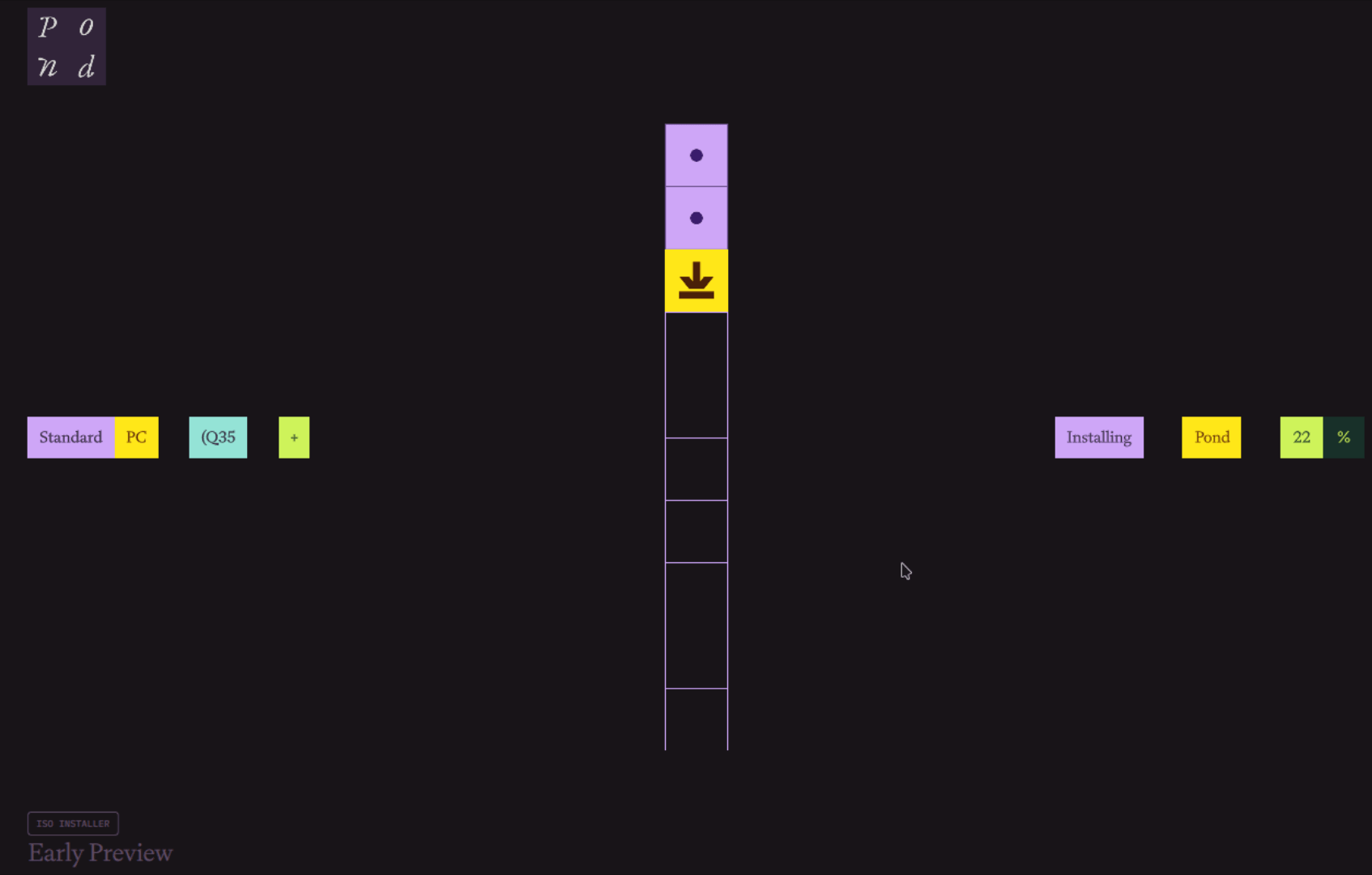
Right away, the installer caught my eye. It follows a very different approach than what most distros ship with, featuring a simplified one that takes users through the steps quickly.

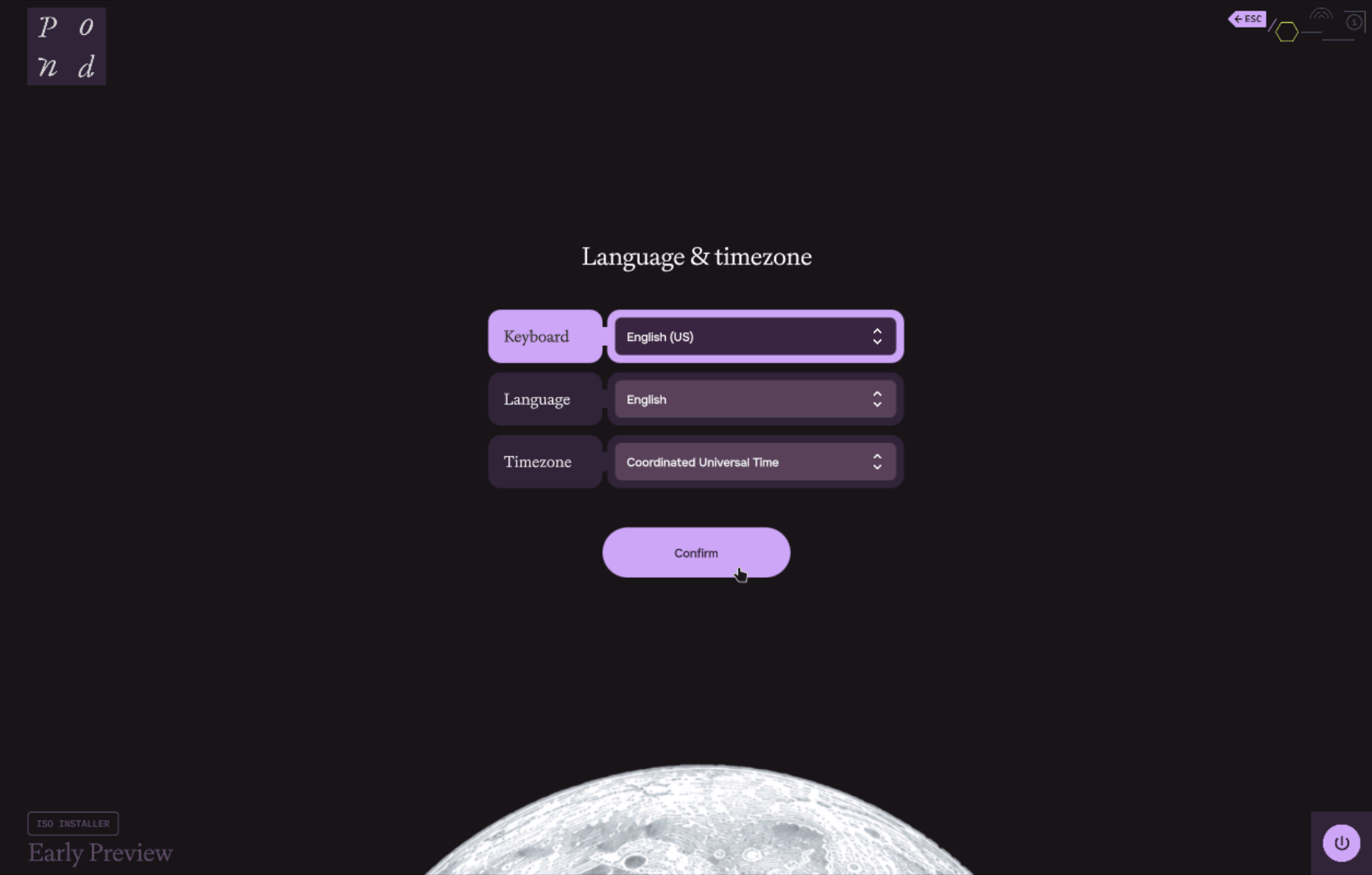
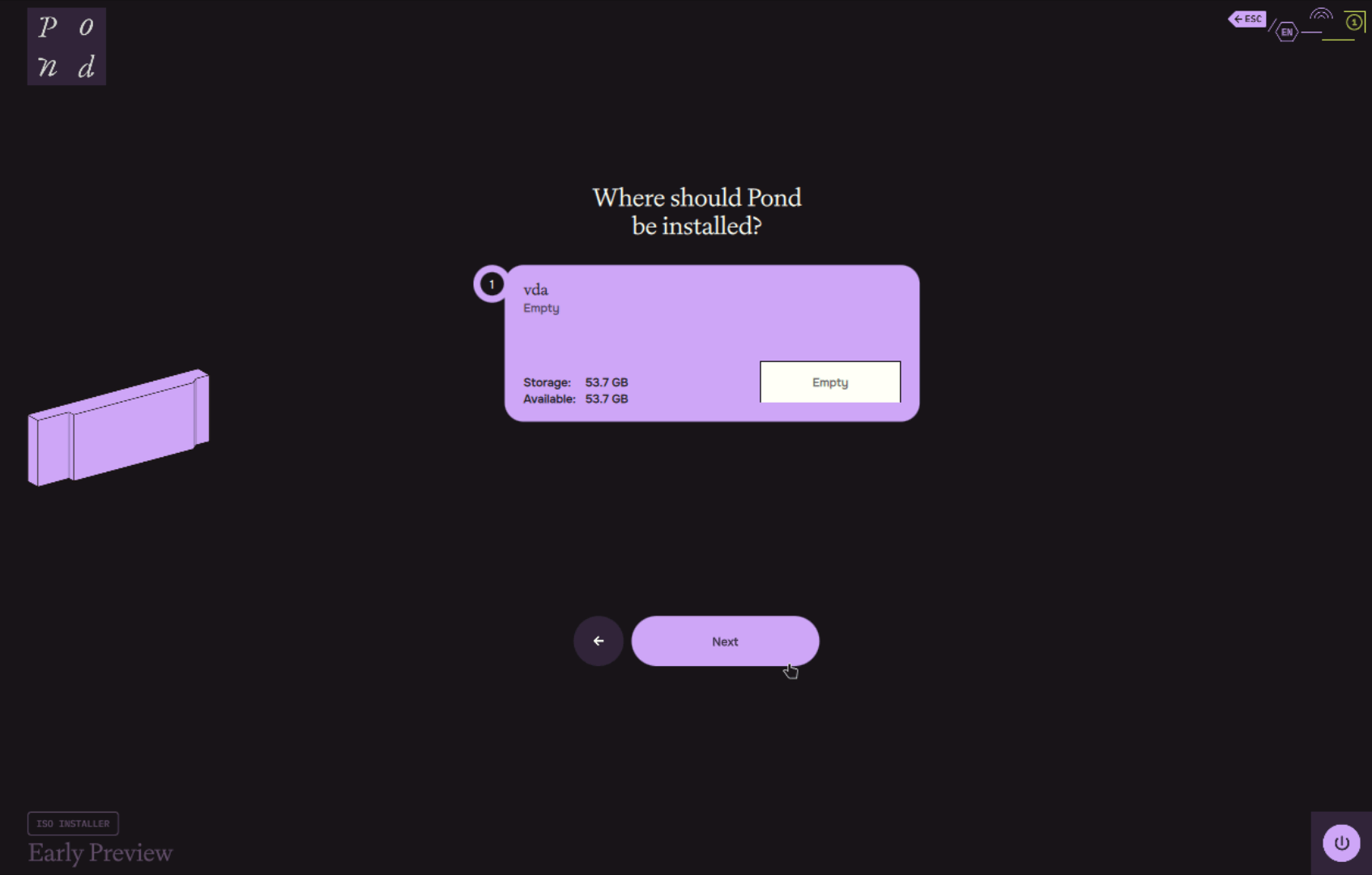
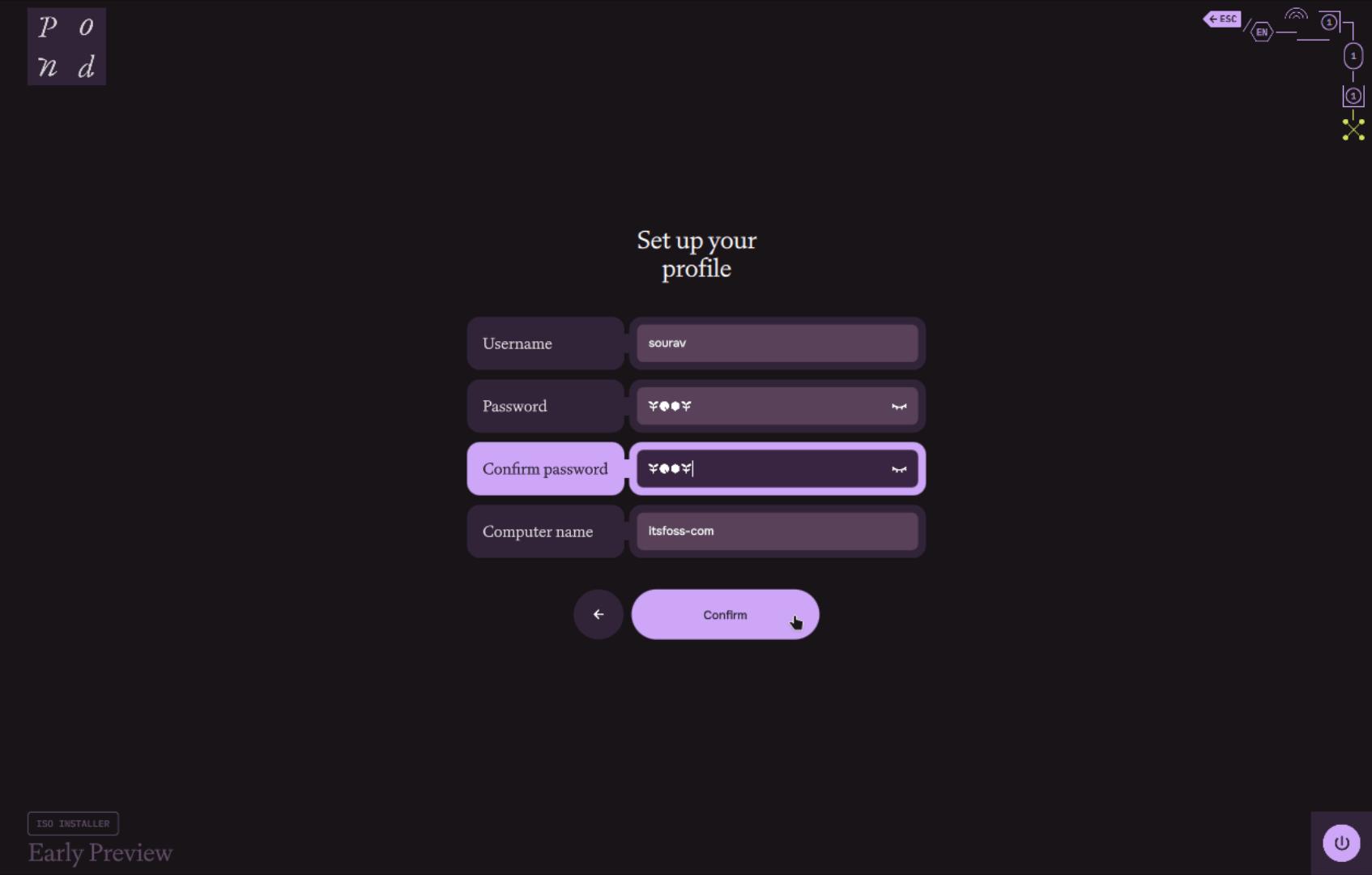
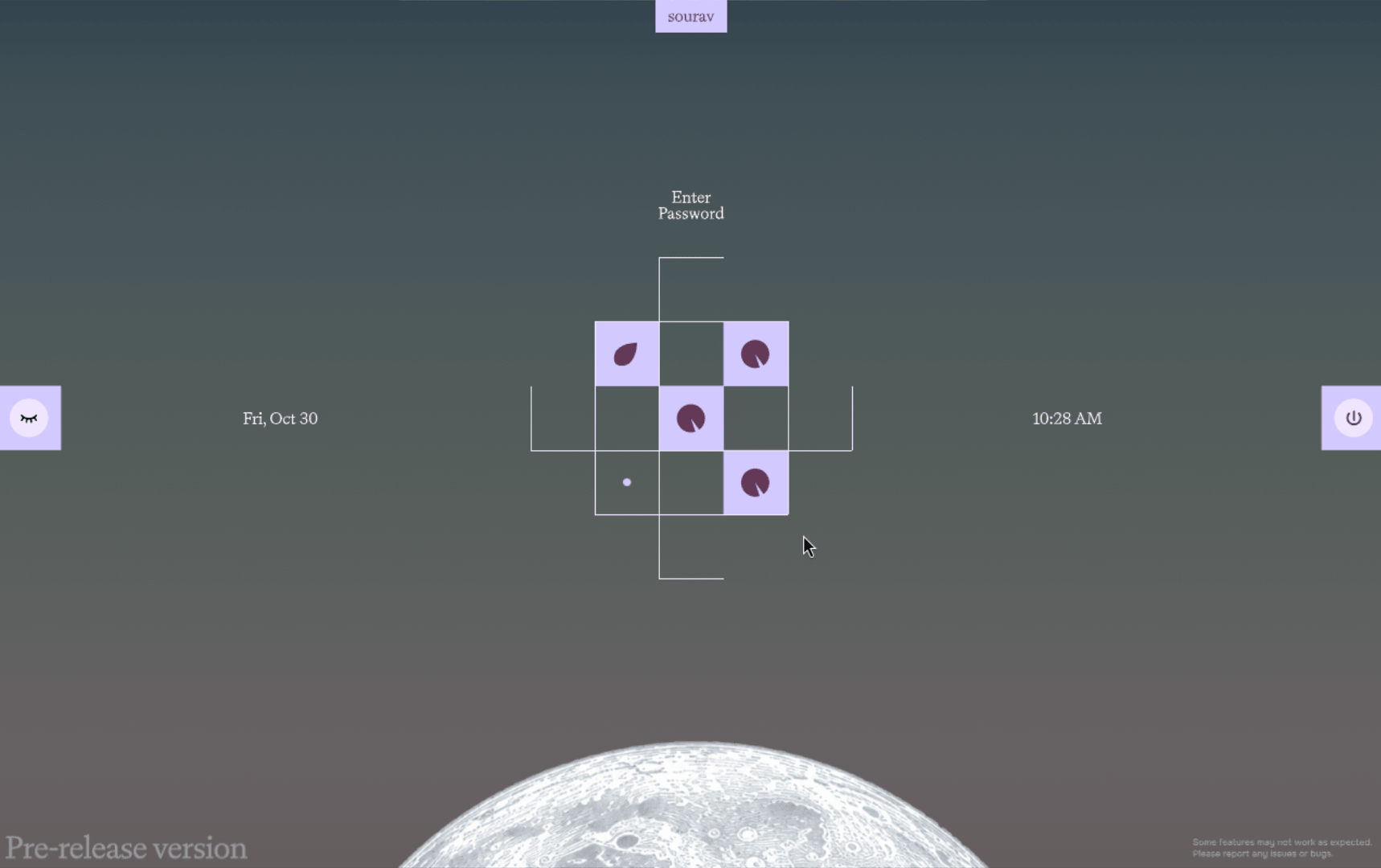
It asks for your keyboard, language, and timezone first, then the disk, and finally a username, password, and computer name. I really liked how entering passwords in the text field showed me some Pond-themed icons instead of the usual dots or asterisks.

pond distro login screen

The login screen follows a different approach too, with a cool-looking square and line-shaped password entry box that filled up the empty small squares as I typed my password.

The desktop

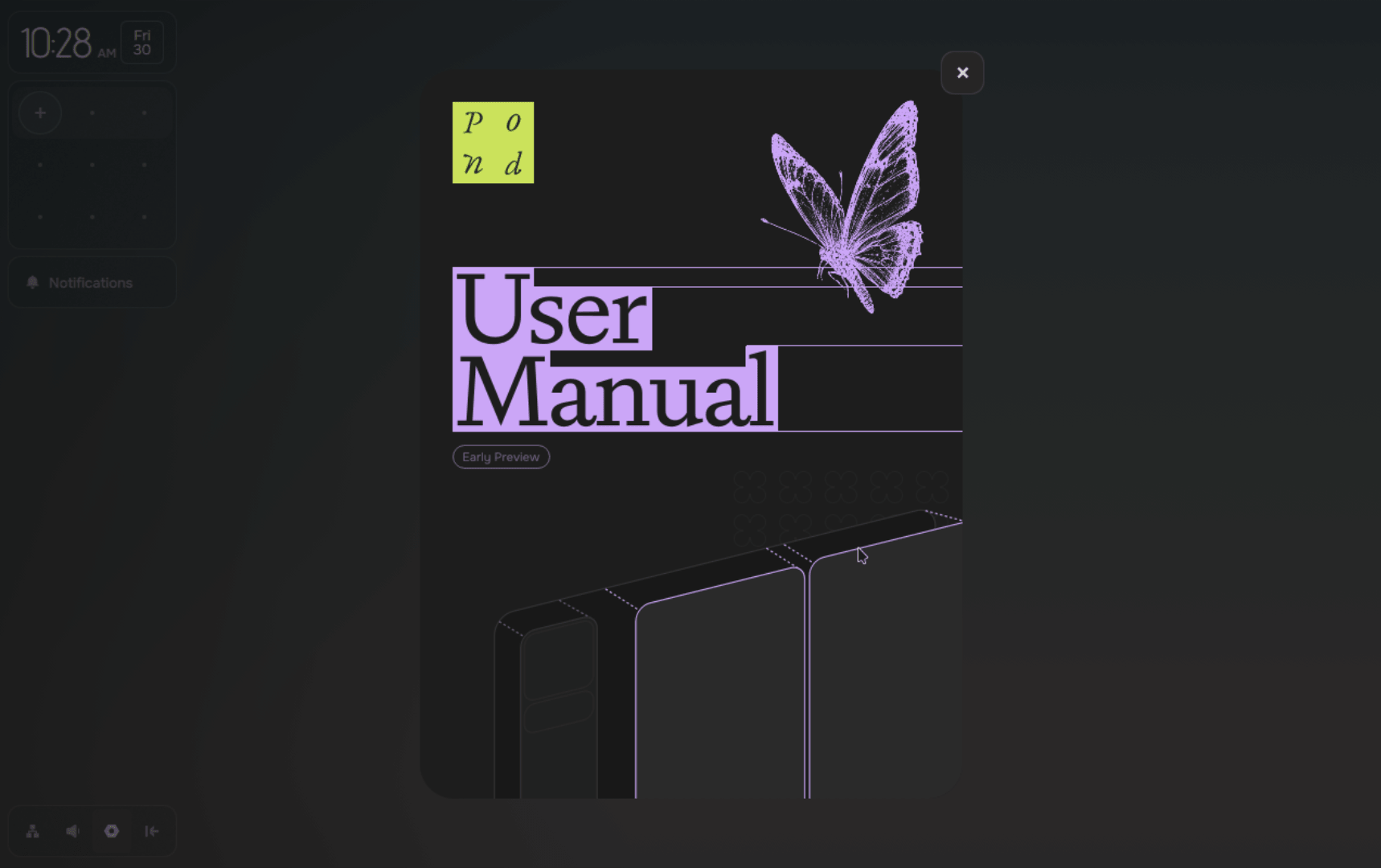
Log in, and you will see that the navigation on Pond is keyboard-focused, with an onboarding flow explaining which keybindings are must-knows for getting around Pond's interface and any installed apps.

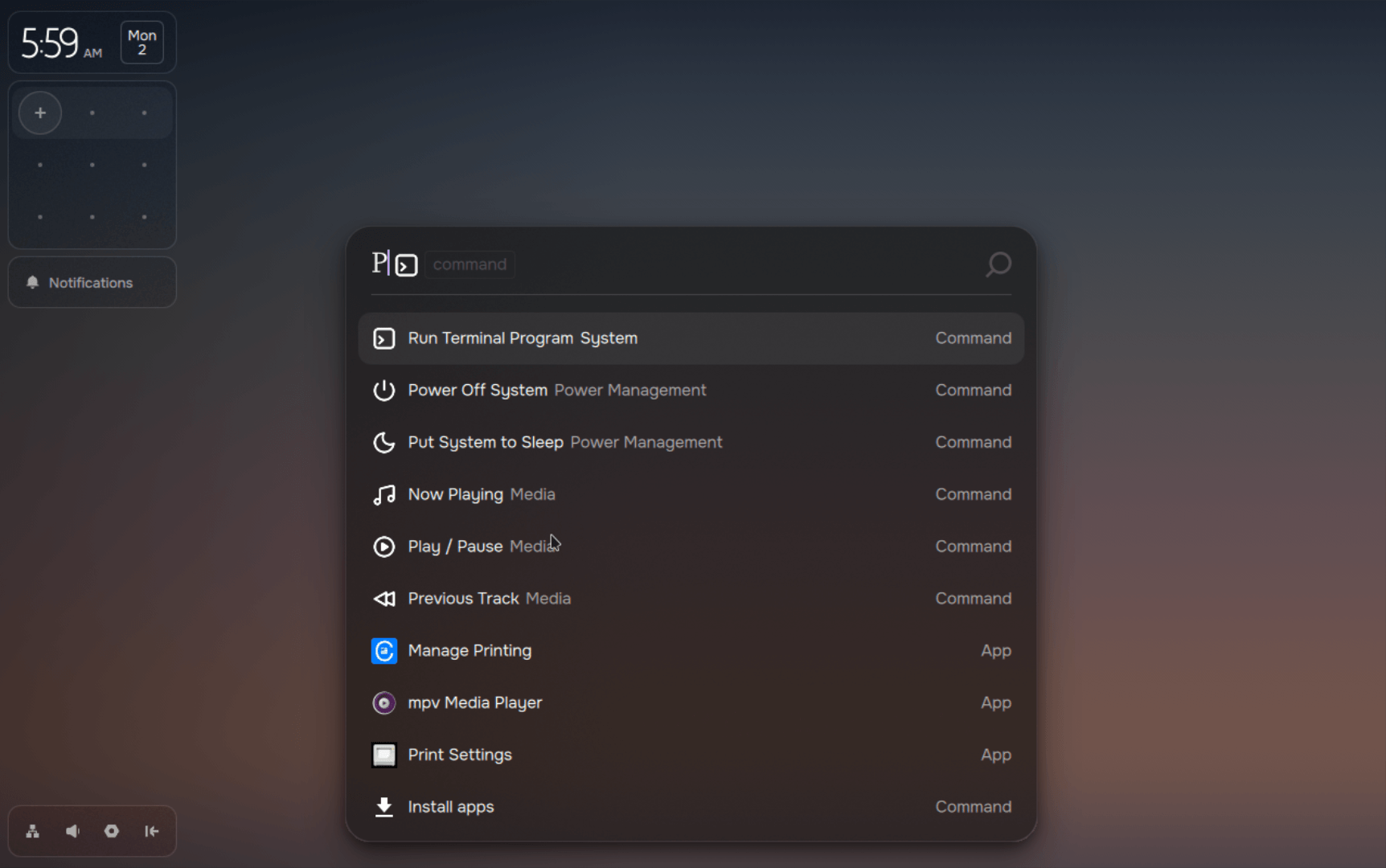
The desktop itself features a sidebar menu that houses the clock and calendar, the currently running apps inside the minimap (the squarish-looking box), and notifications from the system, web browsers, or the package manager.

A small dock-style menu sits below it, housing quick access to the network and volume controls, as well as the settings page and the hide sidebar button.

Then there's the Vicinae-based launcher, which will feel familiar if you have used launchers on any Hyprland-equipped distro like CachyOS and Omarchy.

Installing apps

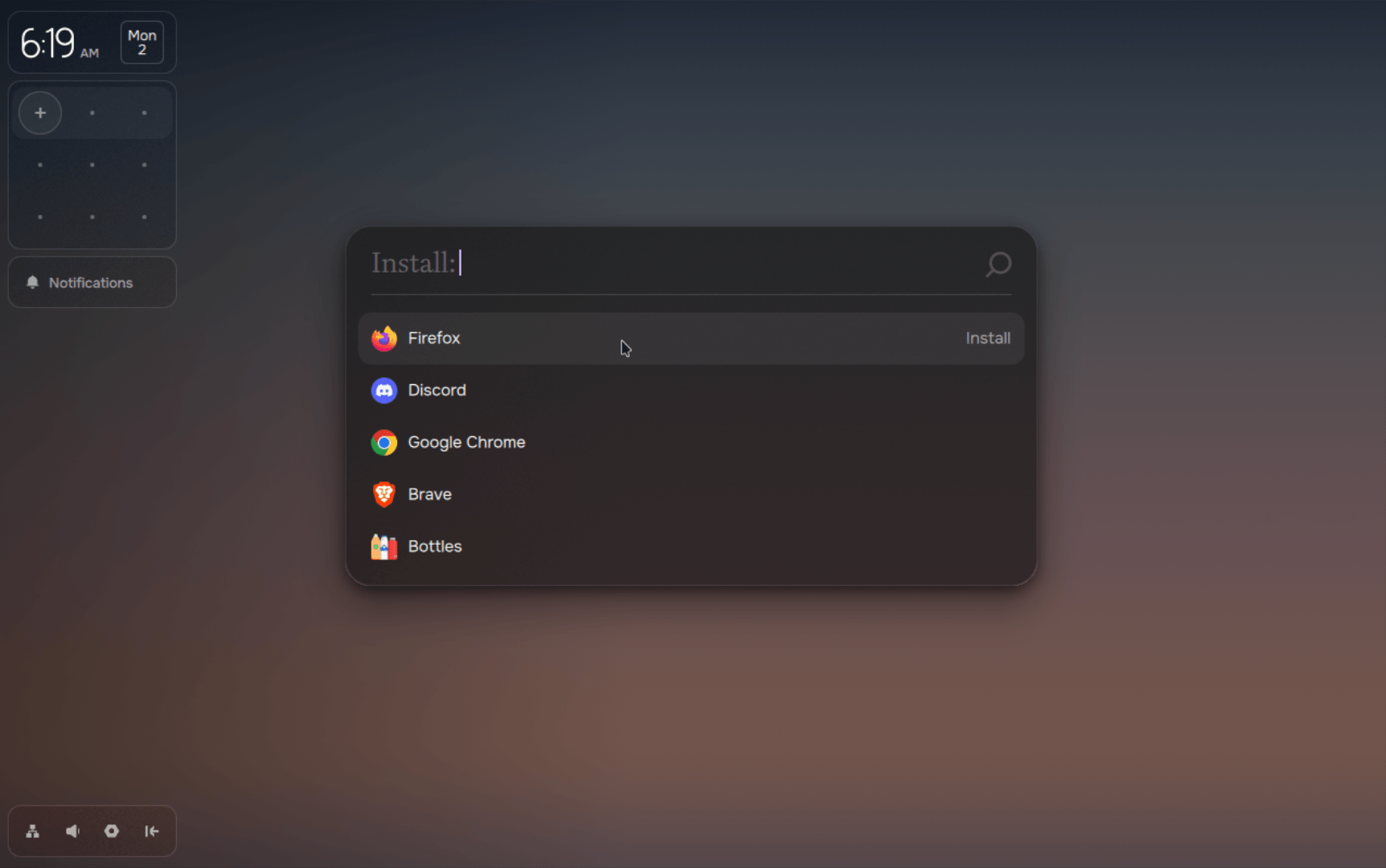
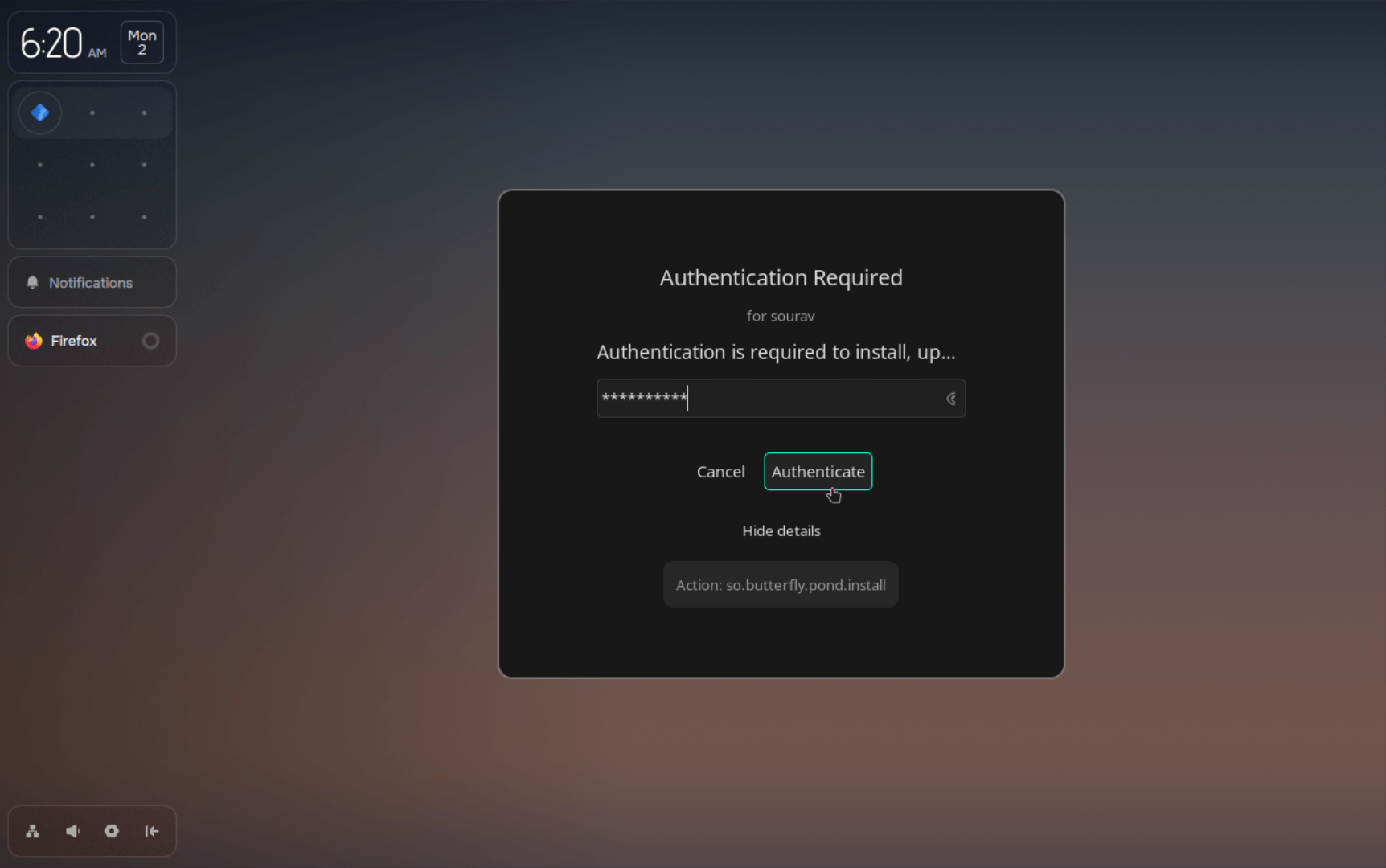
Installing new apps is easy. You open the launcher using Super+Space and go into "Install apps" to see a long list of apps that work on Pond. Select one, authenticate the action with your account password, and wait for it to finish installing.

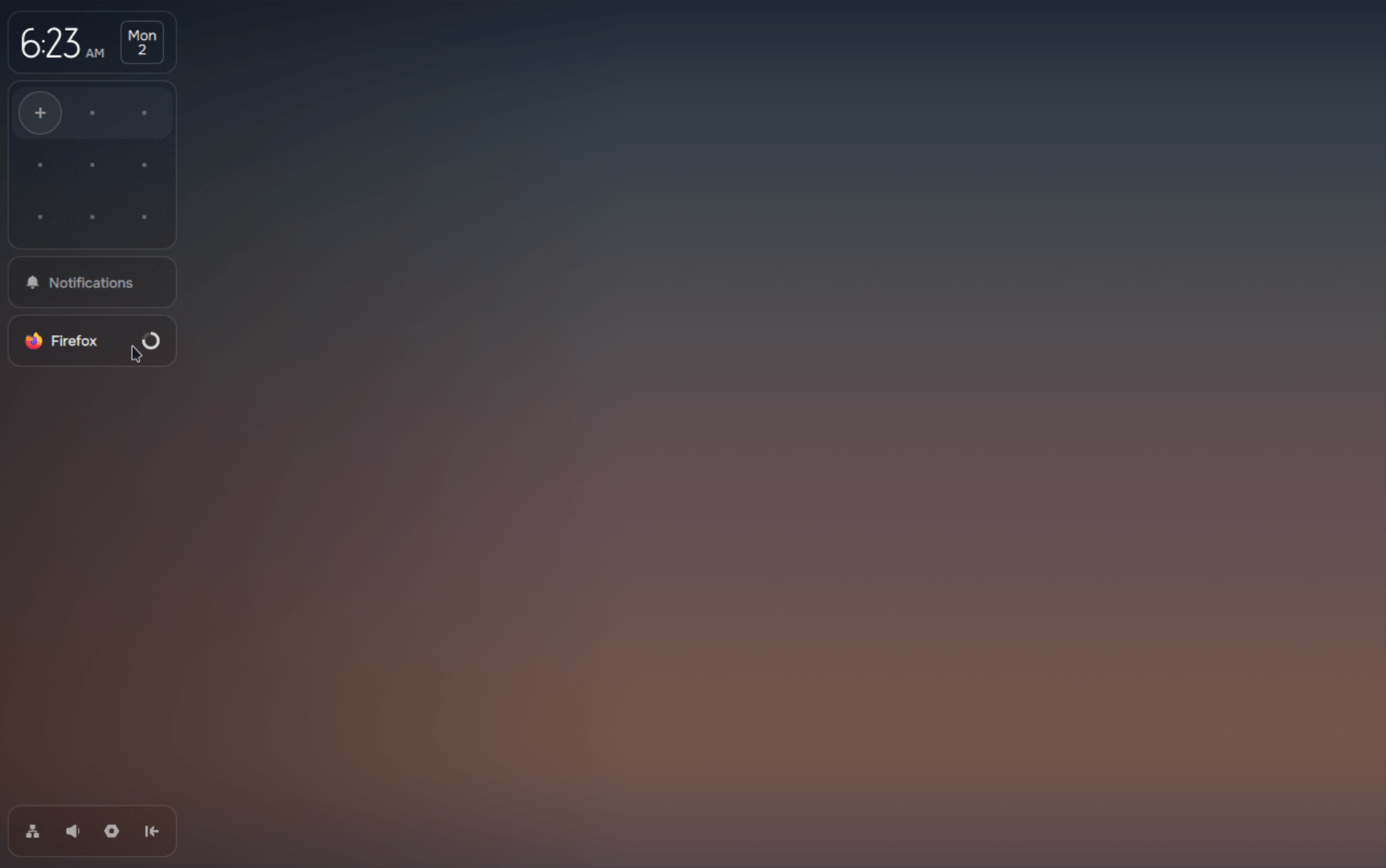
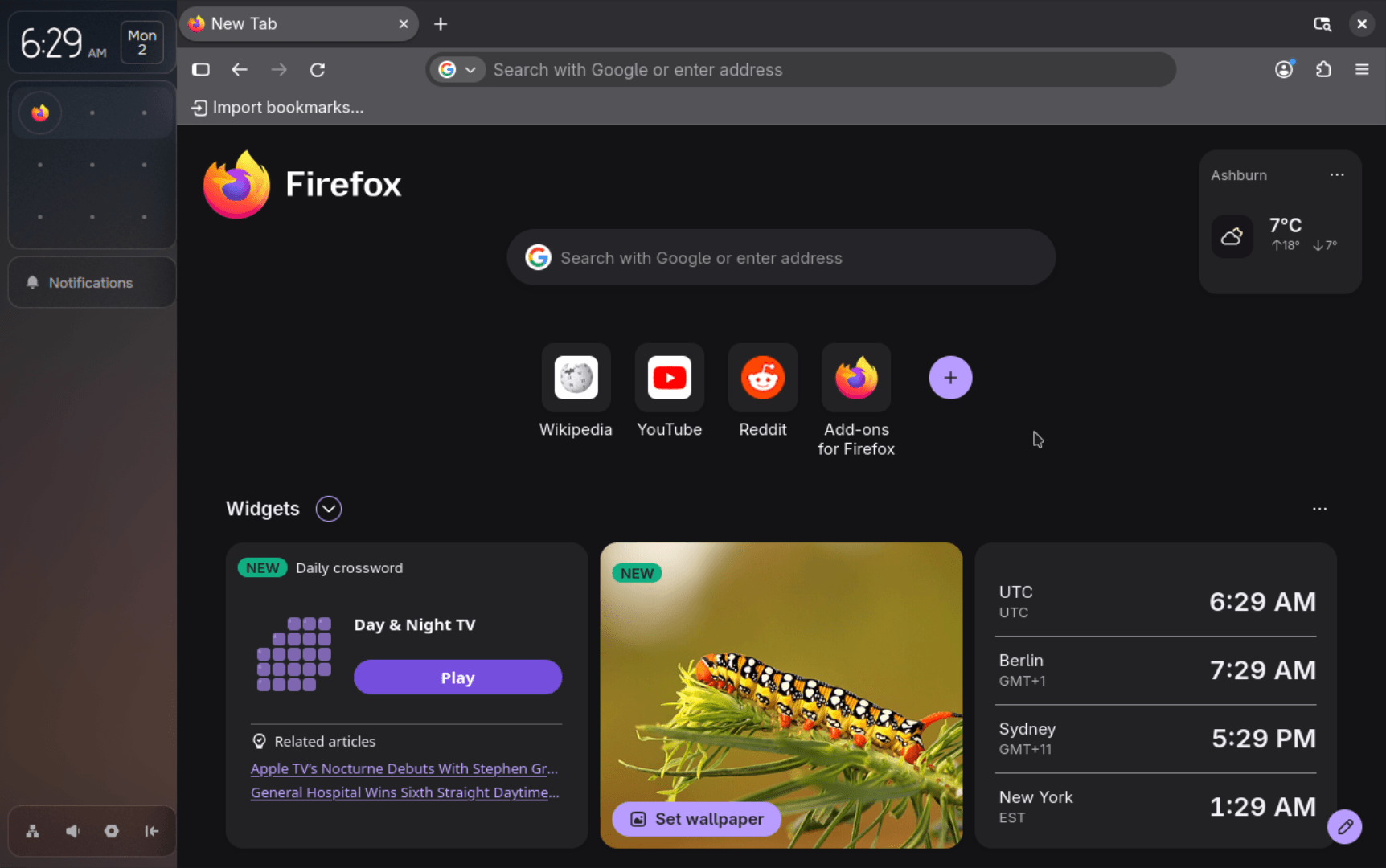
While that happens, a banner shows up in the sidebar under notifications, showing you the progress of installation. To test this out, I installed Firefox, and it ran well. Pond served me the latest build at the time of writing, Firefox 159, and it ran without any hiccups.

firefox running on pond

Pond's package manager handles those installs, and its GitHub repo shows that most of the catalog is Flatpak apps, with the rest coming from pacman and the AUR.

Those pacman and AUR apps are installed through paru, and updates run paru and Flatpak together. Nix, while present, plays a smaller part, mostly being used to facilitate GPU support.

You also have the option to install package managers like yay and npm.

Tile away!

Window tiling is the best part of Pond. I could move around app windows using Super + Left or Right, switch workspaces using key combinations like Super + Up or Down, and change window sizes using Super + Plus or Minus.

The minimap below the calendar shows each workspace as a row, with the apps inside it as icons. I could even drag and drop app windows inside it to move them across workspaces.

Verdict πŸ“

The distro follows a very different design language than other Linux distros, relying on colorful shapes and palettes while offering a known, reliable base to work off of.

It is still an early preview, but if development continues and people take a liking to it, I don't see why it couldn't be counted among the top-rated new blood Linux distros alongside the likes of Bazzite, Omarchy, and Nobara.

Trying Pond πŸ“₯

Pond lists two installation routes on its install page, and downloading either one means agreeing to Butterfly's Terms of Use and Privacy Policy. If you are someone who doesn't like doing so, I suggest going through the fine print before committing to an install.

The first method would have you download an ISO of about 1.5 GB. Then you either flash it onto a USB stick and boot, or plop it into GNOME Boxes or Virtual Machine Manager to run it in a virtual machine.

The second method skips the flashing, letting you run an installer on Windows, where you pick a drive, set aside space for Pond, and set up dual boot.

Butterfly says the installer carries over supported Windows settings and handles common dual-boot problems such as clock mismatches and NTFS drives that block shrinking.

You will find the source code for Pond's various components on GitHub.

This New Distro Wants to Achieve What Ubuntu Failed to Do Nearly a Decade Ago

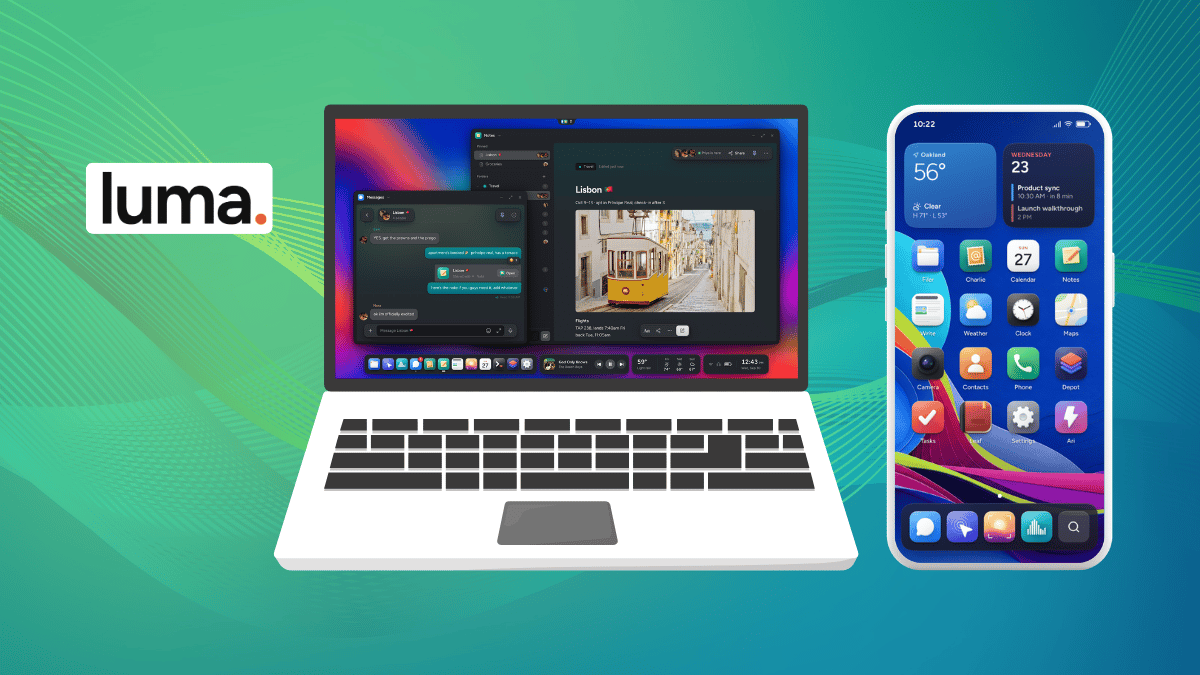
luma launch banner laptop and smartphone

Remember Ubuntu’s convergence dream? One operating system across your desktop, tablet, and phone, with apps that adapt to whichever screen you’re using.

Canonical pursued that vision with Unity 8 and Ubuntu Phone before pulling its investment in 2017. Now, a new project called Luma wants to tackle a similar ambition.

It’s early days, and only a desktop build is available to download. But its plans go well beyond becoming another desktop Linux distro.

The project's founder, Nick (nmcmil), has worked with a small group of people to achieve this, with the group answering to no shareholders or investors and taking all the key project-related decisions themselves.

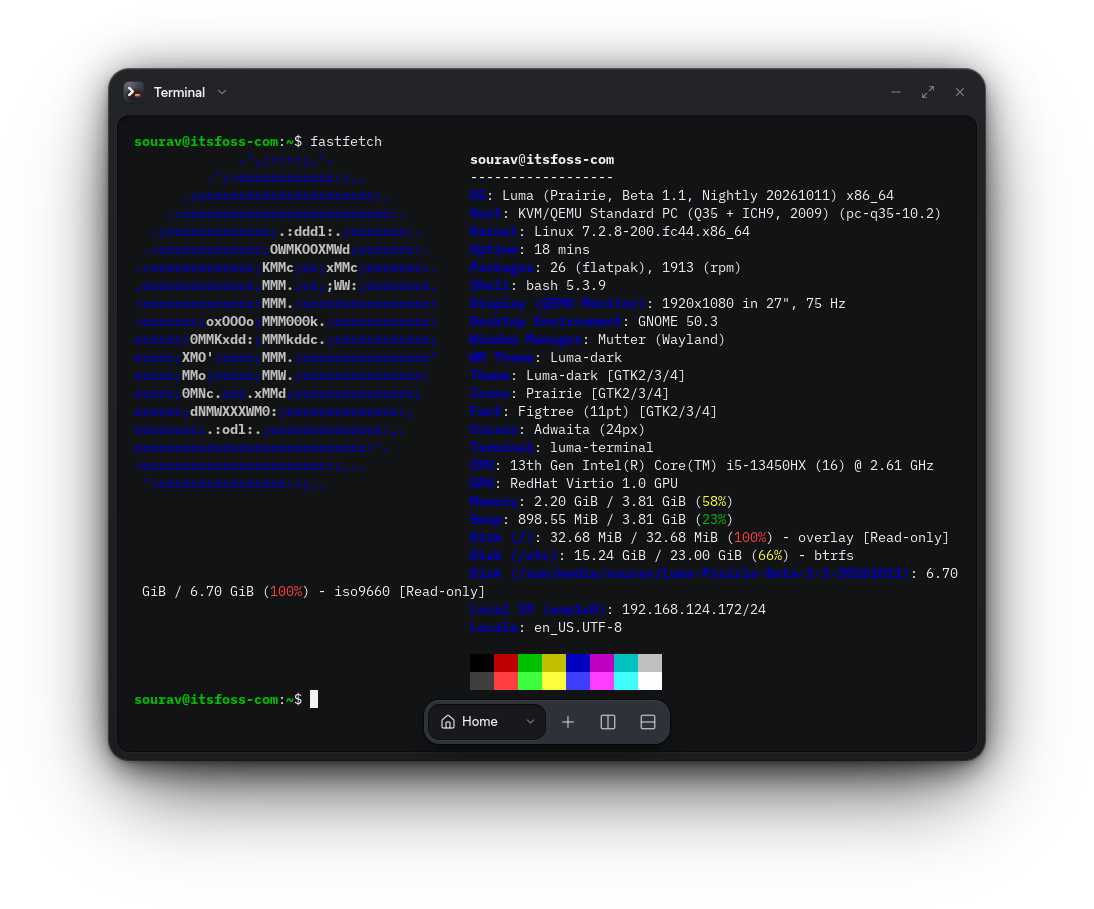
When I tested it, it was built on Fedora 44 and ran a recent version of the Linux kernel. The team does say that they have reworked enough of the stack that it doesn't count as a typical distro.

Their blog on AI also points out that the distro features AI-assisted contributions, with contributors being held responsible for any work that carries their name.

🚧
This distro is still pre-release and should not be treated stable enough for daily use or production deployments.

Luma: Overview ⭐

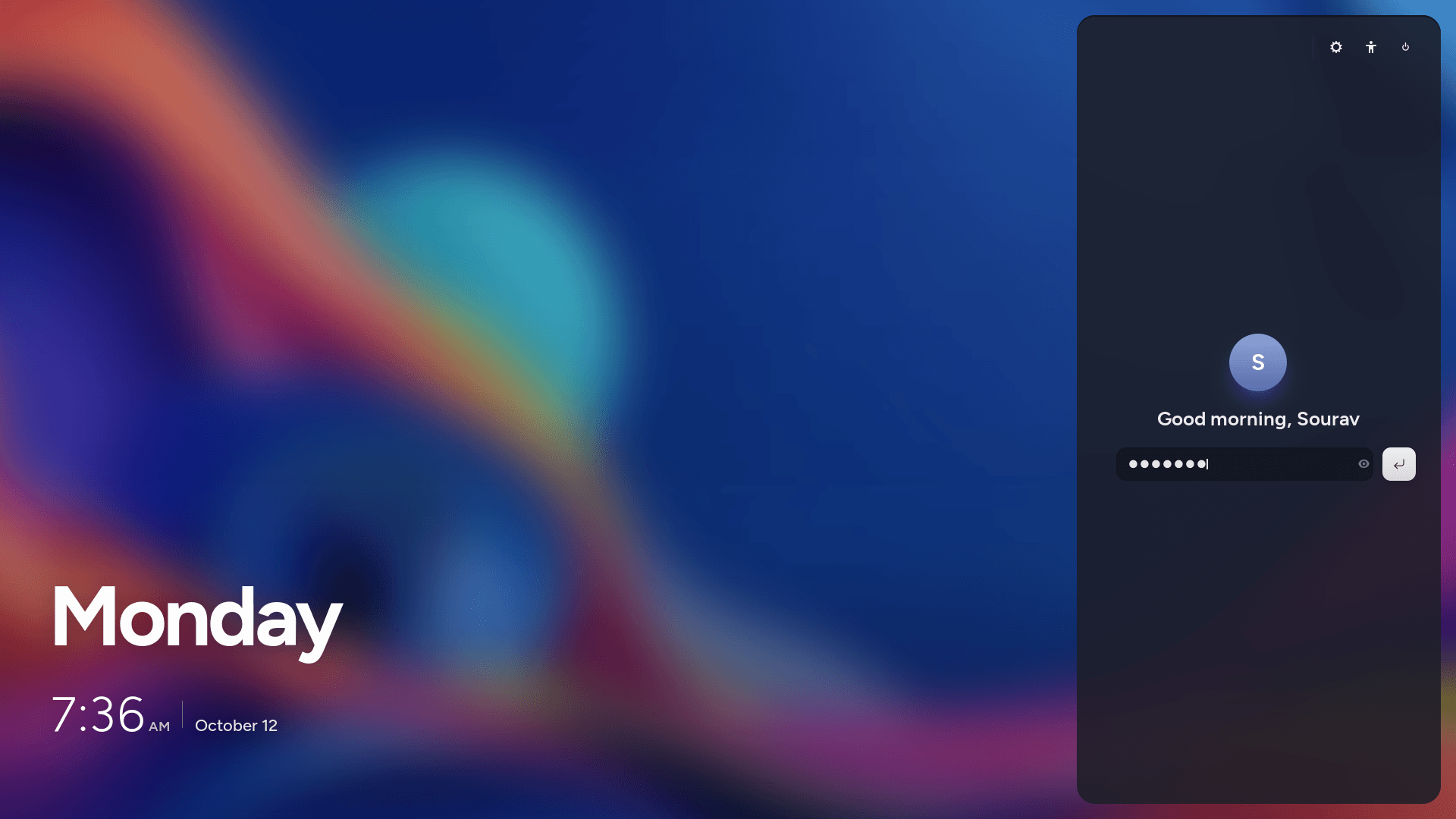
luma linux distro lock screen

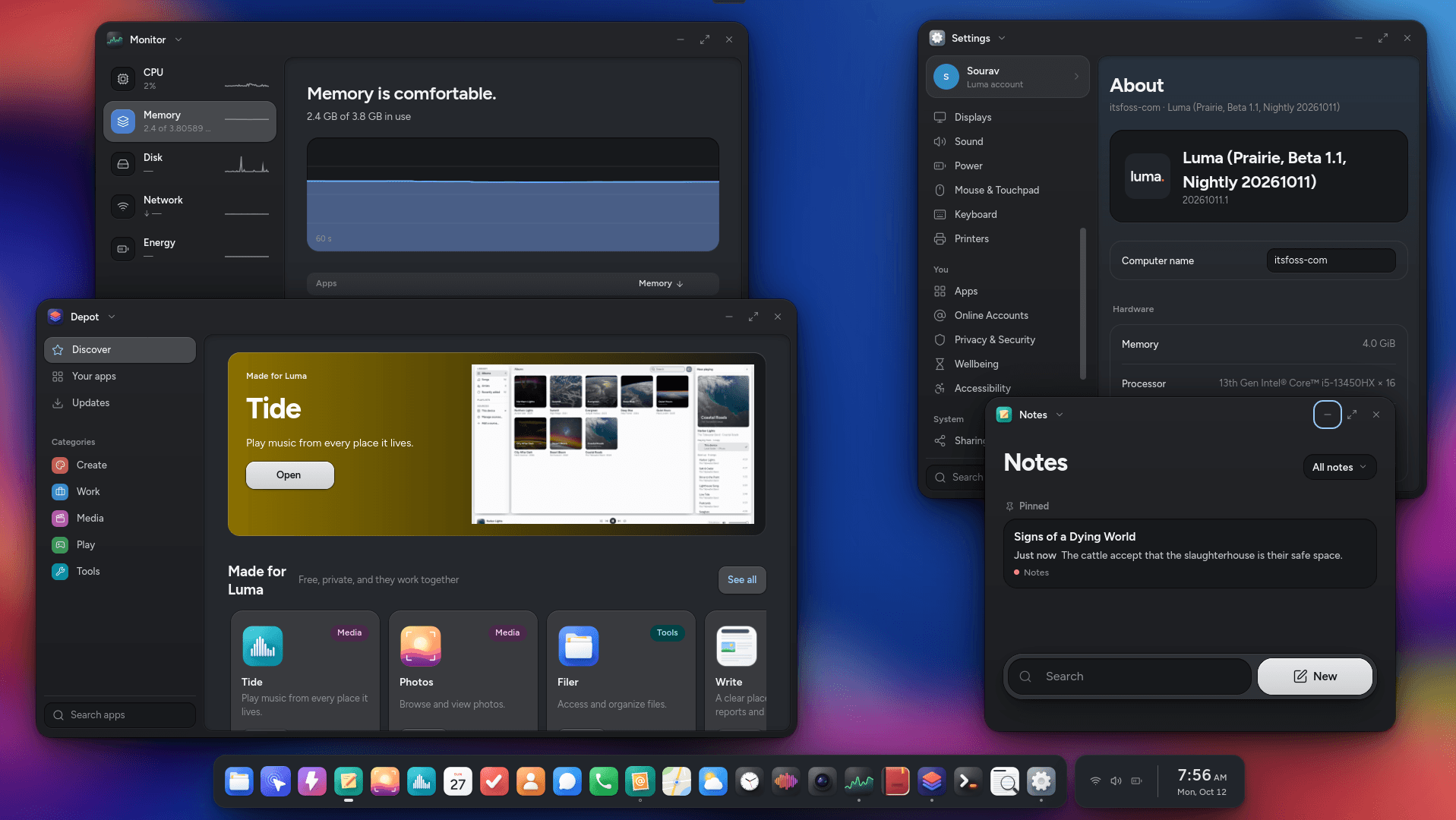
The desktop is called Prairie, and the team describes it as a hard fork of GNOME. Its goal is to provide a shell, windows, fonts, and apps that all look and feel the same.

Apps are built with GTK and Libadwaita, with the project shipping LumaUI as a toolkit outside developers can use to make their software feel at home on the system. Luma’s original code is licensed under Apache 2.0, and anything taken from upstream retains its original license.

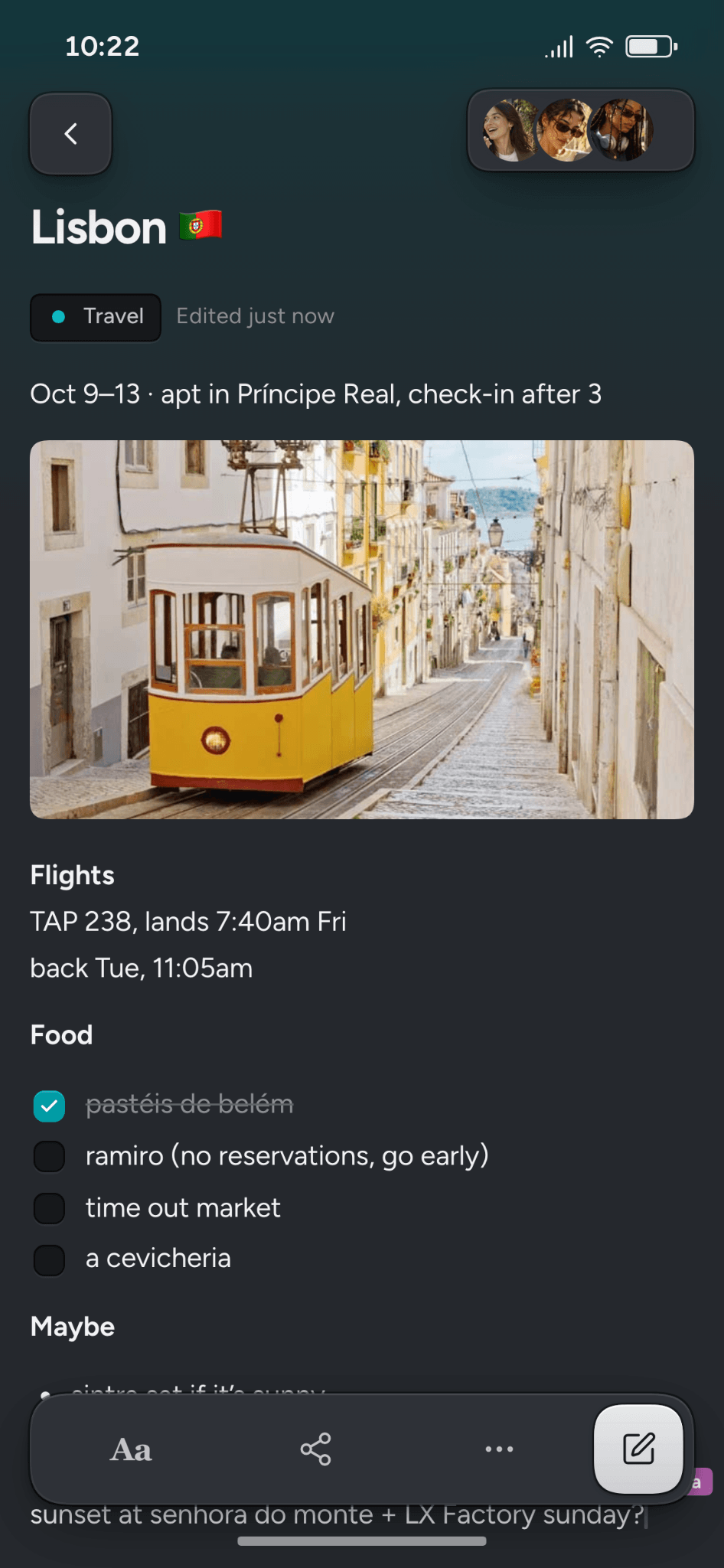
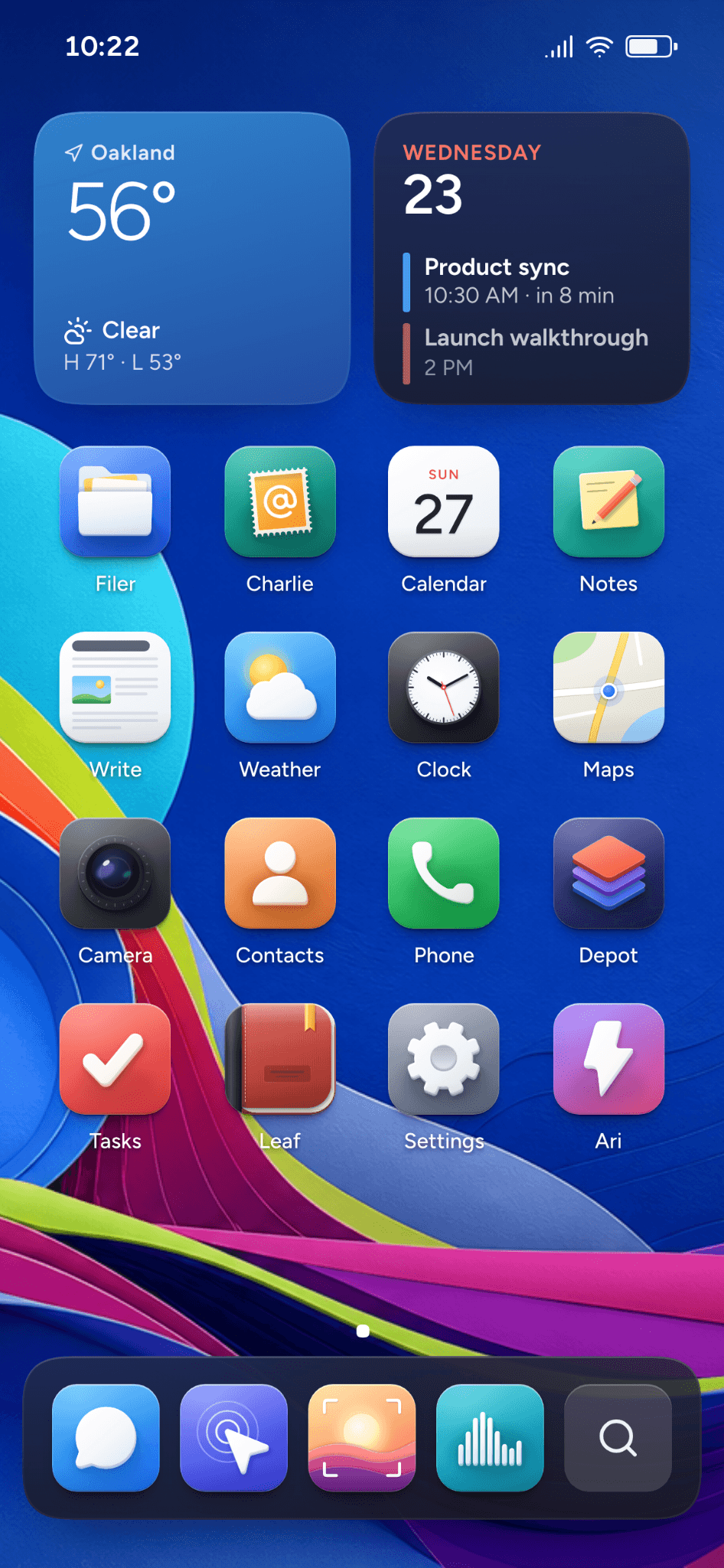
The distro comes with pre-installed apps built for it; these include Depot as the app store, Viola as the browser, Charlie as the email client, and Tide for any music needs, alongside the self-explanatory Filer, Notes, Photos, and Messages.

If you opt for the Creative Collection, you get access to Canvas for design, Focus for RAW photo editing, Grid for spreadsheets, Stage for slides, Write for documents, Reel for video edits, and Sessions for audio mixing.

You also get Ari, the built-in AI assistant that's meant to work with local models, so everything can stay on your own hardware.

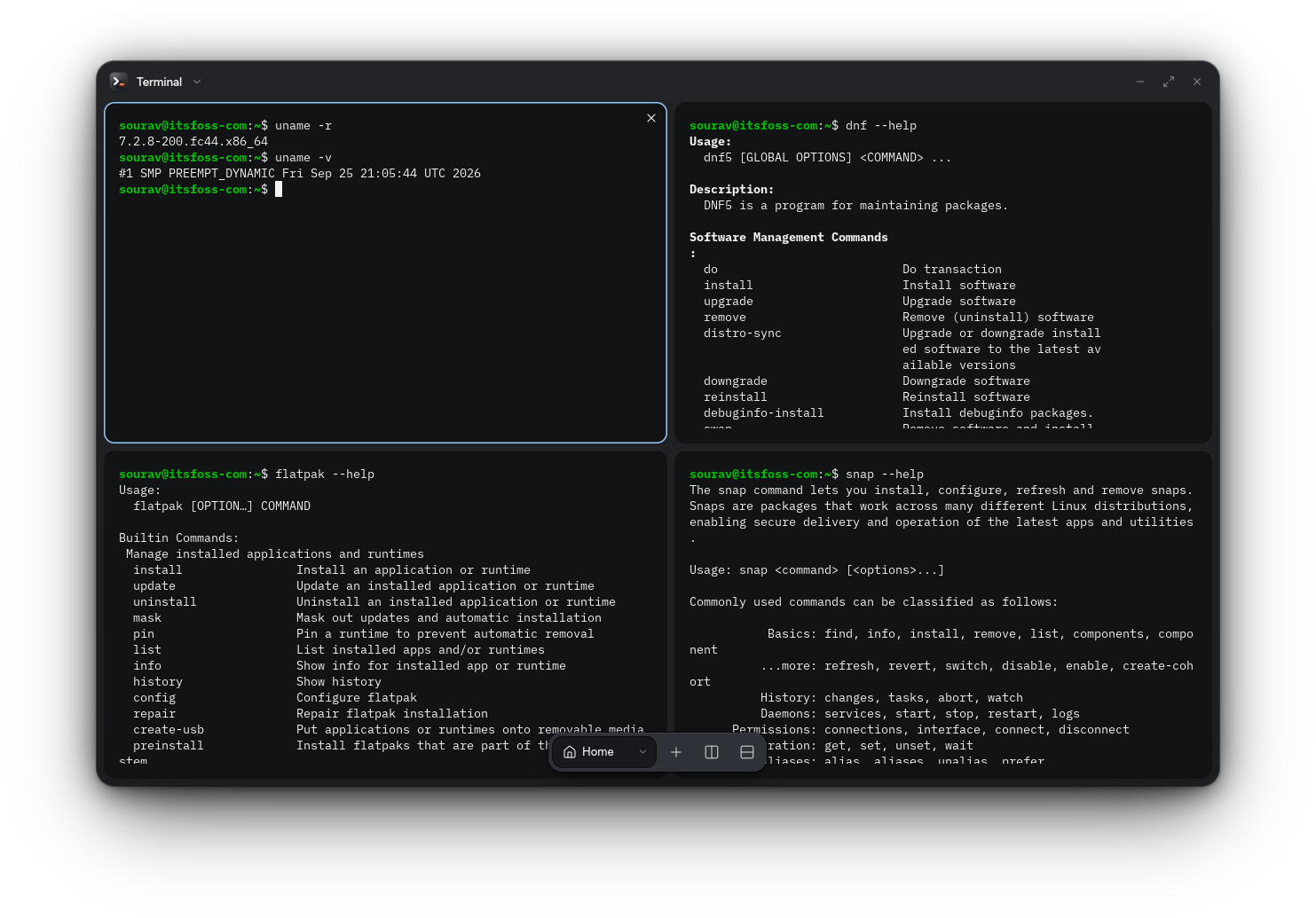
Package support is covered too. I installed apps through DNF5, Flatpak, and Snap on the October 11 nightly, and all three worked.

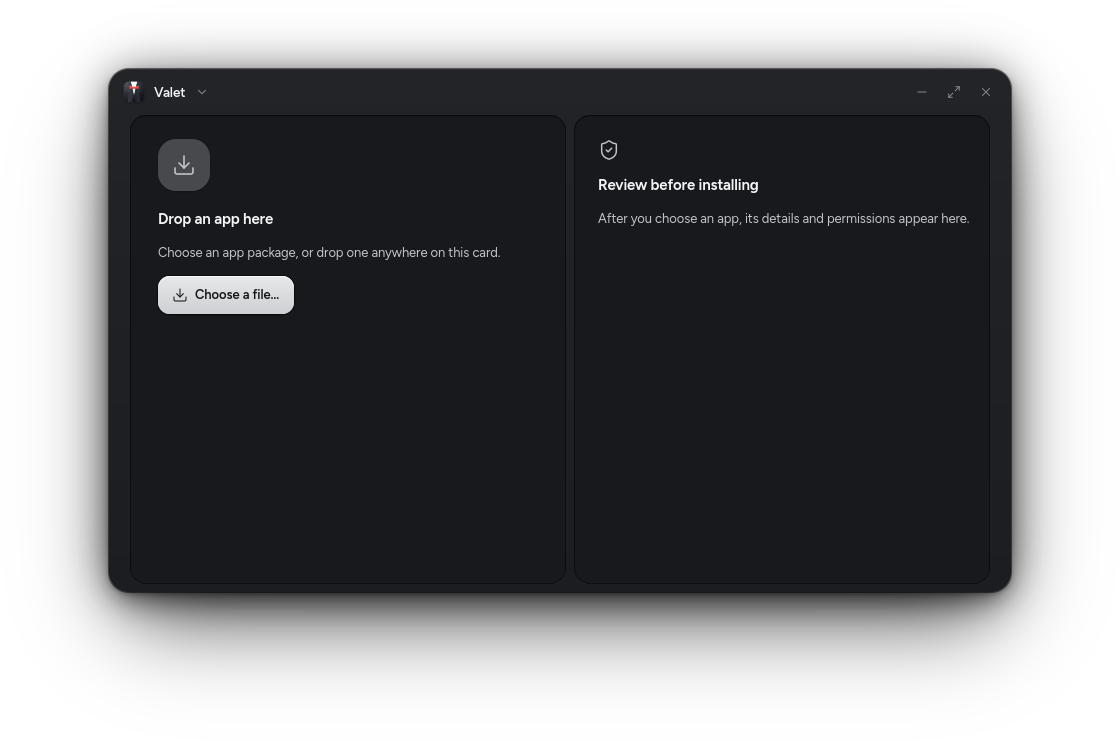
Valet takes care of AppImage, DEB, EXE, and APK files, which is how Windows and Android apps are meant to sit alongside native ones. It also tells you who made an app and what it can access before you install it.

Android support comes from an optional subsystem based on Waydroid, and compatibility varies by app. Luma is meant to be one system across desktop, tablet, and phone, so apps adjust their layout and controls to the screen size and to touch or mouse input.

There's also the optional Luma Connect app that handles sync for apps, settings, and files across devices.

For Smartphones Too!

Luma also wants to be your smartphone's OS. The team names the Fairphone 6 and the Google Pixel 9 family as its targets and says it plans to support more phones and tablets.

With what I can see from the screenshots they shared with us, the interface looks like it's on par with modern Android and iOS offerings, while sticking to a very measured approach for the colors and elements it employs.
The Luma folks are directing people to their hub's bounty board to vote for the devices they want and pledge money towards getting them supported.

Test it Now

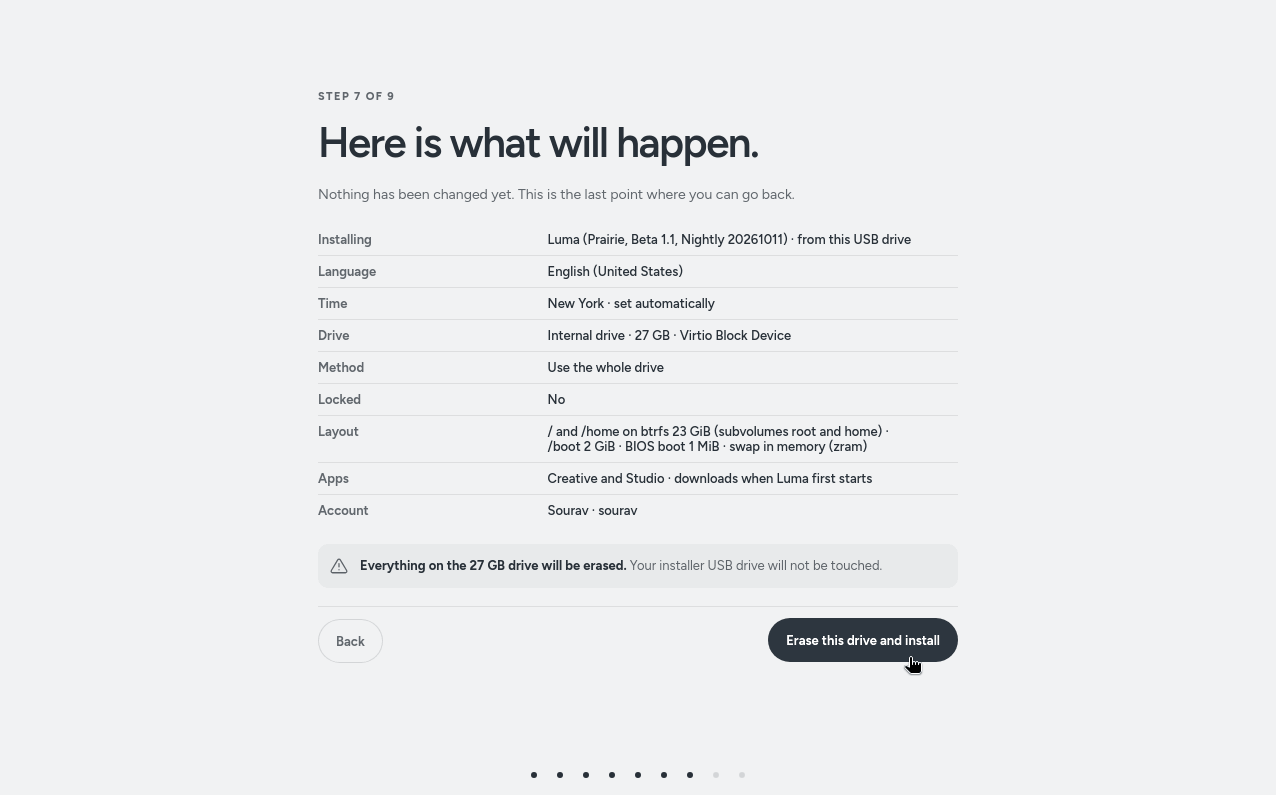
the luma installer
Luma's clean installation experience.

Luma's download page lists a single 7.2 GB x86_64 nightly ISO as the recommended way to try the distro out. It needs a 64-bit Intel or AMD processor with at least two cores running at 2 GHz or faster, 4 GB of RAM, and 40 GB of storage, with an SSD preferred.

An ARM64 build is yet to make an appearance here, so people on that platform will have to wait a bit. Similarly, creative apps like Grid, Stage, Reel, Sessions, and Canvas are also set for a later arrival.

BentoPDF Handles PDFs Locally, So You Don’t Have to Upload Them to Websites

bentopdff banner with laptop and toolbox

There are plenty of online PDF tools that let you edit documents without installing anything on your computer. You just open a website, upload your file, make the changes, and download the edited document.

But there is a catch. You are handing your files over to a third-party service, and you may not always know how it handles your data. Some services may have questionable privacy practices, while others are outright malicious.
In fact, the FBI has warned people about fraudulent online file converters that steal sensitive information and spread malware in the past.
These tools scrape uploaded files for personal details, banking information, email addresses, and passwords, making them particularly risky when dealing with confidential work documents that should've never left an organization's secure environment.

BentoPDF is an open source alternative that advertises itself as a privacy-first tool that processes files directly in your browser instead of uploading them to a server, helping avoid some of the aforementioned privacy risks associated with online PDF tools.
BentoPDF: For Your PDF Needs

homepage ss here

Created by Alam, a developer out of India, BentoPDF traces its origins to an internal tool that was being used for merging and splitting PDFs. Soon after its creation, the lead dev decided to share his work with the world via Reddit, and a few weeks later the code was live on GitHub.

BentoPDF uses WebAssembly, which lets heavy programs run right inside your browser. Its OCR tool, for instance, runs on Tesseract.js, a port of the Tesseract OCR engine. That way, the processing happens on your computer, and nothing is uploaded to a server.

πŸš€
You don't need to sign up for an account, and there's no web tracking either!

The project is dual-licensed, where the code is provided under the AGPL-3.0, making it free to use and open for anyone looking to fork it. A separate commercial license is available for closed-source use and costs $79 as a one-time purchase.

Alam also publishes two other open source projects, Hyper Compress and Kura. The first is a PDF compression engine, while the latter converts PDFs to standards like PDF/A and PDF/UA.

Anyhow, coming back to the PDF editor, I took it for a test run on Vivaldi, a Chromium-based browser, covering a few tools to see how it holds up in everyday use.

Editing PDFs

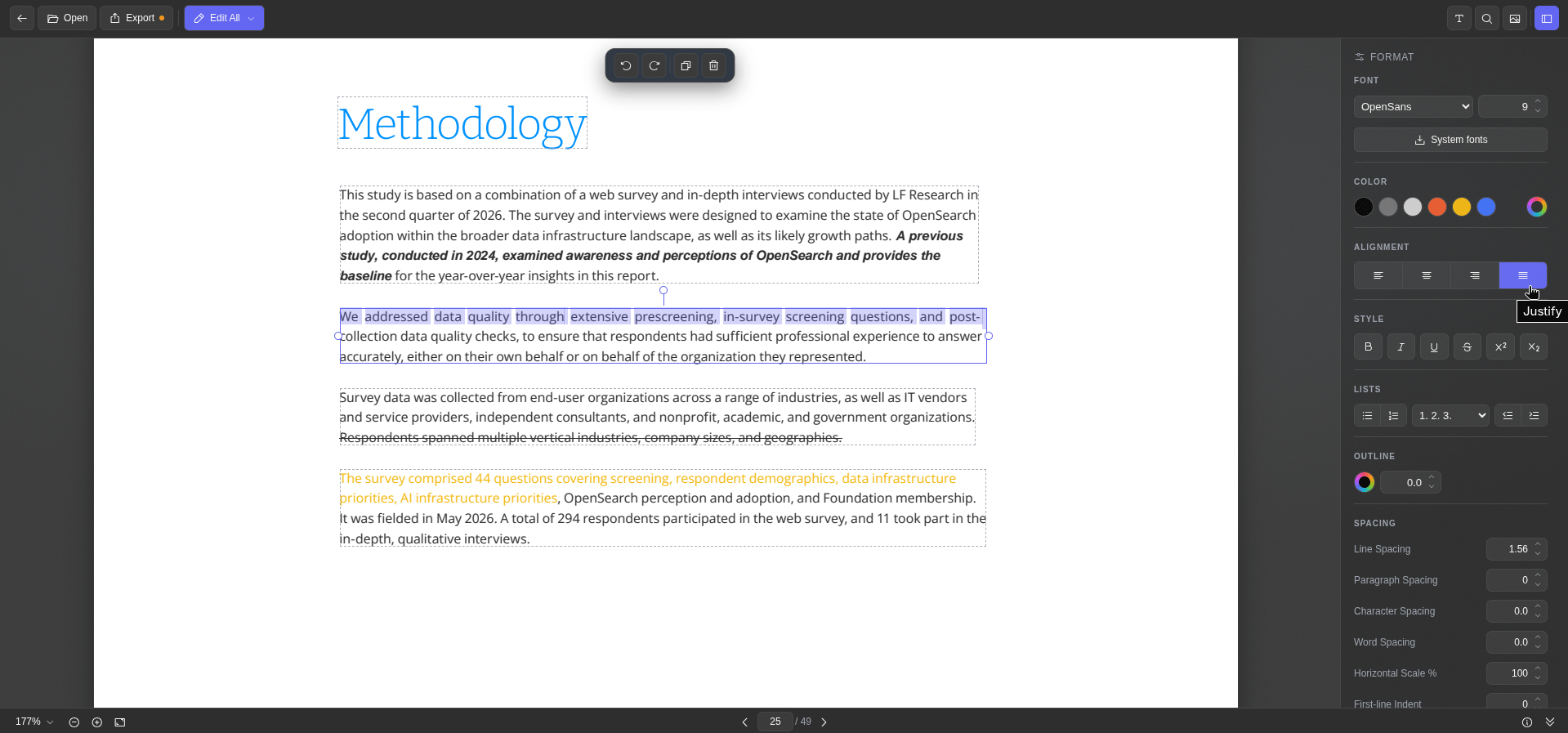
bentopdf text editing

The Edit PDF Text tool shows each block of text in the document with a dashed outline, and picking one brings up the formatting sidebar, which houses the usual editing controls.

It has buttons for tweaking the font, size, colors, alignment, and character spacing, along with bold, italic, underline, and strikethrough formatting.

I could also make it fetch all the fonts installed on my Linux system using the System fonts button, and the info button at the bottom was useful for glancing over the metadata of a document.

Once done editing, exporting the file is only a matter of clicking the "Export" button.

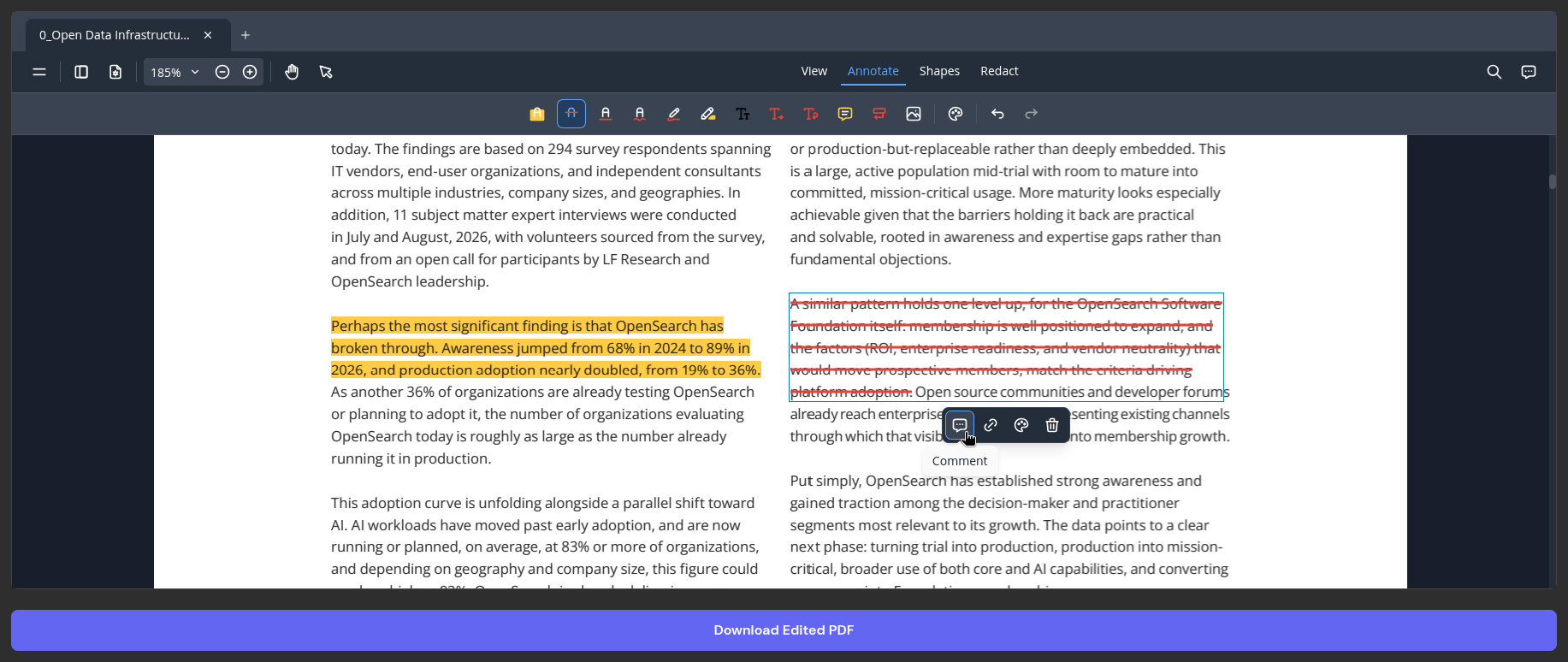
The PDF Editor is mainly meant for annotation work, with tools for highlighting, strikethrough, ink, text insertion, and comments. You pick the relevant tool and drag your cursor over a piece of text to apply it.

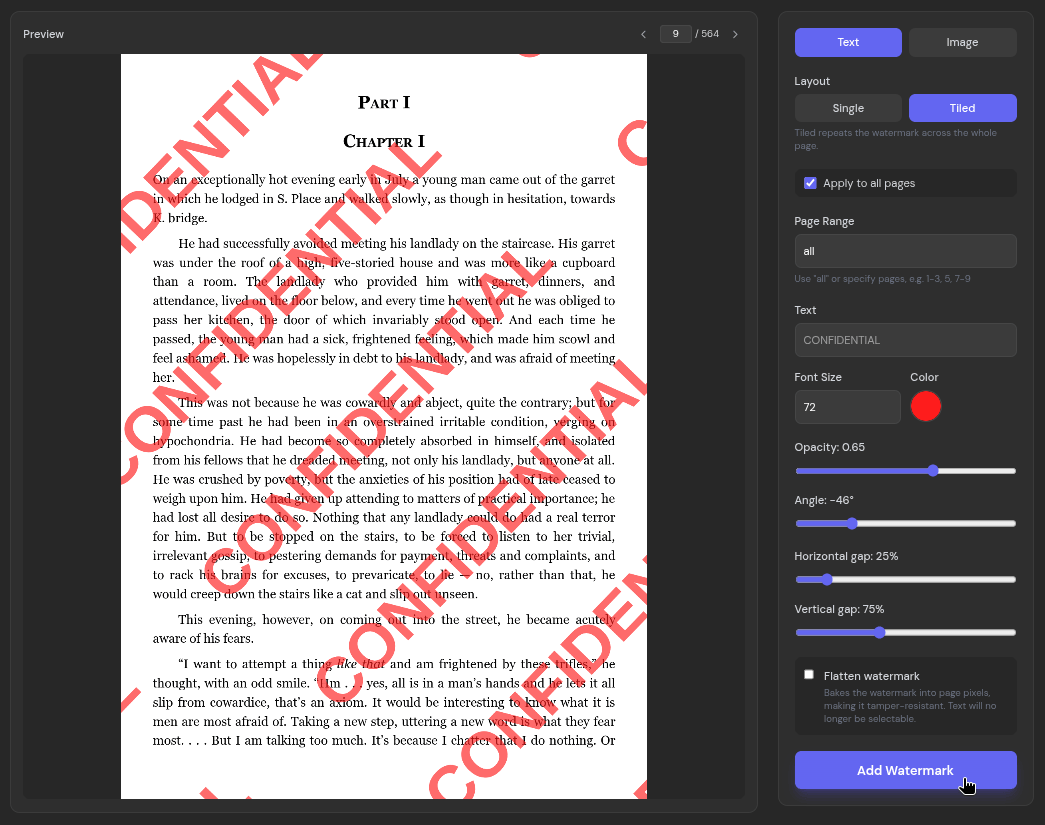
Adding watermarks to documents is also possible via the Add Watermark tool, which should come in handy for protecting your work or marking a document as sensitive. It offers a lot of flexibility, letting you choose between a text or image type watermark, a single or tiled layout, and granular controls for the pages, text, and visibility.

Common keyboard shortcuts like the ones for copy (Ctrl+C), paste (Ctrl+V), undo (Ctrl+Z), and redo (Ctrl+Y) also work well here.

Easy OCRs

Sometimes a PDF is nothing more than a set of page images, like a scanned report or a document full of charts. You cannot search through it or copy anything out of it because there is no text for your PDF viewer to find.

The solution to that problem is to run OCR on it, which converts the pages into machine-readable text.

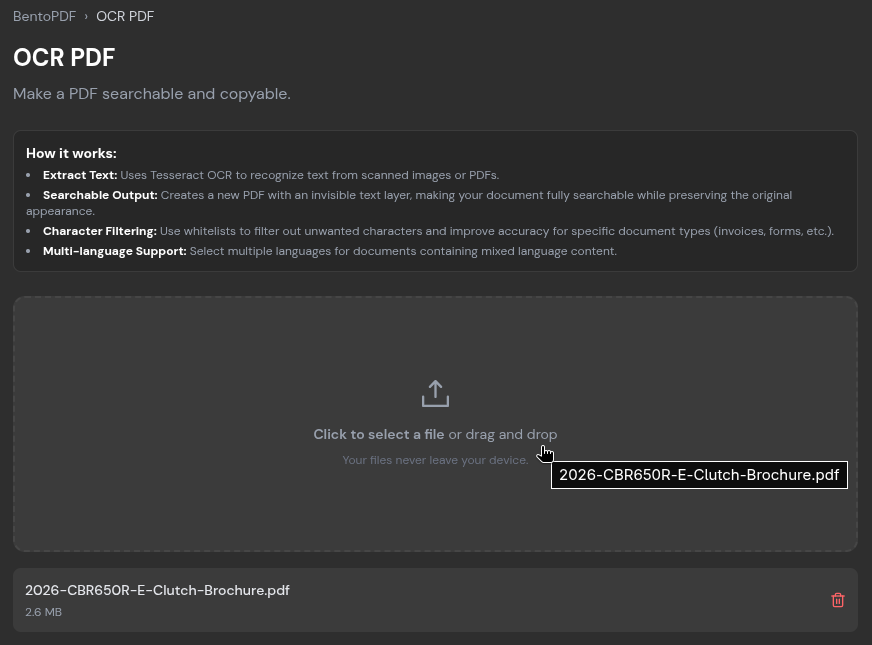
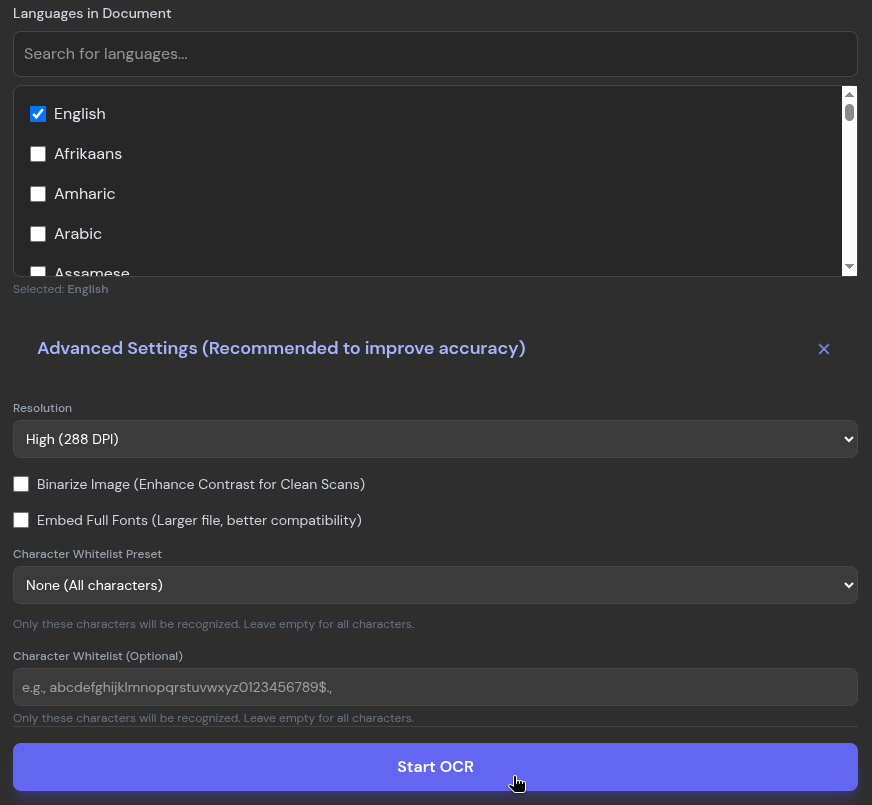
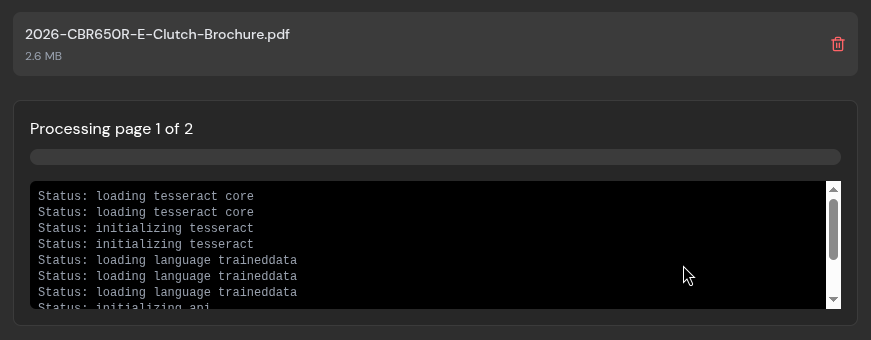
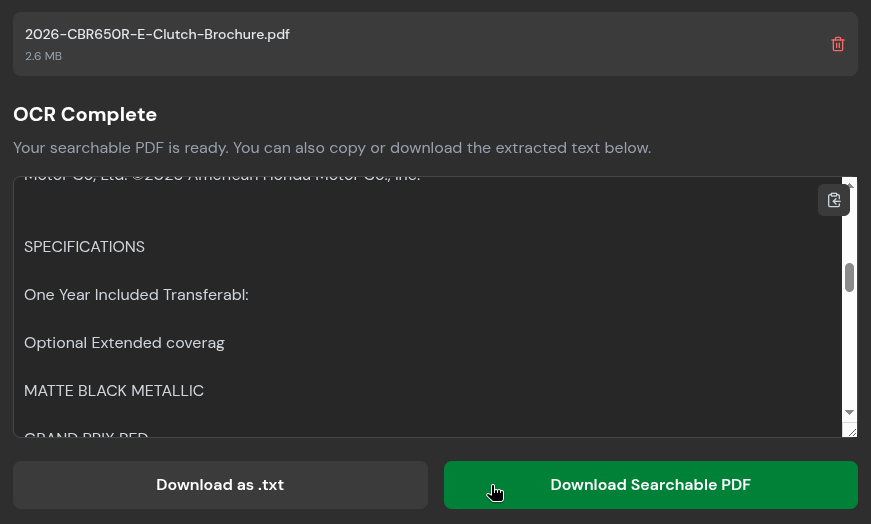
OCR PDF handles this in BentoPDF by letting you upload a file, select the relevant language(s) found in the document, and start the process. During my test, I used a two-page brochure for a motorcycle I like to window shop for and left the advanced settings untouched.

It took a while to process the pages, but the output was mostly accurate. Only the very small, lossy text at the bottom of the document tripped it up. I could copy everything to the clipboard or export it as a .txt or searchable PDF file.

File Conversions

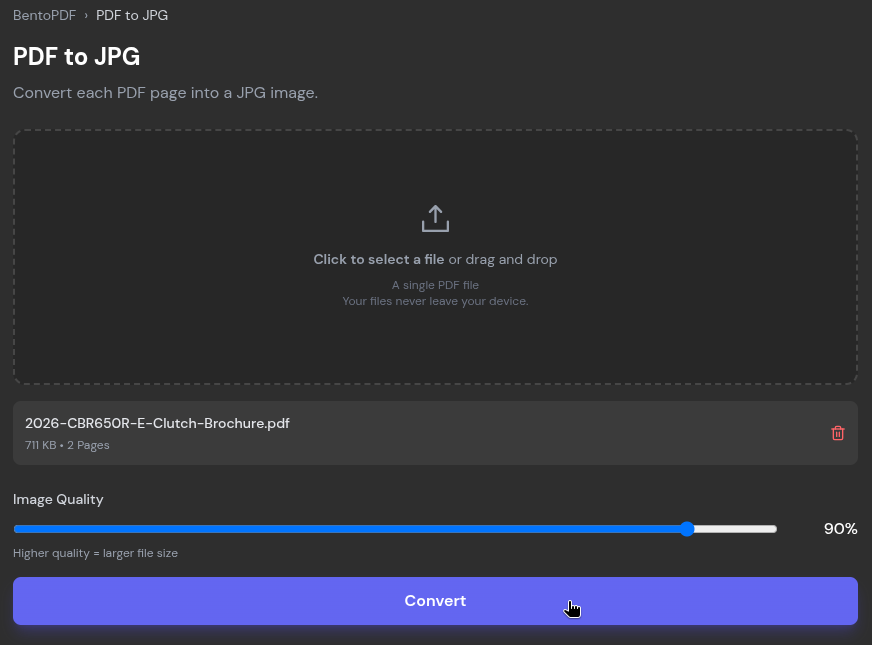
BentoPDF has a range of file conversion tools available, and I tested out two of them. PDF to JPG converts each page of a PDF into a JPG image, and using it is quite simple. You upload a PDF file, set the image quality with a slider (the pre-set value is 90%), and click "Convert."

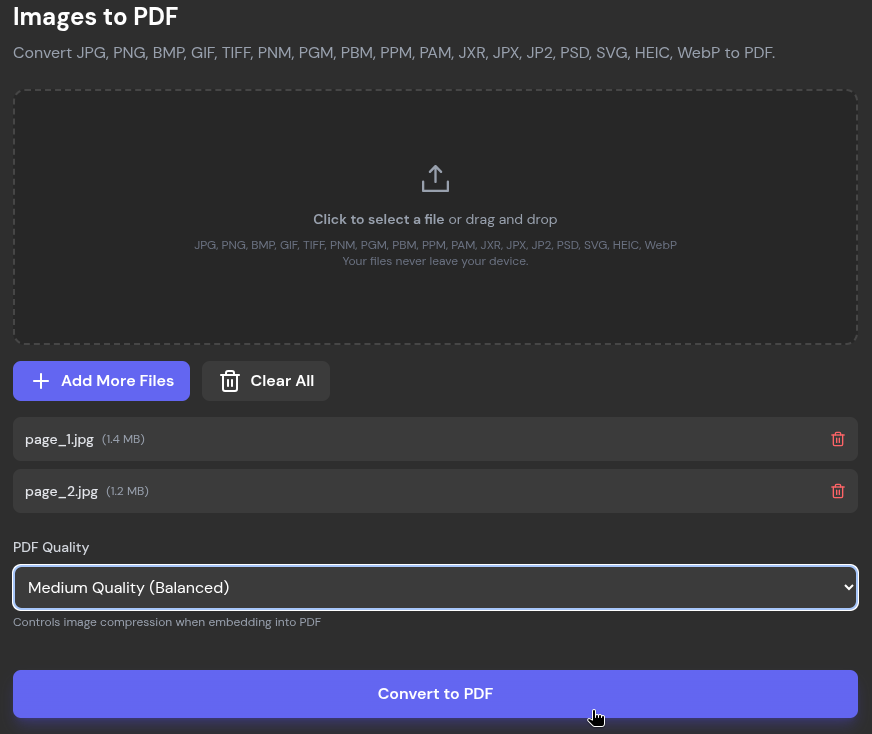
Images to PDF does the reverse, and it accepts an array of formats beyond JPG, including PNG, BMP, HEIC, and PSD.

There are plenty more conversion tools on offer, covering formats like ODP, CSV, EPUB, JSON, WebP, and Markdown, among others.

Quick Compressions

Usually, when handling PDF files that need to be sent via email, its file size matters a lot. Popular email services like Gmail, Proton Mail, Outlook.com, and Yahoo Mail cap attachments at around 20 to 25 MB.

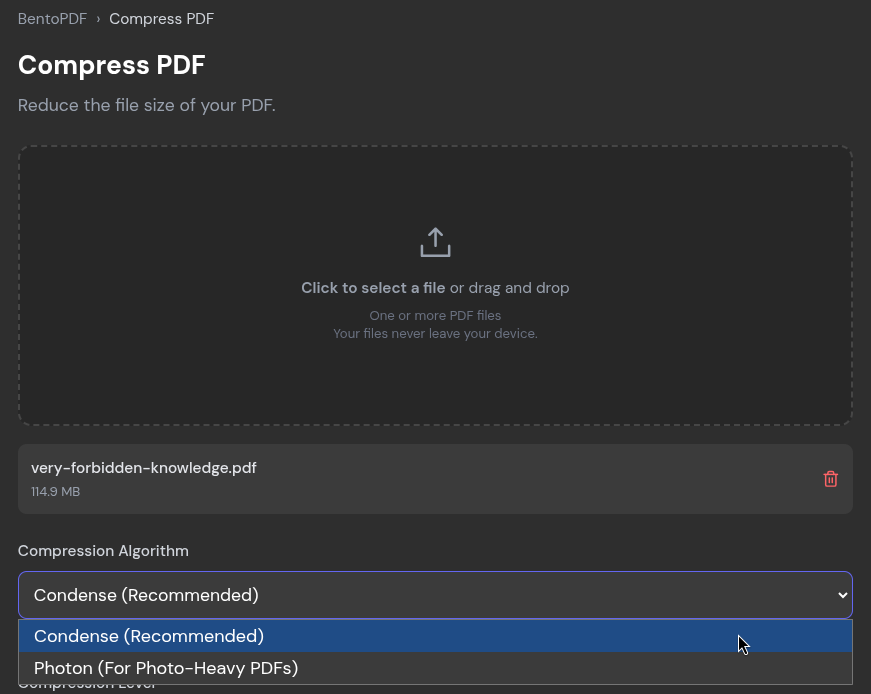
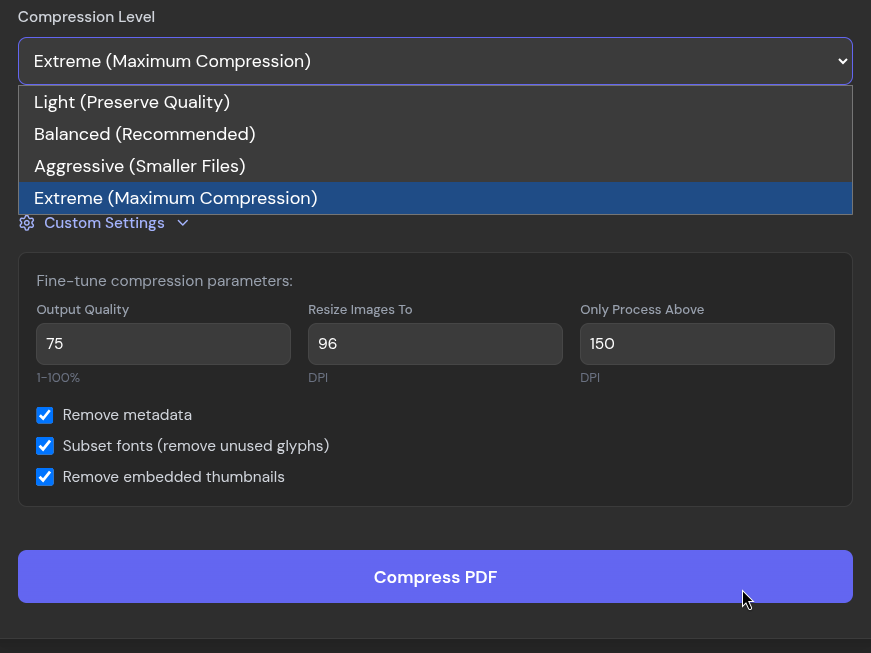
To tackle that, the Compress PDF tool offers two algorithms, "Condense", which is the recommended one, and "Photon," that's tailored for photo-heavy PDFs. Alongside them are four compression levels that run from "Light" to "Extreme.".

For checking it out, I stuck with Condense and only changed the compression level, going with Extreme to see how small the file could could get.

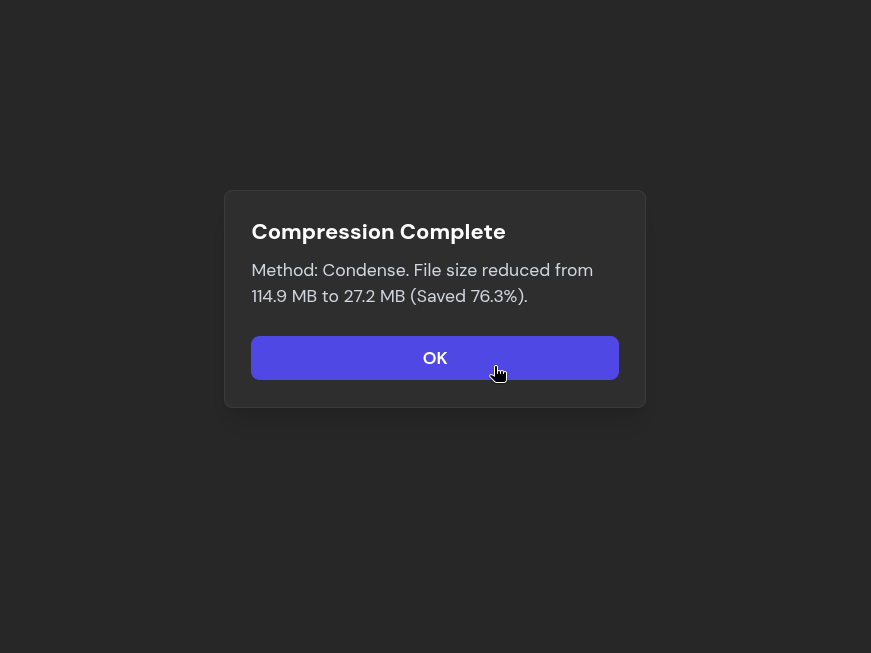
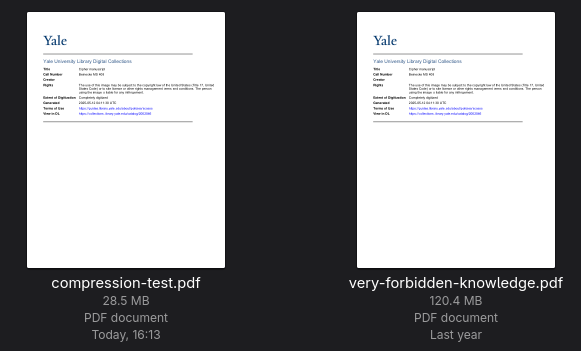
It took quite a while to process, but BentoPDF brought my 120.4 MB PDF down to 28.5 MB, a 76.3% reduction. That is still a little over the usual email limits, but for a 214-page document, it's a good result.

The text and images stayed very readable too, and I only noticed the loss in quality when I zoomed into the images.

Start Editing

There's a lot more BentoPDF has to offer than what I have covered above. Just scroll down on the homepage to see its full list of 100+ PDF tools. There are some security-focused ones that I am sure many of you will like.

If you are looking for the source code, then you should visit the project's GitHub repository, which also contains details on the tech stack that powers BentoPDF.

Vinix is Not a Linux Distro, But it Can Run Games, Docker, and QEMU

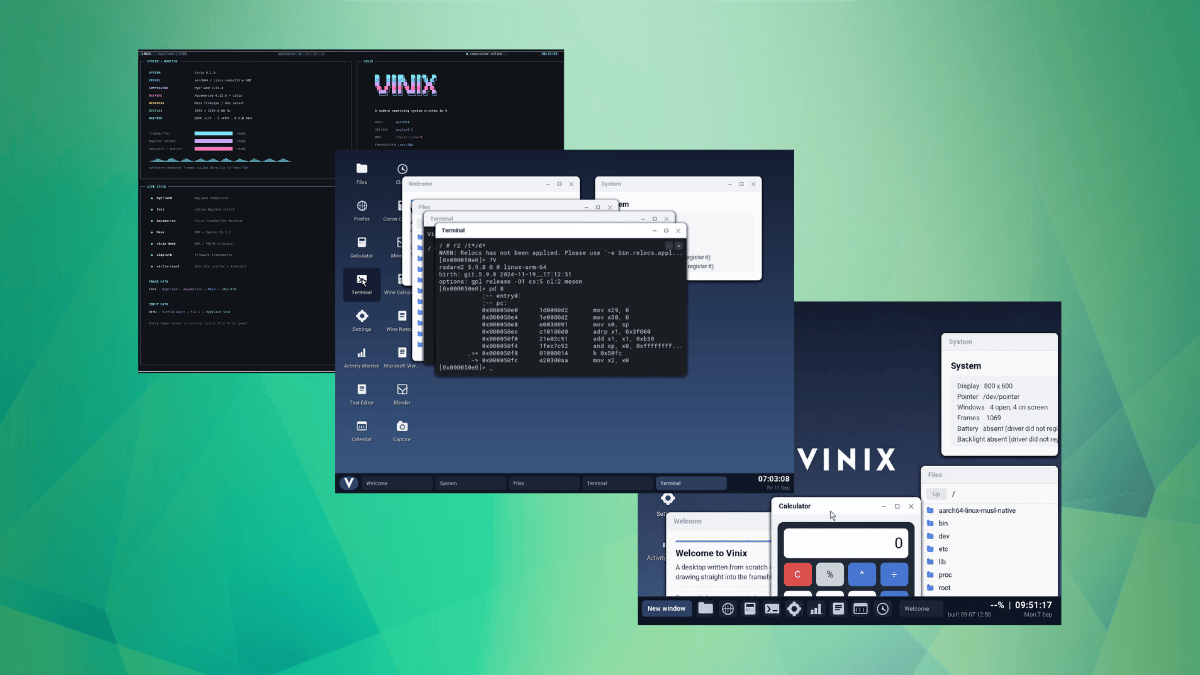
vinix 3-picture banner

How does an operating system that isn't proprietary or powered by the Linux kernel manage to run Docker, you ask? Well, it would need features like namespaces and cgroups.

That's exactly what Vinix did, adding its own implementations of those plus overlayfs and seccomp, allowing the stock Alpine Linux Docker engine to run on ARM64.

It also runs QEMU 9.1.2, which can boot a second Vinix inside a window of the first, and for gaming, it can run DOOM, a DOOM 3 demo, Gothic II's demo via OpenGothic, and Minecraft Java Edition.

There are still some limitations.

For instance, the Docker support lacks bridge networking and iptables rules, and QEMU runs on software emulation for now. Minecraft runs in interpreter mode on one CPU core, and DOOM 3 manages about 13 FPS under software rendering.

🚧
This is early-stage software that is not meant to be used daily or in production environments.

Yet another OS?

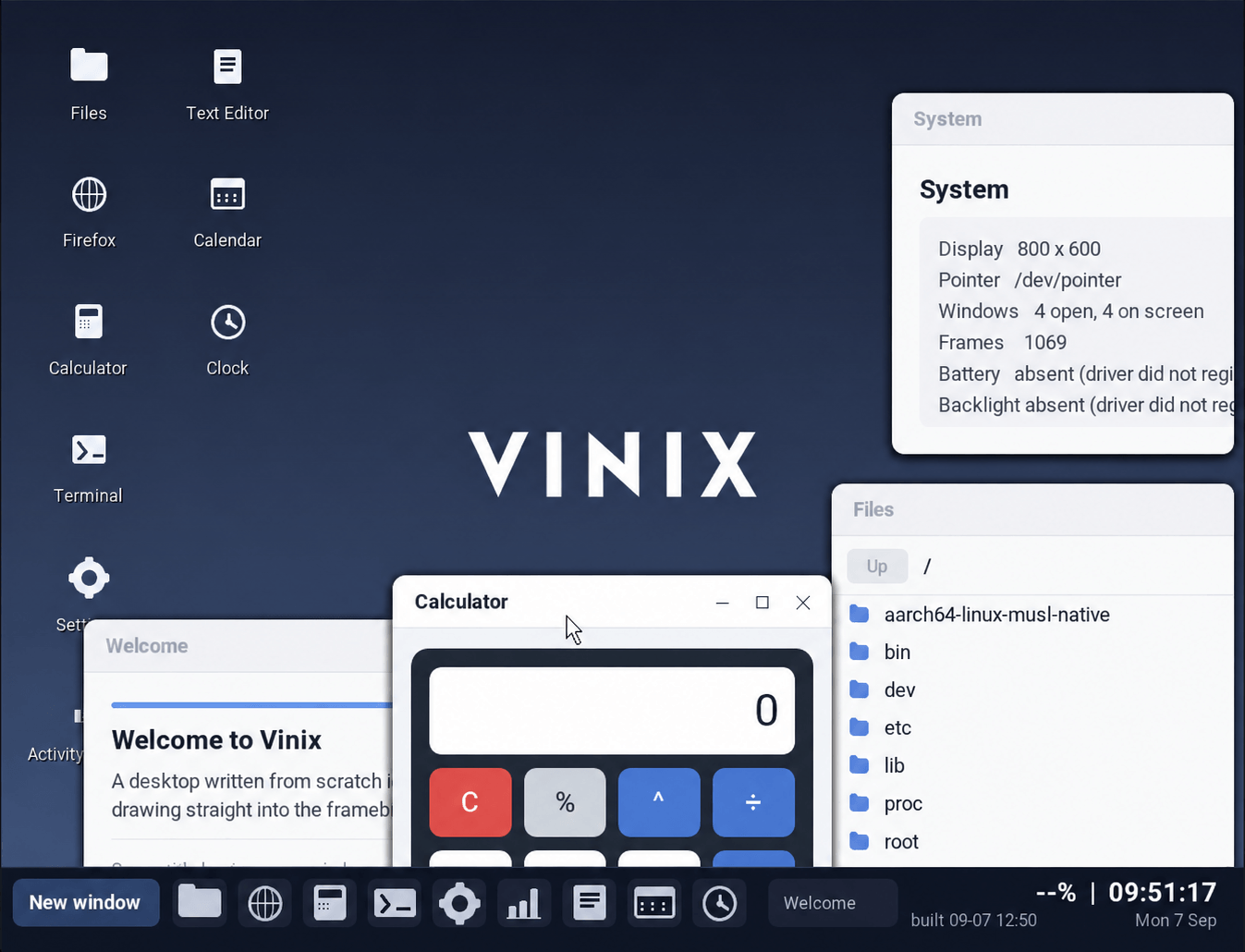
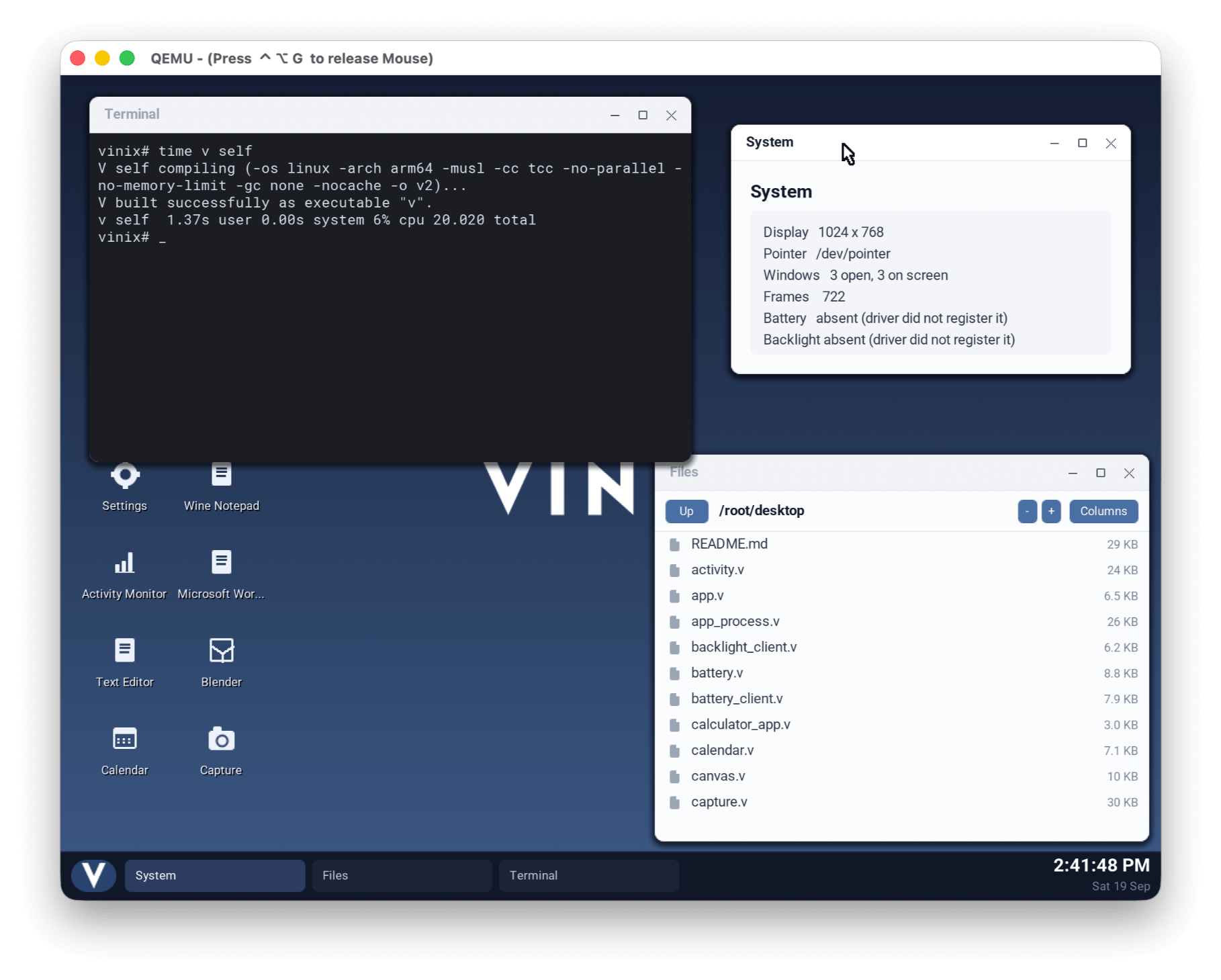
vinix desktop view

Vinix exists to give MacBooks a fast, minimal, open source OS, with the project's motivation being tied to macOS getting slower and bloated with every passing release. They are initially targeting Apple Silicon devices to eventually cover the whole M-series lineup, though only the M1 is supported right now.

While Linux users have little reason to switch to it, Vinix aims for a setup without systemd and a kernel small enough for one person to read through.

Beyond that, nothing runs in the background unless you start it, and the system sticks to a single init system, desktop, package manager, and binary format. The kernel handles memory manually instead of using a garbage collector, so a cleanup pass can't interrupt a system call or the compositor.

All of it runs on a V programming language foundation, which was picked for its fast compiles and small, readable design. The project doubles as a testbed for bare metal programming in V too!

The security model of the OS is modeled after OpenBSD, with pledge and unveil available, though apps must opt in, and user memory can't be both writable and executable by default. Verifying the bootloader, kernel, and root filesystem isn't supported yet.

It runs Linux apps

At its core, Vinix is a monolithic kernel booted through Limine, with its drivers built into the image. Most of it is V, alongside some C and assembly.

It features a native desktop built with V UI2 that renders through the framebuffer, with X.org and Hyprland sessions as options on ARM64. The developers claim that the OS takes up 50 MB of RAM after boot and roughly 1 GB of disk once installed.

Alpine Linux, the distro behind that Docker engine from earlier, is lightweight and security-focused, and it's built around musl and BusyBox. Vinix targets its aarch64 packages.

Thanks to that, Vinix is able to run Linux apps because it answers the system calls they make, plus the ELF format and musl behavior they rely on, and those binaries run natively, without a VM or an emulator.

New applications can be installed with pkg, a command-line tool that pulls packages from Alpine's aarch64 repositories. Apps like Chromium, GIMP, Sublime Text, and Gnumeric are known to work, as is Wine, the widely adopted compatibility layer.

The catch is that this is limited to ARM64 and selected packages. Software that relies on a Linux kernel feature Vinix doesn't have yet may not run properly.

Additionally, support for the M3, M4, and M5 is coming soon, while GPU drivers are still a work in progress.

Who's behind it?

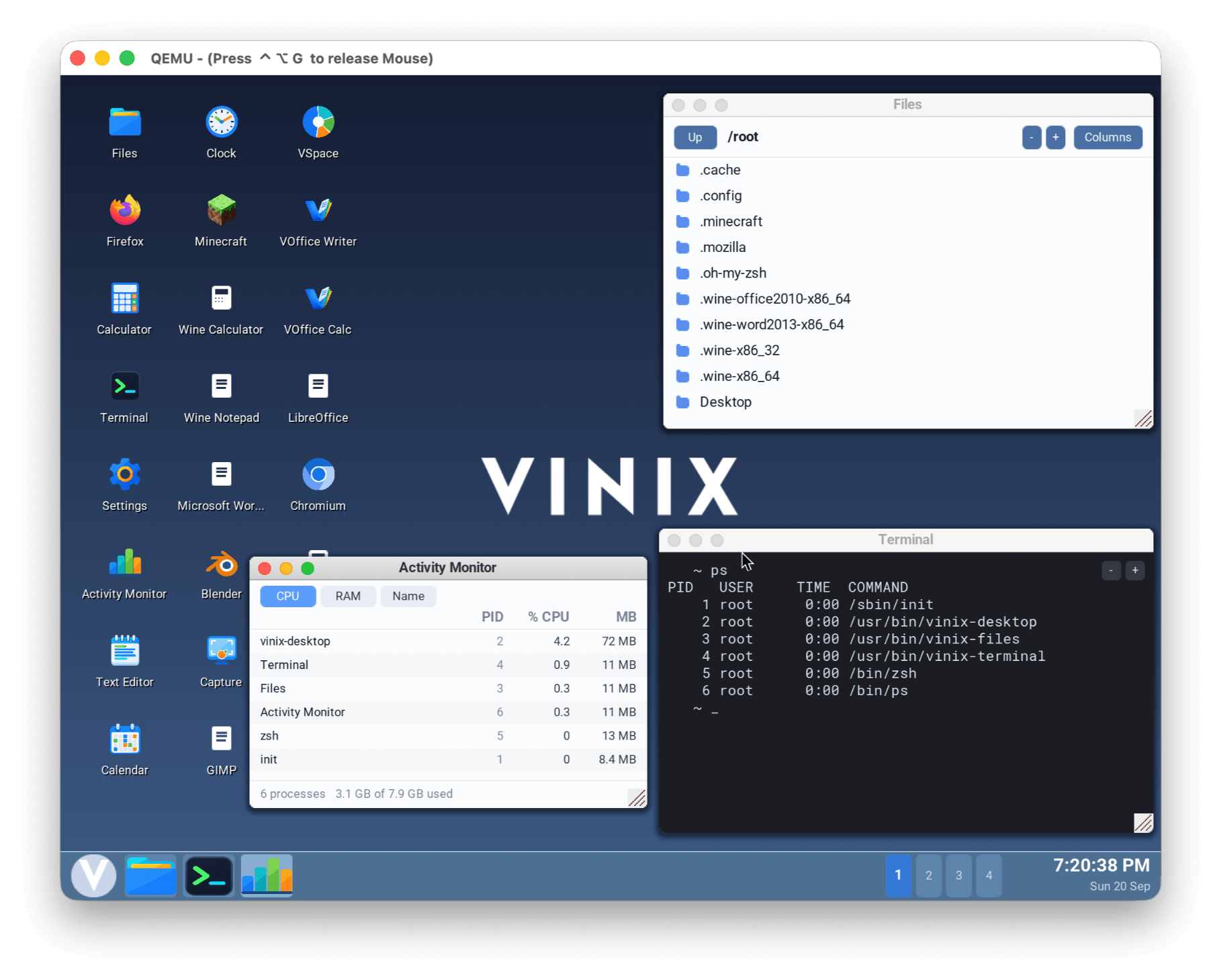
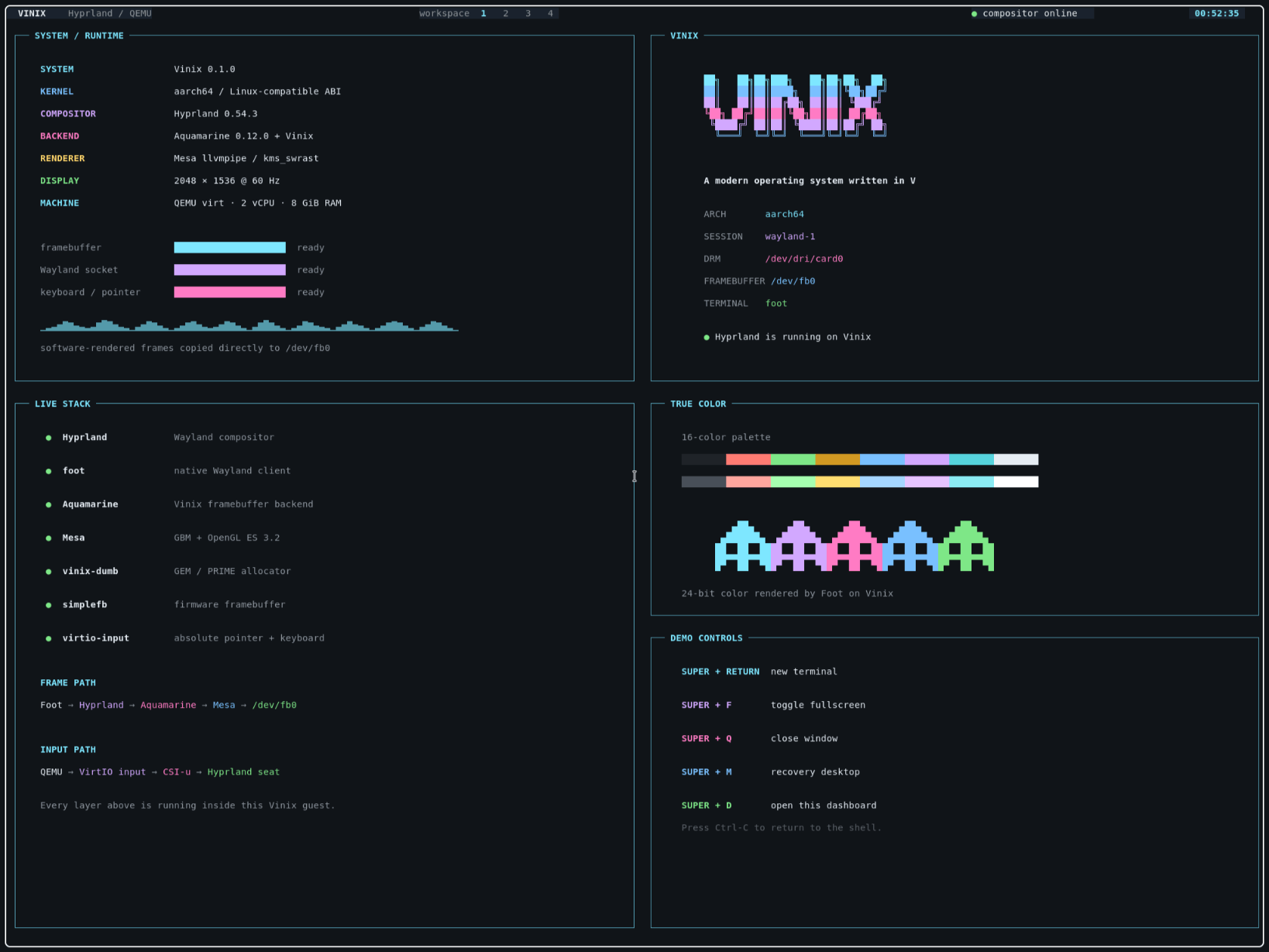
hyprland demo of vinix
The Hyprland demo for Vinix.

Vinix's history spans many years, with the first commits on GitHub dating back to March 2021 and the original kernel core being the work of Mintsuki, the creator of Limine.

Development then paused for around two years before Alexander Medvednikov, the author of V, took over as maintainer.

Mintsuki's core covered the physical and virtual memory managers and the scheduler, but since the handover, Vinix has gained storage, networking, input, and graphics support, along with a Unix-style userspace and the Alpine compatibility we saw earlier.

Get Vinix

You will find that the official website offers a .dmg installer file for M1 Macs, whereas the project repository hosts two distinct ISOs, one for ARM64 (targeted at QEMU and VirtualBox on Apple Silicon Macs) and the other for x86_64 (targeted at Intel and AMD systems).

If you want to test it on a virtual machine, the requirements are quite modest. Vinix needs at least 4 GB of memory and 4 GB or more storage space. Building from source is also an option.

Firefox in a New Skin! Nova Redesign Has Become The Default

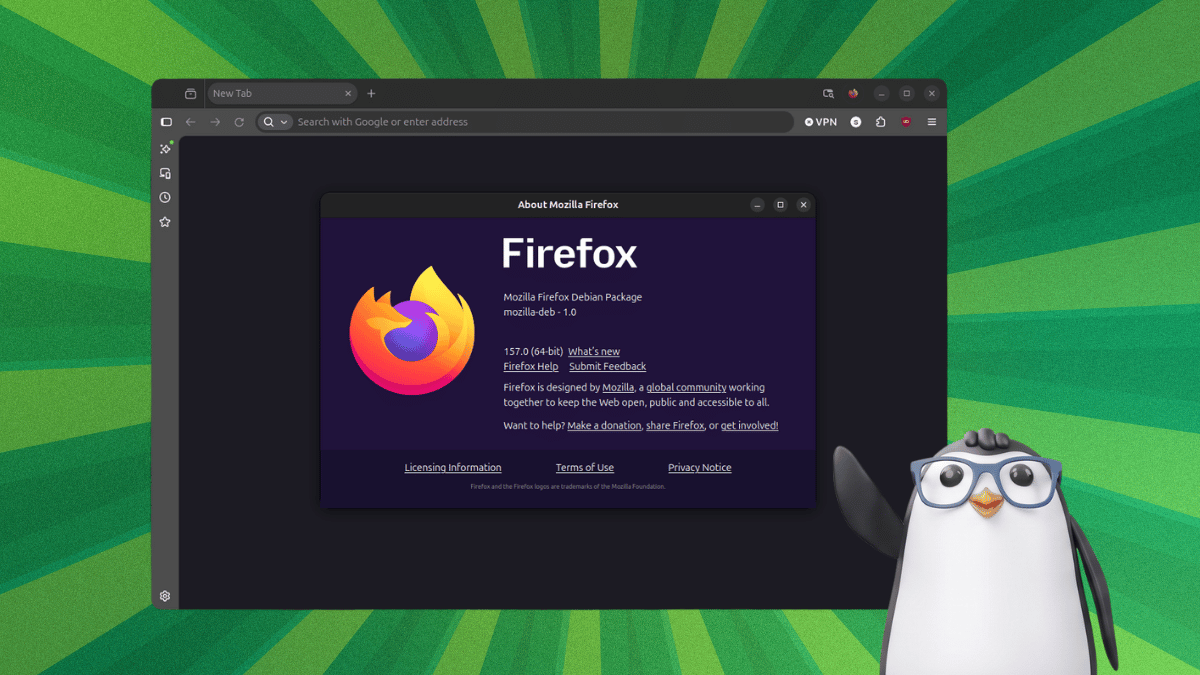
firefox nova redesign banner

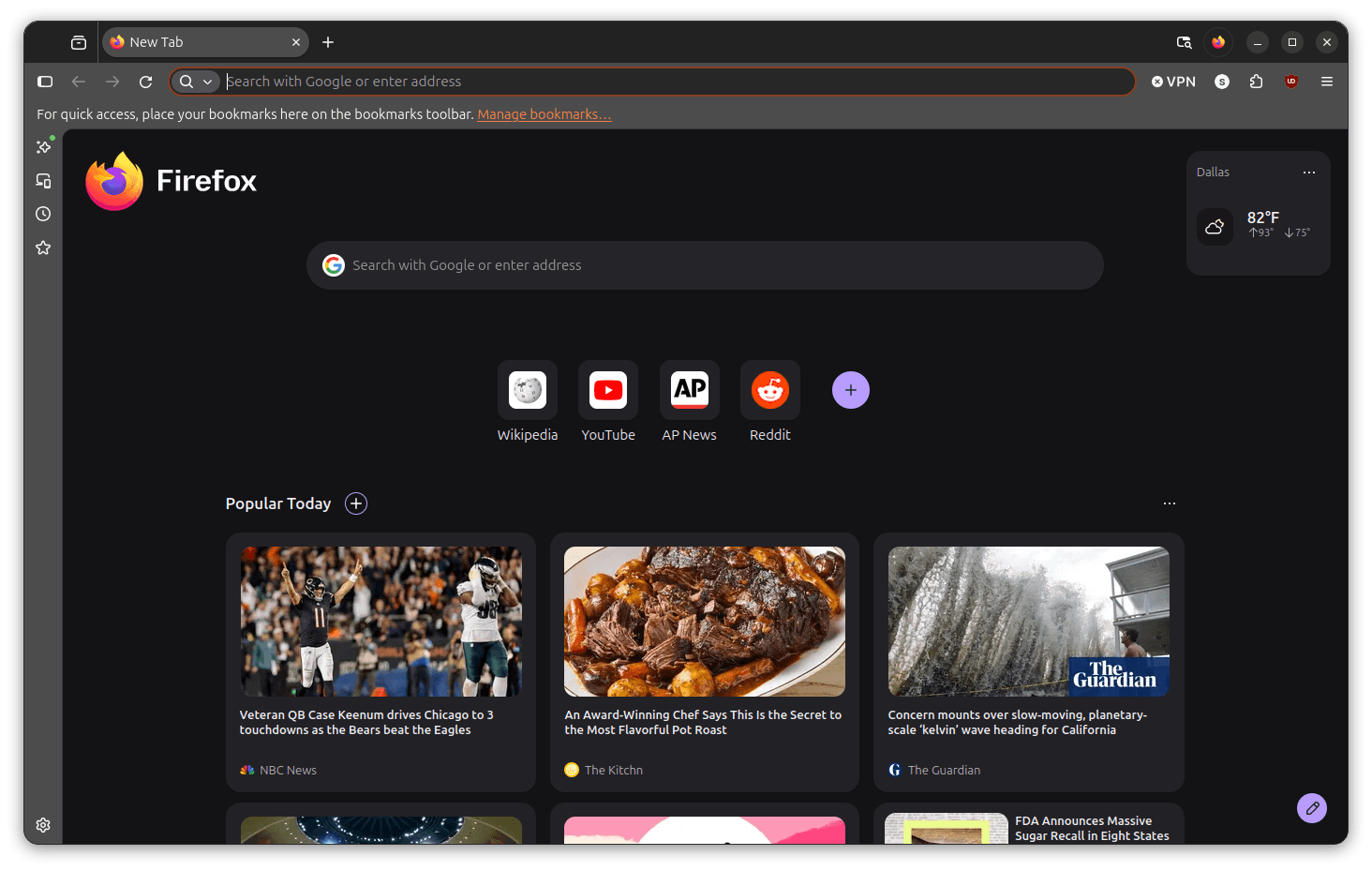
Firefox has a new look that brings it up to 2026 web browser standards, where having a clean, minimal user experience is a growing phenomenon.

Called "Nova," the redesign leaked before an official announcement was ever made, with Mozilla playing catch-up a few months later via a technical blog outlining how they were approaching this major transition.

That transition turned out to be more work than the mockups made it look.

Six months after the leak

When the internal design files were made public in March, the mockups looked unlike any Firefox build before it. The tab bar, toolbar, and address bar were pulled into a single floating island at the top, with a visible gap between them and the page below.

Web content got the same treatment in those designs, sitting inside a rounded container lifted away from the browser's edges rather than running along with them. But the thing is, neither idea made it into the final release.

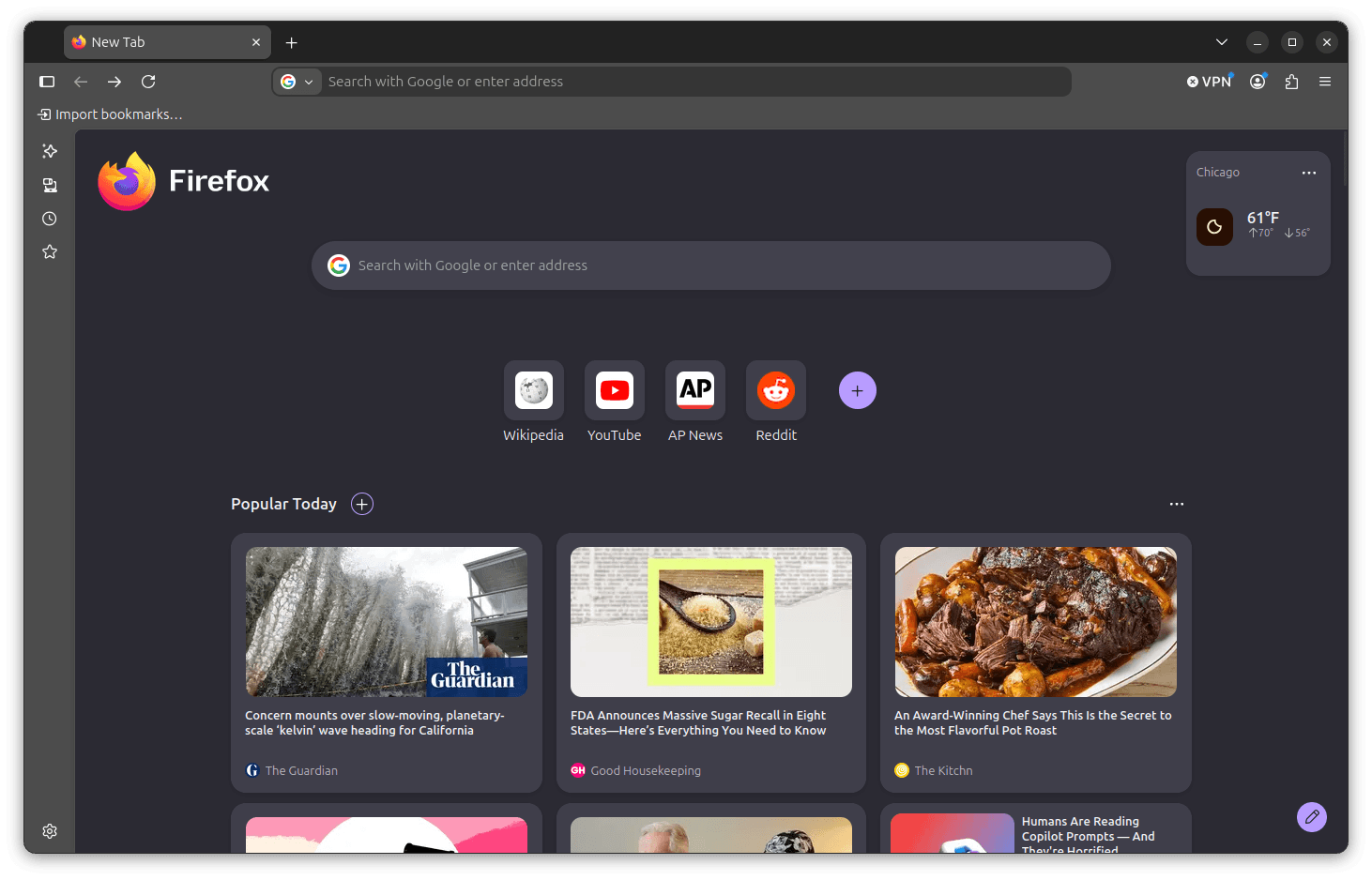
What we see in Firefox 157 is more refined. Tabs, menus, and the address bar are noticeably rounder, with a subtle gradient on the active tab that adds warmth to the interface.

Come, have a look

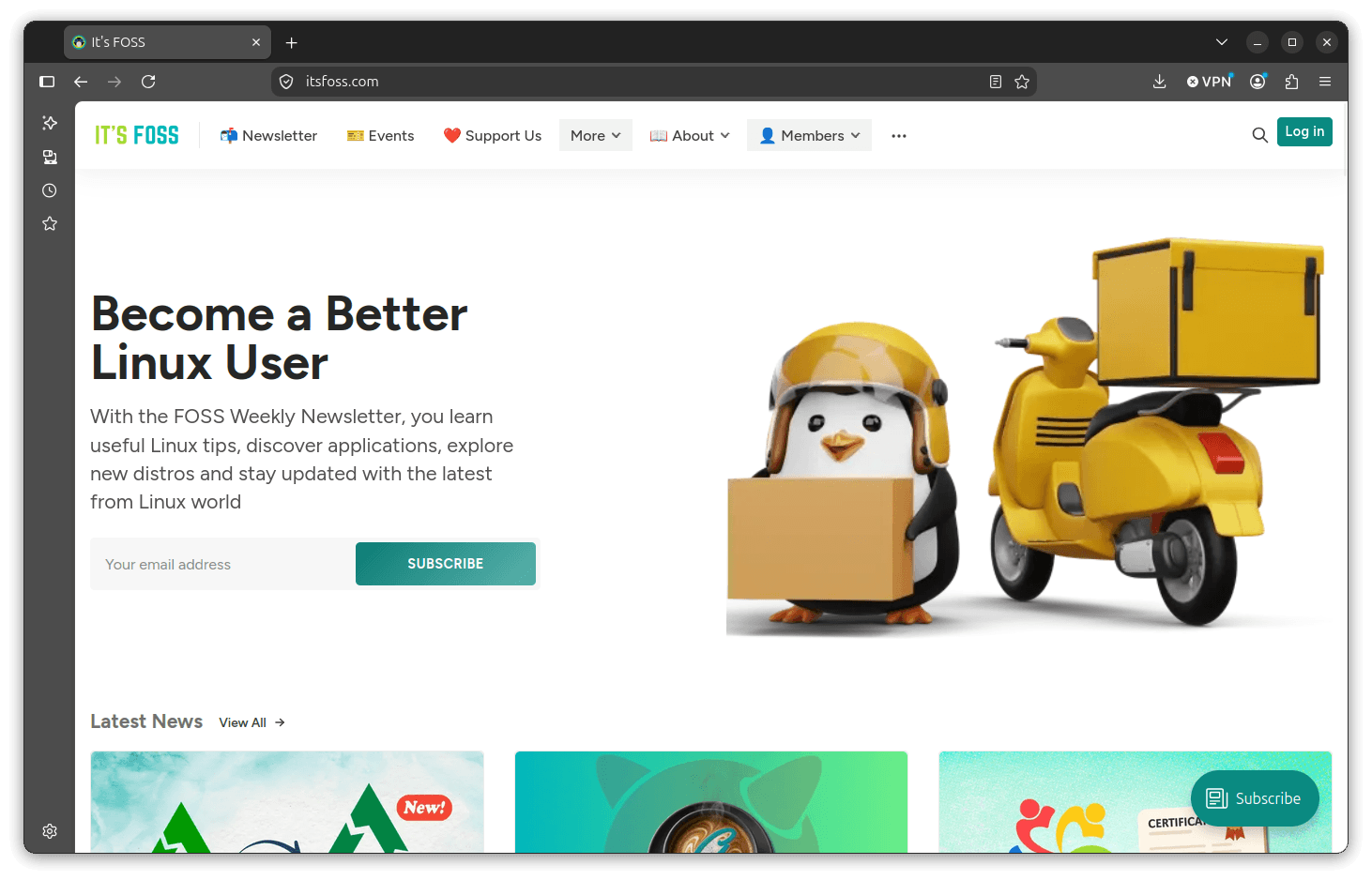
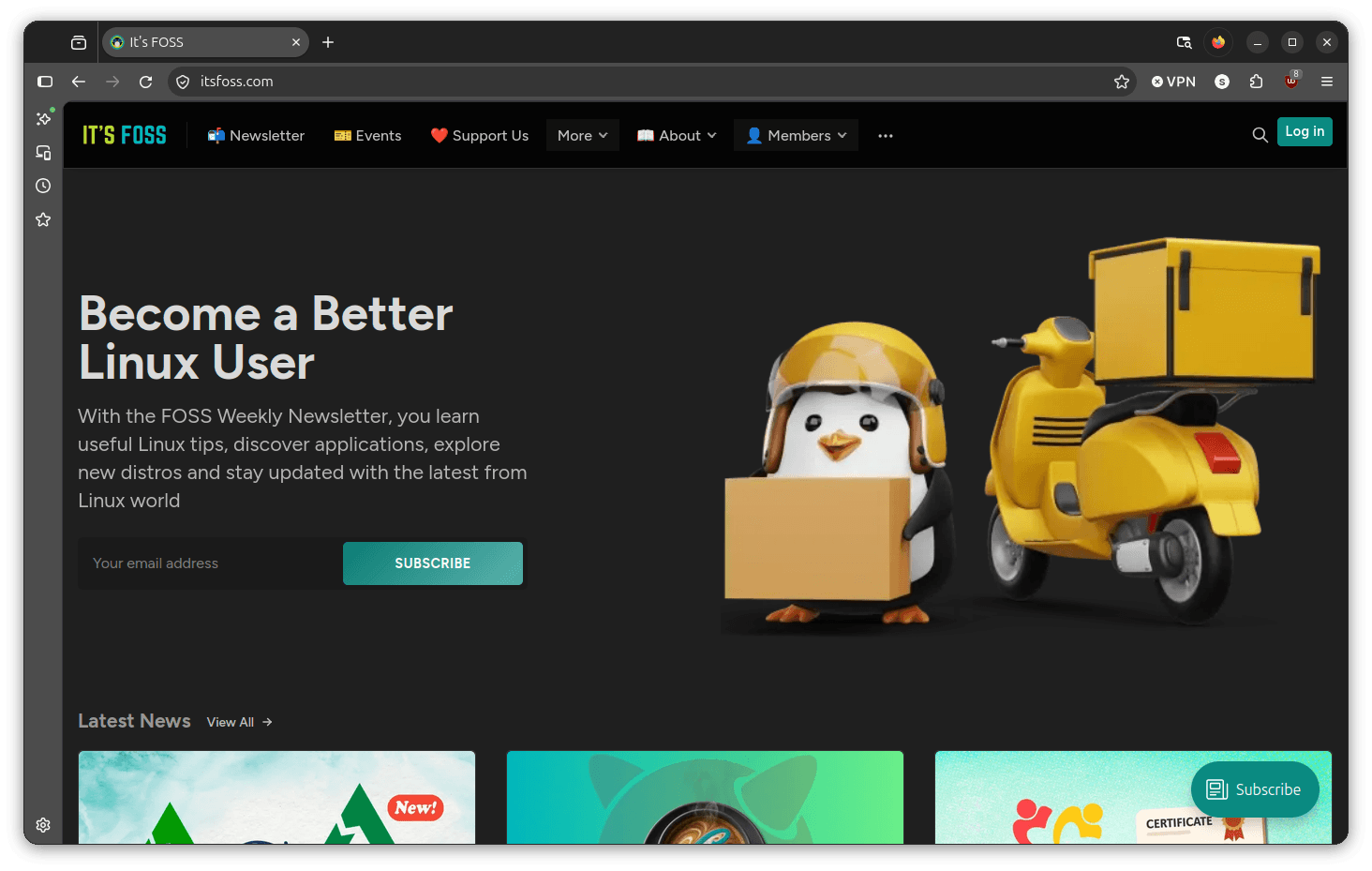
Firefox Nova is on the right.

I pitched Firefox 156 against 157 to see what changed, and I came out impressed.

Opening a new browser tab showed me where the most effort was put, with the tab bar being visibly rounder and the address bar corners being softer, giving the interface a very polished look.

Before this, I was already beginning to dislike the flat/bland look Firefox had; it bugged me whenever I would return from using another browser like Vivaldi or Chrome.

You see, both of them have already embraced a pill-shaped design philosophy that I quite like.

Loading up a website was more of the same, with the slimmer footprint of the interface leaving the webpage more real estate to use, and the toolbar has fewer dividing lines between its elements than before.

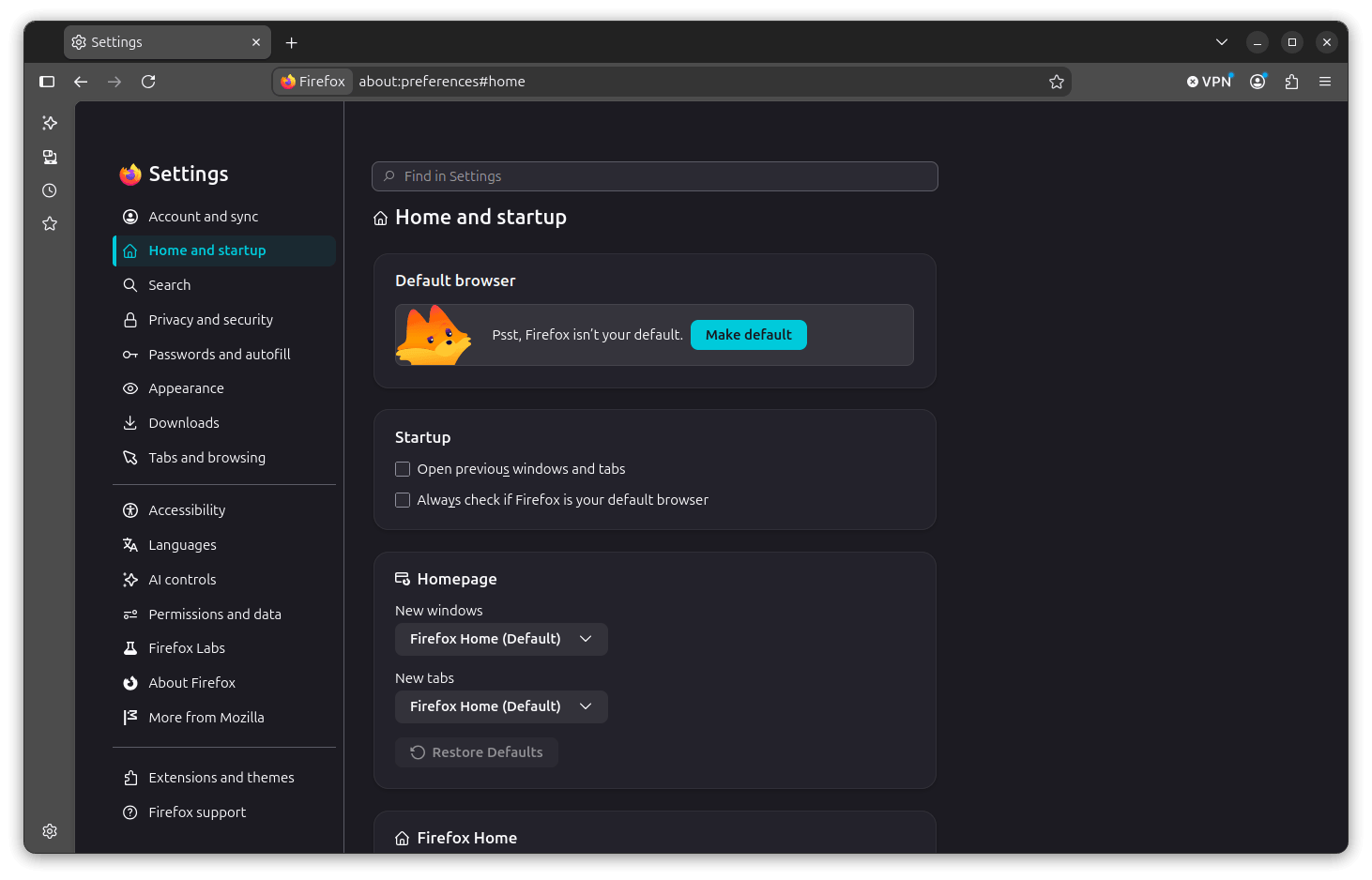
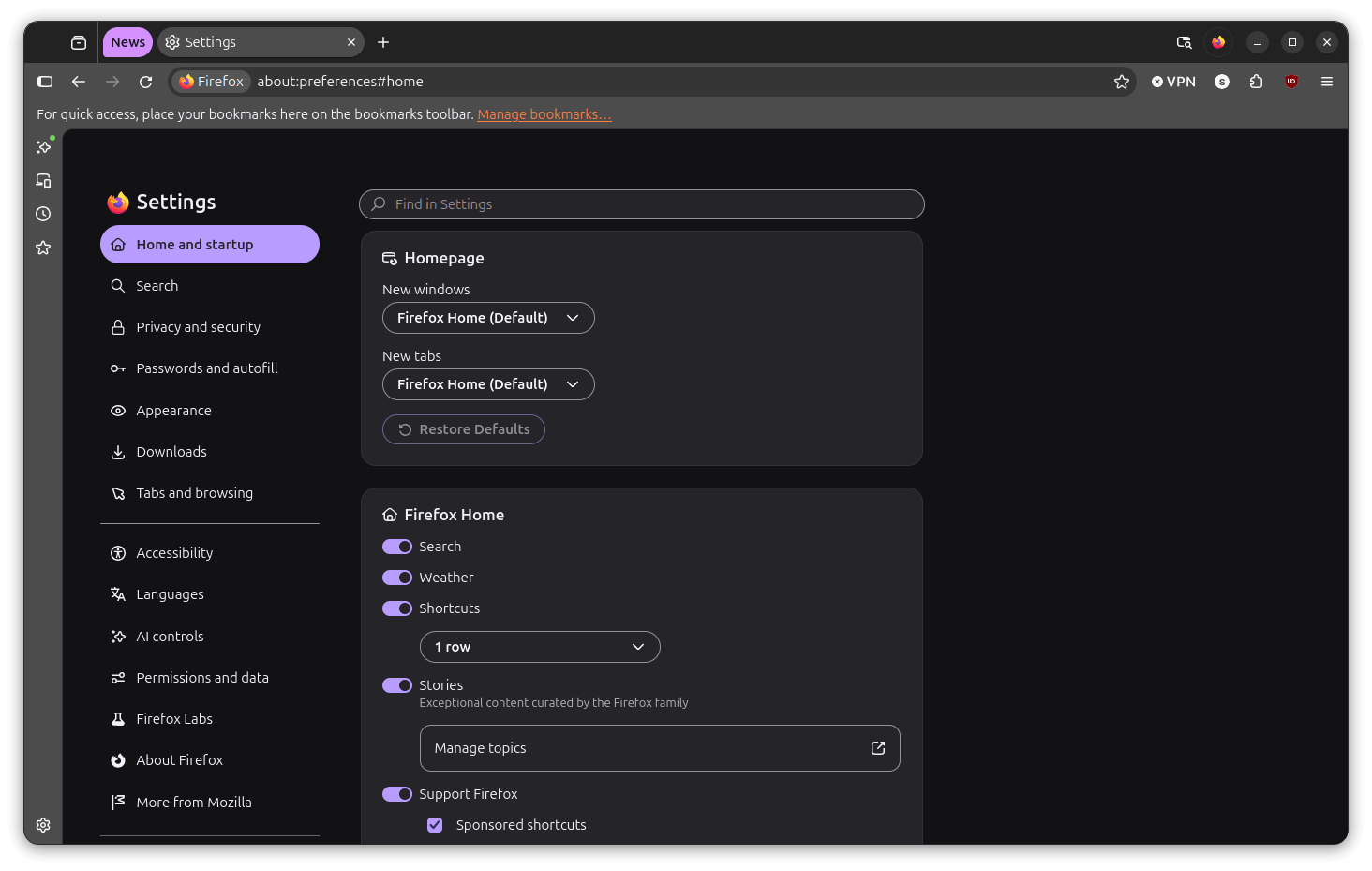
The settings menu has also been refreshed. In 156, the sidebar was presented as a compact list with fairly simple content panels. In 157, those panels sit inside rounded cards, with sections that give each settings area more visual room and better readability.

What else's new?

firefox nova tab management

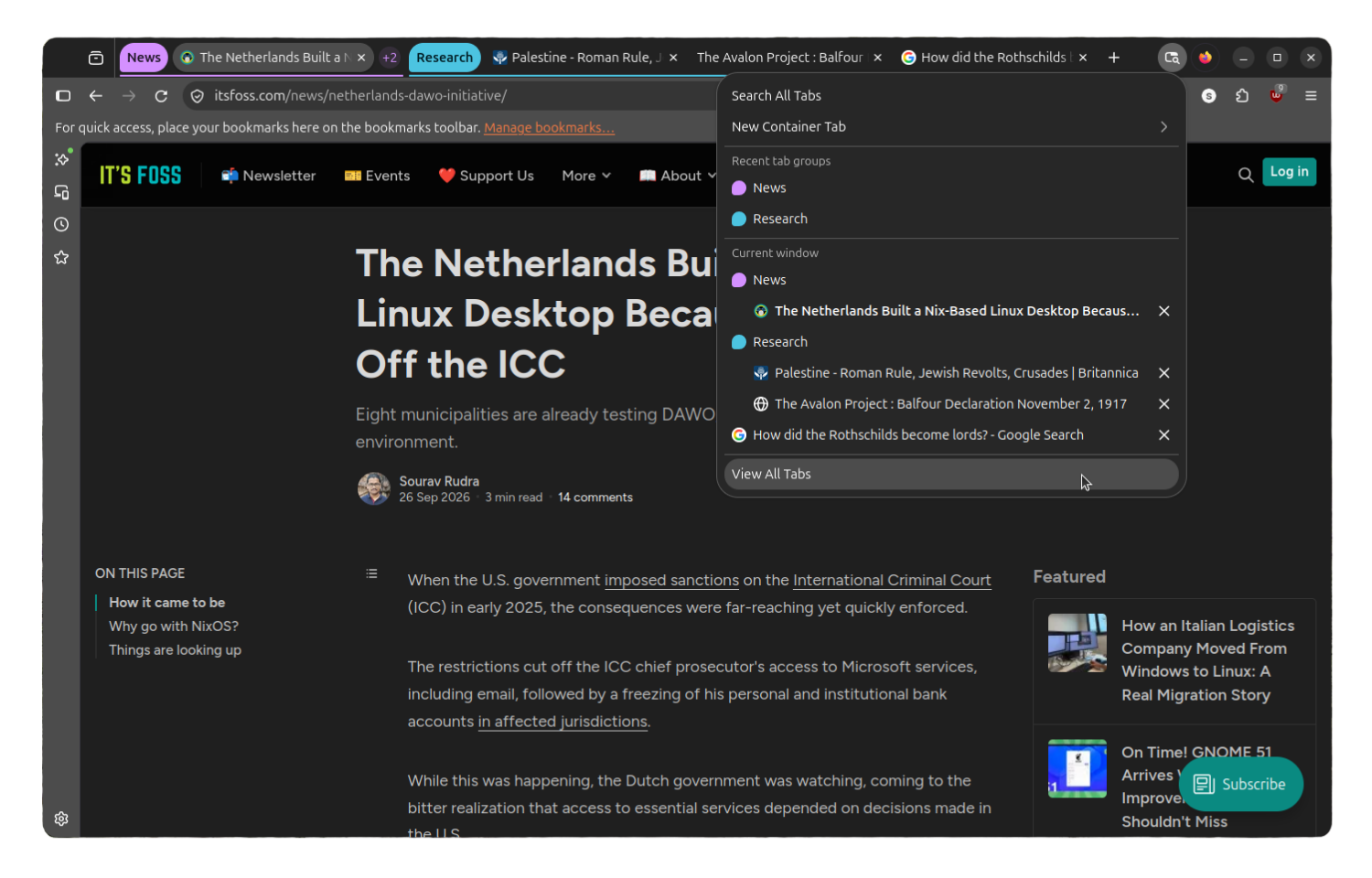
Tab Groups has changed considerably since I last used it. The Nova redesign has given it a more complete feel compared to when the feature first landed in Firefox 138.

Back then, groups showed as colored labeled strips in the tab bar, and management options were limited to naming and collapsing. While the feature worked, it felt like an early implementation.

Now, tab groups sit more naturally in the tab bar, and switching between them or collapsing one out of the way feels less clunky and more intuitive to use.

The "List all tabs" button has been changed too, featuring a different icon (instead of the downward arrow) and visual style that ties well into the overall pill-shaped design. You can use it to get a full view of every tab across all groups at once.

Compact density, new themes, and window switcher.

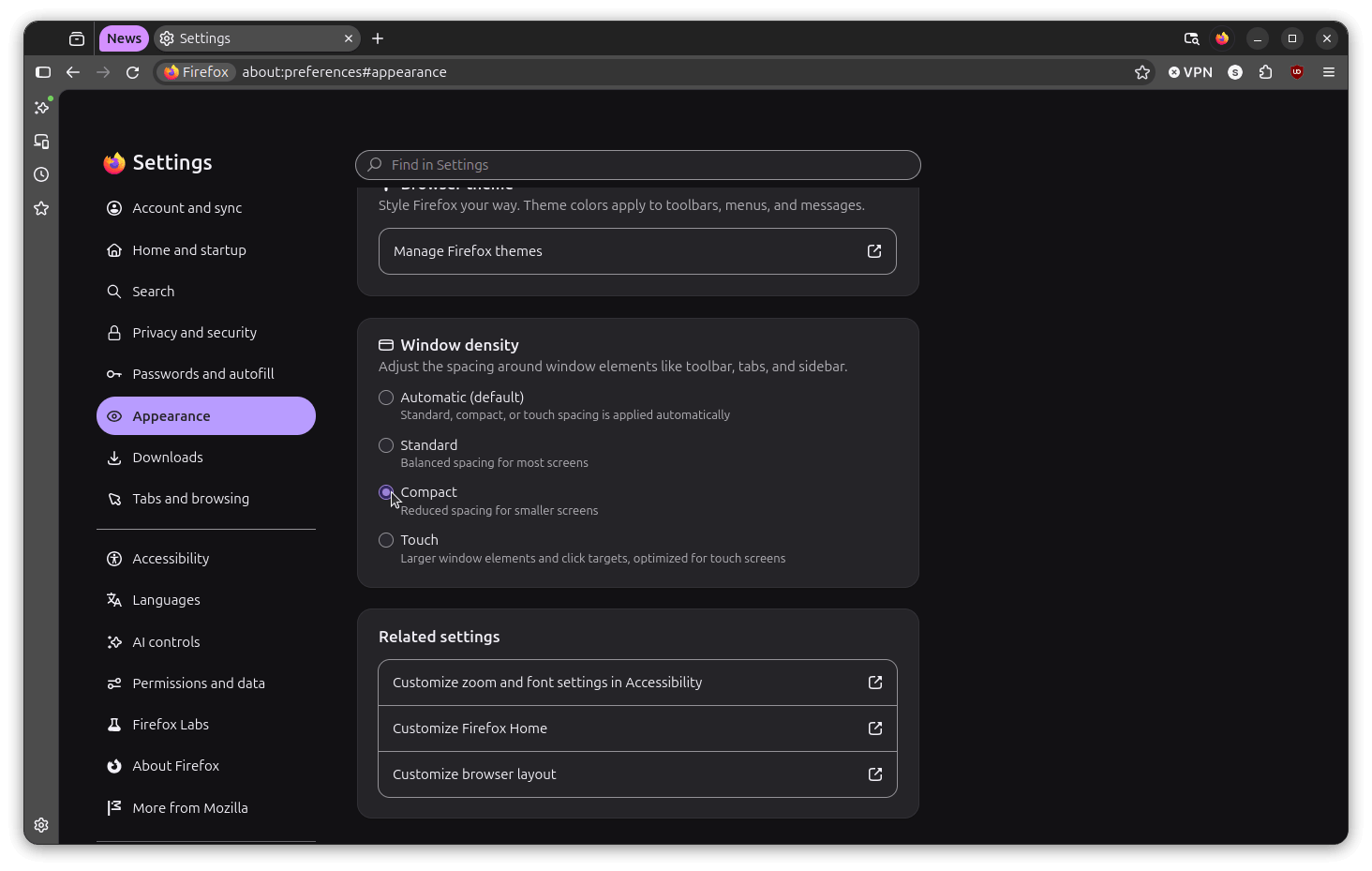
A feature that was stripped out back in 2021 has made a return. Compact mode is now available in Settings > Appearance under the "Window density" selector in addition to the Automatic, Standard, and Touch options.

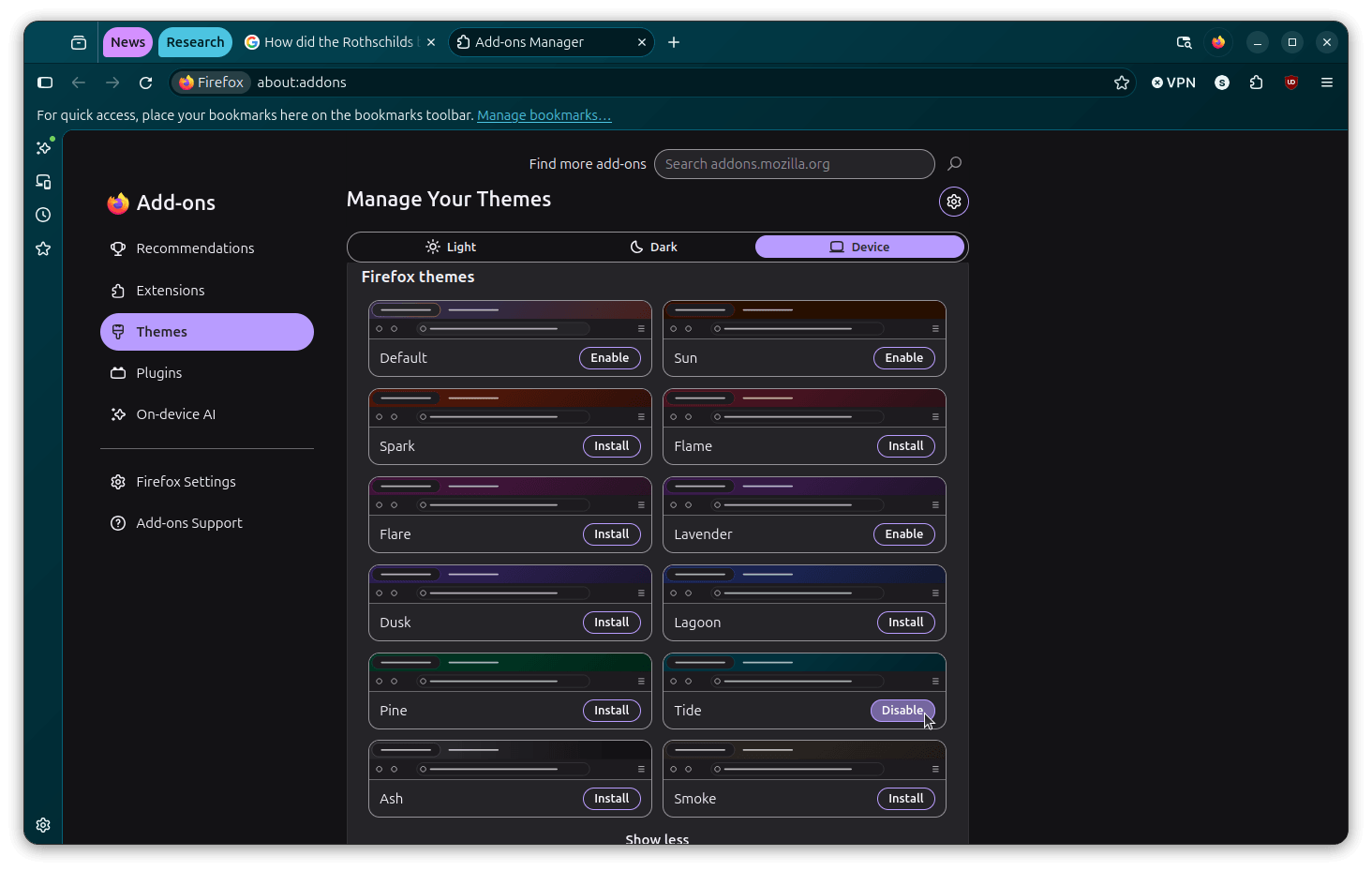
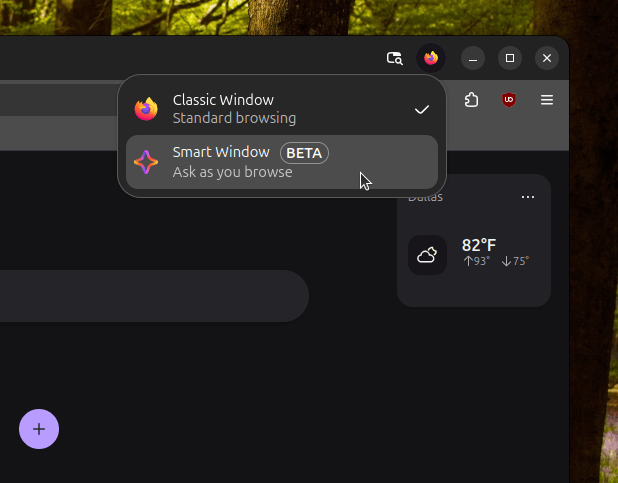
You will also find many new themes that can be installed via the Add-ons manager, as well as a new Classic/Smart Window switcher button on top-right for quickly switching between traditional and AI-powered browsing.

You can disable it

firefox nova about:config page

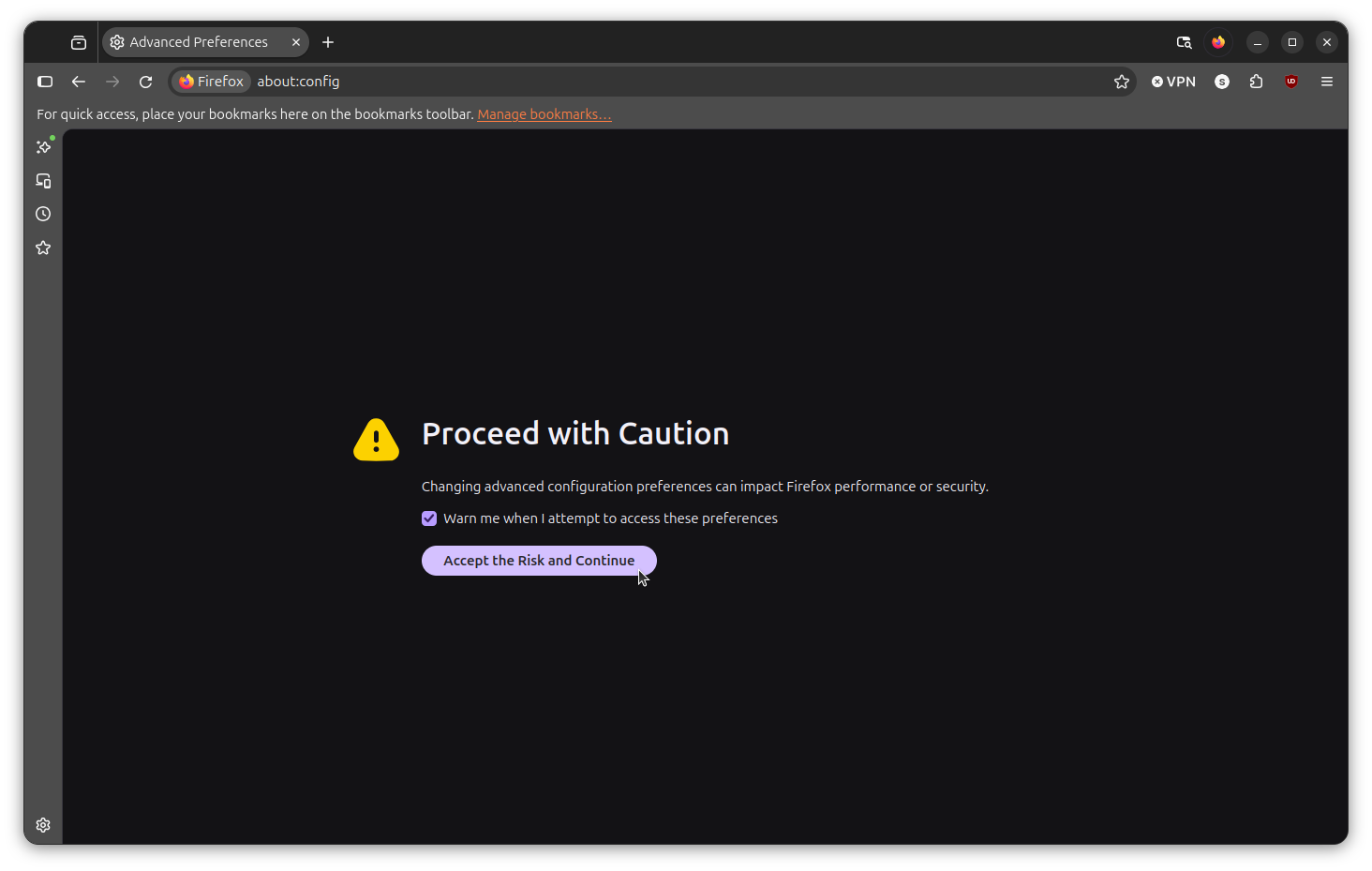
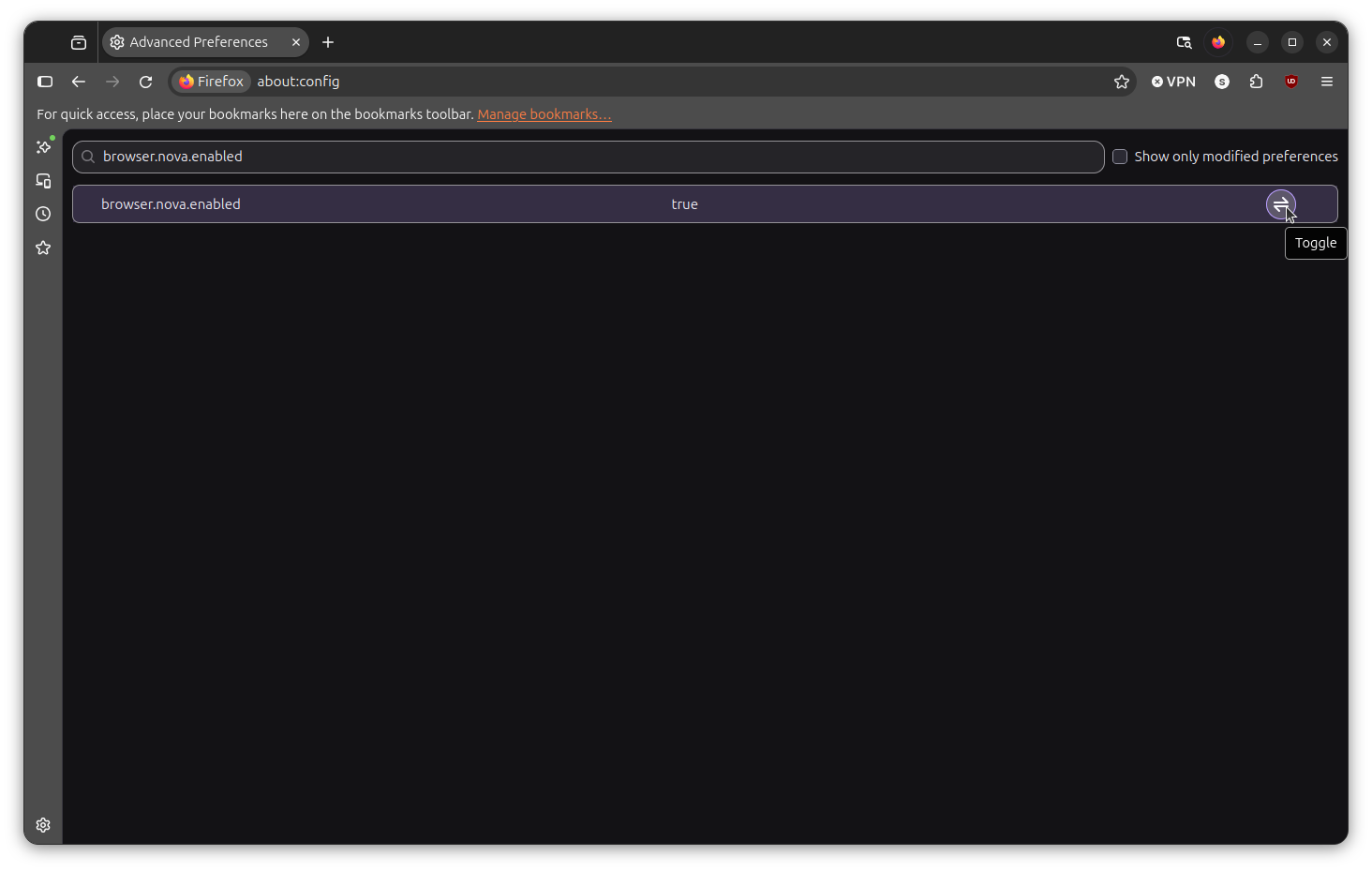
If you are not impressed by what Nova has to offer, then you could disable it to get back the old Firefox experience, and it's quite simple to do. In the address bar, type about:config, and accept the scary-looking warning.

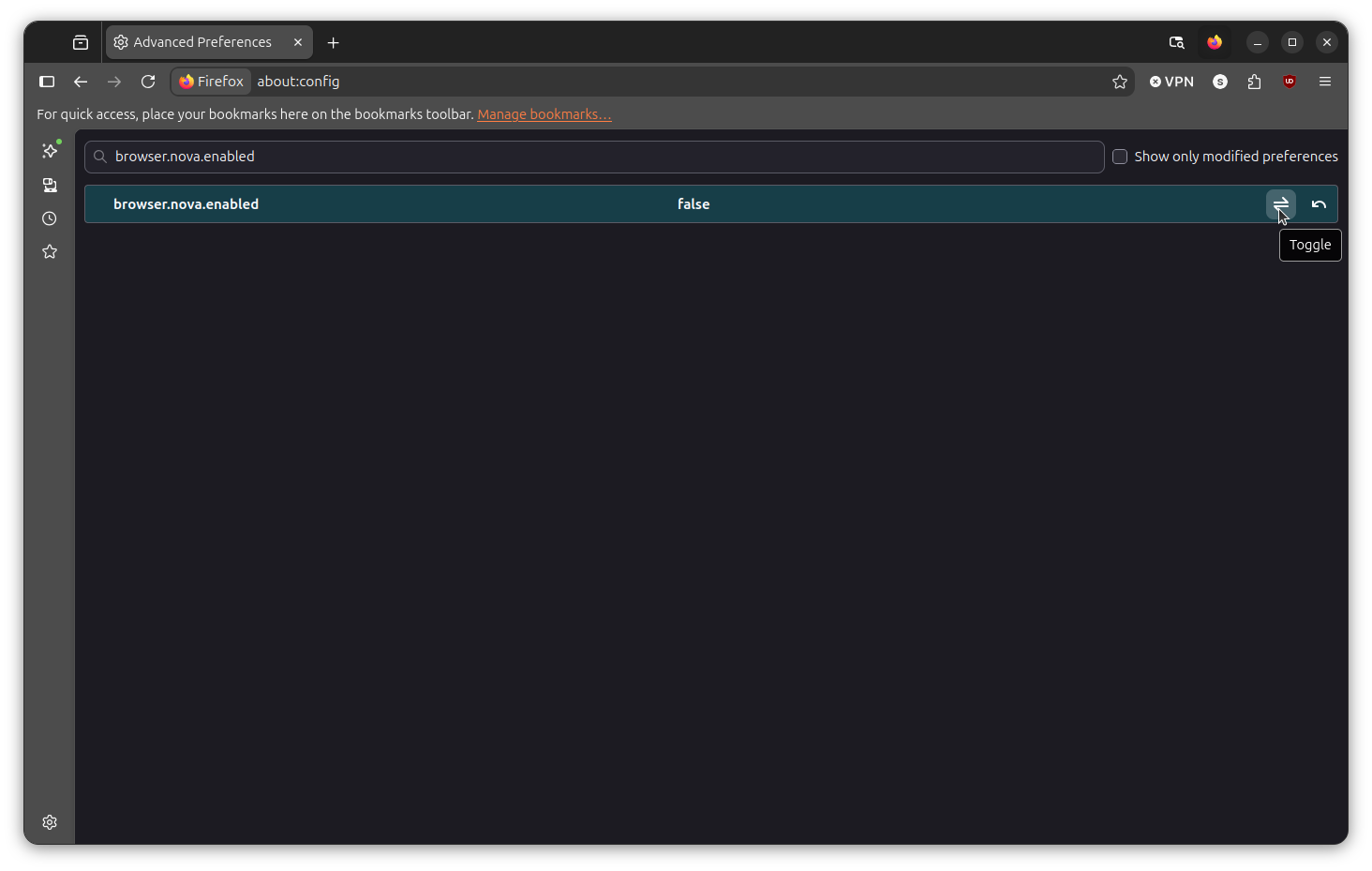
Now, go into the search bar and type this "browser.nova.enabled" without the quotes. The final step is to either double-click on the entry or on the "Toggle" button to move Nova's activation state to "False."

That's it; you have successfully reverted to the earlier design.

Download Firefox

firefox installation ubuntu 26.04 lts
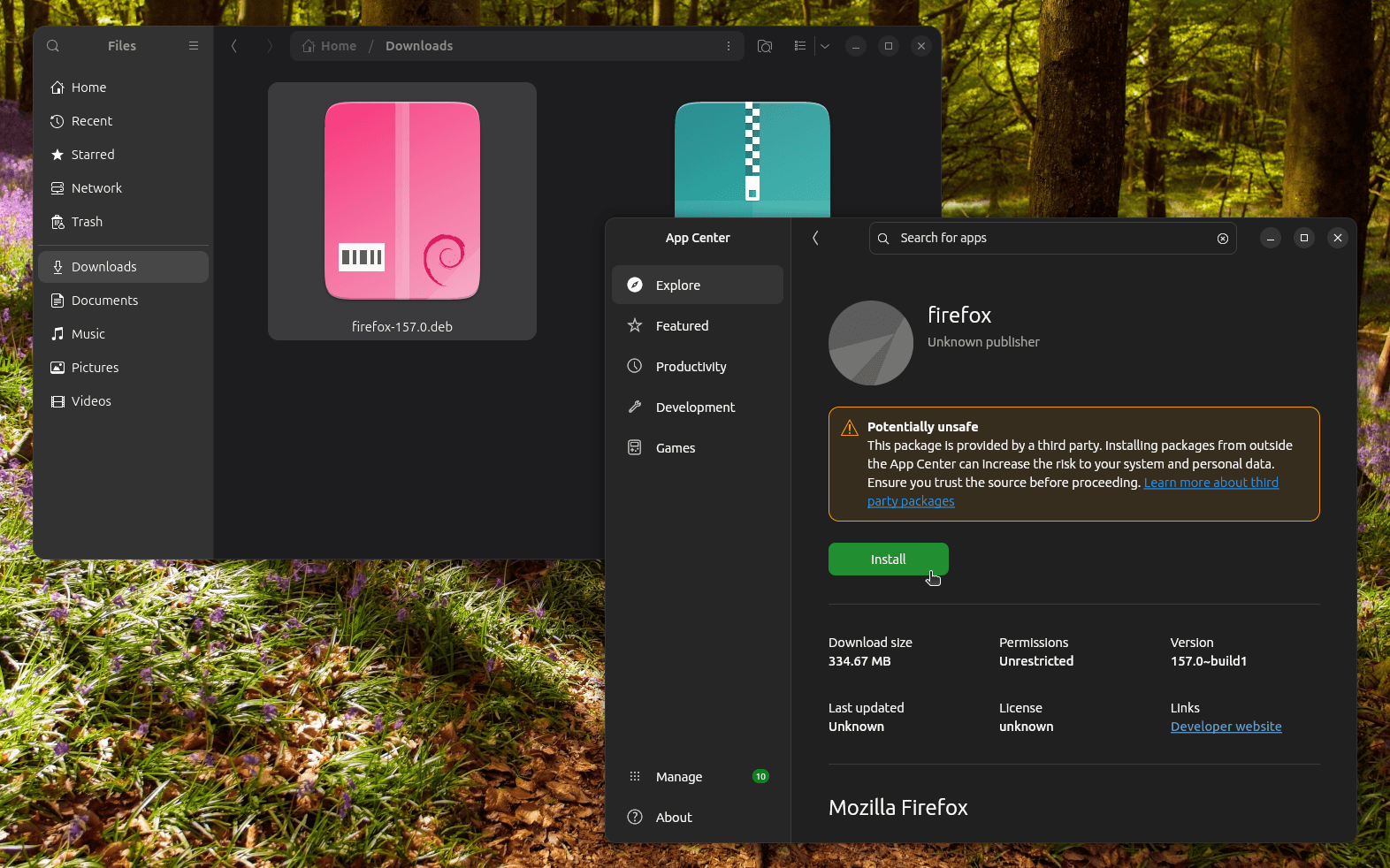
This is how I installed the DEB file from the FTP mirror.

This is the obligatory installation section of the article, where you will find that Firefox can be downloaded from the official website. Though, when I was testing the redesign, I had to rely on Mozilla's FTP mirror to get the Firefox 157 release early.

I went with the package meant for my test setup: linux-x86_64 > en-US > firefox-157.0.deb

If you are on Debian or any of its derivatives, like Ubuntu, you can add the APT repository to get it installed.

And for existing users, by the time you read this, the various mainstream Linux distributions (e.g., Ubuntu/Fedora) should already be serving this redesign as part of a routine system update.


Suggested Read πŸ“–: Smart Window users now get to use French AI.

FreeCORE is What Your TrueNAS CORE Box Should Have

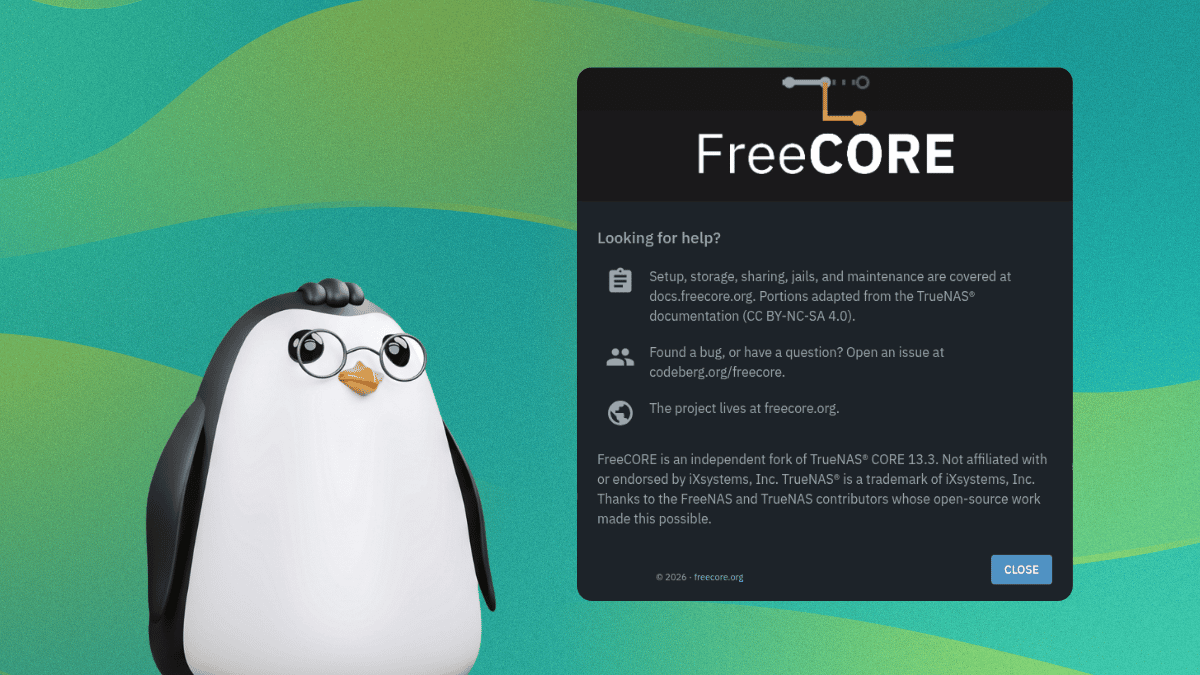
a penguin looks over to a screenshot of freecore's about info dialog

iXsystems put TrueNAS CORE into what it called a sustaining engineering phase back in 2024. Under this, the open source NAS operating system would only receive security and stability fixes, with new features going to the Linux-based SCALE branch instead.

Even its maintenance releases got axed when iXsystems marked 13.3-U1.2 as the final release for the 13.3 series (or train as they call them).

SCALE has since been renamed TrueNAS Community Edition, and users who didn't want to move to a Linux-based OS were stuck with CORE and no actively developed FreeBSD-based path forward.

FreeCORE looks to be that path.

What is FreeCORE?

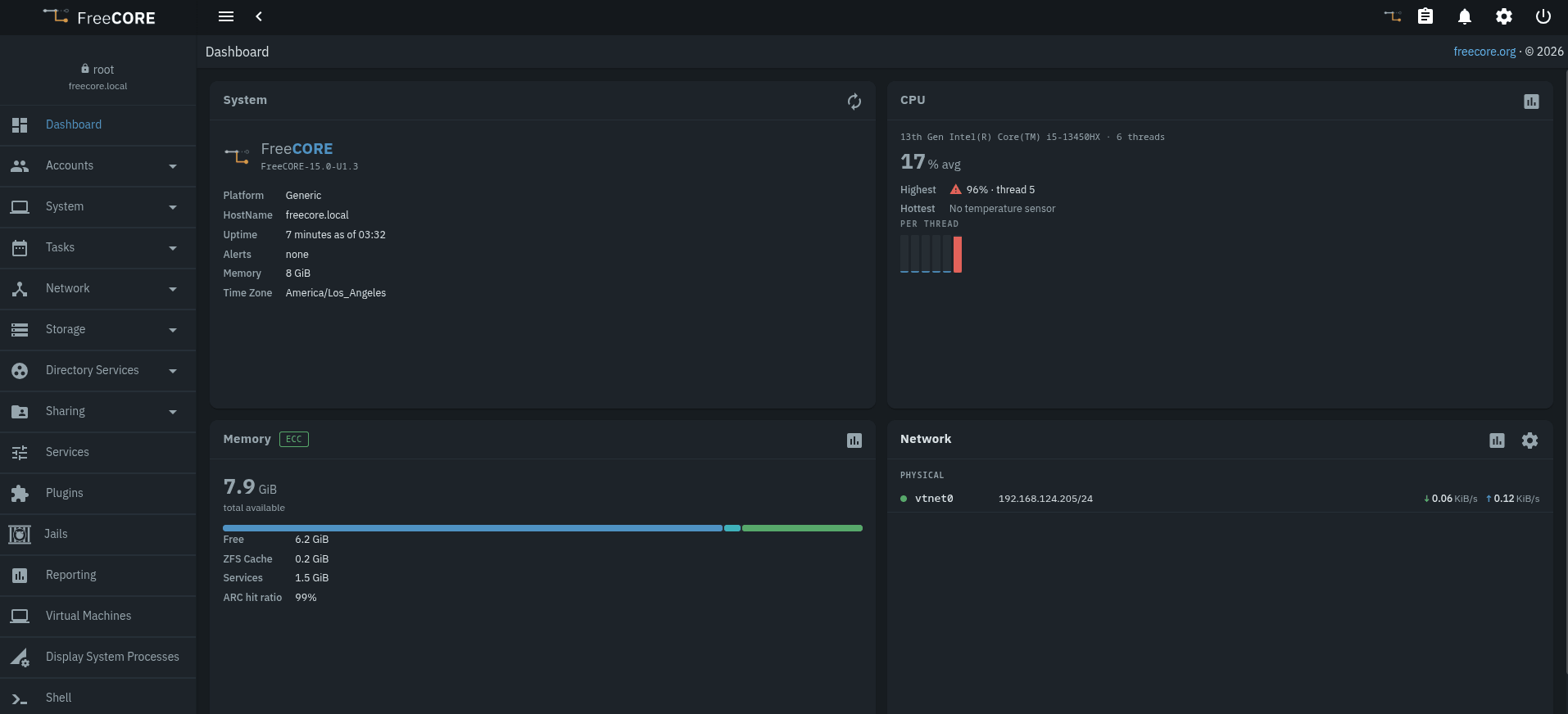
a dashboard-style freecore web user interface that shows a sidebar menu and four big sections that cover system, cpu, memory, and network metrics
FreeCORE's web user interface.

It traces directly back through TrueNAS CORE to FreeNAS, and it's built on the same foundation CORE always used: FreeBSD and OpenZFS. The current stable release is 15.0-U1.3, and it is aimed at TrueNAS CORE holdouts.

Basically for people who rely on features like FreeBSD jails and bhyve virtual machines who have no interest in moving to TrueNAS Community Edition's Debian Linux base.

It's also worth knowing that FreeCORE is a one-person project. Their motivation for creating this was that they needed a FreeBSD way off their own TrueNAS CORE box instead of migrating to Linux.

So they built one, leaning heavily on AI coding agents for the implementation while directing and validating the work themselves.

FreeCORE's FreeBSD 15 base carries along many practical component upgrades with it too!

OpenZFS climbs from 2.1.14 to 2.4.2, Python from 3.9 to 3.11, and the web interface runs on a much newer build of Angular.

WebAuthn security keys now work as a second login factor, and one-time passwords cover console logins. Jails can share the host GPU through a new DRM driver, and rar2fs mounts RAR archives read-only.

FreeCORE also gets rid of vendor telemetry and offers a web interface that lets you manage everything from jails and virtual machines to storage, sharing, and user accounts.

Jails networking runs through VNET, NAT, or DHCP depending on what the setup needs, and an advanced jail creation form exposes every option for admins who want a greater level of control.

Get started

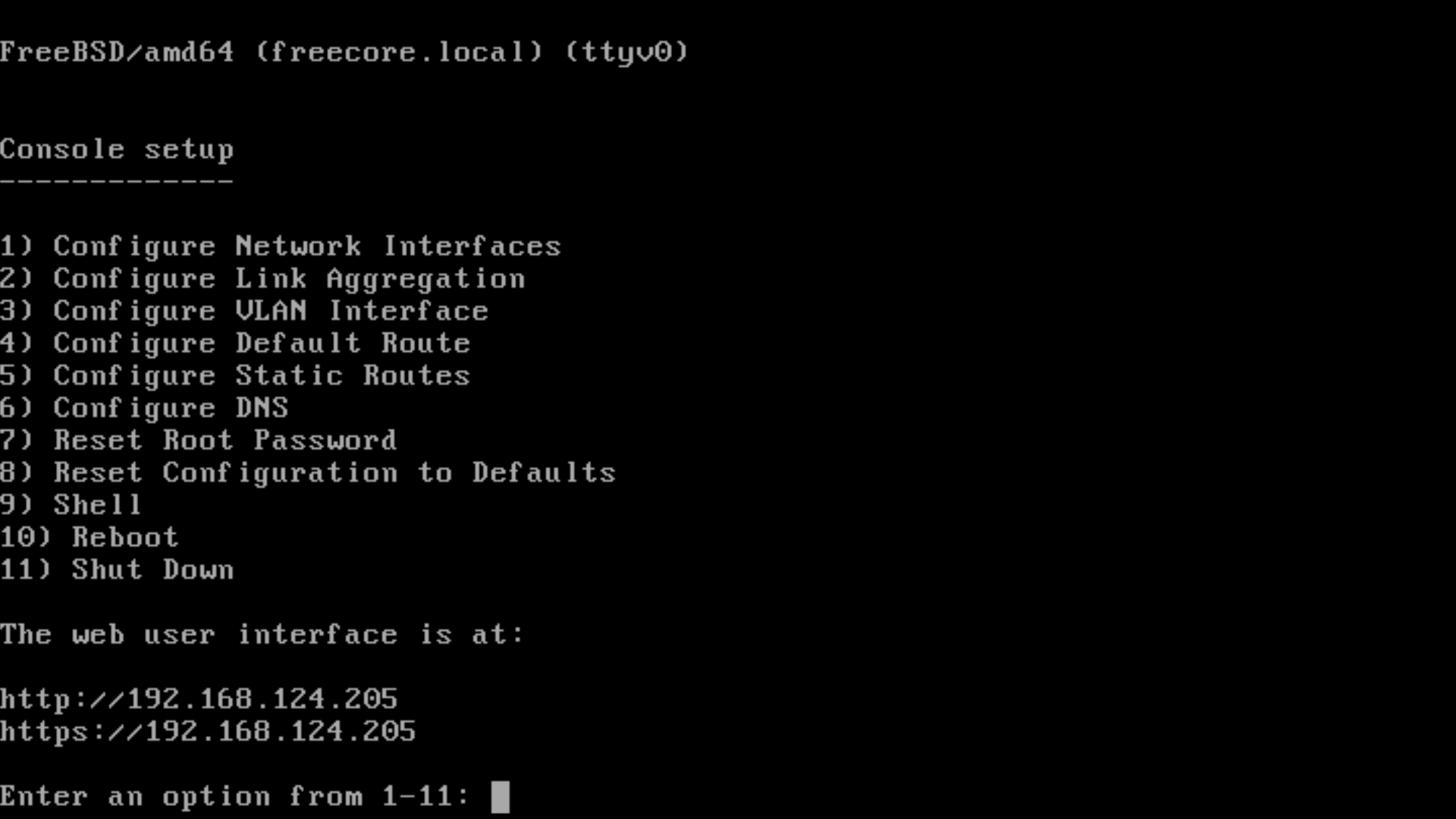
the terminal interface of freecore is shown here with a list of options to configure and control the system

Most of you arriving at FreeCORE are likely running TrueNAS CORE 13.3, and moving is only a matter of taking a backup and running this script:

fetch https://freecore.org/freecore-enroll.sh && sh freecore-enroll.sh

Running it switches the system's update train and certificate away from iXsystems' servers and points it at FreeCORE's.

From there, the upgrade runs through System β€Ί Update like any other update. The configuration database migrates on first boot, though not everything makes it across. OpenVPN gets replaced by WireGuard, and enterprise-licensed features don't carry over.

Of course you could always go the fresh install route, where you write the image to removable media, verify it, and then boot from it to install it on a drive.

The official documentation is a handy resource that covers a range of topics related to FreeCORE installation and usage, while the source code lives on Codeberg.


Suggested Read πŸ“–: Here are your choices for an open source NAS operating system if you don't prefer FreeCORE.

And Folks, We Have a Vibe-Coded Linux Desktop!

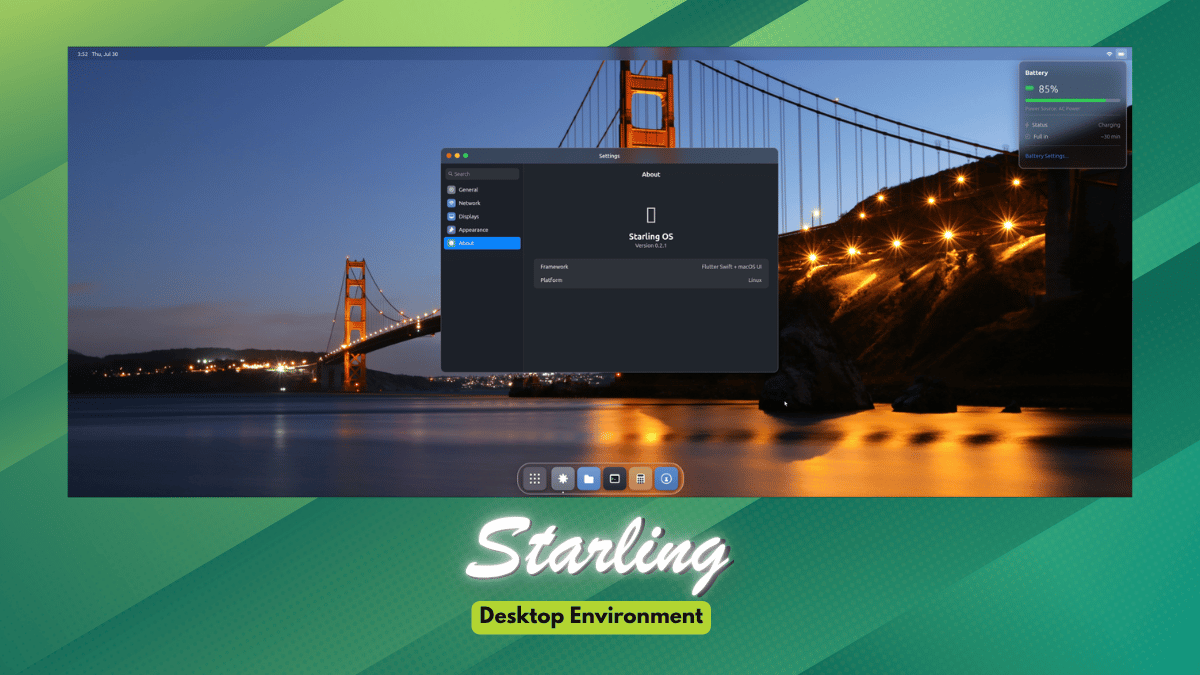
starling desktop screenshot sits over some funky-looking text that says "starling", below which "desktop environment" is written

Starling is a new open source Linux desktop environment. One developer built it by directing Claude for about six months, ending up with a working desktop that boots into its own session with a compositor and window manager.

Don't think of this as a themed shell bolted onto GNOME or KDE either. It brings its own X11 server, so apps like Chrome, Slack, and Zoom run on it without requiring any special modifications.

🚧
This is a vibe-coded desktop environment, still an early preview built mostly through AI prompts rather than a full engineering team. Expect bugs, security issues, missing settings, and rough edges throughout.

What is Starling?

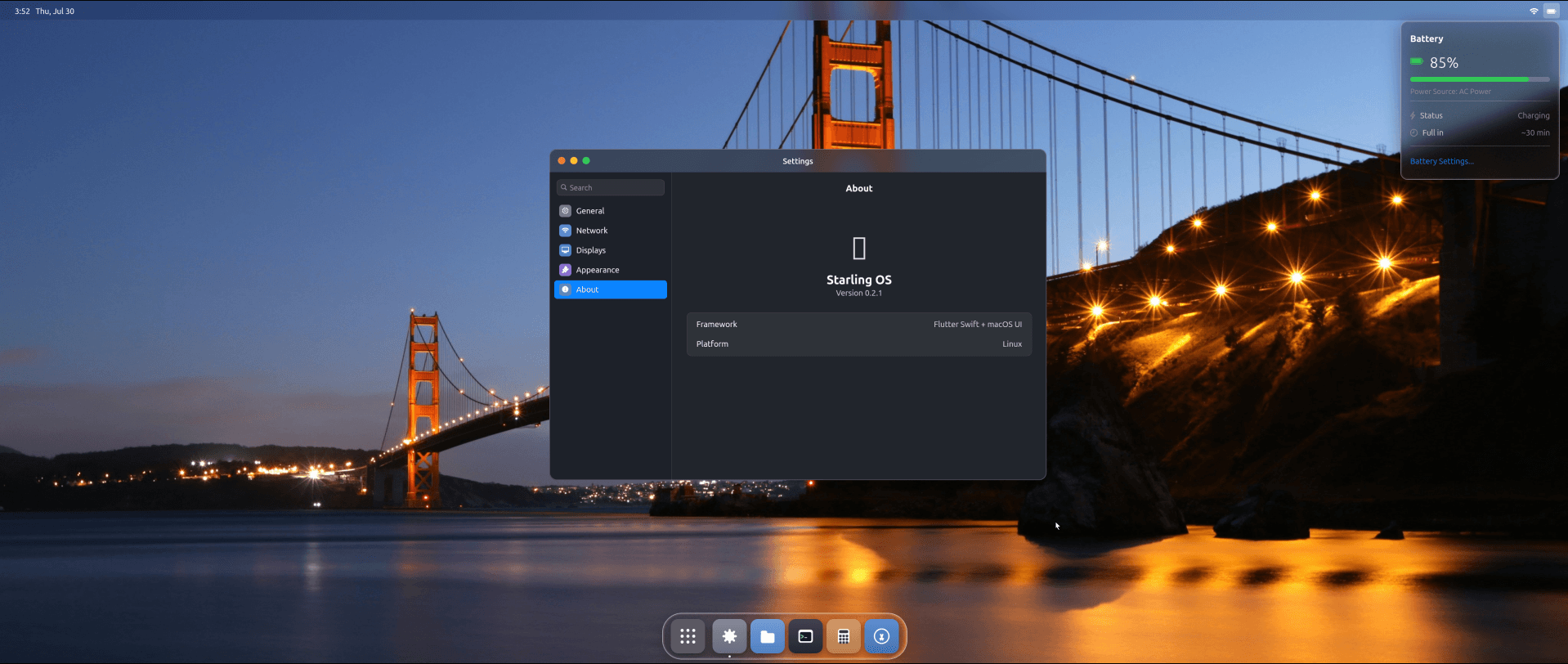
a wide as heck screenshot that shows the about page in the settings app for starling desktop

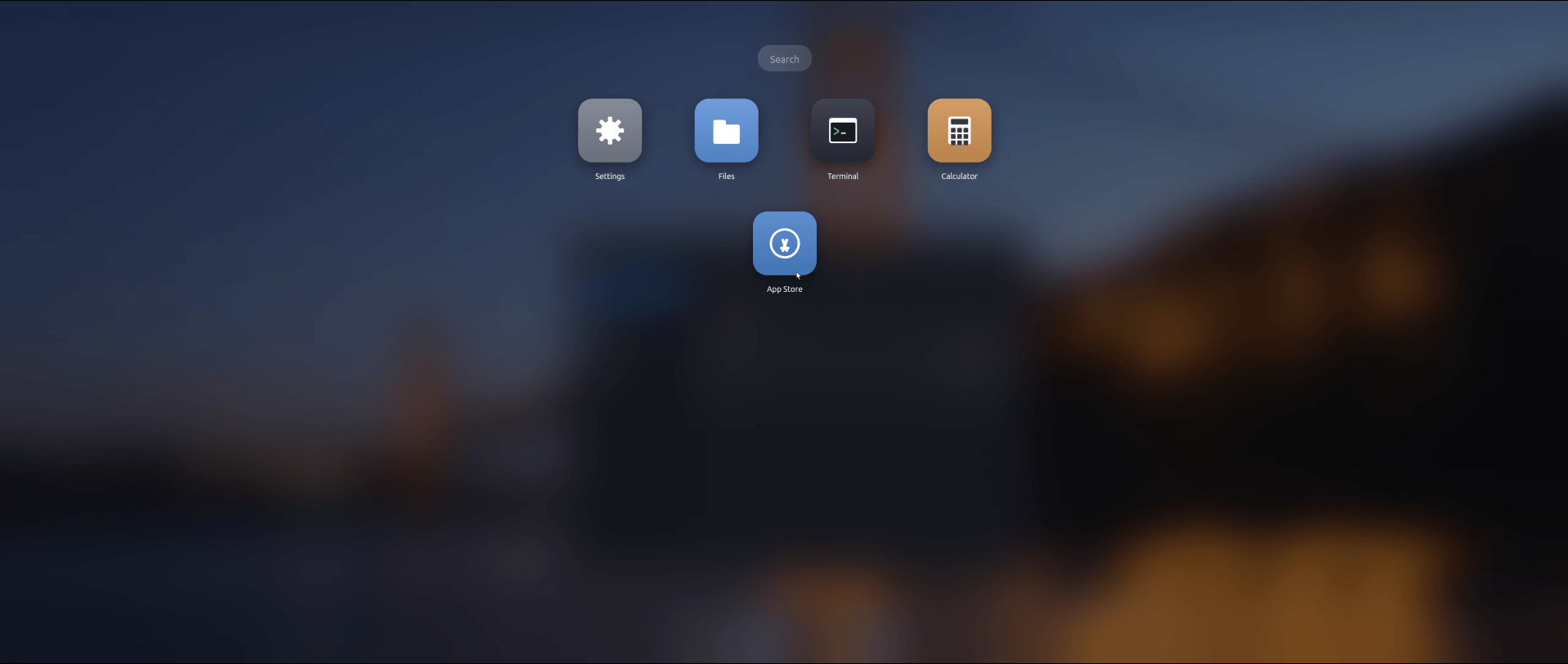
Every part of it, like the shell, the compositor, the window manager, and the apps, are written in Swift, a language that has hardly been used for a Linux desktop before.

Most of the heavylifting here has been done using Claude, which was instructed to follow things like "Wayland only. Do not read, modify, or reference X11Server/ or X11 launch paths unless explicitly asked."

Under the hood, the framework running the whole desktop is a full port of Flutter's Dart framework to Swift. Starling brings a Wayland compositor written in C and its own X11 server, so older X11 apps still work.

That combination is what actually makes it a desktop rather than a demo.

For features, it has things like:

  • A dock and Launchpad (app launcher).
  • Floating and tiling window management.
  • A shader-based glass effect on the dock and panels.
  • Five first-party apps, including Terminal and an apt-powered App Store.

Taking it for a run

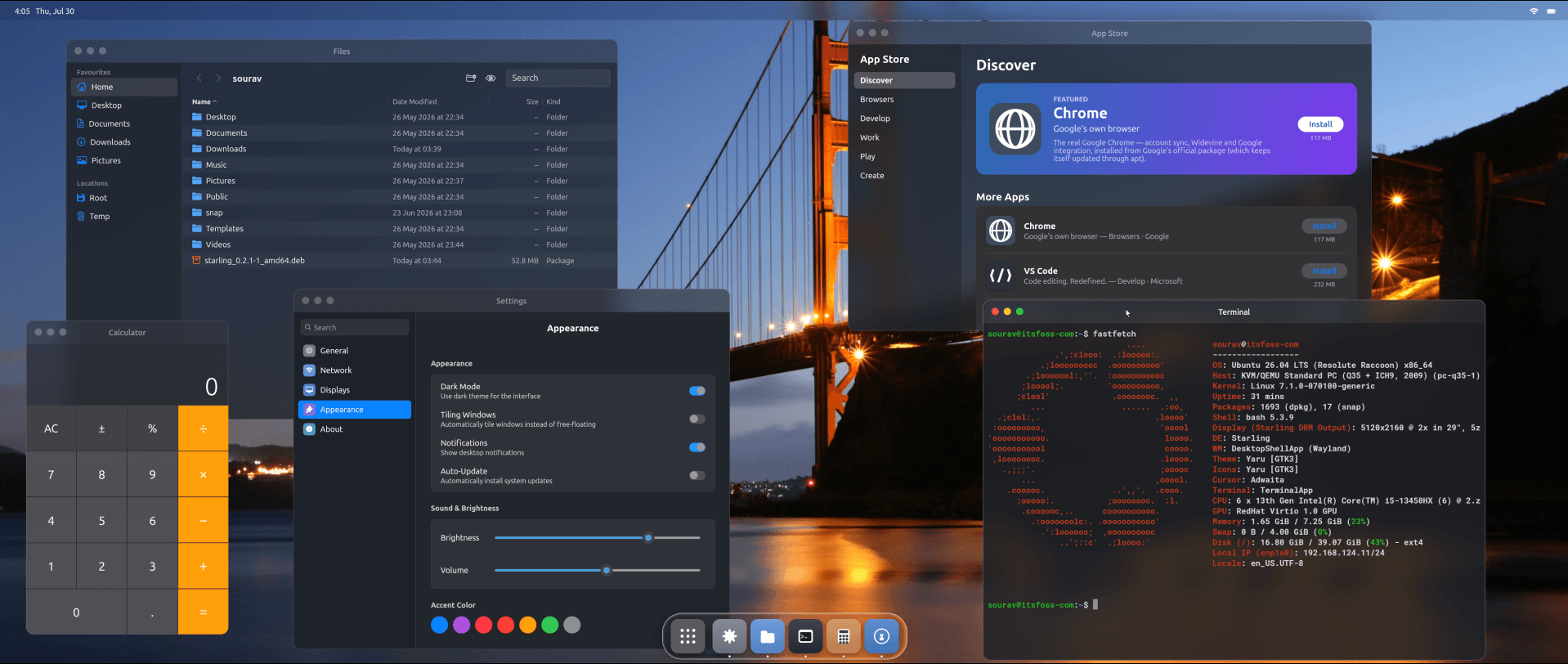
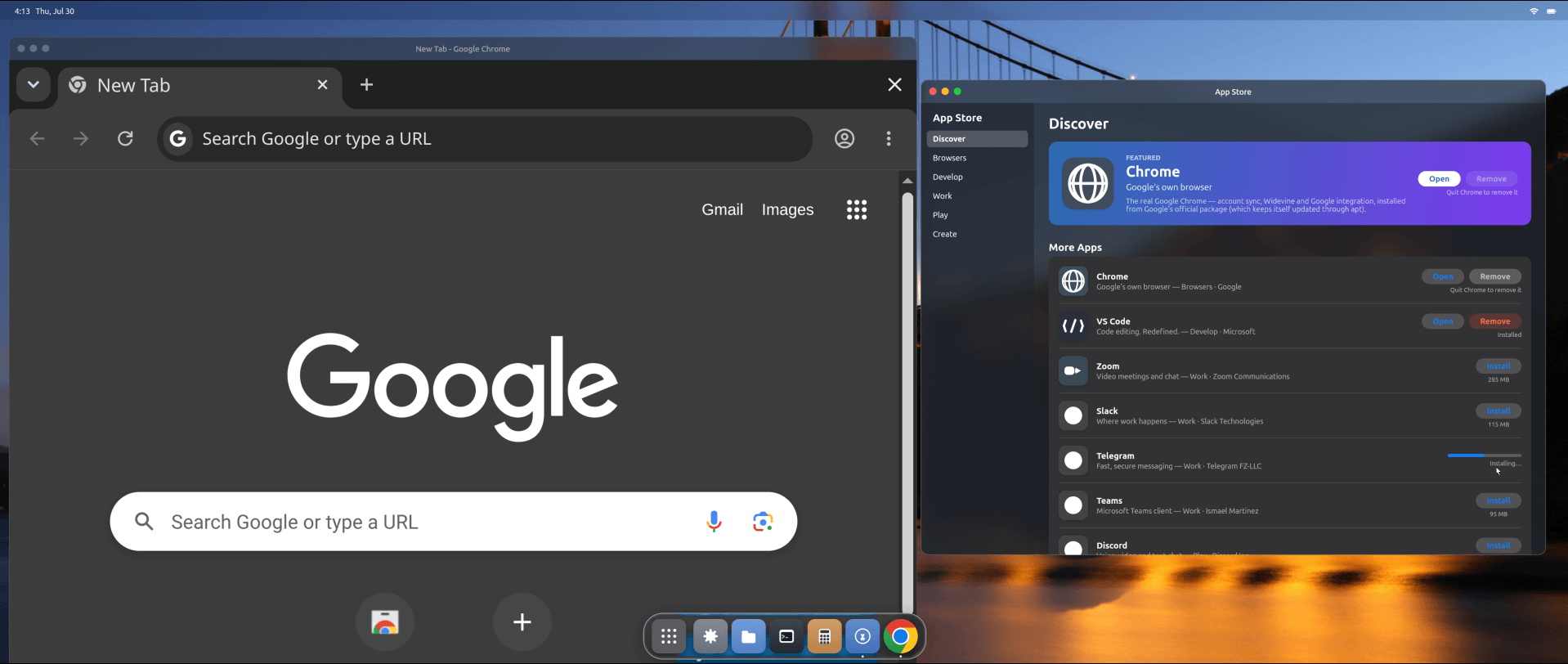
many app windows are open on an starling session on ubuntu 26.04 lts

I tested Starling on an Ubuntu 26.04 LTS virtual machine, and its rough edges showed up almost immediately. Right after logging in, the resolution defaulted to a non-standard, letterboxed widescreen ratio of 5120x2160 at 2x scaling (according to Fastfetch).

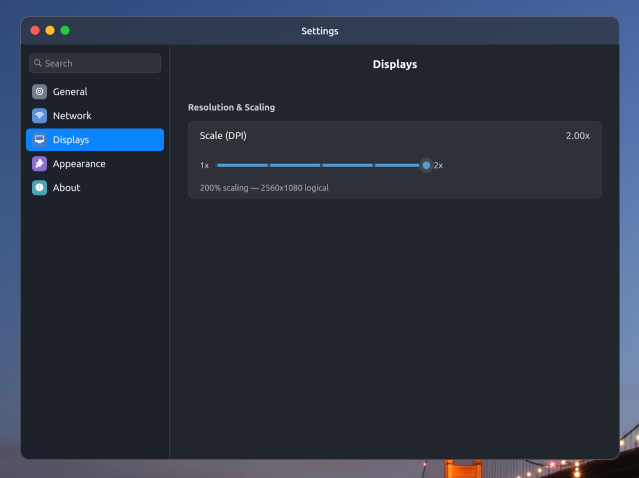
I tried searching for an option to change this in the Settings menu, and the "Displays" page only had a slider for scaling, nothing for resolution itself. Things might be better if you install it on a computer directly, but that's a risk you are more than welcome to take. πŸ™‚β€β†”οΈ

A few smaller things didn't work either. The search bar inside the Launchpad (app launcher) doesn't respond to typing, and none of the accent color swatches in Appearance actually apply once clicked.

The App Store itself works, technically. I installed Chrome through it without any errors, but the browser opened up oversized and ran noticeably laggy once it loaded. Not exactly the experience you'd want from one of the few apps the store puts at the top of its list.

Shutting the system down turned into its own small hunt. There's no power menu anywhere on the desktop, so I had to go into the Terminal and run sudo shutdown to turn it all off.

Early stages of abandonware?

Starling probably won't be the last project like this. If one developer directing an AI can produce a working desktop environment, compositor and all in about six months, expect a lot more attempts over the coming years.

Building something and keeping it alive are two very different jobs. Vibe coding gets you off the ground fast. Debugging what it produces is painfully slow, and that grind is usually what kills a developer's motivation before the project gets anywhere.

Installing Starling

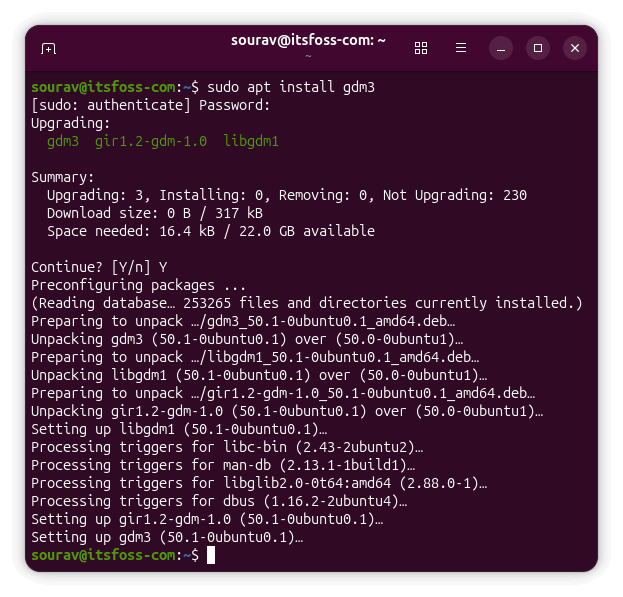
Starling packages as a single DEB, built for Ubuntu 26.04 LTS on amd64. You will have to ensure that you have a Wayland-capable login manager (which the Desktop LTS release ships with).

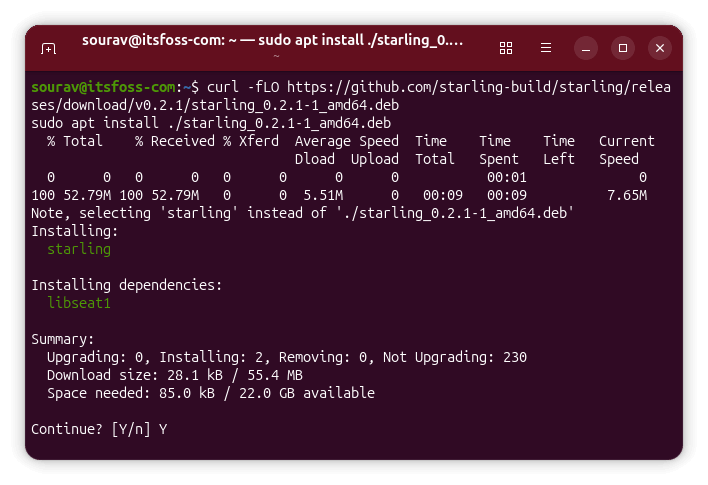
From there, download and install the package:

curl -fLO https://github.com/starling-build/starling/releases/download/v0.2.1/starling_0.2.1-1_amd64.deb
sudo apt install ./starling_0.2.1-1_amd64.deb

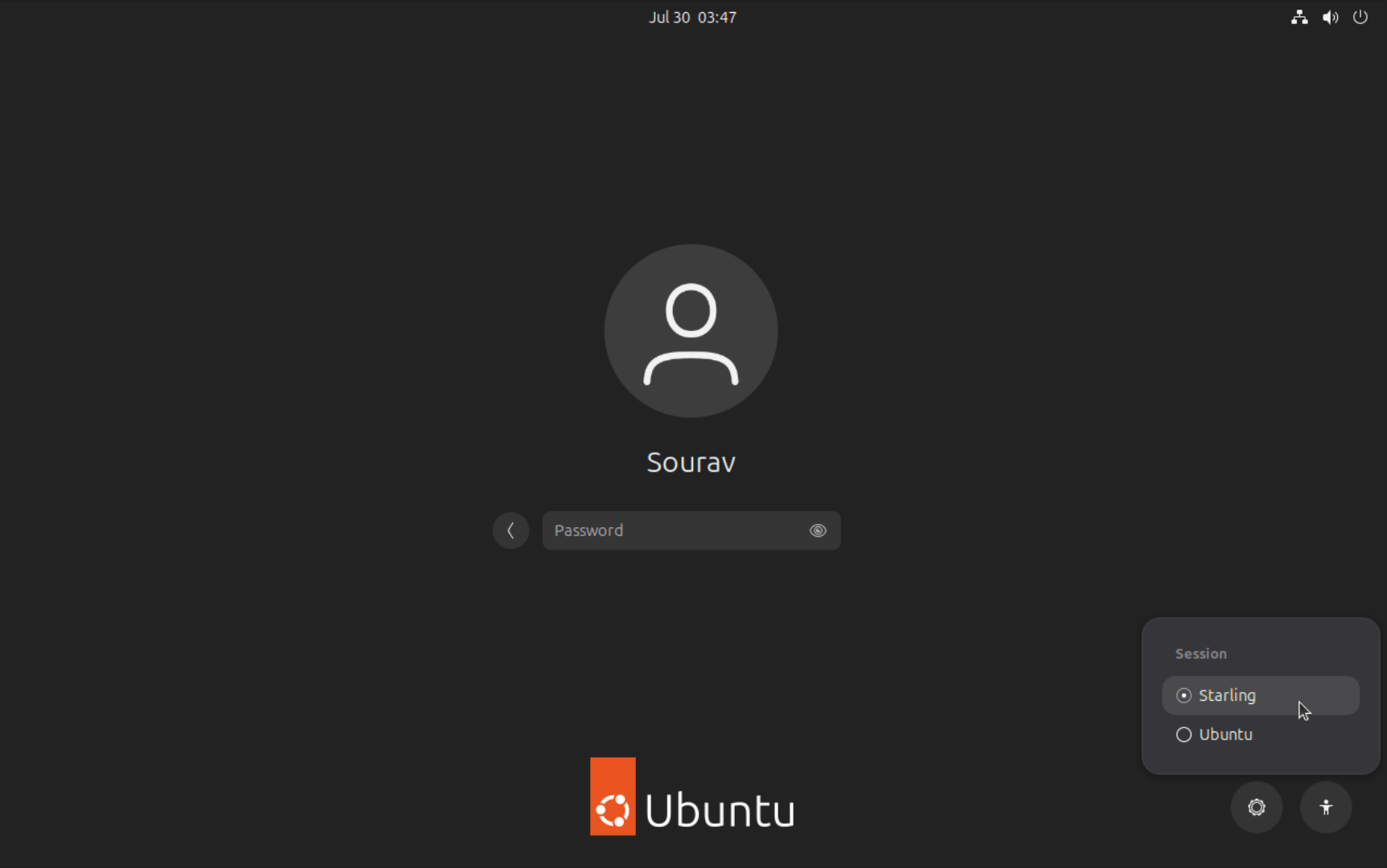
Next, you have to either log out or reboot, then at the login screen click your name, open the session menu (a small gear icon at the bottom-right), and pick "Starling" from the list.

the ubuntu 26.04 lts login screen with the session switcher showing starling and ubuntu (gnome) as options on the bottom-right

Mind you, it is quite early for this desktop. Currently on v0.2.1, the project itself is being handled by an anonymous human developer (or maybe AGI 😱?), so I would test it on a spare machine.

❌